How to Check PDF Reading Order on iPad: Files, Split View, and Column Jumps Before You Share
To check PDF reading order on iPad, save the final file into Files or open it in Acrobat, confirm it has selectable text, and compare the visual page with copied or extracted text in Split View so you can catch column jumps, sidebar detours, and header noise before you share it.
If the text comes out in the wrong sequence, or the file behaves like a scan, the safest fix is usually to run OCR first or repair the source document and export a cleaner PDF.
That is the short iPad answer. The useful answer is that a PDF can look calm in Files, Books, Mail preview, or a browser tab and still have broken structure underneath. The larger screen helps, and Split View is genuinely useful, but it can also make a weak file look more trustworthy than it really is unless you test what happens after the content leaves the prettiest preview.
Fastest practical path: save the real iPad copy, confirm the text layer, compare preview with extracted text in Split View, inspect the busiest pages, and only trust the file after scans are OCRed and structural problems are fixed at the source.
In a hurry? Jump to quick start: check PDF reading order on iPad in about 7 minutes.
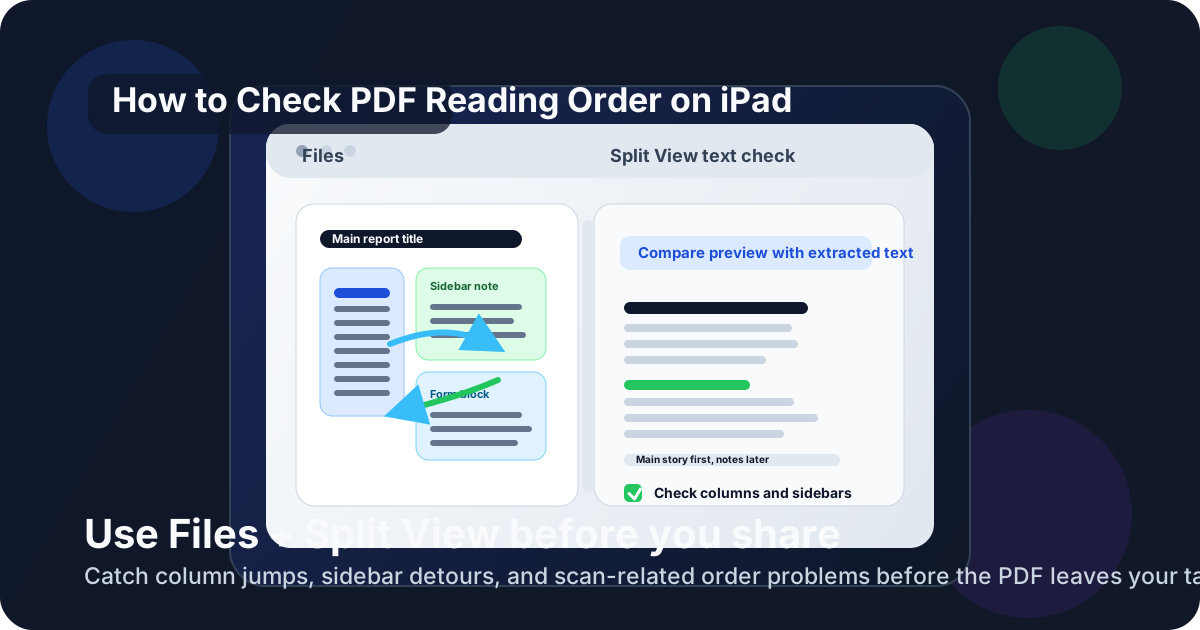
Table of contents
- Quick start: check PDF reading order on iPad in about 7 minutes
- What you are really checking on iPad
- Where iPad users get misled
- Step-by-step: how to check PDF reading order on iPad
- Why Split View helps on iPad
- Fast signs that the PDF sequence is broken
- When to fix the source versus patch the PDF
- Related LifetimePDF tools and guides
- FAQ
Quick start: check PDF reading order on iPad in about 7 minutes
If your real goal is simply tell me whether this iPad PDF reads in the right sequence, use this order:
- Open the exact PDF you plan to email, upload, archive, print, publish, or share, not just a temporary preview from Mail, Safari, Messages, or a synced cloud folder.
- Try selecting text and searching for a visible word. If that fails, the file may be image-only and should be OCRed before you judge the order.
- Use PDF to Text so you can compare the extracted sequence with what you saw in Files, Books, or Acrobat.
- Check the pages most likely to fail: two columns, sidebars, tables, forms, footnotes, headers, footers, and scanned inserts.
- If the sequence zigzags, recover editable content with PDF to Word, repair the source, and export a cleaner PDF.
What you are really checking on iPad
Checking PDF reading order on iPad is not only asking whether the document looks organized on screen. The more useful question is whether the content still comes out in the same sequence a person should read it when the file is searched, copied, extracted, or heard through assistive technology.
In practice, that means looking for three things:
- Logical flow: headings, paragraphs, lists, tables, and side notes appear in the same order a reader would naturally follow.
- Stable extraction: Files, Books, or Acrobat may look fine, but the extracted text still needs to preserve the real sequence.
- Healthy text structure: scans, OCR artifacts, floating text boxes, and design-heavy exports are not quietly scrambling the story underneath.
Good outcome
The PDF opens on iPad, text is searchable, and copied or extracted content follows the same order a person would expect from the visual page.
Warning outcome
A report looks tidy in Files or Acrobat, but extraction jumps between columns, drags a sidebar in too early, or threads headers into normal paragraphs.
Typical root cause
The source relied too heavily on visual layout, mixed content from several apps, or came from a scan that never produced a healthy text layer.
Where iPad users get misled
iPad gives you several pleasant ways to glance at a PDF. That convenience is useful, but it can also create false confidence. A file can look trustworthy in Files, Books, Mail preview, Safari, or Acrobat Reader and still be structurally wrong underneath.
| iPad viewing path | What it is good for | What it cannot safely prove |
|---|---|---|
| Files preview or a quick browser preview | Confirming the file opens and that the pages broadly look right. | That the text will still come out in the correct sequence once you extract, reuse, or review it structurally. |
| Books or Mail preview | Useful for a quick first pass and confirming you have the right document. | That the final saved copy still has healthy reading order outside that preview path. |
| Acrobat Reader on iPad | A useful second opinion when you want to inspect complex layouts, forms, or scanned sections more carefully. | You still need extraction or accessibility-oriented review to prove the order is healthy beyond appearance. |
| Split View with extracted text | Revealing whether the real content sequence survives when the page design stops protecting it. | It does not explain every structural cause, but it tells you quickly whether the order is trustworthy. |
Step-by-step: how to check PDF reading order on iPad
This workflow gives you a dependable answer without turning a fast iPad check into a giant remediation project.
Step 1: Start with the final iPad copy
Review the exact file you plan to send onward. If the PDF is still living inside Mail preview, Safari preview, Messages, or a shared-drive app, save the real copy into Files first. Reading-order review only matters when you inspect the same PDF that will actually leave your tablet.
Step 2: Confirm the text layer before you judge the order
A reading-order check depends on real text. Try selecting text, searching for a visible heading, or extracting a sample with PDF to Text. If the file behaves like a picture, run OCR PDF first.
Step 3: Compare the visual layout with extracted text
This is the step that exposes most hidden trouble. Look at a page in Files, Books, or Acrobat, then compare it with copied or extracted text. If the visible story reads left column, then right column, but the text output jumps left-right-left-right, the reading order is broken even if the page looked polished.
If you want the broader non-platform explanation too, the companion guide Check PDF Reading Order goes deeper into the underlying logic.
Step 4: Inspect the layouts that usually fail first
On iPad, these are the patterns that deserve your first attention:
- two-column reports, brochures, or newsletters,
- sidebar-heavy documents and pull-quote boxes,
- tables with nearby notes or captions,
- forms where labels and instructions sit near interactive fields,
- scanned appendices mixed into a normal text document,
- slide exports and design-tool PDFs with floating text blocks.
Step 5: Separate reading order from tab order when forms are involved
A form can have understandable text order and still have annoying keyboard focus order. Or it can fail both. If the PDF contains fields, test the text sequence and the keyboard path as two different checks. For the keyboard side, the related guide Check PDF Tab Order Online is the better companion.
Step 6: Decide whether OCR or source repair is the next move
If the file is scan-based, OCR comes first. If the text exists but the order is structurally weak, the better answer is often to recover editable content with PDF to Word, fix the source, and export again instead of endlessly patching a damaged final PDF.
Reliable sequence: final iPad copy → verify text → compare extracted order → inspect the busiest layouts → OCR scans or rebuild the source → retest the finished PDF.
Why Split View helps on iPad
iPad has one advantage over a phone for reading-order checks: you can keep the PDF and a second signal visible at the same time. That makes it easier to stop trusting a pretty preview too quickly.
A simple Split View setup
- Open the PDF in Files, Books, or your preferred reader.
- Open PDF to Text in Safari beside it.
- Check one page near the beginning, one dense page in the middle, and one scan-heavy or form-heavy page near the end.
- Ask whether the story still makes sense once the polished page design is no longer doing all the work.
What a healthy file looks like
The PDF stays readable, extracted text follows the same path as the visible page, and side notes or headers do not hijack the main story.
What a weak file looks like
The preview feels polished, but extracted text zigzags between columns, inserts notes too early, or exposes that a scan never became real text.
Fast signs that the PDF sequence is broken
These are the patterns that usually matter in real iPad workflows, not just in theory.
| What you notice | What it usually means | Best next move |
|---|---|---|
| Copied text zigzags between columns | The layout is visually clean, but the internal sequence is not following a normal reading path. | Fix the source layout or export settings and retest extraction. |
| A sidebar appears before the paragraph it is meant to support | Floating objects or layered text boxes are interrupting the main flow too early. | Rebuild that page more structurally in the source file. |
| Headers, footers, or page numbers show up inside normal text | Page furniture is bleeding into the main content sequence. | Review the export path and strip decorative clutter from the content flow. |
| One appendix or attachment behaves like a picture | The file probably mixes text-based pages with image-only scans. | OCR the weak section, then rerun the same reading-order checks. |
| The page looks fine, but extraction feels chaotic | The visual layout is hiding weak structure. | Treat the problem as real and stop trusting the preview alone. |
Healthy default
If the PDF only feels coherent in the prettiest viewer and starts making less sense once the content leaves the page design, the reading order is not healthy enough yet.
When to fix the source versus patch the PDF
Not every iPad reading-order problem deserves the same response. The useful question is whether the PDF is close enough to healthy that a light cleanup makes sense, or whether the structure is weak enough that the source file is the only sane place to fix it.
Patch lightly or leave the PDF alone when
- the extracted text is mostly logical and only one small section is noisy,
- the file is already near the end of a workflow and the source is unavailable,
- the order issue is narrow enough that a full rebuild would be wasted effort.
Fix the source and re-export when
- multiple pages scramble columns, captions, notes, or headers,
- the PDF came from Pages, Word, Docs, HTML, or a design app you still control,
- forms, tables, and sidebars all show structural weaknesses at once,
- the document will be published, reused, translated, summarized, archived, or audited for accessibility seriously.
My practical opinion: if the file matters to more than one person or more than one workflow, fixing the source once is usually cheaper than hoping every downstream tool guesses the intended order correctly.
FAQ
How do I check PDF reading order on iPad?
Save the final PDF on iPad, confirm it has selectable text, then compare what you see in Files, Books, or Acrobat with copied or extracted text. If columns, sidebars, forms, or notes appear in the wrong sequence, the reading order needs work.
Can Files or Books prove that the reading order is correct?
Not by themselves. They are useful for visual review, but the stronger test is whether the content still comes out in the correct order when you extract text or run an accessibility-oriented check.
Why is Split View helpful for this check?
Split View lets you keep the PDF on one side and extracted text on the other, which makes it much easier to spot column jumps, early side notes, or scan-related failures without bouncing between apps.
Should I OCR a scanned PDF before checking reading order?
Usually yes. OCR gives the file a usable text layer, which makes a real reading-order review possible instead of forcing you to judge a picture of text.
Should I fix the PDF directly or repair the source file?
If the issue is broad or repeats across several pages, fix the source file first. A clean re-export from Pages, Word, Docs, HTML, or another editable source is usually more reliable than repeated patching of the final PDF.
Published by LifetimePDF — Pay once. Use forever.