How to Check if a PDF Is Tagged on iPad: Fast Accessibility Checks Before You Share or Publish
To check if a PDF is tagged on iPad, save the real file in Files, confirm the text is selectable, then run it through LifetimePDF's PDF to Text and PDF Accessibility Checker tools in Safari or Chrome to see whether the structure behaves like a real document.
If the PDF is only a scan or the reading order falls apart, use OCR first or fix the source document before you upload, email, or publish it.
That is the short answer. The useful part is knowing what iPad preview can tell you, what it cannot, and how to avoid treating a visually clean PDF as an accessible one just because it opens nicely in Files, Mail, or Safari. A tagged PDF has structure underneath the layout. This guide helps you do a fast, practical check before the file reaches a portal, colleague, client, teacher, or public site.
Fastest path: keep one saved copy in Files, make sure the text is real, inspect the reading order, then run an accessibility check before you call the PDF ready.
In a hurry? Jump to Quick start: check whether an iPad PDF is tagged in a few minutes.
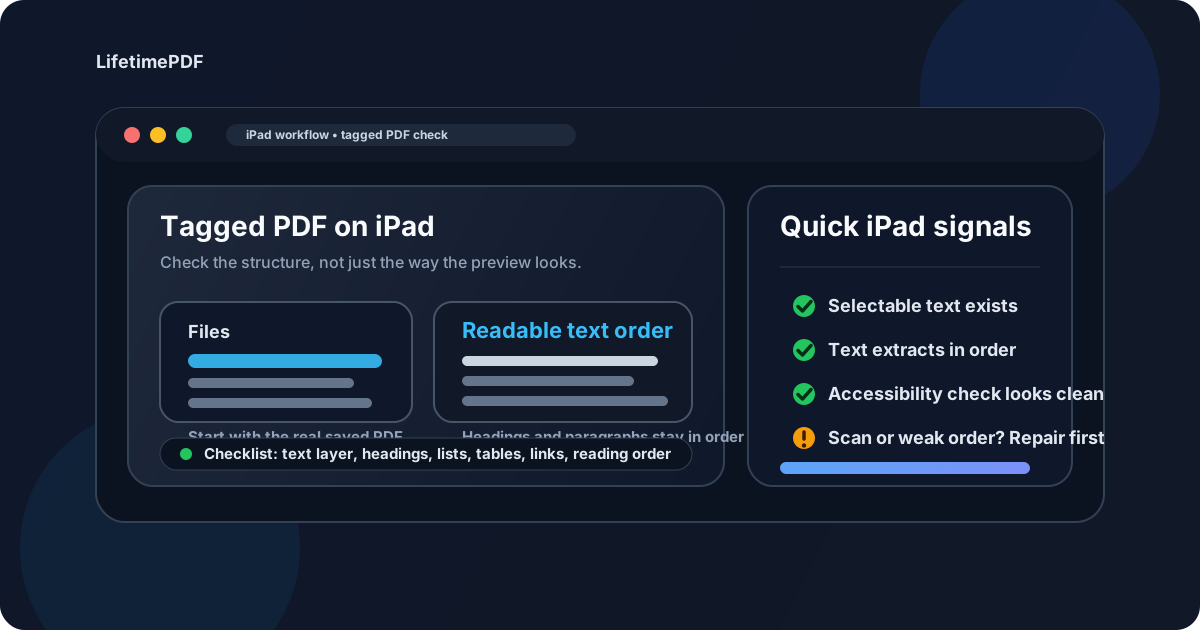
Table of contents
- Quick start: check whether an iPad PDF is tagged in a few minutes
- The easiest iPad workflow for checking tagged PDFs
- What “tagged” actually means on iPad
- Step-by-step: check a PDF from Files, Mail, Messages, iCloud Drive, or Downloads
- Fast warning signs that the PDF is probably not tagged well
- When to OCR first and when to fix the source document instead
- iPad export habits that usually produce better PDFs
- Related LifetimePDF tools and accessibility guides
- FAQ (People Also Ask)
Quick start: check whether an iPad PDF is tagged in a few minutes
If the PDF is already on your iPad and you just need a fast confidence check before you share it, this is the workflow most people actually need:
- Save the exact file from Mail, Messages, Downloads, or iCloud Drive into one obvious location in Files.
- Open the PDF and confirm you can select, search, or otherwise interact with the text. If you cannot, the file may only be a scan.
- Run the file through PDF to Text and see whether headings, paragraphs, and lists come out in a sensible order.
- Use PDF Accessibility Checker to catch broader structural problems before you publish or send the document.
- If the file is a scan, start with OCR PDF. If the structure is broadly weak, fix the source document and export again.
The easiest iPad workflow for checking tagged PDFs
On iPad, the biggest mistake is testing the wrong copy. A file gets opened in Mail preview, saved again into Files, shared into another app, and then compared against a different version from iCloud Drive. By the time someone says, “It looks fine on my iPad,” they may not even be checking the same PDF they plan to upload or publish.
A cleaner workflow is to work from one saved file in Files, then run two practical checks: first, does the PDF have real text; second, does that text behave like meaningful structure. If either answer is weak, a deeper accessibility review or source repair is justified. If both answers look strong, you are in a much better place than someone guessing from a thumbnail or quick preview alone.
Where iPad users get tripped up
iPad is excellent for reviewing and sharing PDFs, but preview apps are not the same thing as a structural accessibility audit. A clean zoomed-in page, a readable paragraph, or a successful search result does not prove the PDF has usable headings, tables, lists, alt text, or reading order.
What “tagged” actually means on iPad
A tagged PDF contains structural information underneath the visual layout. That structure tells assistive technology what is a heading, what is body text, which items belong in a list, how a table is organized, and what order the content should be read. Without that layer, a PDF may still look tidy to a sighted reader while sounding scrambled or incomplete to a screen reader.
On iPad, that distinction matters because the platform makes it easy to open and forward PDFs quickly. Files, Mail, and Safari are good at displaying the page. They are not designed to give you a full structural verdict at a glance. That is why text extraction and an accessibility checker are so helpful: they reveal whether the document behaves like a real document or just a picture that happens to look organized.
Step-by-step: check a PDF from Files, Mail, Messages, iCloud Drive, or Downloads
1) Start with the exact file you plan to share
Save the PDF into Files first. That sounds basic, but it matters. Mail preview, Messages preview, and cloud-app preview panes can make several different copies feel like the same file. Pick the final version you actually plan to send, upload, or publish, and give it one clear filename before you start checking anything.
2) Confirm that the file has real text
Try searching for a word you can see on the page. Try selecting text. If those actions fail, the PDF may just be an image-based scan. In that case, judging whether it is tagged well is premature. Use OCR PDF first so the document has a usable text layer, then run the structure checks again.
3) Inspect the reading order instead of trusting the layout
A visually neat page can still fall apart when the text is extracted. Multi-column newsletters, sidebars, tables, captions, and form labels are where this shows up quickly. Use PDF to Text and skim the output. If the heading appears after the body text, list bullets lose their grouping, or columns merge into one messy paragraph, the PDF may not be tagged correctly even if it looks fine in Files.
4) Run an accessibility review in Safari or Chrome
After the text-order check, run the file through PDF Accessibility Checker. This is the step that helps surface broader risks such as structural gaps, weak semantics, or accessibility issues that plain preview apps do not explain. On iPad, a browser-based check is often the most practical way to get beyond surface appearance.
5) Decide whether the PDF is ready or the source needs work
If the file has selectable text, sensible extracted order, and a clean enough accessibility result, you can move forward with more confidence. If the PDF is a scan, if extraction is chaotic, or if the accessibility check shows broader problems, fix the source instead of hoping the file is “close enough.” Re-exporting a cleaner document is usually faster than patching a weak final PDF on the iPad itself.
Fast warning signs that the PDF is probably not tagged well
- The text cannot be selected or searched at all.
- The extracted text order is scrambled, especially in multi-column layouts.
- List items, table content, or captions run together as one block.
- The file came from a screenshot, camera scan, markup export, or print-to-PDF shortcut rather than the original source document.
- You are relying only on Files preview because the page “looks normal.”
None of those signs automatically mean the document is unusable, but they are strong reasons to slow down before you attach the file to a class portal, HR system, procurement process, or public web page.
When to OCR first and when to fix the source document instead
OCR and source repair solve different problems. OCR is for documents that are basically pictures. Source repair is for documents that have text but weak structure.
Use OCR first when:
- The PDF came from a paper scan, camera scan, or copier.
- You cannot select, search, or extract the text.
- The file was imported from Notes or another scanning app as images.
Fix the source instead when:
- The PDF has text, but the reading order is messy.
- Headings, lists, and tables are poorly represented.
- The document was exported from Pages, Word, Google Docs, Canva, or a design tool and can be rebuilt cleanly.
In practice, OCR is a rescue step. Source repair is a quality step. If the original document still exists, that is usually the better place to improve accessibility.
Need the quickest repair sequence? OCR image-based PDFs first, then re-check the text order and accessibility before you share the final file.
iPad export habits that usually produce better PDFs
If you create PDFs on iPad regularly, a few habits make later accessibility checks much easier:
- Export from the original app, such as Pages, Word, or Google Docs, instead of creating a screenshot-based PDF.
- Avoid flattening text into images unless the workflow absolutely requires it.
- Name the final file clearly in Files so you do not audit one copy and share another.
- After export, reopen the actual PDF you plan to send and test it once in Safari or Chrome.
- If the document started as a scan, add OCR before you call it finished.
These are small habits, but they prevent a lot of avoidable cleanup. The less your PDF depends on previews, screenshots, and improvised exports, the easier it is to keep the structure intact.
Related LifetimePDF tools and accessibility guides
If this iPad check shows problems, these tools and guides are the most useful next steps:
- PDF Accessibility Checker - review structural accessibility risks before you share or publish.
- PDF to Text - reveal whether reading order survives extraction.
- OCR PDF - recover a text layer from scanned documents.
- Word to PDF - export a cleaner PDF after you repair the source structure.
- HTML to PDF - useful when semantic HTML is the better starting point.
Helpful related reading
- How to Check if a PDF Is Tagged
- How to Check if a PDF Is Tagged on Windows
- How to Check if a PDF Is Tagged on Mac
- Check PDF Accessibility Online
- Check PDF Reading Order
FAQ (People Also Ask)
How do I check if a PDF is tagged on iPad?
Save the PDF to Files on your iPad, confirm the text is selectable, inspect the reading order, and run an accessibility check. That gives you a much better answer than relying on how the file looks in a preview alone.
Can a PDF have selectable text on iPad and still be untagged?
Yes. Searchable text helps, but it does not prove the structure is strong. A PDF can still have weak headings, messy reading order, or poor table structure.
What if the PDF is a scan from Notes or a copier?
Run OCR first so the file has a usable text layer. After that, you can judge whether the content behaves like a structured document or still needs deeper repair.
Is Files preview enough to verify that a PDF is tagged?
Files preview is good for opening and reviewing the file, but it is not the same as a deliberate tagged-PDF check. You still need to inspect the structure and reading order.
Should I fix the PDF or the original source document?
If the file has broad structural problems, fix the source document. Re-exporting a cleaner Pages, Word, Google Docs, or design file is usually faster and more reliable than patching a weak final PDF.
Published by LifetimePDF — Pay once. Use forever.