How to Check if a PDF Is Tagged on Mac: Fast Accessibility Checks Before You Share or Publish
To check if a PDF is tagged on Mac, save the file to Finder, confirm the text is selectable in Preview, then run it through LifetimePDF's PDF Accessibility Checker and PDF to Text tools to see whether the structure reads like a real document.
If the file is only a scan or the reading order falls apart, use OCR or repair the source document before you upload, email, AirDrop, or publish it.
That is the short answer. The useful part is knowing how to do a quick Mac check without assuming a PDF is accessible just because it opens cleanly in Preview, looks polished in Safari, or highlights a few search results. A tagged PDF has structure underneath the layout. A visually tidy PDF does not always have that. This guide shows you how to tell the difference before the file reaches a portal, client, colleague, or public site.
Fastest path: save one clear copy in Finder, confirm the text is real, inspect the reading order, then run an accessibility check before you call the PDF ready.
In a hurry? Jump to Quick start: check whether a Mac PDF is tagged in a few minutes.
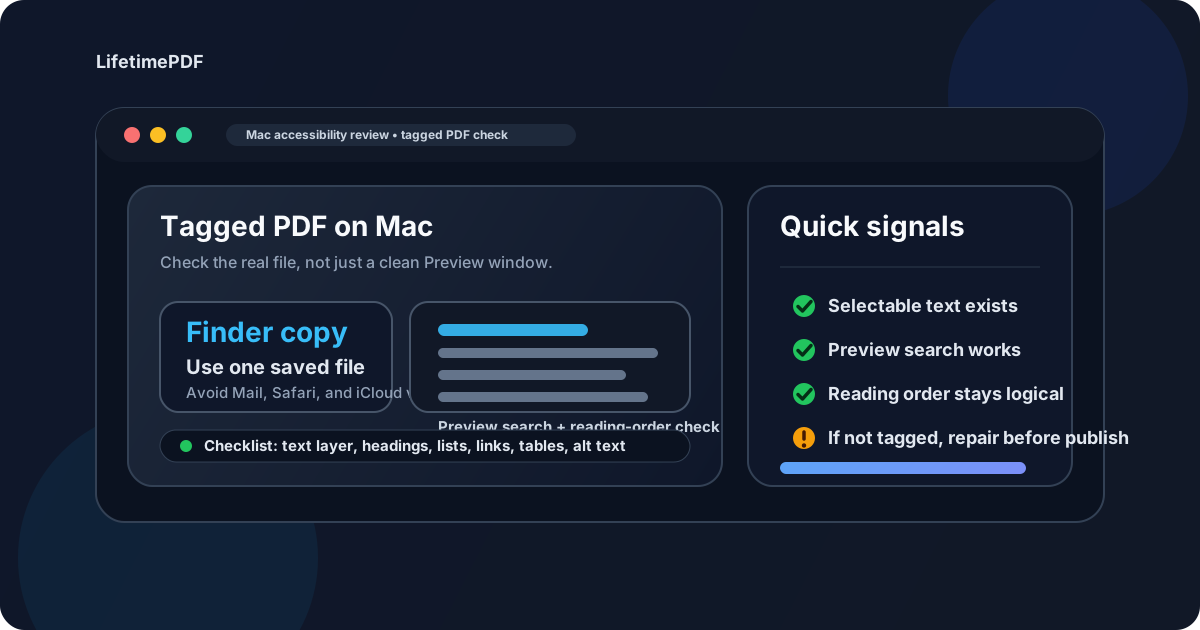
Table of contents
- Quick start: check whether a Mac PDF is tagged in a few minutes
- The easiest Mac workflow for checking tagged PDFs
- What “tagged” actually means on Mac
- Step-by-step: check a PDF from Finder, Preview, Mail, AirDrop, iCloud Drive, or Downloads
- Fast warning signs that the PDF is probably not tagged well
- When to OCR first and when to fix the source document instead
- Mac export habits that usually produce better PDFs
- Related LifetimePDF tools and accessibility guides
- FAQ (People Also Ask)
Quick start: check whether a Mac PDF is tagged in a few minutes
If the PDF is already on your Mac and you just need a fast confidence check before you share it, this is the workflow most people actually need:
- Save the exact file from Mail, Downloads, iCloud Drive, or AirDrop into one obvious folder in Finder.
- Open the PDF in Preview and confirm you can select or search the text. If you cannot, the file may only be a scan.
- Run the file through PDF to Text and see whether headings, paragraphs, and lists come out in a sensible order.
- Use PDF Accessibility Checker to catch broader structural problems before you publish or send the document.
- If the file is a scan, start with OCR PDF. If the structure is broadly weak, fix the source document and export again.
The easiest Mac workflow for checking tagged PDFs
On Mac, the biggest mistake is testing the wrong copy. Someone opens a PDF in a Mail preview, drags another version out of iCloud Drive, compares it against a third copy in Downloads, and then decides the document is probably fine because one version searched correctly. That is how messy accessibility checks happen.
A cleaner workflow is to work from one saved file in Finder, then run two practical checks: first, does the PDF have real text; second, does that text behave like meaningful structure. If those answers are weak, a deeper accessibility review or source repair is justified. If those answers are strong, you are in a much better place.
| Mac situation | Best move | Why it helps |
|---|---|---|
| The PDF came from Word, Pages, PowerPoint, or another source document | Check text order and accessibility, then repair the source if needed | It is usually easier to rebuild structure upstream than rescue a weak final export |
| The PDF is a scan from Notes, an iPhone, or an office copier | Run OCR before you judge the tags | Without a real text layer, you are testing an image, not a structured document |
| The file arrived through Mail, AirDrop, or iCloud Drive | Save one local copy first | You reduce version mistakes and test the exact file you plan to share |
| The PDF was created with a casual print-to-PDF workflow | Review it more carefully | Some print-based workflows preserve appearance better than structure |
In plain English: tagged-PDF checking on Mac is mostly about resisting false confidence. If the file is going to a public website, university portal, legal review, accessibility-sensitive workflow, or client handoff, a quick structural review is worth the extra minute.
What “tagged” actually means on Mac
A tagged PDF is not just a PDF with searchable text. It is a PDF whose content carries enough structure for assistive technology to understand headings, paragraphs, lists, tables, links, and reading order more reliably. On screen, two PDFs can look almost identical while behaving very differently underneath.
That distinction matters because Mac users often judge a file by the viewer experience alone. If the document opens in Preview, scrolls smoothly, and highlights searched words, it feels healthy. Sometimes it is. Sometimes it is only visually healthy. A file can still have poor heading hierarchy, broken reading order, weak table structure, or a layout that falls apart when extracted.
- Good sign: the text extracts in a sensible order and the document behaves like real content.
- Warning sign: the PDF copies out as fragments, columns in the wrong sequence, or headings mixed into body text.
- Another warning sign: the file is really just a scan with no meaningful text layer underneath.
Step-by-step: check a PDF from Finder, Preview, Mail, AirDrop, iCloud Drive, or Downloads
Here is the practical Mac workflow that covers most real situations.
1) Start with the exact file you plan to share
If the PDF is still sitting in a Mail preview, Safari tab, or iCloud Drive quick look window, save it first if that will make the workflow clearer. Working from one obvious copy in Finder reduces the chance that you inspect one version and send another.
2) Confirm that the file has real text in Preview
Search for a word you can see on the page or try selecting a few lines. If the text cannot be searched or selected, the PDF may just be an image-based scan. In that case, start with OCR PDF before you judge whether the file is tagged well.
3) Inspect the reading order instead of trusting the layout
Run the file through PDF to Text. If the output reads like a coherent document, that is a good sign. If the output jumps between columns, mixes headings into body paragraphs, or turns lists into clutter, the PDF may not be tagged well enough for serious use.
4) Run an accessibility review
Use PDF Accessibility Checker to look more deliberately at accessibility issues. This step matters because a document can pass the eyeball test and still fail the structural test. When the PDF is meant for publication, compliance-sensitive workflows, or broad public sharing, this is the step that turns a guess into a review.
5) Decide whether the PDF is ready or the source needs work
If the text exists, the order makes sense, and the file behaves like structured content, you are in much better shape. If the document still feels brittle, repair the source and export a better PDF rather than endlessly poking at the final file. That is especially true for Word reports, Pages documents, slide decks, forms, and documents headed for a public website.
Recommended Mac sequence: save the file, verify the text layer, inspect reading order, then run an accessibility check before publishing.
Fast warning signs that the PDF is probably not tagged well
You do not always need a long forensic session to know a Mac PDF has structure problems. A few signals tend to show up quickly:
- the PDF is a scan and nothing on the page can be selected,
- copying text out of the file creates a scrambled or nonsensical reading order,
- headings, bullets, captions, and paragraphs blur together when extracted,
- tables turn into scattered text instead of staying understandable,
- the file was produced through a quick print workflow that prioritized appearance over structure.
None of those signals automatically means the PDF is unusable. They do mean you should slow down before calling it accessible or publication-ready.
When to OCR first and when to fix the source document instead
OCR and source repair solve different problems. OCR is the right first move when the PDF is basically a picture of text, such as an office scan, an iPhone scan, or a photographed page. It gives the file a text layer so you can search, extract, and assess it more intelligently.
Source repair is the better answer when the PDF already has text but the structure is messy. If a Word or Pages document exported badly, a slide deck became visually pretty but structurally thin, or a form was assembled in a way that broke reading order, rebuilding the source usually wins. That is cleaner than trying to rescue a weak final export one workaround at a time.
Use OCR first when:
- the PDF is a scan from Notes, an iPhone, or an office copier,
- the text cannot be searched or selected,
- you need to recover a usable text layer before any deeper review.
Fix the source instead when:
- the file already has text but the extracted order is bad,
- headings, lists, or tables are inconsistent,
- the document came from Word, Pages, HTML, or another editable source you still control.
Best repair order: OCR a scan so it becomes searchable, but repair the source when the real problem is structure rather than missing text.
Mac export habits that usually produce better PDFs
If you create PDFs regularly on Mac, the easiest accessibility win is upstream discipline. A better source document usually leads to a better export. That means using real headings in Word or Pages, sane list structure, readable table design, and a logical content order before you ever click export.
When the content starts in HTML, keeping the semantics clean before you convert is often even better. Preview is a viewer, not a magic structure fixer. Browser print-to-PDF shortcuts and ad hoc share-sheet workflows can look acceptable on the page while quietly weakening the structure underneath. That does not make every print-based PDF bad, but it does mean those files deserve a closer review.
- Use real heading styles instead of bold text that only looks like a heading.
- Keep lists as lists instead of manually typed bullets and awkward spacing.
- Make tables actual tables, not visual alignment tricks.
- Prefer a clean export path from the editable source instead of repeated print-to-PDF workarounds.
- Recheck the final PDF when it is meant for publishing, compliance, or public download.
If that sounds boring, it is. It is also the reason some PDFs feel solid everywhere while others become accessibility headaches the moment they leave the author's laptop.
Related LifetimePDF tools and accessibility guides
A tagged-PDF review on Mac usually belongs inside a broader accessibility workflow. These tools and guides fit together well:
- PDF Accessibility Checker - review structural accessibility risks before you share or publish.
- PDF to Text - reveal whether reading order survives extraction.
- OCR PDF - recover a text layer from scanned documents.
- Word to PDF - export a cleaner PDF after you repair the source structure.
- HTML to PDF - useful when semantic HTML is the better starting point.
Helpful related reading
- How to Check if a PDF Is Tagged
- How to Check if a PDF Is Tagged on Windows
- Check PDF Accessibility Online
- Check PDF Reading Order Online
- How to Make PDF Accessible
FAQ
How do I check if a PDF is tagged on Mac?
Save the PDF to your Mac, confirm the text is selectable in Preview, inspect the reading order, and run an accessibility check. That gives you a much better answer than relying on how the file looks in a viewer alone.
Can a PDF have selectable text on Mac and still be untagged?
Yes. Searchable text helps, but it does not prove the structure is strong. A PDF can still have weak headings, messy reading order, or poor table structure.
What if the PDF came from Notes, a scanner, or an iPhone scan?
Run OCR first so the file has a usable text layer. After that, you can judge whether the content behaves like a structured document or still needs deeper repair.
Is Preview enough to verify that a PDF is tagged?
Preview is good for opening and reviewing the file, but it is not the same as a deliberate tagged-PDF check. You still need to inspect the structure and reading order.
Should I fix the PDF or the original source document?
If the file has broad structural problems, fix the source document. Re-exporting a cleaner Word, Pages, or HTML file is usually faster and more reliable than patching a weak final PDF.
Published by LifetimePDF — Pay once. Use forever.