How to Check PDF Spot Colors on Chromebook: Confirm Named Inks, Plates, and Brand Separations Before You Share
To check PDF spot colors on Chromebook, save the real PDF locally, confirm the named spot inks or specialty plates in a properties or separations-aware review path, and compare them with the print spec before you share, proof, or upload the file.
If the PDF looks fine in Chrome or the Files preview but the named inks are missing, duplicated, or replaced by CMYK builds, rebuild or re-export the final copy before handoff.
That is the short Chromebook answer. The practical answer is that ChromeOS is great for opening a PDF quickly, saving it from Gmail or Google Drive, and checking that you are looking at the right document. It is not the safest place to trust specialty-print details by default. A PDF can appear perfectly normal in a browser tab while the hidden plate logic has already changed. Brand orange might have become process color, white ink might be gone, or two nearly identical spot names might now create extra plates and extra cost.
Fastest practical path: save the real Chromebook copy, confirm the named inks, compare them with the print brief, then cross-check output intent and overprint before the PDF leaves your laptop.
In a hurry? Jump to quick start: check PDF spot colors on Chromebook in about 5 minutes.
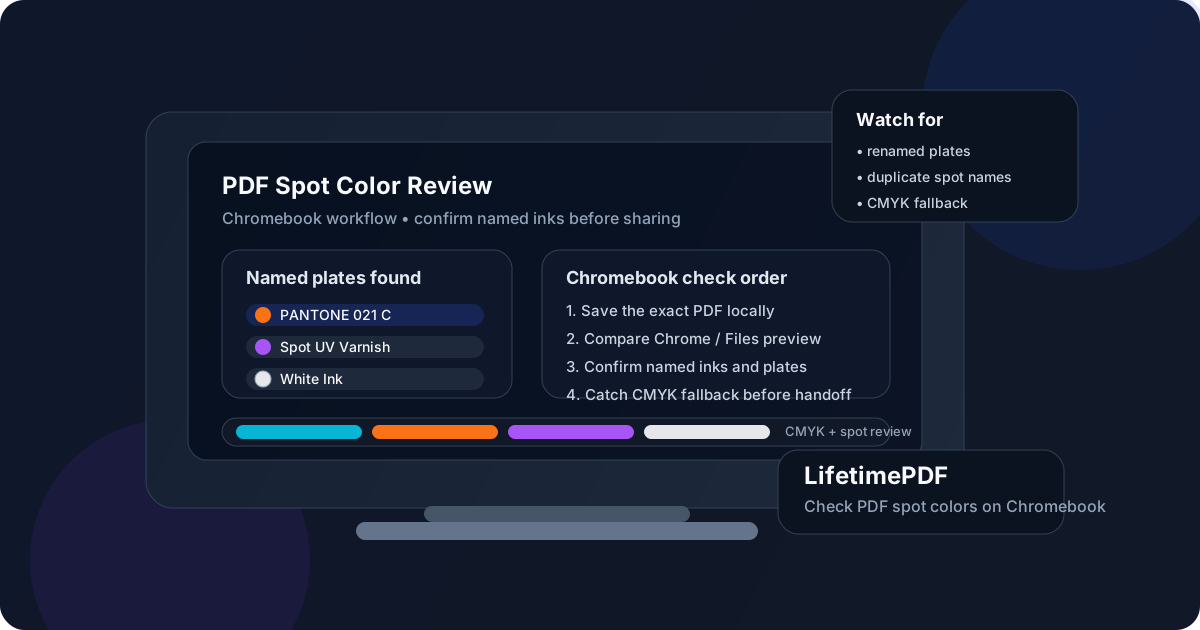
Table of contents
- Quick start: check PDF spot colors on Chromebook in about 5 minutes
- Why Chromebook previews can mislead you
- Where to check spot colors on Chromebook
- Step-by-step: how to review PDF spot colors on Chromebook
- What else to check besides spot colors
- Common Chromebook spot-color problems and what to do next
- Related LifetimePDF tools and guides
- FAQ
Quick start: check PDF spot colors on Chromebook in about 5 minutes
If your real goal is simply make sure this Chromebook PDF still contains the right named inks before I share it, use this order:
- Save the exact PDF you plan to email, upload, archive, proof, or send to a printer into your Chromebook downloads or a clearly named local folder.
- Do not rely only on a Gmail attachment preview, Google Drive preview, or a browser tab.
- Open a metadata-aware review path such as View PDF Properties and confirm whether the file still contains the expected spot names, varnish plates, or brand separations.
- Compare those names with the actual job brief, printer note, brand standard, packaging instruction, or dieline list.
- Cross-check overprint, output intent, ICC profile, and layers so the wider production setup makes sense.
- If the named inks changed, vanished, or split into duplicates, rebuild or re-export the final PDF and verify the saved copy again.
Why Chromebook previews can mislead you
Chromebook gives you very fast ways to open and share PDFs. That is useful, but it can also hide the difference between this file opens and this file still carries the correct specialty-print instructions. A quick Chrome preview can confirm the PDF renders. It cannot always prove that the named spot inks, white ink, varnish plate, or technical separation survived export exactly as intended.
This matters most when your PDF is headed into brand-critical print, packaging, labels, or any workflow where a dedicated plate matters as much as the visible page. On Chromebook, it is easy to save from Google Drive, open in a tab, forward the link, and assume the job is ready. A five-minute plate check catches the mistakes that otherwise show up much later as color drift, missing specialty finishes, or questions from a print vendor who expected a cleaner file.
Chrome tab confidence
The PDF looks fine in a browser, so it feels safe even though the specialty-print logic underneath has not really been checked yet.
Drive preview shortcut
Drive is great for finding the file quickly, but it is not proof that the named ink list still matches the print spec.
Duplicate plate risk
Two nearly identical spot names can create an extra plate even when the page preview still looks normal.
CMYK fallback trap
The visible color may stay close enough on screen while the dedicated spot plate quietly disappears.
Common false assumption
If a PDF looks correct in a quick Chromebook preview, many people assume the plate structure must also be correct. Spot colors are one of the classic reasons that assumption breaks.
Where to check spot colors on Chromebook
Different Chromebook viewing paths answer different questions. The safest workflow uses more than one path instead of asking a casual preview to prove everything.
| Chromebook path | What it is good for | What it cannot safely prove |
|---|---|---|
| Gmail preview, Google Drive preview, or a Chrome tab | Confirming you found the right attachment or download and opening it quickly. | That the named spot inks, white ink, varnish plate, or specialty separations survived export exactly as intended. |
| Files app or a normal Chromebook PDF viewer | Seeing the real saved PDF the way a normal Chromebook user is likely to experience it. | Whether the PDF still carries the correct plate naming and separation structure for production. |
| Properties and metadata review | Checking the file's named colors, document details, and nearby production clues before approval. | It does not fix a broken export for you. You still need to decide whether the PDF should be approved, renamed carefully, or rebuilt from the source. |
| Generic spot-color guide plus related checks | Helping you compare the file's plate list with output intent, ICC profile, overprint, and layers so the wider print story stays coherent. | It still cannot replace the real job brief. If the printer or packaging team requires exact names, trust the actual spec. |
Step-by-step: how to review PDF spot colors on Chromebook
This workflow gets you to a dependable answer without turning a quick Chromebook review into a full prepress audit.
1) Save the exact Chromebook copy first
Do not inspect only a Gmail preview, Google Drive view, or browser tab if another file is the one actually heading to proof, print, or packaging production. Save the real outgoing PDF locally first.
2) Open it in Chrome or Files so you know what the casual view suggests
This helps you catch the classic Chromebook trap where the document looks normal in the friendly preview but hides a plate problem you would never notice without a deeper check.
3) Read the named spot-color list clearly
Use View PDF Properties or another metadata-aware review path so you can confirm whether the expected spot names or specialty plates are actually there.
4) Compare the names against the real print spec
Similar is not always good enough. A name that looks close may still create a separate plate or force a vendor to guess which ink was intended.
5) Check where each plate is actually used
Confirm the spot color sits on the intended logos, labels, varnish areas, dielines, or technical objects instead of stray shapes, hidden layers, or duplicated CMYK artwork.
6) Reopen the rebuilt final copy once
If you fix the source file, rename plates, or re-export the PDF, reopen the saved Chromebook copy and verify the updated plate structure before the file leaves your laptop.
Best default sequence: save the real Chromebook copy → confirm the named inks → compare them with the print spec → check overprint and output intent → rebuild only if the plate story no longer holds together.
What else to check besides spot colors
Spot-color names matter, but they should not be reviewed in isolation. On Chromebook workflows, the smarter question is whether the surrounding signals support the same production story.
- Overprint: a spot plate can exist while the stacking behavior is still wrong on press.
- Output intent: the declared color destination should fit the workflow the PDF is actually entering.
- ICC profile: useful when you need to understand the broader color-management setup instead of looking only at named inks.
- Layers: especially important if dielines, varnish masks, or technical artwork may be hidden or separated by layer.
- The real job notes: if the printer, packaging team, or brand guide specifies exact ink names, trust those instructions over a casual visual guess.
In other words, spot colors are one production clue. They become useful when the plate names, overprint behavior, color metadata, and actual handoff requirements all point in the same direction.
Common Chromebook spot-color problems and what to do next
These are the patterns that show up most often when a PDF looks fine on a Chromebook but creates plate trouble downstream.
The spot ink name changed slightly
That can create an unexpected extra plate even when the visible color looks close enough. If the workflow depends on an exact name, clean it up before handoff instead of hoping the printer merges it for you.
The file looks right but the spot plate is gone
A conversion preset, flattening path, or export step may have turned the spot color into process color. If the specialty plate matters, rebuild the final PDF from the source instead of patching around it later.
An extra plate appears unexpectedly
This often means a duplicate name, a near-match name, or a hidden object kept its own plate. Check layers and hidden elements before approving the file.
The same object seems to exist as both spot and CMYK
That usually signals muddled artwork or a mixed export path. If the job calls for one clean plate strategy, fix the source and generate a fresh PDF so the plate list is intentional again.
A good Chromebook habit is to leave correct files alone. If the plate structure matches the real job, extra tinkering only creates fresh risk. If the spot-color story broke during export, the safest fix is usually a clean re-export rather than a cosmetic rename after the fact.
Decision rule
If the plate structure is right and only the label is messy, a careful cleanup may be enough. If the wrong objects are on the plate, the spot color vanished, or process duplicates appeared, rebuild the PDF so the artwork and metadata agree again.
FAQ
How do I check PDF spot colors on Chromebook?
Save the exact PDF locally, open a properties or separations-aware review path, confirm the named spot inks or specialty plates that are present, and compare them with the real print spec before you approve or share the file.
Can Chrome or the Files preview show PDF spot colors correctly?
Chrome and Files are useful for opening the real saved file quickly, but they are not the safest place to trust named inks or specialty plates on their own. If spot colors matter, compare the same PDF with a fuller properties-aware review path.
Why do spot colors disappear after exporting a PDF?
The export preset, flattening choice, or conversion settings may have turned the spot inks into process-color builds or removed a specialty plate. That is why the final saved PDF is the one worth checking.
Is checking spot colors the same as checking overprint?
No. Spot-color checks answer whether named inks and specialty plates are present and assigned correctly. Overprint checks answer how objects behave when they print on top of one another.
What if I only have my Chromebook with me?
Use your Chromebook to save the real file, inspect the likely risk areas, and confirm the metadata story, but avoid treating a Chromebook-only preview as the final proof when spot colors truly matter. The safest next move is to send that same saved PDF into a better review path before approval.
Confirm the named inks before the file surprises someone downstream.
On Chromebook, the cleanest spot-color workflow is simple: inspect the real saved PDF, compare the plate names with the actual job, cross-check the surrounding production signals, and only rebuild the file when the plate story genuinely broke.
Published by LifetimePDF — Pay once. Use forever.