How to Check PDF Page Size on Android: Files, Drive, and Letter-vs-A4 Problems Before You Print
To check PDF page size on Android, save the final PDF locally, open a page-size-aware properties view, and read the real dimensions in inches, millimeters, or points instead of trusting the preview.
If the file mixes Letter, A4, Legal, or custom page sizes, catch that before you print, upload, merge, or share it.
That is the fast answer. The useful Android answer is that page-size mistakes hide easily: Gmail previews, Google Drive previews, Files, and default phone viewers make almost any PDF look normal on a small screen. The pain shows up later as clipped pages, odd white borders, rejected uploads, or the classic "why did this look fine on my phone but print wrong?" moment.
Fastest practical path: save the exact Android copy, read the stored page dimensions, confirm every page matches, then decide whether the real fix is crop, resize, or no change at all.
In a hurry? Jump to quick start: check PDF page size on Android in about 5 minutes.
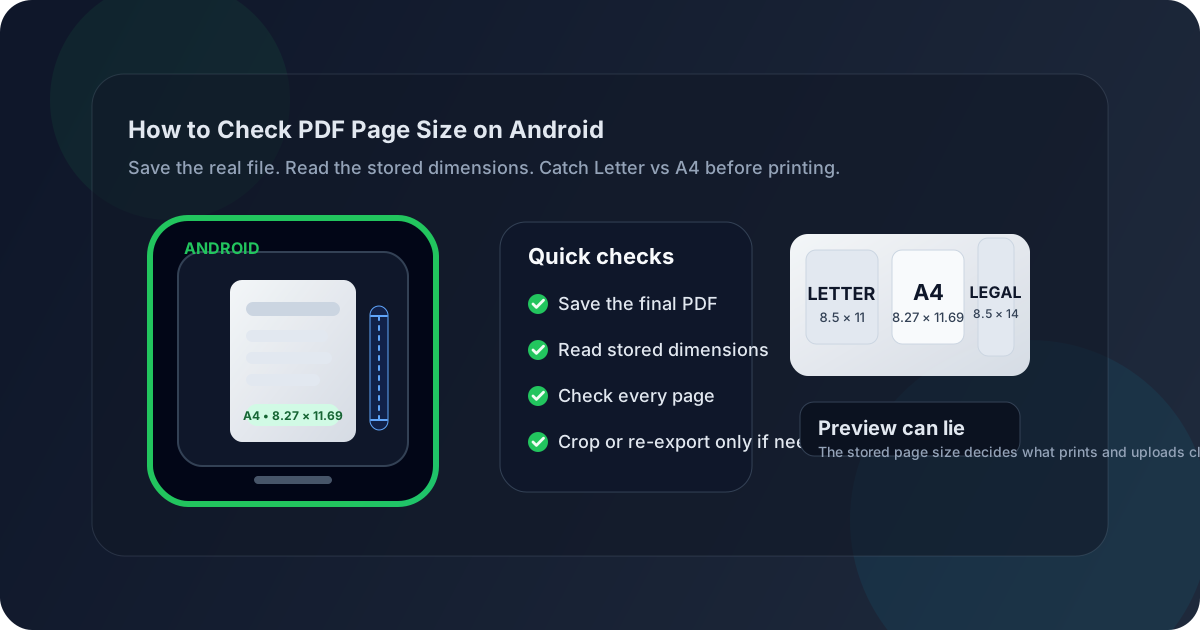
Table of contents
- Quick start: check PDF page size on Android in about 5 minutes
- Why page size matters more on Android than people expect
- Where Android users get misled about PDF page size
- Step-by-step: how to review PDF page size on Android
- How to spot mixed-size PDFs before printing or uploading
- Common Android page-size problems and what to do next
- Related LifetimePDF tools and guides
- FAQ
Quick start: check PDF page size on Android in about 5 minutes
If your real goal is simply make sure this PDF is the right paper size before it leaves my Android phone, use this order:
- Save the exact PDF you plan to print, upload, email, merge, or archive into a local Android folder.
- Do not assume the preview in Gmail, Drive, WhatsApp, or a browser tab proves the real paper size.
- Open a properties-aware workflow such as View PDF Properties and read the stored dimensions.
- Confirm whether the page is Letter, A4, Legal, or a custom size.
- Check whether every page matches, especially if the file was scanned, merged, or assembled from different sources.
- If something is wrong, decide whether the fix is crop, a clean re-export, or leaving the file alone because the size is already correct.
Why page size matters more on Android than people expect
Page-size problems do not always announce themselves early. A PDF can open cleanly in Files, Drive, Samsung My Files, or Acrobat while still being the wrong format for the printer, upload portal, binder, or client requirement. The first obvious clue might be content clipping, strange margins, a portal rejection, or a file that suddenly shrinks because one device expects Letter while another expects A4.
Android users see this a lot because documents travel through mixed workflows: scans from a phone camera, attachments saved from chat, files downloaded from a cloud drive, PDFs forwarded from email, and packets merged from different people. One odd page or one wrong paper preset is enough to create a file that looks fine in a preview but behaves badly the moment somebody prints it or uploads it to a system with exact requirements.
Page size helps with
printing, portal uploads, school forms, mobile scanning, mailing labels, and any workflow where the document must fit a specific paper standard.
Page size matters most when
you are moving between Letter and A4 regions, sending forms, working with mobile scans, or sharing a file from Android to a desktop printer or office system.
Page size matters less when
the PDF is only for casual reading and nobody downstream cares about paper format, margins, or exact print behavior.
Where Android users get misled about PDF page size
Android gives you many fast ways to look at a PDF, but not every path answers the same question. Some views tell you whether the file opens. Fewer tell you the exact stored dimensions of the pages inside it.
| Opening path | What it is good for | What it cannot safely prove |
|---|---|---|
| Files app or My Files quick open | Confirming you saved the right PDF and checking whether it opens normally on your phone. | That the page is truly Letter, A4, Legal, or a custom size suitable for the workflow ahead. |
| Google Drive, Gmail, or chat preview | Viewing the right attachment quickly and spotting obvious layout damage. | That every page shares the same dimensions or that the paper size matches a printer or portal requirement. |
| Browser preview or in-app viewer | Checking whether the document looks roughly right and deciding whether the saved file is the one you meant to use. | That the final local PDF is the same size or same version that will actually be printed or uploaded. |
| Properties-aware review workflow | Reading the stored page dimensions before the file leaves Android. | It does not fix the problem for you. You still have to decide whether crop, re-export, or no change is the right next move. |
Step-by-step: how to review PDF page size on Android
This workflow gets you to a dependable answer quickly without turning a simple size check into a full production audit.
1) Save the exact Android copy first
Do not inspect a Gmail preview, Drive preview, or browser tab if another file is the one actually going to the printer or portal. Save the real outgoing PDF locally first.
2) Read the stored dimensions clearly
Use View PDF Properties or another properties-aware path so you can read the exact page size instead of guessing from the preview.
3) Confirm the actual paper format
Ask one practical question: is this page truly Letter, A4, Legal, or a custom size, and is that what the next step in the workflow expects?
4) Check more than the first page
Merged reports, scanned packets, and reused templates often hide one odd page. If the file matters, inspect beyond page one so a single outlier does not become tomorrow's printing problem.
5) Decide whether the fix is crop, resize, or no change
Crop when the content is already fine but the page carries extra borders or marks. Resize or re-export only when the actual paper size is wrong for the job.
6) Test one final output
Print a sample or reopen the corrected PDF once. That catches the common Android mistake where you fixed one copy but shared another from a different app.
Best default sequence: save the real Android copy → read the dimensions → confirm every page → decide crop versus re-export → test one final output.
How to spot mixed-size PDFs before printing or uploading
Mixed-size PDFs are the quiet troublemakers of Android workflows. One Letter page inside an A4 packet, one Legal appendix inside a standard report, or one scanner-generated page with oversized borders can make the whole document feel inconsistent even though most pages are fine.
The good habit is simple: if one page prints differently, shows larger borders, or triggers a portal warning, assume the file may contain more than one page size until you prove otherwise. That is especially common after merging files from different teammates, exporting from a scanner app, or combining downloads from different sources.
The first pages look fine but page three clips
That often means one page has a different stored size. Check the full packet instead of trusting the first page preview.
The printout suddenly gets bigger white borders
This is a classic sign of an A4-versus-Letter mismatch or a page carrying extra marks or margins that need to be cropped.
The upload portal rejects a single page
Many portals quietly require one exact format. One Legal or custom-size outlier can fail the submission even if the rest of the PDF is compliant.
The scan looks oversized even though the content is normal
The content may already be the right size, but the page could include scanner borders, crop marks, or padded margins that call for a crop instead of a resize.
When the issue is just extra border space, a crop is usually the clean fix. When the issue is the underlying paper format itself, a fresh export or resize may be better. If the file already matches the workflow requirement, leave it alone and move on.
Common Android page-size problems and what to do next
These are the situations that show up most often when an Android PDF looks fine at first but turns into a practical headache later.
Phone scan sent to a strict portal
If the destination expects one exact page format, confirm whether the PDF truly needs a new export or whether the issue is extra border padding from the scan itself.
White borders appear only on some pages
Check for mixed-size pages or extra crop marks. If the content area is already correct, crop the excess instead of resizing the whole document blindly.
Portal rejects the PDF for size or format
Read the exact requirement first. Many portals want one precise paper size and dislike mixed packets, odd aspect ratios, or pages padded by scanner artifacts.
You downloaded one copy but shared another
Android makes it easy to hop between previews, attachments, and saved files. Reopen the exact final copy before you print or upload so you are checking the file that will actually leave your phone.
A good Android habit is to fix only the real problem. If the paper size is correct, leave it alone. If the document only needs cleaner page edges, crop it. If the whole PDF was built on the wrong dimensions, rebuild it from the source rather than patching the symptoms.
FAQ
How do I check PDF page size on Android?
Save the PDF locally, open a properties or page-size-aware workflow, and read the real dimensions in inches, millimeters, or points. Do not rely on zoom level or how large the page looks in a preview.
Can I trust Gmail or Google Drive preview to prove PDF page size on Android?
No. Those previews are helpful for opening the right file quickly and spotting obvious layout problems, but a properties-aware review path is better when you need the clearest view of the stored page dimensions.
Why does a PDF look normal on Android but print at the wrong size?
Because Android viewers scale pages to fit the screen. The real problem may be a Letter-versus-A4 mismatch, mixed-size pages, crop marks, or a fit-to-page setting that hides the true paper format until print time.
How do I tell whether an Android PDF mixes page sizes?
Check more than the first page. If one page prints differently, shows larger borders, or triggers an upload warning, inspect the stored dimensions page by page and look for a Legal, A4, or custom-size outlier.
Should I crop or resize a PDF when the page size seems wrong on Android?
Crop when the real content size is already correct but the page carries extra borders or marks. Resize or rebuild only when the underlying paper size itself is wrong for the printer, portal, or workflow requirement.
Check the stored dimensions before the PDF surprises you later.
On Android, the cleanest page-size workflow is simple: inspect the real dimensions, confirm every page, fix only the actual problem, and test one final output before the file leaves your phone.
Published by LifetimePDF — Pay once. Use forever.