How to Check PDF Overprint on iPhone: Catch Hidden Knockouts, Rich Black Surprises, and Spot-Color Mistakes Before You Print
To check PDF overprint on iPhone, save the final PDF locally, compare what you see in Files, Mail, or another everyday preview with an overprint-aware proofing path, and inspect black text, white objects, rich fills, and spot colors before the file goes anywhere important.
If something disappears, darkens, or fails to knock out the background the way you expect, fix the file before you print it, proof it, upload it, or send it to press.
That is the fast answer. The useful iPhone answer is that overprint mistakes often stay invisible inside the calm little world of Files, Mail, Messages, Safari, and cloud-drive previews. A PDF can look perfectly normal on your phone while still carrying hidden print instructions that change black text, white artwork, or spot-color behavior the moment a better proofing or production workflow actually respects them. So the real job on iPhone is not pretending the phone is a full prepress station. It is using your phone to review the exact outgoing file, identify the risky objects, and make sure that same saved PDF gets a print-aware check before approval.
Fastest practical path: inspect the real iPhone copy, compare casual viewing with a print-aware proofing path, then cross-check output intent and trapped status before you approve the final PDF.
In a hurry? Jump to quick start: check PDF overprint on iPhone in about 6 minutes.
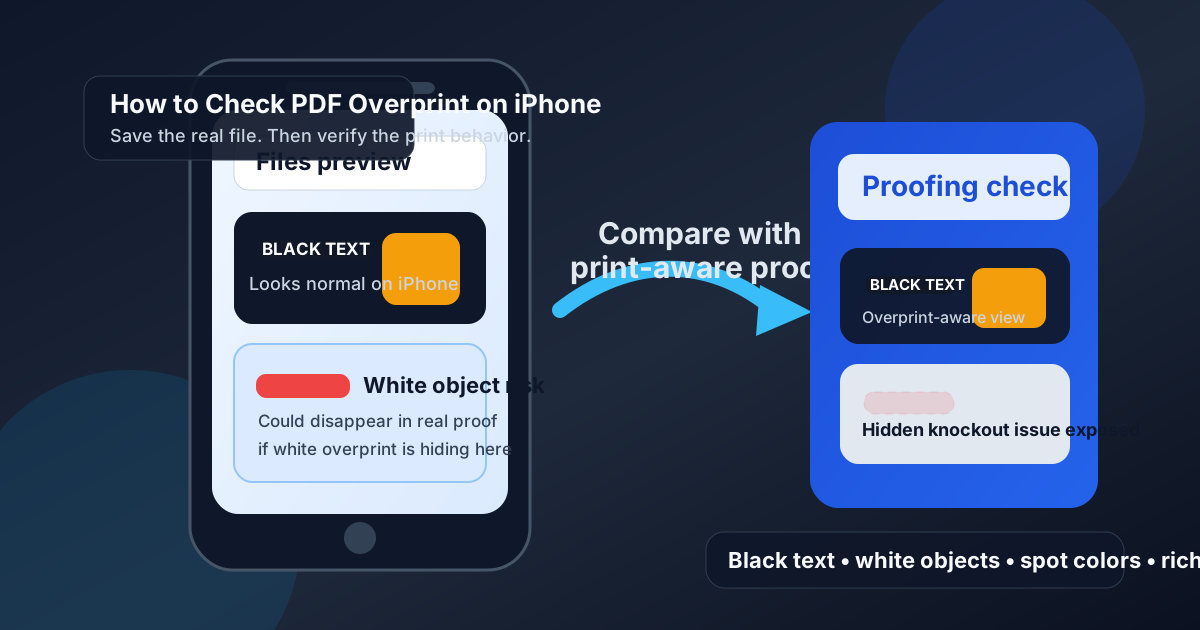
Table of contents
- Quick start: check PDF overprint on iPhone in about 6 minutes
- Why iPhone previews can hide overprint problems
- Where to check overprint on iPhone
- Step-by-step: how to review overprint from iPhone
- What to inspect first: black text, white objects, rich fills, and spot colors
- Common iPhone overprint problems and what to do next
- Related LifetimePDF tools and guides
- FAQ
Quick start: check PDF overprint on iPhone in about 6 minutes
If your real question is will this PDF print the way it looks, or is my iPhone hiding an overprint surprise, use this order:
- Save the exact PDF you plan to print, email, upload, AirDrop, archive, or hand off instead of trusting only a browser tab or attachment preview.
- Open that saved copy in Files first so you know what the casual iPhone view suggests.
- Zoom in on small black text, white objects, spot-color artwork, dark fills, and any element stacked on other color.
- Then compare that same saved PDF with an overprint-aware proofing path before you approve it for print.
- Ask a simple question: should this object print on top of what is underneath, or should it knock out the background first?
- If the answer in the proofing view does not match the design intent, fix the source or re-export the PDF and verify the final outgoing copy once more.
Why iPhone previews can hide overprint problems
iPhone is great at helping you answer does this PDF open. It is much less reliable at answering does this PDF carry the right hidden print behavior. That gap is why overprint errors keep ambushing otherwise careful people.
A Files preview, Mail attachment, Safari tab, or cloud-drive preview may show the page exactly how you hope it will look. But overprint is not just a screen design choice. It is a print instruction about how stacked objects interact, and that instruction only becomes obvious when the review path actually respects it. On iPhone, a calm-looking preview can create false confidence because the screen is small, the workflow is fast, and the file feels finished before it has been truly proofed.
Normal preview comfort
The PDF looks fine in Files or Mail, so it feels safe even though the print behavior has not really been tested yet.
White-object trap
White text or white marks can look perfectly visible on the phone while still disappearing when overprint is honored later.
Rich-black surprise
Dark fills or logos can print heavier or dirtier than expected if they stack on the background instead of knocking it out.
Spot-color mismatch
Packaging, brand colors, and specialty print jobs can fail quietly until a press-aware system exposes the hidden setting.
Common false assumption
If the PDF looks correct in a quick iPhone preview, many people assume the print behavior must also be correct. Overprint is one of the classic reasons that assumption breaks.
Where to check overprint on iPhone
Different iPhone viewing paths answer different questions. The smartest workflow uses more than one path instead of asking one preview to prove everything.
| iPhone path | What it is good for | What it cannot safely prove |
|---|---|---|
| Mail preview, Messages preview, or Safari tab | Confirming you found the right attachment or download and opening it quickly. | That black text, white objects, and spot colors will obey the expected overprint or knockout behavior in print. |
| Files app or a normal iPhone PDF viewer | Seeing the real saved PDF the way a normal iPhone user is likely to experience it. | Whether the PDF still behaves correctly once an overprint-aware workflow respects the hidden print instructions. |
| Overprint-aware proofing path on another device or production workflow | Showing whether stacked objects really overprint or knock out the way the file says they should. | Whether you are definitely looking at the same final outgoing file if you never saved it properly on iPhone first. |
| Properties and metadata review | Checking the surrounding production story, such as output intent, ICC profile, and trapped status. | It will not fix bad artwork for you. You still need to decide whether the visual behavior is actually acceptable. |
Step-by-step: how to review overprint from iPhone
This workflow gives you a dependable answer without pretending your phone has to do every part of a serious print review by itself.
1) Save the exact iPhone copy first
Do not judge only a Mail preview, Safari preview, or drive thumbnail if another saved file is the one actually headed to print. Review the real outgoing PDF.
2) Start with the normal phone view
Open the saved PDF in Files so you understand what a casual iPhone review suggests before you move into a more technical print-aware check.
3) Compare it with an overprint-aware proofing path
Use the same saved PDF in a workflow that honors overprint. If objects change, disappear, or darken, that difference is the whole reason you are doing the check.
4) Inspect the risky objects first
Focus on small black text, white logos, colored text over images, rich black fills, and spot-color elements because those are where hidden print behavior usually matters most.
5) Cross-check the wider print story
Use View PDF Properties, Check PDF Output Intent, and Check PDF Trapped so the file's metadata agrees with the visual behavior.
6) Fix the source or re-export, then reopen the final file
If the overprint behavior is wrong, correct the artwork or export path, save a fresh PDF, and verify that same outgoing copy once before it leaves your phone.
Reliable sequence: save the real file → compare the normal phone view with a print-aware proof → inspect risky objects → confirm the metadata story → fix the source if needed → reopen the final copy once.
What to inspect first: black text, white objects, rich fills, and spot colors
Overprint review gets much easier once you stop treating the whole page as equally risky. A few object types cause most of the trouble, and iPhone is good enough to help you spot where those risks live before you move into final proofing.
Small black text
Sometimes intentional, sometimes not. It often gets checked first because registration concerns and readability both matter here.
White objects
These are classic failure points because white overprint can leave text or artwork effectively invisible in the real print workflow.
Rich black fills
When they stack unexpectedly on top of other color, they can print darker, muddier, or more aggressive than the design intended.
Spot-color artwork
Packaging, labels, and brand-sensitive files often need the most careful review because the ink interaction may be deliberate or disastrous.
| Object type | Why it is risky | What to verify |
|---|---|---|
| Black text on colored backgrounds | May be intentionally overprinting or may become harder to read if the stacking is wrong | Whether the text still reads cleanly in the real print behavior |
| White text or white marks | Can vanish when overprint is honored | Whether the white object truly knocks out the background instead of disappearing |
| Dark logos and fills | Unexpected stacking can muddy the final result | Whether the object should sit on top of the background or remove it first |
| Spot-color elements | Print behavior may be workflow-specific and brand-sensitive | Whether the overprint decision matches the real production plan |
Common iPhone overprint problems and what to do next
Most overprint trouble around iPhone review falls into a few repeat patterns. Once you know which one you are seeing, the next move gets much easier.
| What you notice | What it usually means | Best next move |
|---|---|---|
| White text is visible on iPhone but disappears in proofing | The file is likely carrying white overprint or another knockout mistake | Fix the object in the source artwork and export a clean PDF again |
| Black text looks normal on the phone but heavier in the real proof | The text may be stacking on a colored background in a way the casual preview hid | Decide whether that overprint is intentional for the print job or needs correction |
| A logo or dark panel prints darker than the design | An object that should knock out may be overprinting instead | Correct the object settings or re-export the artwork cleanly |
| Spot-color elements behave differently between the phone and the proof | The proofing path is finally honoring a hidden assumption that the phone preview ignored | Review the production intent with the real print target in mind and verify the final PDF again |
| The metadata and visual behavior both feel inconsistent | The file likely has a wider export or prepress setup problem | Use a clean re-export instead of patching one symptom at a time |
Source problem
One object was built or exported with the wrong overprint behavior, even though the rest of the PDF may be fine.
Workflow problem
The artwork may have been acceptable earlier, but a later export, flattening step, or print preset changed how the final PDF behaves.
Review problem
The file might always have been wrong, but the normal phone preview hid it until someone used a better print-aware check.
Easy mistake to avoid
Do not “fix” an overprint issue by trusting the friendliest preview. If the overprint-aware result is wrong, the file is telling you something real, even if the iPhone view looks nicer.
FAQ
How do I check PDF overprint on iPhone?
Save the exact PDF locally, compare what you see in Files or Mail with an overprint-aware proofing path, and inspect black text, white objects, spot colors, and dark fills to see whether they overprint or knock out the way the file should.
Can Files or Mail show PDF overprint correctly?
Files and Mail are useful for opening the real saved file quickly, but they are not the safest place to trust overprint behavior on their own. If print matters, compare the PDF with a proper print-aware proofing path.
Why do white objects disappear during an overprint check?
Because white overprint is one of the classic print traps. A casual preview can make the object look fine, while a print-aware workflow shows that the white object is not knocking out the background the way you expected.
Should black text overprint in every iPhone PDF?
No. Small black text often overprints intentionally in some print workflows, but it still depends on the job, the background, and the production goal. It is something to verify, not assume.
What should I do if I only have my phone with me?
Use your iPhone to save the real file, inspect the likely risk areas, and confirm the metadata story, but avoid treating a phone-only preview as the final proof when overprint truly matters. The safest next move is to send that same saved PDF into an overprint-aware review path before approval.
Check the real print behavior before the PDF surprises someone downstream.
On iPhone, the safest sequence is simple: review the exact saved file, compare casual viewing with a print-aware proof, confirm the surrounding production metadata, and only approve the PDF when those pieces finally agree.
Published by LifetimePDF — Pay once. Use forever.