How to Check PDF Crop Box on Linux: Okular, Evince, and Visible-Page Checks Before You Print or Share
To check PDF crop box on Linux, open the saved PDF in a page-box-aware properties workflow and compare the crop box with the media box and trim box so you know what Okular, Evince, or a browser preview is really treating as the visible page.
If the crop box is hiding useful edge content or leaving too much proof-like border around the file, fix that before you print, upload, merge, or share the PDF so the outgoing copy behaves like the document you intended.
Linux can make a PDF feel trustworthy very quickly. It opens cleanly in Okular, scrolls normally in Evince, and looks calm in Firefox, Chromium, Nautilus, or Dolphin. Then a print dialog reveals awkward margins, a portal preview exposes outer production space, or a footer feels clipped because nobody checked which page area the file was truly presenting. A crop-box review is the shortest useful path from looks fine here to will behave correctly anywhere this PDF goes next.
Fastest practical path: open the real Linux copy, compare the crop box with the other page boxes, inspect edge-sensitive content once, then decide whether the file needs crop cleanup, a fresh export, or no change at all.
In a hurry? Jump to quick start: check PDF crop box on Linux in about 5 minutes.
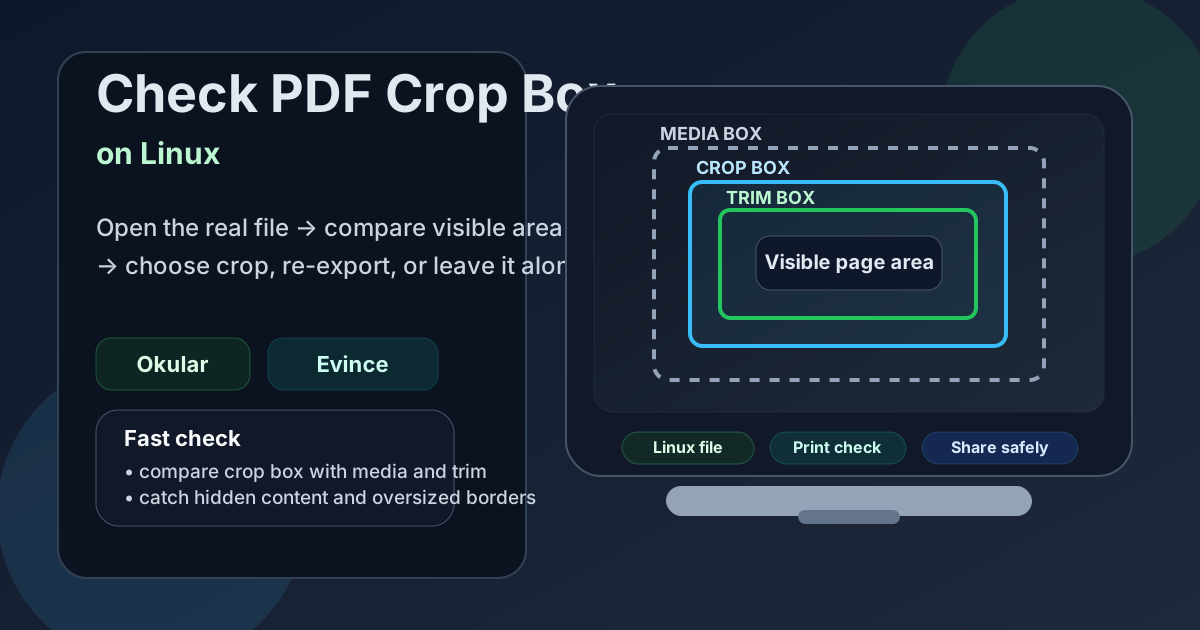
Table of contents
Quick start: check PDF crop box on Linux in about 5 minutes
If your real goal is simply confirm what area this Linux PDF is actually showing before it causes trouble, use this order:
- Open the exact PDF you plan to print, upload, email, archive, or share from your Linux machine.
- Do not assume Okular, Evince, Firefox, Chromium, or a file-manager preview proves the visible page area is defined correctly.
- Use a page-box-aware workflow such as View PDF Properties so you can read the crop box clearly.
- Compare the crop box with the media box and, when relevant, the trim box.
- Check whether footers, signatures, page numbers, charts, tables, borders, or marks sit outside the visible frame or leave too much empty space around the page.
- If the visible frame is wrong, use Crop PDF. If the underlying page setup is wrong, a fresh export is usually cleaner than forcing a crop-box fix.
What a crop box really means on Linux
The crop box marks the page area many viewers treat as the visible document. It does not always mean content outside that area is deleted. More often, it means the PDF is telling the viewer, print workflow, or cleanup tool, “this is the page people are supposed to see.”
That matters on Linux because one file may pass through several environments in minutes: a file manager, webmail attachment preview, Okular, Evince, a browser tab, a print dialog, and a portal upload. A PDF can feel tidy in one place and still carry hidden edge content, oversized outer space, or production-style borders that become obvious later. Checking the crop box tells you whether the visible page really matches the job or only happens to look acceptable in one forgiving preview.
| Page box | What it usually means | Why a Linux user should care |
|---|---|---|
| Media box | The full stored page canvas | Useful when you need to know whether the PDF still contains outer area beyond the visible page, including scan padding, marks, or leftover production space. |
| Crop box | The visible page area many viewers respect | This is the key field when you want to confirm what Okular, Evince, or another viewer is really treating as the page. |
| Trim box | The intended finished page after trimming | Important when a file came from a print-oriented export and you need to know whether the visible page and the intended finished page still agree. |
Where Linux users get misled
Linux gives you a lot of good ways to open a PDF, but not every path proves the same thing. Some views tell you the file opens. Fewer tell you whether the visible page is defined well enough for printing, archiving, uploading, or delivery.
| Linux path | What it is good for | What it cannot safely prove |
|---|---|---|
| Files, Dolphin, or a synced folder preview | Confirming you saved the right outgoing copy and did not stay inside a temporary preview. | Whether the visible page area is truly defined well or whether extra content still sits outside the frame you are seeing. |
| Okular, Evince, Firefox, or Chromium preview | Quickly opening the final file and spotting obvious layout trouble. | Whether the crop box, media box, trim box, and print intent all agree with each other. |
| Poppler-style command-line checks | Useful when you want raw document facts inside a Linux-friendly workflow. | You still need page-box context and human judgment to decide whether the file should be cropped, re-exported, or left alone. |
| Properties-aware page-box review | Giving you the strongest answer before the PDF leaves Linux. | It does not automatically choose crop versus re-export for you. It only shows which problem you actually have. |
The easy mistake
People often assume the crop box must be healthy because the PDF looks calm in Okular or a browser tab. In reality, a Linux preview can make an imperfect page definition feel finished until another workflow reveals clipped content, oversized borders, or leftover production clutter.
Step-by-step: how to review PDF crop box on Linux
This workflow is quick enough for everyday Linux use and detailed enough to catch the problems that usually surface only after the file reaches someone else.
1) Open the exact Linux copy first
Do not inspect only a browser tab, webmail preview, or synced thumbnail if another saved file is the one really headed to print, upload, or a client. Start with the real outgoing PDF on disk.
2) Open a page-box-aware properties view
Use View PDF Properties or a comparable workflow that exposes the crop box instead of leaving you to guess from the visual preview.
3) Compare crop with media and trim
This step explains whether the visible page is smaller than the stored canvas, larger than the intended finished page, or already aligned with the document’s real purpose.
4) Inspect edge-sensitive content
Check signatures, footers, page numbers, charts, tables, borders, and marks so you can tell whether the crop box is hiding useful material or showing too much outer clutter.
5) Check whether page size is the real issue
A crop-box problem is not the same as an A4-versus-Letter mismatch. If the document still behaves badly, compare it with page size on Linux before editing the wrong layer.
6) Crop, re-export, or leave it alone deliberately
Crop when the visible frame is wrong, re-export when the source layout or finished-page intent is wrong, and stop editing when the current page boxes already fit the real job.
Reliable sequence: open the real Linux copy → read the crop box → compare the page boxes → inspect edge content → check page size if needed → choose crop versus re-export → test one final output.
Common crop-box signals and what to do next
Most Linux crop-box problems show up in a few repeat patterns. Recognizing the pattern usually tells you whether the fix is visual cleanup or a deeper rebuild.
The crop box already looks correct
The visible page area matches the job, edge content has room, and the PDF behaves like the document you meant to send.
Best move: stop editing and share the file. Healthy PDFs rarely improve when you keep “fixing” them.
The visible frame is the problem
The file shows extra border space, proof-style clutter, or marks even though the underlying content looks fine.
Best move: crop the visible area rather than rebuilding the whole document.
The source or page intent is wrong
The crop box is only exposing a deeper export problem, page-size mismatch, or bad page definition upstream.
Best move: re-export or fix the source document instead of hiding the problem with a cosmetic crop.
| What you notice | What it usually means | Best next move |
|---|---|---|
| Huge white borders or visible marks | The crop box may be too loose, or the file may still be showing outer production space. | Compare crop with media and trim, then use Crop PDF if the visible frame is the real issue. |
| Footer, page number, or signature feels clipped | The crop box may be too tight, or the source content was built too close to the edge. | Check whether the missing content still exists outside the visible area before cropping anything further. |
| The file looks fine on screen but prints awkwardly | The viewer may respect the crop box while paper size or print settings still conflict with the real job. | Review page size on Linux so you do not blame the wrong setting. |
| The PDF came from a print-oriented export | Some outer structure may be intentional, especially when trim or bleed matters. | Preserve it unless the destination truly wants a cleaner reader-facing copy instead. |
Best decision rule
Fix only the layer that is actually wrong. If the visible frame is wrong, crop it. If the paper size or source layout is wrong, rebuild it. If the page boxes already match the workflow, leave the PDF alone and move on.
FAQ
How do I check PDF crop box on Linux?
Open the saved PDF, use a page-box-aware properties workflow, and compare the crop box with the media and trim boxes so you can confirm what the viewer is really treating as the visible page area.
Can Okular or Evince show a crop box clearly?
They are useful for opening the exact saved file and spotting obvious issues, but a properties-aware workflow is better when you need the clearest read on crop, media, and trim relationships.
Why does the PDF look fine on Linux but still print strangely?
Because a Linux preview can look normal while the file still carries page-box or paper-size settings that become obvious at print time. Checking crop, media, trim, and page size together usually reveals the real cause.
Should I crop or re-export when the crop box seems wrong?
Crop when the visible page area is the real problem but the underlying page setup is otherwise correct. Re-export when the source layout or finished-page intent is wrong and the crop box is only exposing that deeper issue.
Does this matter if I am only uploading the PDF or sending it to a teammate?
Yes. Portals and teammates usually expect a finished-looking PDF, not a file with extra border space, clipped edge content, or a visible frame that behaves differently from what you meant to send.
Check the visible page before the PDF surprises you later.
On Linux, the cleanest crop-box workflow is simple: inspect the real outgoing file, confirm what area the viewer is truly showing, fix only the layer that is actually wrong, and test the saved result once before the PDF leaves your machine.
Published by LifetimePDF — Pay once. Use forever.