How to Check PDF Art Box on iPad: Files, Split View, and Meaningful-Artwork Checks Before You Crop, Place, or Share
To check PDF art box on iPad, save the real PDF in Files, open a page-box-aware properties workflow, and compare the art box with the crop box, media box, trim box, and bleed box so you know what part of the page the file treats as meaningful artwork.
If the art box is missing, oversized, or disconnected from the visible page, decide that before you drag the file into another app, upload it, place it, crop it, or share it so you fix the right layer instead of guessing from the preview.
On iPad, art-box confusion is easy to miss because the PDF often feels settled long before it is actually understood. The file looks polished in Files, slides neatly beside Mail or Safari in Split View, and feels production-ready in Stage Manager when you are moving quickly. Then a layout app, print workflow, or another person's software frames the page differently, and suddenly the file's internal “meaningful artwork” area tells a different story than the page you thought you approved. A quick art-box review on iPad is the fastest way to tell whether the PDF is well-structured, harmlessly overdescribed, or quietly misleading before it leaves the tablet.
Fastest practical path: save the real iPad copy, compare the art box with crop first, use media, trim, and bleed only to clarify the bigger page-box story, then decide whether the art box is useful, optional, or worth fixing.
In a hurry? Jump to quick start: check PDF art box on iPad in about 5 minutes.
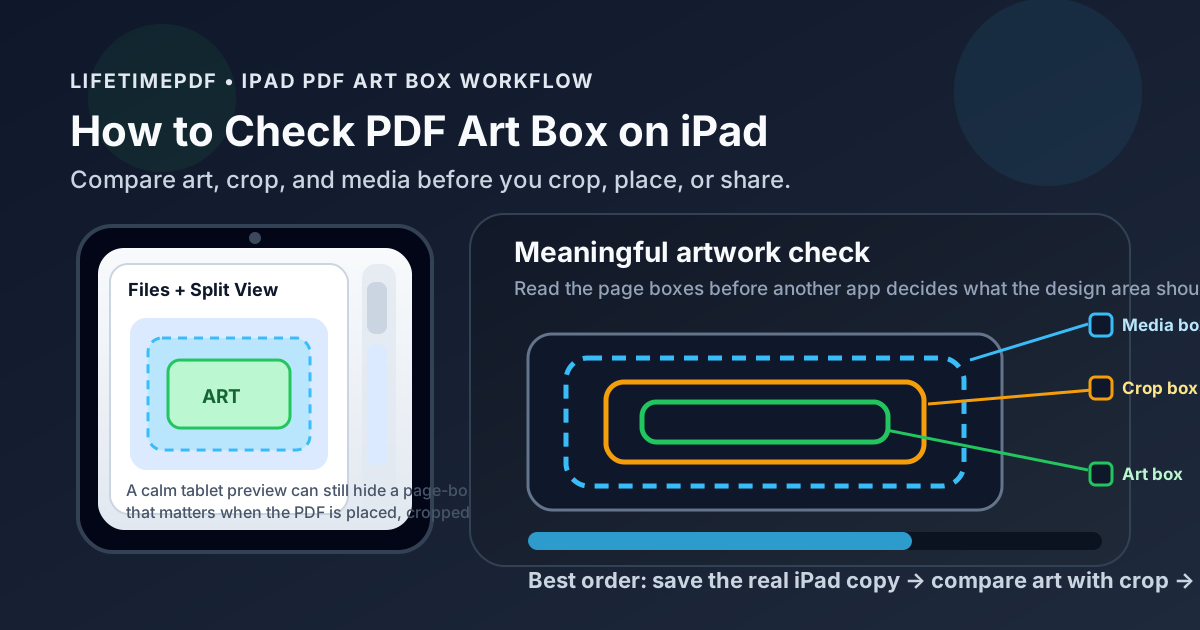
Table of contents
- Quick start: check PDF art box on iPad in about 5 minutes
- What an art box really means on iPad
- Why iPad previews can hide art-box problems
- Step-by-step: how to review PDF art box on iPad
- When art box matters and when it does not
- What to do if the art box is missing, wrong, or confusing
- Related LifetimePDF tools and guides
- FAQ
Quick start: check PDF art box on iPad in about 5 minutes
If your real goal is simply figure out whether this iPad PDF defines the meaningful artwork area sensibly before it moves into another app, layout, portal, printer, or person's workflow, use this order:
- Save the exact PDF you plan to upload, AirDrop, annotate, place, archive, or share into Files.
- Do not assume the preview in Mail, Safari, Messages, Drive, or another split-screen app proves the file's internal page boxes make sense.
- Open a page-box-aware workflow such as View PDF Properties so you can read the art box, crop box, and media box clearly.
- Check whether the art box matches the content region you would naturally call the meaningful design area.
- Compare it with trim and bleed only if the PDF is heading into print, packaging, editorial layout, or another edge-sensitive workflow.
- If the art box is wrong but harmless, leave it alone. If it is driving bad framing or placement decisions, fix the source geometry or re-export the PDF instead of guessing with random crops.
What an art box really means on iPad
The art box is not the whole canvas and it is not automatically the same thing as the page you see in a viewer. It is the PDF's attempt to describe the area that matters as the real artwork. In some files that is exactly the right boundary. In others it is stale export baggage, a design-app leftover, or a box nobody downstream should trust.
On iPad, that distinction matters because the tablet experience encourages confident handoffs. You review the file in landscape mode, drag it into another app, mark it up with Apple Pencil, and assume the internal geometry must match the clean preview. Sometimes it does. Sometimes the visible page is merely the crop box while the art box points to a different region that affects placement, framing, or production interpretation later.
Think of the page boxes like nested answers
- Media box: the full stored page canvas.
- Crop box: the area many viewers treat as the visible page.
- Trim box: the intended finished size in many print workflows.
- Bleed box: the extra edge coverage for trimming.
- Art box: the region the PDF treats as the meaningful artwork.
Why iPad previews can hide art-box problems
iPad gives you enough space to trust what you see. Split View makes the PDF feel visible, Stage Manager makes the workflow feel desktop-like, and the larger screen makes the file feel reviewed. That is useful, but it also makes it easy to forget that most normal previews are not showing you a labeled art-box boundary.
The easy mistake
The common mistake is to judge the PDF only by whether the page looks centered, readable, and complete on the screen. That may be enough for casual reading, but not for layout placement, asset packaging, print prep, or downstream cropping. In those workflows, an inaccurate art box can make another app choose the wrong “real” design area even though the iPad preview looked perfect.
Step-by-step: how to review PDF art box on iPad
1) Save the exact iPad copy first
Do not inspect a temporary preview if the outgoing file will be a different saved copy. Move the PDF into Files, give it the right name, and make sure that is the same document you plan to upload, AirDrop, send, or place elsewhere. If you are working from Mail, Safari, Messages, Slack, Drive, or another cloud app, save the real file first so your review matches the version that leaves the iPad.
2) Open a page-box-aware properties view
A normal preview is good for spotting obvious missing content, but it will not tell you enough about art-box geometry on its own. Use View PDF Properties or another page-box-aware workflow so you can read the relationships between art, crop, media, trim, and bleed clearly. On iPad, this is especially useful in Split View because you can keep the PDF visible on one side while you read the box values and compare them with what your eyes expect.
3) Compare the art box with the crop box first
This is the fastest high-value comparison. The crop box often reflects what the viewer treats as the visible page. The art box is supposed to reflect the meaningful artwork area. If those two boxes align, the PDF is often easier for downstream tools to interpret. If they do not, stop and decide whether that difference is intentional or accidental.
A mismatch is not automatically wrong. A designer may intentionally define a smaller art box inside a larger visible page. But if you do not know why the boxes differ, assume the file needs one more minute of attention before it leaves the tablet.
4) Compare it with media, then trim and bleed if needed
If crop-versus-art already explains the file, you may not need more analysis. If it still feels odd, compare the art box with the media box to see whether the PDF stores extra outer canvas, and then compare trim and bleed if the document is heading into print or layout. This broader check tells you whether the art box is a useful design boundary, optional metadata, or an export leftover that may mislead another app.
5) Decide whether the art box actually matters here
Not every PDF task on iPad needs an art-box fix. If you are simply reading, approving copy, or sending a file for casual reference, the art box may be irrelevant. If you are placing the PDF into another design, sharing production assets, preparing a print-ready file, or handing it to someone who will crop or package it, the art box matters much more. Judge the box against the real job, not against a generic fear that every mismatch is bad.
6) Fix the right layer once
If the visible framing is wrong, a crop adjustment may be enough. If the deeper page geometry is wrong, re-exporting from the source file is usually better. If the art box is merely missing but nothing relies on it, no fix may be necessary at all. The goal is not to edit everything you can find. The goal is to correct the one layer that is actually creating risk.
When art box matters and when it does not
High-priority art-box jobs
Design handoff, InDesign or presentation placement, print-prep review, packaging, catalog work, portfolio sheets, and any workflow where another app may decide how to frame or center the PDF.
Lower-priority art-box jobs
Casual reading, one-off approvals, reference sharing, or situations where nobody downstream is using the PDF as a geometry-sensitive asset.
Important limitation
A clean iPad preview does not prove the art box is right. It only proves the page looks fine in that viewer. You still need the box values when layout or production accuracy matters.
What to do if the art box is missing, wrong, or confusing
Most art-box problems fall into a few repeatable patterns. You do not need to panic over each one. You just need to choose the response that matches the real risk.
| Situation | What it usually means | Best next move on iPad |
|---|---|---|
| No art box | The file may still be perfectly usable if crop, trim, bleed, and media already support the real workflow. | Leave it alone unless another app or stakeholder specifically needs an art box. |
| Useful and accurate art box | The PDF is clearly describing the meaningful artwork area and downstream apps are less likely to guess badly. | Keep the file as-is and confirm the outgoing copy is the one you inspected. |
| Wrong art box but the visible page looks fine | The preview is hiding a metadata or export inconsistency that may only appear later in placement or production. | Re-export or correct the source if the downstream workflow will rely on that boundary. |
| Page geometry is messy overall | The art box is probably not the only issue; crop, media, trim, or bleed may also be out of sync. | Review the full box set before making edits, then fix the source file instead of stacking manual patches. |
Best decision rule
If the art box helps the PDF describe the meaningful content honestly, keep it. If it is stale, misleading, or likely to cause another app to frame the file badly, fix the source geometry or export settings instead of treating the iPad preview as proof that nothing is wrong.
FAQ
How do I check PDF art box on iPad?
Save the PDF locally, open a page-box-aware properties workflow, and compare the art box with the crop box, media box, trim box, and bleed box so you can see whether the file's meaningful artwork region makes sense.
Can Files or Split View show an art box clearly on iPad?
They are useful for opening the exact saved file and spotting obvious issues, but a properties-aware workflow is better when you need the clearest read on art, crop, trim, bleed, and media relationships.
Is art box the same as crop box on iPad?
No. The art box describes the meaningful artwork area, while the crop box is the area many viewers treat as the visible page. They may align, but they are not automatically the same.
Is a missing art box on iPad always a problem?
No. Many PDFs work perfectly without one. If the file already behaves correctly for the real workflow, a missing art box may not matter at all.
Should I crop the PDF if the art box looks wrong on iPad?
Only if the visible framing is the real problem. If the deeper page geometry is wrong, re-exporting or fixing the source file is usually a better move than making blind crop edits.
Check the meaningful artwork area before another app guesses for you.
On iPad, the cleanest art-box workflow is simple: inspect the real outgoing file, compare art with crop first, use media, trim, and bleed only to understand the bigger geometry story, and fix only the layer that is actually wrong.
Published by LifetimePDF — Pay once. Use forever.