How to Check if a PDF Has Links on Android: Files, Drive, Gmail, and Real Tap Tests
To check if a PDF has links on Android, save the file locally, open it in Acrobat Reader or another full PDF viewer, and tap the important URLs, bookmark jumps, and email links yourself.
If the destination is wrong, the wording is vague, or the tap does nothing, the PDF is not ready just because it looked fine in a Files, Drive, Gmail, or Chrome preview.
That is the short answer. The useful Android answer is that a PDF can open perfectly in Files, Drive preview, Gmail attachments, Slack or chat downloads, or a browser tab while still hiding broken calls to action, dead citations, stale table-of-contents jumps, or copied text that looks tappable but is not. If the file matters, you want to prove two things: the links are there, and the reader can trust where they go on a phone or tablet.
Fastest practical path: save the exact Android copy, test the links people actually depend on, confirm the destination matches the promise, then fix the source before you send the file onward.
In a hurry? Jump to quick start: check whether an Android PDF really has usable links in about 6 minutes.
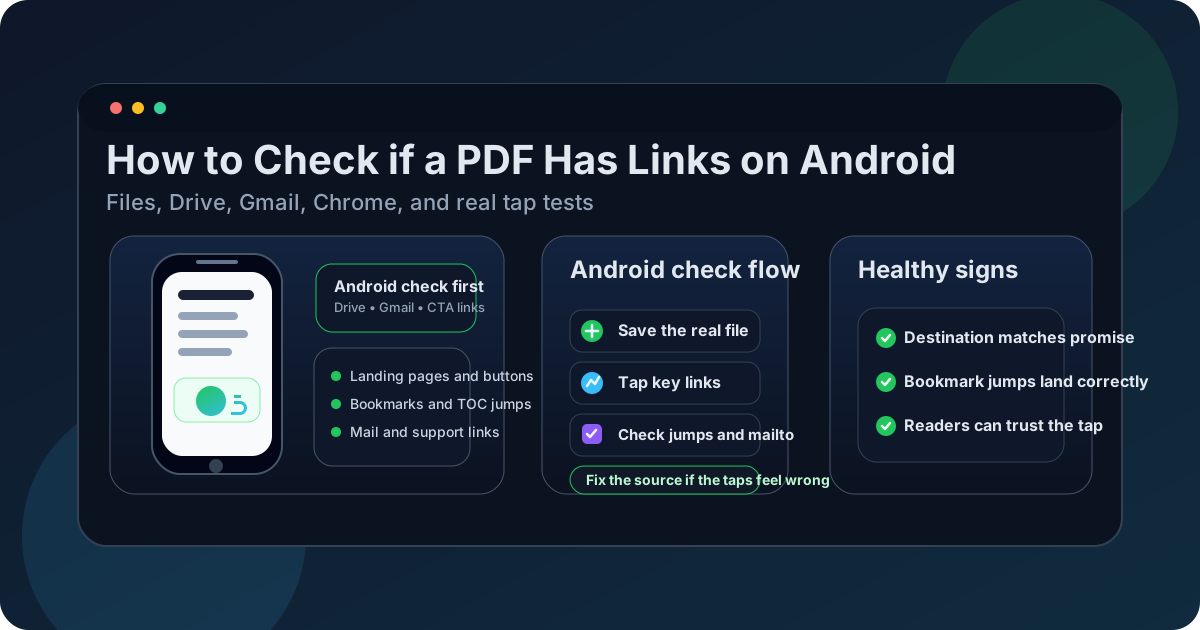
Table of contents
- Quick start: check whether an Android PDF really has usable links in about 6 minutes
- What counts as PDF links on Android
- Where Android users get misled
- Step-by-step: how to review PDF links on Android
- Common signs the PDF link layer needs cleanup
- When to fix the source instead of patching the final PDF
- Related LifetimePDF tools and guides
- FAQ
Quick start: check whether an Android PDF really has usable links in about 6 minutes
If your real goal is simply tell me whether this PDF has links and whether they still work on Android, use this order:
- Save the exact PDF you plan to send, upload, archive, or submit into Files or a local folder on your Android device.
- Do not rely on Files preview, Drive preview, Gmail attachment preview, or a fast browser glance as your only test.
- Open the saved file in Acrobat Reader or another viewer that supports real tapping and internal navigation.
- Tap the high-value links first: calls to action, support pages, citations, bookmark jumps, and email links.
- Judge whether the destination matches the promise, not just whether some page or app opened.
- If the wording is vague, the link is dead, or the jump lands in the wrong place, repair the source before the PDF goes out.
What counts as PDF links on Android
PDF links include more than blue underlined web addresses. On Android, the link layer often includes external URLs, mailto links, download actions, table-of-contents jumps, bookmarks, and cross-references that move the reader to another page in the same document. In plain language, if the PDF asks the reader to tap, jump, open, or contact something, it belongs in the check.
| Link type | What it usually does | Why it matters on Android |
|---|---|---|
| External web link | Opens a website, landing page, form, portal, or citation source | A dead or misleading destination quietly breaks trust even if the PDF itself looks polished in Files or Drive preview |
| Bookmark or table-of-contents jump | Moves the reader to another page or section inside the PDF | Long Android PDFs feel much heavier when internal navigation is stale or broken |
| Email or contact link | Launches Gmail or another mail app with a target address | Support, sales, HR, and approvals often depend on these links working cleanly from a phone |
| Download or workflow link | Starts a download, opens a portal, or triggers the next action in a process | The PDF may look ready while the underlying workflow is already broken |
The important distinction is that an Android PDF can have links without having good links. Presence is the first question. Reliability is the second one.
Where Android users get misled
Android gives you several ways to glance at a PDF quickly, but not every path proves the links are healthy. A fast preview answers whether the file opens and looks roughly right. It does not always answer whether the important taps still work the way the document promises.
| Opening path | What it is good for | What it cannot safely prove |
|---|---|---|
| Files or Downloads preview | Confirming you saved the right file and doing a fast visual pass. | That the PDF really contains working hyperlinks, mailto links, or reliable bookmark jumps. |
| Drive, Gmail, or chat attachment preview | Checking that the attachment opens and looks familiar. | That the outgoing file will behave the same way for every reader after download. |
| Chrome or an app-embedded preview | Checking that a download or portal attachment is at least readable on the device. | That vague text, wrong destinations, or stale internal jumps are acceptable just because the tap technically opens something. |
| Acrobat Reader or another fuller PDF app | Testing bookmarks, internal jumps, and PDF behavior more deliberately. | It still does not decide whether the wording and destination are trustworthy. You still have to judge that as a human. |
Step-by-step: how to review PDF links on Android
This workflow gives you a dependable answer without turning a simple link check into a time sink.
Step 1: Save the exact Android copy first
If the PDF is still sitting inside Gmail, Drive, Chrome, Slack, Teams, or a portal overlay, save it first. The check should apply to the exact file you are about to send, upload, archive, print, or submit. That sounds obvious, but it is one of the easiest ways to avoid testing the wrong copy.
Step 2: Start with the taps that matter most
You do not need to tap every decorative footer link before you know whether the PDF is healthy. Start with the links that carry actual consequence on Android: the signup button, the support contact, the citation source, the appendix jump, the policy reference, the download action, or the email link that should open the right address in Gmail.
- Calls to action and landing-page links.
- Contact and mailto links.
- Table-of-contents and bookmark jumps.
- Contract exhibits, appendix links, and policy references.
- Support, portal, and file-download links.
Step 3: Check the wording before you tap
A healthy link is not only live. It is honest. If the PDF says Download onboarding checklist, the tap should go to the onboarding checklist, not to a generic homepage, a login wall, or a retired folder. If the clickable text says only tap here, read more, or website, the link may still work technically while remaining weak for skimming, accessibility, and trust.
Step 4: Tap the destination and judge the whole experience
On Android, the real test is not whether Files, Drive, or your browser opened a new page. The real test is whether the destination still matches what the reader was led to expect. Watch for 404s, homepage redirects, retired help articles, wrong document versions, expired shares, and email links that open the wrong address or no longer feel appropriate on mobile.
Step 5: Test internal jumps deliberately
Long PDFs often depend on bookmarks, section references, appendix links, and table-of-contents jumps. These are easy to forget and easy to break after page reordering, merging, or export changes. Open the bookmark list if needed and test the sections real readers will revisit most: summary, pricing, appendix, exhibits, signature pages, schedules, and forms.
Step 6: Use broader context if the PDF feels inconsistent
If the link layer feels suspicious, pair the review with View PDF Properties, Check PDF Bookmarks, and Check PDF Accessibility. Weak links often travel with other document-quality problems such as stale bookmarks, broken structure, or a messy export.
Step 7: Fix the source and export again when needed
If the PDF came from Docs, Word, PowerPoint, Canva, or another editable source, repairing the source is usually the cleanest move. If the source still exists, update the wording and destinations there first, then create a fresh PDF. If you no longer have the original, recover the content without losing hyperlink intent before rebuilding the final file.
Reliable sequence: save the real Android copy → tap the high-value links → verify the wording and destination → test bookmarks and internal jumps → repair the source if anything feels off.
Common signs the PDF link layer needs cleanup
These patterns come up repeatedly when an Android PDF technically has links, but the document is not ready for a real reader.
| What you notice | What it usually means | Best next move |
|---|---|---|
| The link opens, but the page is not what the PDF promised | The destination is live but stale, generic, or wrong | Update the destination or rewrite the link text so the promise is honest |
| The PDF looks tappable, but nothing happens | Styled text survived export, but the actual hyperlink did not | Repair the source and export a cleaner PDF |
| The bookmark jump lands one page early or late | Pages were inserted, removed, or reordered after the navigation was built | Retarget the important internal jumps before sharing |
| The email link opens the wrong address or no longer fits the workflow | The contact path is outdated or was copied carelessly from an older draft | Fix the target and retest on Android where the audience will tap it |
| The link wording is vague | The tap may work, but the reader cannot predict what happens next | Replace weak text with wording that describes the destination clearly |
Healthy default
If the reader has to trust you blindly rather than trust the tap itself, the PDF link layer probably needs one more pass.
When to fix the source instead of patching the final PDF
Source-first repair usually wins when the problem is broad rather than isolated. If multiple links are vague, if internal jumps drift after edits, or if the whole PDF feels inconsistent, patching the final file is usually the slow path.
Repair the source when:
- several important links point to the wrong place,
- bookmark jumps break after page changes or mergers,
- the PDF came from an editable source you still control,
- the file will be revised again later,
- the link issues show up alongside broader accessibility or navigation problems.
If the link review is part of a larger document-quality check, pair it with accessibility, bookmarks, page labels, and properties. Good links work best inside a document whose navigation and structure already make sense.
FAQ
How do I check if a PDF has links on Android?
Save the PDF locally, open it in Acrobat Reader or another full PDF viewer, then tap the important web links, bookmark jumps, and email links yourself to confirm both presence and destination quality.
Can a PDF look fine in Drive or Gmail preview but still have broken links?
Yes. A PDF can render cleanly in Files, Drive, or Gmail while still containing dead URLs, weak link text, broken bookmark jumps, or email links that no longer lead where the reader expects.
Do bookmark jumps count as links I should test on Android?
Absolutely. Internal navigation is part of the reader experience, especially in long PDFs where people depend on bookmarks and section jumps to move around efficiently.
Should I test mailto and Gmail links too?
Yes. Contact and workflow links often matter more than ordinary web URLs because they affect support, approvals, submissions, and customer follow-up.
Should I fix broken links in the PDF or in the original source?
If you still control the source, fix it there first. A clean export from the original document is usually faster, more reliable, and easier to maintain than repeated PDF-only patching.
Published by LifetimePDF — Pay once. Use forever.