How to Check if a PDF Has Annotations on Linux: Okular, Evince, and Share-Safe Review
To check if a PDF has annotations on Linux, save the file locally, scan the visible markup in Okular, Evince, or your current viewer, and then confirm the same PDF in a comments-aware app so you can review every note, highlight, stamp, and markup item.
If the PDF looks clean in Firefox, Chrome, or a quick Linux preview, do one final markup-aware review before you share, flatten, print, or archive it.
That is the short answer. The useful answer is that Linux users often trust a quiet-looking preview when the real question is whether the file still carries review baggage. A contract, proof, school handout, invoice packet, or client PDF can look finished in a browser tab while still containing comments, highlights, note icons, or stale stamps that become much more obvious once you open the markup list in a fuller PDF app.
Fastest practical path: save one clear local copy, do the visible markup pass, open the annotations list in Okular or another fuller Linux PDF app, then decide whether the file is still for review or already the final copy.
In a hurry? Jump to quick start: check PDF annotations on Linux in about 5 minutes.
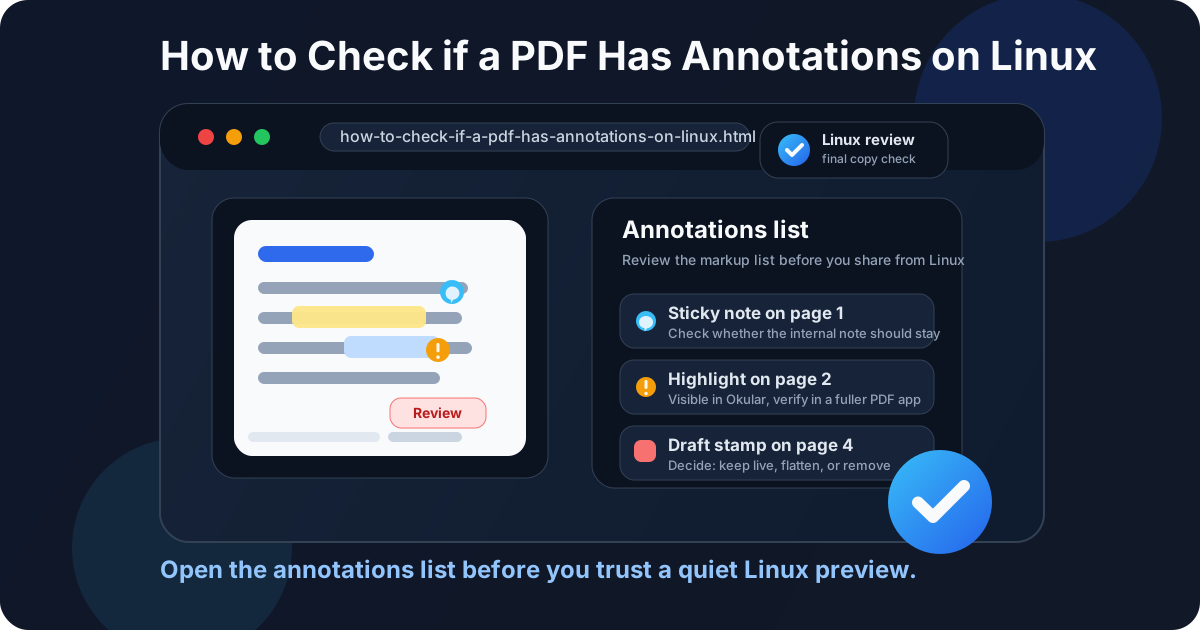
Table of contents
- Quick start: check PDF annotations on Linux in about 5 minutes
- What counts as a PDF annotation on Linux
- Browser preview vs Evince vs Okular
- Step-by-step: how to review annotations on Linux
- Common signs the PDF still has markup attached
- When to keep annotations live, flatten them, remove them, or redact them
- Related LifetimePDF tools and guides
- FAQ
Quick start: check PDF annotations on Linux in about 5 minutes
If your real goal is simply make sure the wrong comments or markup do not travel with the PDF, use this order:
- Save the exact PDF you plan to send, print, upload, archive, or flatten into one obvious Linux folder.
- Open it in Okular, Evince, or your current viewer and scan for visible highlights, note icons, stamps, text boxes, arrows, and other markup.
- Open the same Linux copy in a PDF app that exposes a comments or annotations list.
- Click through the markup one time and decide whether the file is still a review copy or already a final copy.
- If the markup should remain visible but fixed, use Flatten PDF. If it should not travel at all, remove it first or use Redact PDF when sensitive content is involved.
- Open the saved final copy again and confirm it now shows exactly what the recipient should see.
What counts as a PDF annotation on Linux
PDF annotations are markup items layered onto the document without rewriting the original page content permanently. Some are useful collaboration tools. Some are exactly the leftovers you do not want surviving into a client copy, a signed packet, a school submission, or an archive version.
| Annotation type | What it usually does | Why it matters before sharing |
|---|---|---|
| Comments or sticky notes | Add reviewer feedback without changing the main page text directly | Easy to miss when you only glance at the PDF in a browser or lightweight Linux preview |
| Highlights, underlines, and strikeouts | Mark text for review, revision, or approval | Can make a final file look unfinished or expose internal editing history |
| Text boxes, arrows, and shapes | Overlay instructions, callouts, and visual markup | Often linger after the underlying issue was already fixed |
| Stamps | Show states like Draft, Approved, Reviewed, or Rejected | An old stamp can instantly send the wrong signal |
| Drawing markups | Circle, box, or point at areas during review | Can confuse the next reader if they no longer represent live feedback |
On Linux, the trap is not that these items are unusual. The trap is that one viewing path may show them clearly while another gives you a clean-looking document unless you deliberately open the markup list or comments pane.
Browser preview vs Evince vs Okular
Linux gives you several ways to open a PDF quickly, which is convenient but also where false confidence starts. These options are not interchangeable if your question is whether the file still carries comments or markup that should not leave with it.
| Viewing path | What it is good for | What it cannot safely prove |
|---|---|---|
| Firefox or Chrome PDF tab | Quick reading, confirming the file opened, and spotting obvious visible markup. | That the PDF has no comments, hidden notes, or subtle review leftovers just because the page looks calm. |
| Evince or another simple desktop reader | Basic local readability and a cleaner view than a browser tab. | A full audit of comments, stamps, and markup state across the document. |
| Okular or a fuller PDF app | Reviewing visible markup and opening the annotations list when you need a more dependable answer. | It still does not replace judgment about whether the PDF is still a review copy or already final. |
| Before-and-after comparison | Confirming that your cleaned output still matches the intended document after you remove or flatten markup. | It does not decide what should stay; it only helps you verify the result. |
Step-by-step: how to review annotations on Linux
This workflow gives you a dependable answer without turning a simple check into a technical project.
Step 1: Save the real outgoing Linux copy
If the PDF is still sitting inside Gmail, Outlook webmail, Slack, Nextcloud, Google Drive, or a browser preview, save it locally first. Annotation status can change across exports and versions. If you inspect one copy and send another, the check did not really happen.
Step 2: Open the file for the visible markup pass
Okular, Evince, or your preferred Linux viewer is a good first pass because it shows how many Linux users will actually encounter the document. Scan the pages for visible highlights, callouts, stamps, text boxes, note icons, arrows, and obvious review leftovers. This is where you catch the markup that is already shouting at you.
Step 3: Open the same file in a viewer that exposes the annotations list
Do not stop at the page view. Use Okular or another fuller PDF app that exposes the comments or annotations list so you can inspect every markup item, including notes and review history that may not stand out in browser preview.
- Check note icons tucked into margins or corners.
- Check highlights that may only stand out at certain zoom levels.
- Check old approval or draft stamps that no longer match the document status.
- Check arrows, boxes, and callouts that were only meant to guide editing.
- Check whether multiple reviewers left overlapping markup on the same page.
Step 4: Compare the markup list with what the quick preview showed you
If the annotations list shows more than your browser tab or lightweight Linux view made obvious, trust the fuller review view. That is exactly why the two-step Linux workflow matters. The first pass is your visible sanity check. The annotations list is your final markup audit.
Step 5: Decide whether this is still a review file or already a final file
A review file can keep live comments because the next person still needs to reply. A final file usually needs one of two outcomes: the markup is removed completely, or the intentional visible markup is flattened into the page so it stops behaving like live review material.
Step 6: Verify the final copy one last time
Open the saved output again on Linux. Make sure the comments you meant to remove are gone, the highlights you meant to keep still show correctly, and the file now matches what the recipient should actually see. If you want a quick before-and-after proof, use Compare PDFs.
Reliable sequence: save the exact Linux copy → scan the visible pages → open the annotations list → decide review copy or final copy → flatten or remove deliberately → verify once more.
Common signs the PDF still has markup attached
These patterns show up again and again when a Linux PDF is not as final as it seems.
| What you notice | What it usually means | Best next move |
|---|---|---|
| The page looks finished but the annotations list still has items | Review notes were never cleared after edits were made | Open each item and decide keep, flatten, or remove |
| A draft or approval stamp feels outdated | The PDF inherited status markup from an earlier stage | Replace or remove the stamp before the file leaves the workflow |
| Highlights look minor in one Linux view but stronger elsewhere | The markup is real, but the current preview is downplaying it | Use a clearer annotations view before making a final decision |
| Different people report different things about the same PDF | One app is surfacing markup more clearly than another | Check the file in a comments-aware environment and settle it there |
| The file is headed to a client, archive, school portal, legal workflow, or print job | Even harmless leftover markup can become embarrassing or misleading | Do a deliberate markup review instead of relying on a quick preview |
When to keep annotations live, flatten them, remove them, or redact them
Not every annotation deserves the same treatment. The smart move depends on what the next person is supposed to do with the file.
Keep annotations live when the PDF is still under review
If editors, clients, classmates, colleagues, or reviewers still need to reply to the comments, live annotations are useful. In that case, the markup is part of the workflow, not a mistake.
Flatten annotations when the markup should stay visible but no longer be editable
Flattening is the right move when highlights, callouts, or stamps should remain on the page for the final reader, but should stop behaving like interactive review elements. That is common for approved packets, print handoff, and final visual copies shared from Linux.
Remove annotations when they were only temporary review clutter
Delete note icons, stale highlights, old arrows, and internal comments when they have already served their purpose. A final PDF should not carry yesterday's editing scaffolding into tomorrow's workflow.
Use redaction when the issue is sensitive content
If a comment, visible note, or page text contains private or regulated information, use a proper redaction workflow. Redact PDF is the right category of action when the goal is to make information disappear safely. Flattening keeps visible markup as page content. It does not magically make sensitive content safe.
Easy mistake to avoid
Do not use flattening as a substitute for judgment. Flattening is for keeping intended visible markup while making it non-interactive. It is not the same thing as removing the wrong comment or securely eliminating sensitive information.
Bottom line: if the next person should only see the final result, do not let hidden review leftovers make that decision for you.
FAQ
How do I check if a PDF has annotations on Linux?
Save the PDF locally, scan the visible page for markup, then open the same file in Okular or another PDF app that shows the annotations list. Review every highlight, note, stamp, and markup item before sharing.
Can Linux browser preview hide PDF comments or markup?
Yes. Browser preview and lightweight Linux readers can make a PDF look clean even when comments, highlights, note icons, or stamps are still attached. A fast preview is helpful, not final proof.
Is Okular better than a browser for checking PDF annotations on Linux?
Usually yes, because Okular can surface comments and annotation details more clearly than a browser tab or quick preview. The important part is using a viewer that exposes the markup layer instead of only the visible page.
Should I flatten annotations before sending a PDF from Linux?
Flatten annotations when the markup should remain visible but no longer be editable. If the comments or notes should not travel at all, remove them first or use proper redaction when sensitive content is involved.
Are PDF annotations the same as attachments, layers, or form fields?
No. Annotations are review markup such as comments, highlights, note icons, shapes, and stamps. Attachments, layers, and form fields are separate PDF features and need different checks.
Published by LifetimePDF — Pay once. Use forever.