Check PDF Annotations: Confirm Comments, Highlights, Stamps, and Markups Before You Share or Flatten
To check PDF annotations, open the exact file you plan to share and review every comment, highlight, stamp, and visible markup before you flatten, print, archive, or send it out.
If the annotations should not travel, remove them or clean the file first; if they should stay visible but no longer editable, flatten them deliberately instead of hoping the output behaves the way you meant.
That is the short answer. The practical answer is that annotation mistakes are easy to miss because PDFs often look finished while still carrying review debris underneath. A harmless-looking note icon, an unresolved highlight, or an approval stamp from yesterday's draft can survive into the client copy, the print run, or the archive version if nobody checks the markup layer before the file leaves the workflow.
Fastest practical path: inspect the outgoing PDF once, decide which annotations should stay live, flatten only the markup that belongs in the final appearance, and remove anything that was meant only for internal review.
In a hurry? Jump to quick start: check PDF annotations in about 5 minutes.
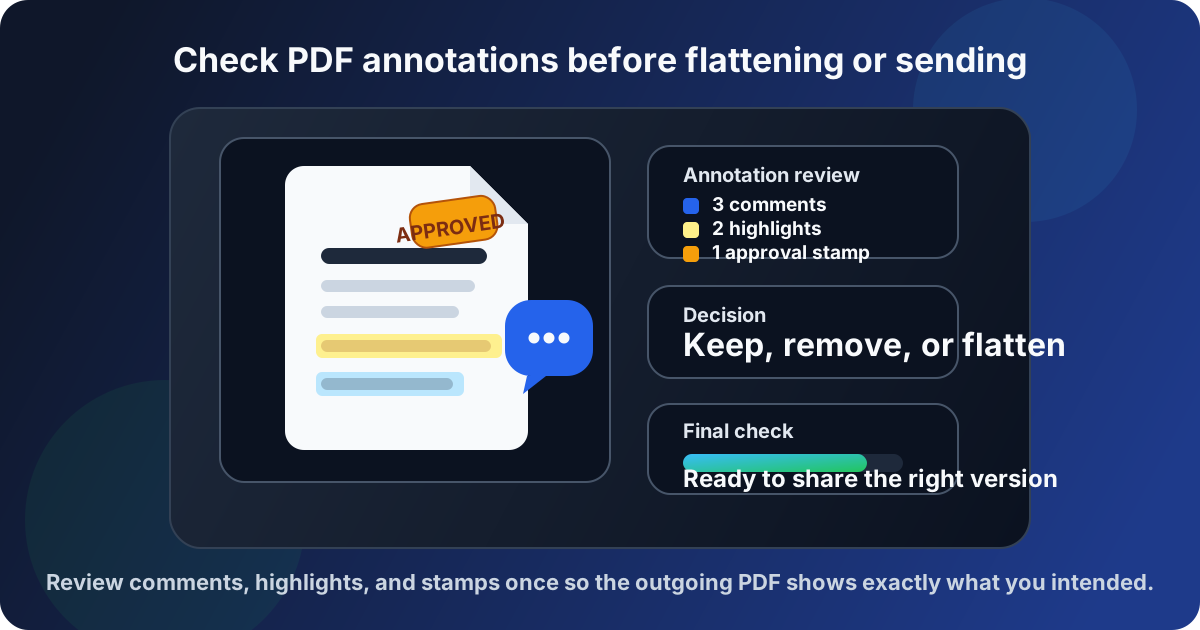
Table of contents
- Quick start: check PDF annotations in about 5 minutes
- What counts as a PDF annotation
- Why annotation checks matter before sharing or flattening
- Step-by-step: practical PDF annotation review workflow
- Common annotation problems and what they usually mean
- When to keep annotations live, flatten them, or remove them
- Final checklist before you share, print, or archive
- Related LifetimePDF tools and guides
- FAQ
Quick start: check PDF annotations in about 5 minutes
If your real goal is simply make sure the wrong markup does not leave with the PDF, use this order:
- Open the exact PDF you plan to send, print, file, or archive.
- Review the annotation or comment list so you catch note icons, highlights, text boxes, shapes, stamps, and unresolved review items.
- Click through the marked pages and confirm whether each annotation belongs in the outgoing copy.
- If the markup should remain interactive for review, keep it live. If it should become fixed page content, use Flatten PDF.
- If the note or markup should not travel at all, remove it first or use Redact PDF when the issue is sensitive information rather than ordinary review markup.
- Open the final copy once more and confirm the visible result matches what the recipient should actually receive.
What counts as a PDF annotation
PDF annotations are review elements attached to the page without permanently rewriting the underlying source content. Depending on the workflow, they can be helpful collaboration tools or embarrassing leftovers.
Common annotations include:
| Annotation type | What it usually does | Why it needs checking |
|---|---|---|
| Comments or sticky notes | Add reviewer feedback without changing the page body | Easy to miss in the final copy, especially when note icons are collapsed |
| Highlights, underlines, and strikeouts | Mark text for approval, revision, or attention | Can survive into client-facing files if nobody clears or flattens them intentionally |
| Text boxes and callouts | Overlay visible instructions or explanations on the page | May still be sitting on the page after the source change was already made |
| Shapes and drawing markups | Circle, arrow, or outline a region for review | Can clutter the final document or mislead readers if left behind |
| Stamps | Show states like Draft, Approved, Rejected, Reviewed, or Signed | An old stamp can send the wrong signal instantly |
Why annotation checks matter before sharing or flattening
Annotation checks look minor until the wrong PDF reaches someone else. That is when leftover markup stops being an internal convenience and starts becoming visible evidence of a messy workflow.
External sharing
A client, customer, student, or vendor may see comments that were only meant for your internal review cycle.
Flattening and print
Visible markup can become part of the page image permanently if you flatten or print too early.
Version control
Old stamps and unresolved notes make it harder to tell which PDF is the real final version.
Archives and evidence
Stored PDFs should reflect what actually mattered, not every temporary markup that happened during review.
This matters especially for contracts, compliance packets, editorial proofs, engineering markups, hiring documents, school handouts, and any workflow where the PDF might move from internal review into formal distribution. A two-minute markup check at the end is often the cheapest quality-control step in the whole process.
Common false assumption
People often assume that if they cannot immediately see a big comment bubble, the PDF is clean. In reality, notes may be collapsed, off to the side, hidden in a comments pane, or visible only in viewers that preserve markup more fully than the one you happen to be using right now.
Step-by-step: practical PDF annotation review workflow
1) Start with the outgoing copy, not a working draft
Annotation review only matters on the file that is actually leaving your hands. If you check yesterday's draft but email a newly exported PDF later, the markup status may already be different. Always inspect the exact outgoing copy.
2) Open the annotation list, not just the page view
Page-by-page viewing helps, but a proper comment or annotation list catches items you may not notice from a casual skim. That includes hidden notes, tiny comment icons, and review elements sitting in the margins. If you are adding or adjusting markup, Annotate PDF gives you a cleaner way to manage it deliberately.
3) Click through every marked page once
You want to answer a blunt question for each item: should this annotation still exist in the version another person will receive? If the answer is no, remove it. If the answer is yes but it no longer needs to stay interactive, plan to flatten it.
- Check highlights that may still mark text already revised.
- Check comment threads that were resolved in conversation but never cleared from the file.
- Check approval or draft stamps that may describe an older status.
- Check arrows, circles, and callouts that were only meant to guide editing.
- Check whether multiple reviewers left overlapping markup on the same page.
4) Decide whether the outgoing file is a review file or a final file
This is the decision that simplifies everything else. A review file can keep live comments and interactive markup because the next person is expected to respond. A final file usually needs one of two outcomes: either the markup is removed entirely, or the visible markup is flattened into the page because it represents intentional final context.
5) Flatten or remove the right things on purpose
Use Flatten PDF when visible notes, highlights, stamps, or callouts should remain on the page but no longer behave like editable annotations. Remove ordinary review markup before flattening when it should not survive at all. If the real issue is sensitive text or personal information, use Redact PDF instead of treating review cleanup like a privacy solution.
6) Verify the final appearance against the prior version
One quick compare pass saves confusion. Use Compare PDFs or a side-by-side visual check so you can confirm that the outgoing copy still contains the intended markup, no accidental extras, and no missing callouts that the final audience actually needed.
Reliable sequence: inspect the outgoing PDF → review the annotation list → decide review copy or final copy → flatten or remove deliberately → verify the result once.
Common annotation problems and what they usually mean
Most annotation mistakes repeat the same few patterns. Once you know them, cleanup gets much faster.
| What you notice | What it usually means | Best next move |
|---|---|---|
| The PDF looks finished but the comments pane still has items | Review notes were never cleared after the edits were made | Decide whether each comment should stay live, be removed, or be flattened |
| An approval or draft stamp feels wrong for the current version | The file inherited a status from an older review stage | Replace or remove the stamp before the file leaves the workflow |
| Highlights remain even though the text was already fixed | Markup survived after content changes were completed | Clear unnecessary highlights or flatten only the ones meant to remain visible |
| The PDF opens differently in different viewers | Some apps show markup or comments more aggressively than others | Check the file in a markup-aware viewer and verify the outgoing copy directly |
| People can still edit notes you thought were final | The annotations stayed live instead of being flattened | Flatten the visible markup when the file is meant to be final |
Review-state problem
The PDF still contains internal feedback and unresolved notes because nobody decided whether the file was still a draft or already a final copy.
Visibility problem
The markup exists, but it is easy to miss in one viewer and very obvious in another, which creates false confidence during cleanup.
Finalization problem
The markup should stay visible, but it was never flattened, so the recipient can still edit or interpret it as unfinished review material.
When to keep annotations live, flatten them, or remove them
Not every annotation deserves the same treatment. The smart move depends on what the next person is supposed to do with the file.
Keep annotations live when the PDF is still in review
Live annotations are useful when editors, clients, teammates, or reviewers still need to reply, accept changes, or continue the markup conversation. In that case the comments are part of the workflow, not a mistake.
Flatten annotations when the markup should remain visible but fixed
Flattening is the right move when a stamp, callout, or highlight should stay on the page for the final reader, but should no longer behave like an editable annotation. That is common for approved packets, print-ready files, proofing outputs, and handoff documents that must look consistent across viewers.
Remove annotations when they were only temporary review clutter
Delete comments, note icons, old arrows, and internal markup when they have already served their purpose. A final PDF should not carry yesterday's editorial scaffolding unless that markup is still useful to the next audience.
Use redaction when the issue is sensitive content, not ordinary markup
If a comment, visible note, or page text contains private data, legal strategy, personal information, or anything that must truly disappear, use a real redaction workflow. Flattening preserves visible content. It does not magically turn sensitive material into safe material.
Easy mistake to avoid
Do not use flattening as a substitute for judgment. Flattening is for keeping intended visible markup while making it non-interactive. It is not the same thing as removing the wrong note, clearing obsolete comments, or securely redacting sensitive information.
Final checklist before you share, print, or archive
Before the PDF leaves your hands, run this short check:
- Did you inspect the exact outgoing copy instead of an older draft?
- Did you review both the visible page markup and the annotation or comments list?
- Did you decide clearly whether this is still a review file or already a final file?
- Did you remove markup that should not travel at all?
- If visible markup should stay, did you flatten it intentionally rather than leaving it interactive by accident?
- If the issue involved sensitive information, did you use redaction instead of assuming flattening was enough?
- Did you verify the final PDF once after cleanup?
You do not need a complicated document-governance process to get this right. You just need one calm pass that decides whether the markup belongs to the workflow that is ending or the audience that comes next.
Ready to clean up the final copy? Check the markup layer, keep only what belongs, and send a PDF that says exactly what you intend it to say.
Best workflow for dependable markup control: inspect the real outgoing file → decide review or final → flatten or remove deliberately → verify once more.
FAQ
How do I check PDF annotations?
Open the exact PDF, review the annotation or comments list, click through highlights, note icons, stamps, and other markups, then decide whether those items should stay live, be flattened, or be removed before sharing.
What counts as a PDF annotation?
PDF annotations usually include comments, sticky notes, highlights, underlines, text boxes, drawing markups, shapes, and stamps added during review without permanently rewriting the source page content.
Why should I check annotations before flattening a PDF?
Because flattening can turn visible markup into fixed page content. If the wrong notes, highlights, or stamps are still present, they may become part of the final PDF you send or archive.
Should I keep annotations live or flatten them before sending?
Keep them live when the recipient still needs to review or reply. Flatten them when the markup should remain visible but no longer be editable, especially for final copies, print handoff, or inconsistent viewers.
Does flattening remove sensitive comments from a PDF?
Not in the way people often hope. Flattening preserves visible content as part of the page appearance. If something should not travel at all, remove it or use proper redaction when the issue is sensitive information.
Published by LifetimePDF — Pay once. Use forever.