Compare PDFs: Find Text Changes, Missing Pages, and Revised Numbers Without Rereading Everything
Yes — the fastest way to compare PDFs is to upload both files to a comparison tool and review the highlighted text, page, and formatting differences instead of rereading both documents line by line.
If either file is scanned, run OCR first, and if the comparison feels noisy, extract only the relevant pages before comparing again.
That simple workflow saves time because the real job is almost never “look at two PDFs.” The real job is usually find what changed and decide whether it matters. Maybe it is a revised contract, an updated quote, a new policy draft, a corrected invoice, a board pack with last-minute number changes, or a technical manual that came back with silent edits. A good PDF comparison workflow narrows your attention to the differences that deserve review so you do not burn time re-reading the entire file from the first page.
Fastest practical path: compare the right two versions first, OCR scans when needed, and trim away irrelevant pages if you want a cleaner result.
In a hurry? Jump to Quick start: compare PDFs in a few minutes.
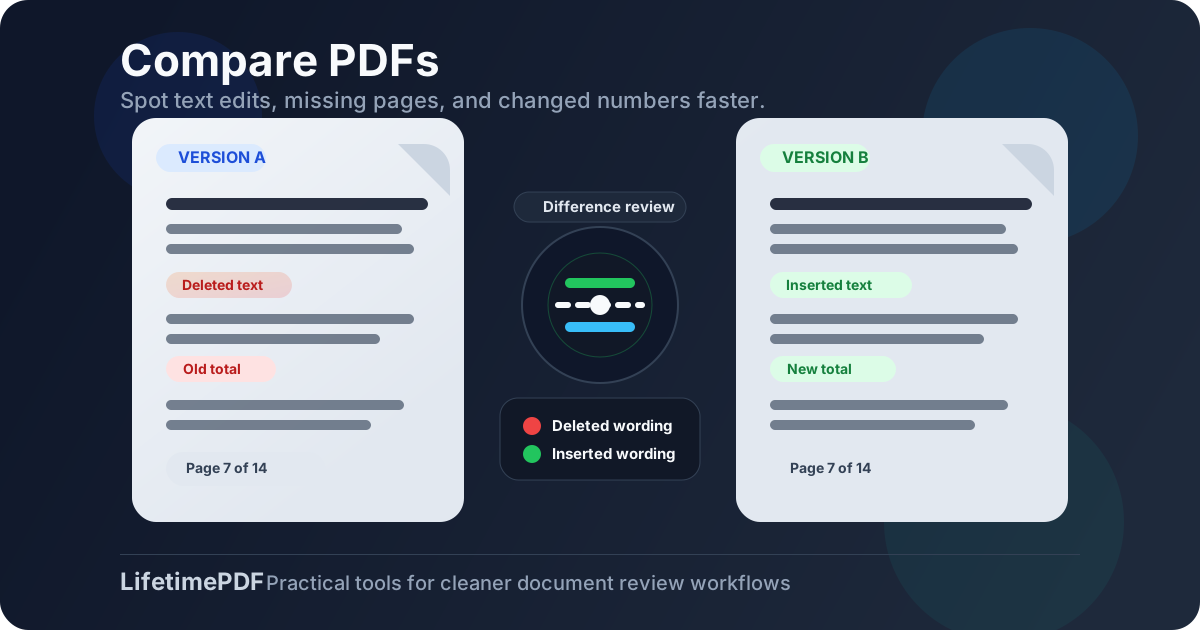
Table of contents
- Quick start: compare PDFs in a few minutes
- When comparing PDFs is the right move
- What a PDF comparison can actually catch
- How to prepare the files before you compare
- Step-by-step: compare PDFs with LifetimePDF
- Scanned PDFs: when OCR should come first
- Whole document vs selected pages
- Common mistakes that create noisy results
- Related LifetimePDF tools and guides
- FAQ (People Also Ask)
Quick start: compare PDFs in a few minutes
If your only goal is to find the differences quickly, this is the workflow that usually gets you there fastest:
- Open Compare PDFs.
- Upload the original PDF and the revised PDF.
- Review the highlighted changes for wording edits, changed numbers, missing pages, or layout shifts.
- If either file is scanned, run it through OCR PDF first.
- If the result feels too busy, isolate the relevant section with Extract Pages and compare only that smaller range.
vendor-agreement-v5.pdf and vendor-agreement-v6-redlines.pdf is much safer than comparing two vague files named final.pdf and final-new.pdf.
When comparing PDFs is the right move
People search for compare PDFs when they do not trust a document handoff. They suspect something changed, but they do not want to inspect every paragraph manually. That is exactly where a comparison tool helps.
The strongest use cases usually look like this:
- Contracts and legal drafts where one clause, date, or payment term may have changed quietly
- Quotes, proposals, and invoices where totals, assumptions, quantities, or attachments may no longer match
- Policy documents and SOPs where teams need to review revisions before approval
- Reports and board packs where updated figures matter more than layout polish
- Technical manuals and specifications where changed labels, notes, or diagrams can create real downstream mistakes
- Client review workflows where a “small update” sometimes turns out to be a bigger rewrite than expected
In all of these cases, the real value is speed plus confidence. You want to focus your attention where the file changed, not where it stayed the same.
What a PDF comparison can actually catch
A good comparison workflow is useful because it helps surface both obvious and easy-to-miss differences. Depending on the source files, it can help you catch:
- Inserted or deleted text in paragraphs, clauses, comments, or footnotes
- Changed numbers such as prices, totals, rates, quantities, dates, and deadlines
- Added or removed pages that alter the meaning or completeness of the document
- Moved sections that can make a file look familiar while still behaving differently
- Formatting shifts that hint at rewritten content, table changes, or page-flow changes
- Image or diagram updates in brochures, specs, or training documentation
How to prepare the files before you compare
Many messy comparisons are not tool failures. They come from bad input. A few small preparation steps usually improve the result more than repeating the same comparison over and over.
1) Make sure you have the correct two versions
This sounds basic, but it causes a surprising number of false alarms. If one file includes appendix pages, a cover sheet, or an updated export date while the other does not, the comparison may look larger or noisier than the real revision.
2) Remove pages that do not belong in the review
If you only care about pages 12 through 18, extract them first. Comparing two 80-page PDFs when only seven pages matter creates more clutter, more scan noise, and more room for distraction.
3) OCR scanned files before you compare text
If a PDF is a scan, the tool may be looking at page images instead of real text. OCR makes the comparison much more useful because the workflow can identify wording changes instead of only visual differences.
4) Expect layout shifts to create extra noise
A single inserted line near the beginning of a dense PDF can push text onto later pages. That does not necessarily mean every later page was rewritten. It may just mean the layout reflowed.
Step-by-step: compare PDFs with LifetimePDF
Open the comparison tool
Start with LifetimePDF Compare PDFs. It gives you the fastest path from two files to a usable difference review.
Upload both PDFs
Add the earlier version and the newer version. If one file is a draft and one file is the approved copy, label them clearly in your own workflow so you can interpret the result correctly.
Review the highlighted changes first
Do not start by re-reading the full documents manually. Start with the surfaced differences. Look for changed wording, revised values, added pages, deleted notes, and any section that appears to have shifted meaning.
Check high-risk sections manually
Some sections deserve a second look even after a good automated comparison:
- Payment terms and totals
- Deadlines and renewal dates
- Legal clauses and approval language
- Technical specs, units, or tolerances
- Signature blocks and attachment lists
Rerun a smaller comparison if the first pass is noisy
If the document includes long cover sections, repetitive appendices, or scan-heavy pages, use Extract Pages to isolate the relevant section and compare that smaller set again. A tighter comparison is usually easier to trust and faster to review.
Need a cleaner second pass? Extract the section that actually changed, then compare the shorter PDFs again.
Scanned PDFs: when OCR should come first
Scanned PDFs change the job. If the file is really a page image, text-based comparison becomes less reliable until the scan is recognized properly.
Run OCR PDF first when:
- you cannot select text inside the PDF,
- the file came from a scanner or phone camera,
- the document contains receipts, forms, signed pages, or printed records,
- the first comparison mostly surfaces visual movement instead of readable wording changes.
OCR will not make every scan perfect, especially if the source is skewed, blurry, shadowed, or low-resolution. But it usually improves the quality of the comparison enough to make the review more practical.
Whole document vs selected pages
There is no universal right answer here. It depends on what you know before you start.
Compare the whole PDF when:
- you do not know where the change happened,
- you are checking whether two files are broadly the same,
- you want to catch missing or inserted pages anywhere in the document.
Compare selected pages when:
- you already know the changed section,
- the files are long and mostly identical,
- appendices, exhibits, or covers are creating unnecessary noise,
- you need a quick decision on one chapter, clause group, or table.
In practice, a full-document pass followed by a targeted page-range pass is often the cleanest workflow. First confirm where the change lives. Then tighten the review around the section that matters.
Common mistakes that create noisy results
If your comparison feels chaotic, one of these problems is usually responsible:
- Comparing the wrong versions because filenames were vague or inconsistent
- Including irrelevant pages like covers, email printouts, or appendix material
- Skipping OCR on scan-based PDFs
- Interpreting layout movement as meaning change when a small insertion simply reflowed later text
- Expecting the tool to replace judgment instead of using it to narrow the review
Related LifetimePDF tools and guides
Compare PDFs is often the starting point, not the whole workflow. These related tools are especially useful when you want cleaner input or better follow-up:
- Compare PDFs for the actual difference review
- OCR PDF when scans need text recognition before comparison
- Extract Pages when only part of the document matters
- Merge PDF if you need to rebuild a clean final packet after review
- Compare PDFs Online for a more modifier-specific version of this workflow
- Compare PDF Versions Online if your job is specifically version review rather than general file difference checking
Want the shortest possible path? Start with Compare PDFs, then use OCR or page extraction only when the first pass needs cleanup.
FAQ (People Also Ask)
How do I compare PDFs?
Upload both files to a PDF comparison tool and review the highlighted differences. If the files are scans, run OCR first. If the result is noisy, compare only the pages that actually matter.
Can I compare scanned PDFs?
Yes, but scanned PDFs usually compare more cleanly after OCR. OCR makes the text readable so the tool can detect wording changes instead of relying only on visual page differences.
What kinds of changes can a PDF comparison find?
It can help you catch inserted or deleted text, revised numbers, changed dates, missing pages, moved sections, and some layout or image changes between two similar files.
Why does a PDF comparison sometimes show too many differences?
Too many differences usually means the files include scan noise, different page order, irrelevant appendices, or more reflow than real content change. OCR and page extraction often clean that up.
Should I compare whole documents or only the changed pages?
Compare the whole document when you are not sure where the change is. Compare selected pages when you already know the affected section and want a cleaner, faster review.