Watermark PDF: Add Draft, Confidential, and Branded Labels Without Making the File Hard to Read
Yes — the cleanest way to watermark PDF files is to add a short readable label such as DRAFT, CONFIDENTIAL, or SAMPLE, keep the opacity light enough to preserve the text underneath, and preview a few real pages before you send the file.
If the document is sensitive, watermarking helps with status and ownership, but you should still protect or redact the PDF when the content itself needs real access control.
That is the real decision most people are trying to make. They do not just want text stamped on top of a page. They want the file to stay readable, look intentional, and carry the right message after it gets forwarded, downloaded, printed, or uploaded somewhere else. A useful watermark does that. A bad one makes the PDF look messy and forces the next person to zoom around a page just to read it.
Fastest practical path: add a short watermark, preview a few pages, then protect or redact the file if the content itself should not be casually shared.
In a hurry? Jump to Quick start: watermark a PDF in a few minutes.
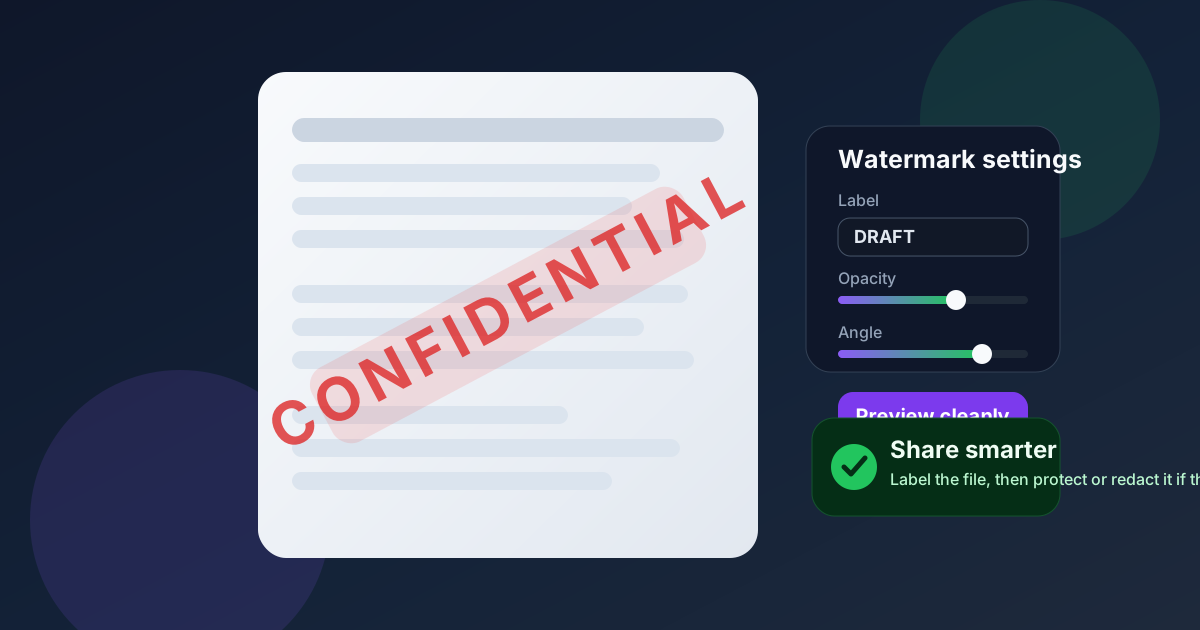
Table of contents
- Quick start: watermark a PDF in a few minutes
- When watermarking is the right move
- Best watermark text, placement, and opacity
- Step-by-step: how to watermark a PDF cleanly
- How to watermark only selected pages
- Watermark vs protect vs redact
- Common mistakes that make PDFs harder to use
- Related LifetimePDF tools and next steps
- FAQ
Quick start: watermark a PDF in a few minutes
If the file is ready and you mostly need a clear label before it leaves your hands, this short workflow usually gets the job done:
- Open Watermark PDF.
- Upload the document you want to mark.
- Enter short text such as DRAFT, CONFIDENTIAL, SAMPLE, or a company-safe brand label.
- Use light-to-medium opacity so the file still reads cleanly.
- Preview one text-heavy page and one page with graphics or signatures.
- Download the finished PDF.
- If the content is sensitive, follow up with PDF Protect or Redact PDF.
When watermarking is the right move
Watermarking works best when the problem is clarity, status, ownership, or workflow control. You want anyone who opens the file to understand something important immediately, without reading a note in the email body first.
Common situations where watermarking helps
- Draft proposals and contracts that should not be mistaken for the final version.
- Internal review copies that may circulate inside a team but should stay clearly labeled.
- Sample deliverables that show layout or structure without looking like the final production file.
- Client-branded packets where a subtle company or project label helps identify the file after download.
- Training material and shared templates that should stay clearly marked as examples.
When a watermark is not enough
If the real goal is to stop access, hide private information, or comply with a policy, watermarking is only part of the workflow. Visual labeling is helpful, but sensitive data usually needs stronger follow-up steps.
- If someone should not be able to open the file casually, add a password with PDF Protect.
- If certain details should never remain in the shared copy, remove them with Redact PDF.
- If the packet is bulky after watermarking, clean it up with Compress PDF.
Best watermark text, placement, and opacity
Most watermark problems do not come from the tool. They come from choosing wording or styling that fights the document. The best watermark is short, obvious, and respectful of the underlying content.
What to write in a watermark
Short wording usually works best because it stays legible on contracts, reports, forms, slide exports, and mixed-layout documents. Common examples include:
- DRAFT
- CONFIDENTIAL
- SAMPLE
- INTERNAL USE ONLY
- REVIEW COPY
- Your company name or project name
How dark should the watermark be?
Lighter is usually better than people expect. If the watermark is strong enough to dominate every paragraph, it is probably already too strong. Dense contracts, tables, and forms tend to need a lighter touch than image-heavy pages or slide decks.
A useful preview habit is to check three page types before you finish: a page with small text, a page with graphics, and the last page if it contains signatures or approval blocks. If the watermark hurts readability on any of those, adjust it now instead of hoping the recipient will tolerate it.
Where should the watermark go?
Diagonal placement often works well because it communicates the label clearly without blocking the exact same lines across every page. Center placement is common for draft and confidential labels. A smaller repeated corner or edge treatment can work for lighter branding, but only if the pages stay balanced and clean.
Step-by-step: how to watermark a PDF cleanly
If you want a repeatable workflow instead of trial and error, use this order:
1. Start with the right version of the file
Do not watermark an outdated draft if you already know another revision is coming a few minutes later. Start from the version you actually expect to share. That avoids redoing the same visual step multiple times and reduces the chance of someone getting the wrong copy.
2. Open the watermark tool and upload the PDF
Go to LifetimePDF Watermark PDF and upload the document. If the PDF is huge or messy, remember that watermarking is not the same as cleanup. You can still compress, split, merge, or protect the file afterward.
3. Use short language
Resist the urge to write a whole sentence across the page. Short labels stay more readable, look more deliberate, and work across far more layouts. If context matters, let the email body or filename carry the extra explanation.
4. Adjust readability-first settings
Choose an angle and opacity that make the label visible at a glance without burying signatures, totals, or dense legal text. This is the point where people usually overdo it. If you are undecided, go slightly lighter than your first instinct and then review the result on a real page.
5. Preview before you commit
The preview is where you catch all the annoying problems: a watermark covering a subtotal, landing on a signature line, or making a packed paragraph uncomfortable to read. One fast review now is better than apologizing for a messy PDF later.
6. Finish the workflow that the file actually needs
Once the watermark looks right, decide what comes next:
- Need access control? Use PDF Protect.
- Need to remove private text entirely? Use Redact PDF.
- Need a smaller attachment? Use Compress PDF.
How to watermark only selected pages
Not every document needs the same treatment on every page. Maybe only the proposal section should say DRAFT. Maybe only the sample appendix should carry a visible label. In those cases, watermarking the entire file can be clumsy.
A cleaner approach is to extract the pages that actually need the label, watermark that smaller section, and then merge the finished pieces back together. That keeps the final PDF more intentional and avoids overlabeling pages that do not need the extra visual layer.
- Use Extract Pages to isolate the section you need.
- Apply the watermark to that section only.
- Use Merge PDF to rebuild the final packet if necessary.
This is especially useful for mixed packets with cover pages, signed pages, or appendices that should stay visually cleaner than the review section.
Watermark vs protect vs redact
These steps solve different problems, and mixing them up causes a lot of messy document handling.
Watermark
Best for status, ownership, and workflow signaling. It tells the reader something about the file but does not stop access on its own.
Protect
Best when you want the recipient to need a password before opening the file. This is about access control, not visual labeling.
Redact
Best when private information must not remain in the shared copy at all. If the information is sensitive enough to require removal, a watermark is not the fix. The information needs to disappear from the document, not just sit under a translucent label.
Common mistakes that make PDFs harder to use
- Using long watermark text that sprawls across too much of the page.
- Choosing opacity that is too dark for text-heavy pages.
- Skipping preview checks and not noticing the label covers signatures, totals, or footnotes.
- Watermarking the entire document blindly when only a few pages really need the label.
- Relying on watermarking as security when the file actually needs redaction or password protection.
- Compressing aggressively afterward without review and making the marked pages look muddy.
Most of these mistakes are easy to avoid if you slow down for one preview pass and ask a simple question: does this page still feel easy to read on a normal screen?
Related LifetimePDF tools and next steps
Watermarking is often one step inside a bigger document workflow. If you need the rest of that flow in one place, these tools usually pair well with it:
- Watermark PDF for adding readable labels.
- PDF Protect for password-based access control.
- Redact PDF for permanent content removal.
- Compress PDF for smaller attachments after the final copy is ready.
- Extract Pages and Merge PDF for selected-page workflows.
If you want more context around adjacent tasks, these guides also fit naturally after watermarking: Compress PDF, Extract Pages From PDF, and PDF Form Filler.
Ready to label the file properly? Start with the watermark, keep the page readable, and only add protection or redaction if the workflow truly needs it.
FAQ
How do I watermark a PDF?
Upload the file to a Watermark PDF tool, enter a short label such as DRAFT or CONFIDENTIAL, set readable opacity and angle values, preview a few pages, and download the finished PDF.
What is the best opacity for a PDF watermark?
Light to medium opacity is usually the safest choice because the watermark stays visible without overwhelming paragraphs, tables, or signatures. Text-heavy pages often need a lighter setting than image-heavy pages.
Is watermarking a PDF the same as protecting it?
No. Watermarking is visual. Protecting adds access control. If the file is genuinely sensitive, use protection or redaction as needed instead of relying on the watermark alone.
Can I watermark only some pages in a PDF?
Yes. Extract the pages that need the label, apply the watermark to that smaller section, and merge the finished pages back into the final document if necessary.
What should I write in a PDF watermark?
Short labels work best: DRAFT, CONFIDENTIAL, SAMPLE, INTERNAL USE ONLY, REVIEW COPY, or a company name. Short wording stays cleaner across different layouts.