Type on PDF: Add Text, Dates, and Signatures Without Printing
Yes — you can type on PDF by opening the file in a PDF form filler, clicking into existing fields or placing text manually on the page, then saving the finished document once everything is aligned and readable.
If the PDF is scanned, flattened, or restricted, the fix is usually not to print it — it is to use the right typing workflow, then add signatures or protection only after the content is complete.
Most people searching for this are trying to finish something practical: a school form, onboarding packet, claim, contract acknowledgment, intake sheet, approval form, or a one-off document a portal insists must come back as a PDF. The frustrating part is that some PDFs behave like real forms and others behave like photographs of forms. Once you know which kind you have, typing on the file gets much easier.
Fastest path: open the form filler, type on the PDF first, review the spacing, then sign or protect the finished copy only if the final workflow actually needs it.
In a hurry? Jump to Quick start: type on a PDF in a few minutes.
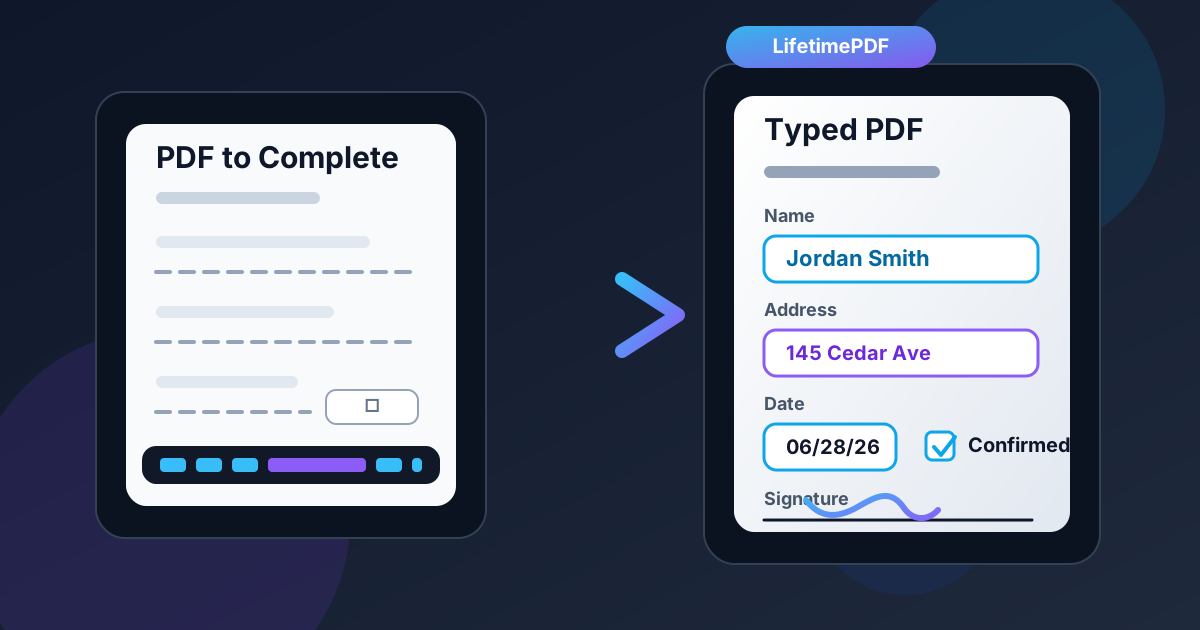
Table of contents
- Quick start: type on a PDF in a few minutes
- What “type on PDF” usually means
- Fillable vs scanned vs locked PDFs
- Step-by-step: the cleanest type-on-PDF workflow
- How to make typed PDFs look clean and credible
- When to add signatures, dates, and checkmarks
- Common problems and the fastest fixes
- Privacy and safer sharing
- Related LifetimePDF tools and guides
- FAQ (People Also Ask)
Quick start: type on a PDF in a few minutes
If you only want the shortest reliable workflow, use this order:
- Open PDF Form Filler.
- Upload the PDF you need to complete.
- If the file has interactive fields, click and type normally.
- If the file is scanned or flattened, place text manually where the blanks appear on the page.
- Add dates, checkmarks, initials, or short notes where needed.
- Review spacing once before saving.
- If the document requires a signature, add it after the rest of the form is done.
What “type on PDF” usually means
People use the phrase type on PDF for several slightly different jobs, but they all live in the same practical zone. You may need to type your name and address into a form, add a date to a contract, place short answers onto a scanned page, fill a claim, or finish a document that needs both typed text and a signature. In all of those cases, the goal is not to redesign the document. The goal is to complete it cleanly and send it back without unnecessary friction.
That matters because many PDFs are not truly editable in the way people expect. Some are real forms with clickable fields. Some are just images inside a PDF file. Some are protected against editing. Typing on the PDF becomes easy once you stop expecting every document to behave the same way.
| Situation | What you are really doing | Best first move |
|---|---|---|
| Fill a normal form | Entering names, dates, IDs, and short answers | Use PDF Form Filler |
| Type on a scanned page | Placing text over a non-interactive document image | Use manual text placement instead of waiting for a cursor that never appears |
| Finish a sign-and-return workflow | Completing the text first, then signing the final version | Add the signature later with Sign PDF |
| Send a sensitive completed file | Protecting the final copy before sharing it | Use PDF Protect after review |
Fillable vs scanned vs locked PDFs
Two PDFs can look almost identical and still behave completely differently. That is why some documents feel effortless while others make people think they need a printer.
Fillable PDFs
These contain actual interactive fields. You click in a box, get a cursor, and type normally. If your PDF works this way, the job is straightforward.
Scanned or flattened PDFs
These are usually image-based pages. They may look like forms, but the “fields” are only part of the page artwork. Typing on them requires placing text on top of the file rather than relying on built-in form fields.
Locked or restricted PDFs
Some files block editing. If you are authorized to change the document, unlock it first with Unlock PDF so you do not waste time fighting the wrong problem.
How to tell which kind of PDF you have
- Click test: if a text cursor appears inside a box, the PDF is probably fillable.
- Highlight test: if you cannot select text at all, the file may be a scan.
- Search test: if document search finds nothing obvious, the page may be image-only.
- Visual clue: if the page looks like a photocopy or camera capture, expect a scanned workflow.
Step-by-step: the cleanest type-on-PDF workflow
A good type-on-PDF workflow is mostly about sequence. People lose time when they sign too early, compress too soon, or keep fixing alignment after the file is already “final.”
1. Start with a clean copy of the PDF
If possible, keep the original blank or unedited file untouched. That gives you a safe fallback if you need a different version later.
2. Type on the document before doing any packaging steps
Use PDF Form Filler to enter names, addresses, dates, reference numbers, totals, notes, or any other short answers the document requires. If the PDF is scanned, place the text where the blanks or lines appear instead of waiting for editable fields that are not really there.
3. Review the layout at a realistic zoom level
The biggest mistakes usually show up in long fields: legal names, email addresses, street addresses, and numbers that must line up exactly. Zoom in once and make sure the typed text is readable, not drifting into borders, and not crowding nearby labels.
4. Add the signature only after the text is final
If the document needs a signature, use Sign PDF after the rest of the content is done. That keeps the workflow calmer and avoids repeating the signing step because you noticed a spacing issue somewhere else.
5. Protect or compress only the final version
Once the typed content looks correct, decide whether the finished file needs a password, redaction, or smaller file size. That is when tools like PDF Protect, Redact PDF, and Compress PDF actually belong in the sequence.
Best workflow to remember: type → review → sign if needed → protect or compress the final copy.
How to make typed PDFs look clean and credible
Finishing the form is only half the job. A typed PDF should also look easy to read and hard to question.
Keep formatting consistent
- Use a readable size across similar fields.
- Avoid random style changes unless the form layout forces them.
- Keep enough margin inside boxes that letters do not touch the borders.
Watch long fields first
Long names, addresses, and claim numbers are usually where PDFs start looking cramped. Check those areas before you assume the whole page is done.
Match the document’s own pattern
If the form expects MM/DD/YYYY, use that. If it expects one character per box, respect the box. Matching the document’s visual pattern makes the file easier for the next person to process.
Review the final PDF at normal zoom too
A document can look perfect at 150% and still feel uneven at 100%. Do one last pass the way a real reviewer is likely to see it.
When to add signatures, dates, and checkmarks
Typing on a PDF often includes more than plain text. Many documents also need dates, tick marks, initials, and signatures.
Dates belong with the content step
If the form asks for a date next to typed information, add it while you are already working through the fields. This keeps the document coherent and reduces the chance of forgetting a required line later.
Checkmarks should be clear, not decorative
Use them only where the form expects them. A checkmark that is too faint, too large, or sitting between boxes creates more confusion than it solves.
Sign after the rest is done
Signatures and initials are the finishing move. Add them after the typing is complete so you do not need to redo a signature because you later adjusted text placement or corrected a date.
For a combined workflow, it is often useful to move from PDF Form Filler straight into Sign PDF once you are happy with the layout.
Common problems and the fastest fixes
“I can’t type into the file.”
The PDF is probably scanned, flattened, or editing-restricted. Use manual text placement or unlock the file first if you are allowed to edit it.
“The scan is sideways or badly framed.”
Fix the page before typing by using Rotate PDF or Crop PDF. It is much easier to type on a clean page than to fight around crooked margins.
“The file is too large for the upload portal.”
Save the completed copy first, then use Compress PDF on the final version. If only some pages matter, trim the file with Extract Pages before sending it.
“I need searchable text too.”
If the PDF is scan-based and you want searchable text for later retrieval, run OCR PDF as part of the cleanup process.
“I actually need to change the original wording.”
That is a different workflow from simply typing on the PDF. If you need broader edits to the content itself, see Edit PDF or a more specific text-editing guide.
Privacy and safer sharing
The PDFs people type on are often exactly the PDFs that deserve extra care: contracts, HR packets, healthcare forms, school records, banking paperwork, reimbursement claims, and identity-related documents. That means convenience matters, but privacy matters more.
- Work from a copy so the blank original stays intact.
- Only enter what is required instead of oversharing sensitive information.
- Protect the final document with PDF Protect if the file contains private data.
- Redact anything unnecessary with Redact PDF before wider circulation.
- Store and send the final copy, not a messy pile of near-duplicate drafts.
Need the full workflow in one place?
A calmer document workflow usually looks like type → review → sign if needed → protect/compress → send.
Related LifetimePDF tools and guides
Typing on a PDF is often one step inside a bigger document job. These tools and guides fit naturally around it:
- PDF Form Filler — type into real fields or place text on scanned PDFs.
- Sign PDF — add signatures and initials after the form is complete.
- PDF Protect — secure the finished copy before sharing.
- Compress PDF — shrink the final version for email or upload portals.
- Rotate PDF — fix sideways scans.
- Crop PDF — trim oversized or messy scan borders.
- OCR PDF — make scan-based documents searchable.
Related blog guides
- Type on PDF Online Free
- Type on PDF Without Monthly Fees
- Fill PDF
- Make PDF Fillable
- PDF Form Filler Online Free
- Fill and Sign PDF Online Free
- Fill Out a PDF Form Online and Save It
FAQ (People Also Ask)
How do I type on a PDF?
Open the PDF in a form-filling tool, type into the existing fields or place text manually on the page, review the layout, and save the finished file. Add a signature afterward only if the document requires one.
Can I type on a scanned PDF?
Yes. A scanned or flattened PDF can still be completed by placing text, dates, or checkmarks on top of the page even when the original file does not contain interactive fields.
Why can’t I type into my PDF?
The file is usually scanned, flattened, or editing-restricted. Use a tool that supports manual text placement or unlock the PDF first if you are authorized to edit it.
Should I sign the PDF before or after typing in it?
Usually after. Complete the text first, review the page layout, then add the signature or initials once the rest of the document is final.
How do I protect a typed PDF before sending it?
Once the PDF is complete, use a protection tool to add a password, redact anything unnecessary, and compress the file only if the email system or upload portal needs a smaller copy.