Fill PDF: Best Way to Complete Forms, Add Text, and Save a Clean Final Copy
To fill a PDF, open the file in a PDF form filler, type into the existing fields or place text manually on the page, then save the completed document once everything is aligned and readable.
If the PDF is scanned, flattened, or locked, use text placement or unlock the file first, then add signatures or protection only after the form itself is finished.
Most people do not need a giant document suite for this job. They need a fast way to complete a school form, onboarding packet, application, claim, intake sheet, or signature page without printing it, rescanning it, or fighting a tool that breaks at the last step. The difference between a clean five-minute workflow and a frustrating one usually comes down to understanding what kind of PDF you are dealing with and finishing the steps in the right order.
Fastest path: open the form filler, complete the PDF first, review the layout, then sign or protect the file only if the final version actually needs it.
In a hurry? Jump to Quick start: fill a PDF in a few minutes.
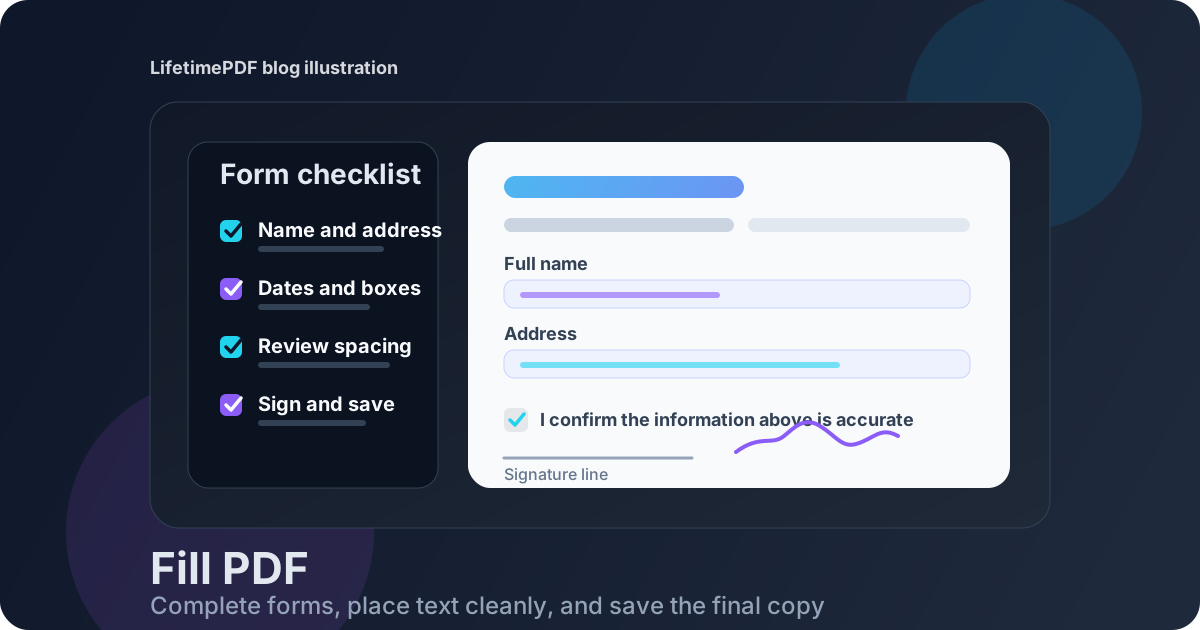
Table of contents
- Quick start: fill a PDF in a few minutes
- What “fill PDF” usually means in real life
- Fillable vs scanned vs locked PDFs
- Step-by-step: the cleanest fill PDF workflow
- How to make a filled PDF look neat and credible
- When to sign, protect, compress, or unlock the file
- Common problems and the fastest fixes
- Related LifetimePDF tools and guides
- FAQ (People Also Ask)
Quick start: fill a PDF in a few minutes
If you just want the simplest reliable order, use this:
- Open PDF Form Filler.
- Upload the PDF you need to complete.
- If the form is interactive, type into the existing fields. If it is a scan, place text manually on the page.
- Add dates, checkmarks, initials, or short notes where required.
- Zoom in once and review spacing before you save.
- If the document needs a signature, add it after the rest of the form is done.
- Protect or compress only the finished copy if you actually need those extra steps.
What “fill PDF” usually means in real life
People search for fill PDF when they are trying to complete something practical, not when they want to redesign the whole document. Usually the job is one of these:
- Complete a form: enter your name, address, dates, account details, short answers, or acknowledgments.
- Type on a scanned page: place text where blank lines or boxes appear even though the file is not truly interactive.
- Add simple marks: insert checkmarks, initials, dates, or a short note.
- Finish and return the file: sign it, protect it if needed, and send back a final copy that looks intentional.
What it usually does not mean is deeply editing the original source text already baked into the PDF. That is a different job. For most people, fill PDF means I need to complete this document cleanly and move on with my day.
| Task | What you are actually doing | Best first move |
|---|---|---|
| Fill a job or HR form | Entering text, dates, and maybe initials or a signature | Use PDF Form Filler |
| Type on a scanned document | Overlaying text on top of a non-interactive page image | Use manual text placement, not just field typing |
| Finish a signed submission | Completing the content first, then signing the final version | Use Sign PDF after review |
| Send a sensitive completed PDF | Locking down the finished file before it leaves your hands | Use PDF Protect |
Fillable vs scanned vs locked PDFs
Two PDFs can look almost identical on screen and behave completely differently. That is why some forms let you click and type instantly while others act like a photo taped inside a PDF wrapper.
Fillable PDFs
These contain real interactive fields. You click inside a box, get a cursor, and type normally. They are the fastest to complete because the structure already exists.
Scanned or flattened PDFs
These are usually image-based pages. The blanks may look official, but they are not truly editable. To fill them, you need a tool that lets you place text on top of the page where the answers belong.
Locked or restricted PDFs
Some files are blocked from editing. If you are allowed to modify the document, unlock it first with Unlock PDF so the rest of the workflow does not stall before it starts.
How to tell which kind of PDF you have
- Click test: if a cursor appears in a box, it is probably fillable.
- Selection test: if you cannot highlight text, the file may be a scan.
- Search test: if search finds nothing obvious, the text layer may be missing.
- Visual clue: if the page looks like a photocopy, expect a scanned workflow.
Step-by-step: the cleanest fill PDF workflow
A good fill PDF workflow is mostly about order. People get stuck when they sign too early, protect too soon, or keep fixing alignment after they already compressed the final copy.
1. Start with the plain source file
Keep an untouched copy of the original PDF when possible. That gives you something clean to return to if you need a different version later.
2. Fill the content before you do anything else
Use PDF Form Filler to enter names, numbers, dates, checkmarks, and short notes. If the form is scanned, place text carefully on the page instead of fighting with nonexistent form fields.
3. Review the alignment at zoom, not from far away
A file can look fine when zoomed out and still be slightly off where it matters. Check addresses, email fields, long names, and boxes with tight spacing. A one-minute review here prevents a lot of portal rejections and awkward back-and-forth.
4. Add signatures or initials only after the text is final
If the document needs a signature, use Sign PDF after the form itself is complete. That keeps the signature step separate and reduces the chance that you will need to redo it because a field moved or a date changed.
5. Protect or compress the final copy only if needed
Once the content is correct, decide whether the finished file needs a password, redaction, or a smaller file size. That is when PDF Protect, Redact PDF, and Compress PDF become useful.
Simple workflow to remember: fill → review → sign if needed → protect or compress the final version.
How to make a filled PDF look neat and credible
Completing the form is only half the job. The result should also look easy to read and hard to question.
Keep formatting consistent
- Use a readable size across similar fields.
- Avoid random style changes unless the layout forces them.
- Keep spacing calm enough that the page still looks intentional.
Watch long fields first
Full legal names, street addresses, email addresses, and claim numbers are usually where forms start looking cramped. Check those areas before you assume the page is done.
Match the form’s own pattern
If the PDF expects a specific date format or one character per box, follow that pattern. A clean-looking form is easier for a reviewer to trust and easier for a later reader to archive.
Do not overdo the cleanup
Most forms do not need design perfection. They need clarity. If every answer is readable, aligned, and complete, the file is doing its job.
When to sign, protect, compress, or unlock the file
These steps matter, but the timing matters just as much.
Use Sign PDF after the form is complete
Add the signature only after the text, dates, and checkmarks are final. That avoids repeating the signature step because you had to move something else later.
Use PDF Protect for sensitive final copies
If the completed form contains financial, medical, employment, or legal details, a protected final copy often makes sense before you send it onward.
Use Compress PDF only when the finished file is too large
Huge scans and portal limits are a common annoyance. Compression is helpful, but it belongs near the end so you are shrinking the version you actually plan to keep or send.
Use Unlock PDF only when you are authorized
A locked PDF is not always a technical problem. Sometimes it is a permission question. If you have the right to edit the file, unlocking it can save time. If not, get the correct version from the sender instead of forcing a bad workflow.
Common problems and the fastest fixes
“I can’t type into the file.”
The PDF is usually scanned, flattened, or restricted. Use manual text placement or unlock the file first if you are allowed to edit it.
“The page is sideways or cropped badly.”
Fix the page with Rotate PDF or Crop PDF before you spend time entering the answers.
“The upload portal says the file is too large.”
Save the completed copy first, then use Compress PDF on that final version. If the PDF contains many irrelevant pages, trim them with Extract Pages first.
“I need the file to be searchable too.”
If the PDF is scan-based and you want searchable text for archiving or later retrieval, run OCR PDF as part of the workflow.
“I need to send only one section back.”
Do not return a giant packet if only two pages matter. Keep the final submission focused by extracting the relevant pages once the form is complete.
Related LifetimePDF tools and guides
Filling a PDF is often one step inside a bigger document job. These tools and guides fit naturally around it:
- PDF Form Filler — fill fields or place text on scanned forms.
- Sign PDF — add signatures and initials after the form is complete.
- PDF Protect — lock the finished file before sharing sensitive information.
- Unlock PDF — remove restrictions when you have permission to edit.
- Compress PDF — shrink the final copy for email or portals.
- Redact PDF — remove private information before broader sharing.
For closely related reading, these internal guides pair well with the same workflow: Fill PDF Online Free, PDF Form Filler Online Free, Type on PDF Online Free, Fill and Sign PDF Online Free, and Fill Out a PDF Form Online and Save It.
Need the least annoying workflow? Complete the PDF first, sign it only if required, then protect or compress the finished copy right before you send it.
Best workflow: fill → review → sign if needed → protect/compress → send.
FAQ (People Also Ask)
How do I fill a PDF?
Open the PDF in a form-filling tool, type into the existing fields or place text manually on the page, review the layout, and save the finished file. Add a signature afterward only if the document requires one.
Can I fill a scanned PDF?
Yes. A scanned or flattened PDF can still be completed by placing text, dates, or checkmarks on top of the page even when the original file does not contain interactive fields.
Why can’t I type into my PDF?
The file is usually scanned, flattened, or editing-restricted. Use a form filler that supports manual text placement or unlock the PDF first if you are authorized to edit it.
Should I sign the PDF before or after filling it out?
Usually after. Complete the form first, review the page layout, then add the signature or initials once the rest of the file is final.
How do I protect a filled PDF before sending it?
Once the form is complete, use a protection tool to add a password, redact anything unnecessary, and compress the file only if the email system or upload portal needs a smaller copy.
Ready to complete your form?
Start with the form itself. Everything else belongs after that.
Published by LifetimePDF - Pay once. Use forever.