Make PDF Fillable: Turn Static Forms Into Interactive PDFs People Can Complete Anywhere
Yes — you can make PDF fillable by adding interactive fields like text boxes, checkboxes, dropdowns, and signature areas to a static PDF.
If the file currently works only when someone prints it, handwrites on it, and scans it back, a PDF field editor is usually the cleanest fix.
That matters because most “forms” are not really broken on the design side. They already look fine. The problem is that they are still acting like flat pages instead of usable digital documents. Once the right fields are added, the same PDF becomes much easier to complete on a laptop, phone, or tablet without the usual print-sign-scan circus.
Fastest practical path: open the PDF in LifetimePDF's field editor, add only the fields people actually need, then test the finished form once before sharing it.
Need the short version? Jump to Quick start: make a PDF fillable in about 5 minutes.
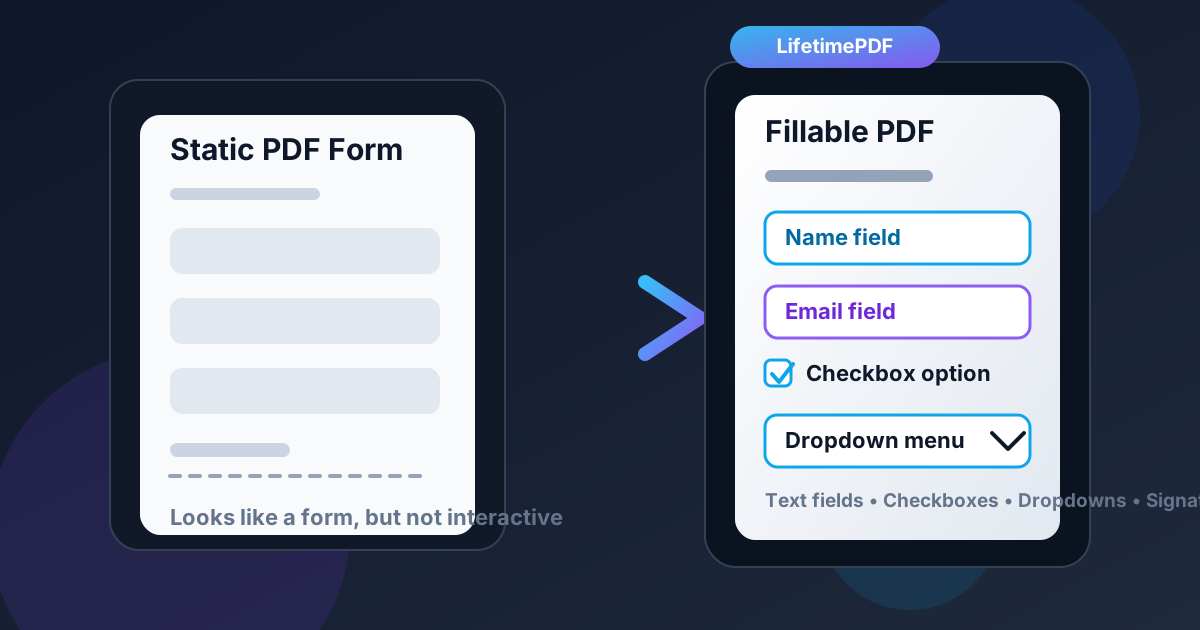
Table of contents
- Quick start: make a PDF fillable in about 5 minutes
- What it really means to make a PDF fillable
- Static vs fillable PDFs: why the difference matters
- Step-by-step: turn a normal PDF into a fillable form
- Which field types to add and when
- How to handle scanned forms without making a mess
- How to test the form before anyone else sees it
- Common fillable-PDF mistakes and how to avoid them
- Privacy and safer sharing
- Related LifetimePDF tools and guides
- FAQ (People Also Ask)
Quick start: make a PDF fillable in about 5 minutes
If you already have the PDF and only want the fastest reliable workflow, use this order:
- Open PDF Field Editor.
- Upload the static PDF you want to convert.
- Add the interactive fields the form actually needs.
- Save the edited file.
- Open the result in PDF Form Filler and complete it once yourself.
- If the final file is sensitive, protect it before sending it out.
What it really means to make a PDF fillable
A fillable PDF is not just a PDF that looks like a form. It is a PDF with interactive elements under the surface. Those elements create the places where someone can type, choose an option, check a box, or sign without editing the rest of the layout.
That distinction matters because many documents already look “ready.” They have lines, labels, boxes, and sections. But until the fields exist, the file still behaves like a poster of a form instead of a real one. Making the PDF fillable is what turns a static design into something a person can actually complete.
| Type of file | What the user experiences | Typical result |
|---|---|---|
| Static PDF | Looks like a form but does not respond well to typing | People print it, write on it, or manually place text on top |
| Fillable PDF | Clickable fields, checkboxes, choices, and signature areas | Faster completion, cleaner results, and less friction on mobile or desktop |
Static vs fillable PDFs: why the difference matters
Two PDFs can look almost identical and still behave completely differently. One might open with a blinking cursor in the right places. The other might refuse to cooperate and make the user feel like they are typing onto a screenshot.
Static PDFs create unnecessary extra work
A static file often forces people into awkward workarounds. They print it. They handwrite on it. They scan it back. Or they use a rough text-overlay workaround that never feels quite aligned. That slows down intake, approvals, HR forms, school paperwork, client packets, and almost every document process that should have been easy.
Fillable PDFs reduce friction without changing the document's meaning
The layout can stay familiar while the workflow gets much better. Users type directly into name fields, select options cleanly, move through the form in order, and finish the file with fewer mistakes. The best fillable forms feel obvious even on small screens.
Fillable does not mean overbuilt
Not every form needs a giant rule engine. Often the smartest version is simple: the right text fields, the right checkboxes, one or two dropdowns, and a signature area if the document needs approval. Too much complexity usually makes the form harder to finish, not better.
Step-by-step: turn a normal PDF into a fillable form
The cleanest way to make PDF fillable is to treat it as a short editing workflow instead of a magic button. Here is the sequence that usually works best.
1. Start with the final-looking PDF
Before adding fields, make sure the page layout is basically the one you want people to see. If the form still needs major design changes, do those first. Field editing goes faster when the labels, spacing, and page order are already settled.
2. Add only the fields the user truly needs
Open PDF Field Editor and place the field types that match the form's real tasks. That might be text boxes for names and numbers, checkboxes for acknowledgements, dropdowns for repeatable options, or signature areas for approval.
3. Keep the field placement visually calm
A form becomes frustrating when the click area feels tiny, drifts away from the label, or overlaps the printed design. Clean spacing matters more than fancy behavior. Users should instantly understand where to click and what belongs in each spot.
4. Check the completion flow
The tab order should move in a sensible direction. If users jump from the bottom of page one to the middle of page three, the form will feel broken even when the fields themselves work.
5. Test the finished form like a real user
Open the result in PDF Form Filler and complete it once yourself. That reveals the mistakes you do not notice while building, especially awkward spacing, tiny click targets, missing choices, or fields that need better labels nearby.
Best practical sequence: field editor first, form-filler test second, then signing or protection only after the form itself feels clean.
Which field types to add and when
Good fillable forms are not just “field-heavy.” They use the right kind of interaction for each answer.
Text fields
Use these for names, addresses, IDs, dates, notes, totals, short descriptions, and anything a person needs to type freely. They are the backbone of most fillable PDFs.
Checkboxes
Best for yes-or-no acknowledgements, consent items, or lists where multiple answers may apply. They are often easier to understand than forcing people to type “yes” into a blank line.
Radio buttons
Use these when only one answer should be selected from a small set. They reduce ambiguity when the form needs a single choice.
Dropdowns
Best when the valid answers are predictable and repeated often, such as department, state, status, or project type. They keep the form cleaner and reduce inconsistent typing.
Signature and initials areas
Add these only where approval or acknowledgement really matters. If the workflow ends with signing, keep the form completion and the signature step logically separate so the user can finish the content first, then sign with Sign PDF.
How to handle scanned forms without making a mess
Scanned forms can still become fillable, but they need a little more care. The biggest problem is not that the scan is impossible. It is that crooked pages, thick borders, and low-quality source images make field placement feel sloppy.
Straighten the obvious page problems first
If the form is sideways, fix that with Rotate PDF. If it has giant borders or scanner shadows, trim those with Crop PDF before placing fields.
Do not confuse fillable fields with OCR
OCR helps a scanned PDF become searchable. Fillable fields make it interactive. Sometimes you need both, but they solve different problems. If the form's labels are hard to work with later, you can also run OCR PDF as a separate cleanup step.
Keep expectations realistic
A blurry or badly skewed scan will never feel as polished as a clean source file. But even then, a fillable layer can still be much better than forcing people to print and handwrite the form.
How to test the form before anyone else sees it
Testing is where a decent fillable PDF becomes a trustworthy one. It only takes a few minutes and saves a lot of embarrassing back-and-forth.
Complete it once from start to finish
Use the form the same way a real person would. That is the fastest way to catch fields that are too small, too close together, or missing altogether.
Tab through the document
A strange tab order instantly makes a form feel amateurish. If the focus jumps unpredictably, fix it before sharing.
Check mobile readability
Plenty of users complete forms on phones or tablets. Make sure the touch targets are not tiny and the typed text does not feel crammed.
Download the result and inspect the final file
The on-screen editor might look fine while the saved PDF reveals spacing problems or clipped fields. Always inspect the finished file, not just the editing canvas.
Common fillable-PDF mistakes and how to avoid them
Adding too many fields
Overbuilding usually hurts usability. Keep the form focused on what someone actually needs to complete.
Using free-text fields when a checkbox or dropdown would be clearer
If the answer should come from a small predictable set, guide the user instead of making them guess.
Leaving poor spacing around labels
When the field and the label do not clearly belong together, the form becomes harder to trust. Tight, calm placement helps more than decorative design.
Skipping the test pass
Many fillable PDFs technically work, but still feel annoying in practice. Testing catches those issues early.
Sharing sensitive forms without protection
If the form contains private information, add an appropriate security step before sending the final version onward.
Privacy and safer sharing
Fillable PDFs often handle the kinds of information people should not casually bounce around: HR records, client intake data, medical details, school forms, legal paperwork, and internal approvals. That makes the workflow part of the security story.
- Keep only the fields the process actually needs.
- Test the form before it reaches real users.
- Use PDF Protect when the finished copy should have an extra access layer.
- Use Sign PDF when the workflow needs approval, acknowledgement, or a final signature.
- Store and share the final version, not a pile of confusing drafts.
A cleaner workflow usually means fewer mistakes, fewer duplicate files, and less chance that someone sends the wrong version back.
Need the full form workflow in one place?
A practical rhythm is build the fields → test the form → sign if needed → protect the final copy before sharing.
Related LifetimePDF tools and guides
Making a PDF fillable is usually one piece of a broader document workflow. These tools and articles fit naturally around the same job:
- PDF Field Editor - add and arrange interactive form fields.
- PDF Form Filler - complete and test the finished form.
- Sign PDF - add a signature after the content is ready.
- PDF Protect - secure the completed form before sharing.
- Rotate PDF - fix sideways scanned forms.
- Crop PDF - clean up scanner edges and oversized margins.
- OCR PDF - add searchable text when the source is a scan.
- Edit PDF - use this when you need broader content edits, not just fields.
Related blog guides
- Make PDF Fillable Online Free
- Make PDF Fillable Without Monthly Fees
- How to Make PDF Forms Fillable
- Type on PDF Online Free
- Edit PDF
- Sign PDF
FAQ (People Also Ask)
How do I make a PDF fillable?
Upload the static PDF to a field editor, add the interactive fields it needs, save the result, and test the finished file once before sending it to anyone else.
What is the difference between a normal PDF and a fillable PDF?
A normal PDF only shows the form layout. A fillable PDF includes interactive fields so people can click, type, select, and sign directly inside the document.
Can I make a scanned PDF fillable?
Yes. It helps to rotate or crop the scan first so the field placement feels cleaner, but scanned forms can still become fillable.
Do I need Adobe Acrobat to make a PDF fillable?
No. Browser-based tools can handle many fillable-form workflows without installing heavy desktop software.
How do I know whether my fillable PDF is ready to share?
Complete it once yourself, tab through the fields, test the saved file on a real device, and confirm that the form still looks clean after download.