Redact PDF Online: Safer Browser Steps for Sensitive Files Before You Share
To redact a PDF online, upload the file to a real redaction tool, hide every sensitive text block, signature, or image, export the cleaned copy, and verify the hidden details are gone before you share it.
If the document has extra pages, repeated names in headers, or scanner clutter, clean that up first so you redact the final share version once instead of doing the same work twice.
That is the short answer. The practical challenge is that people rarely start with a neat little one-page document. They are usually working with contracts, onboarding packets, account statements, legal exhibits, school records, client deliverables, or scans from a phone. In those real workflows, the safest online redaction process is less about fancy software and more about order: trim what nobody needs, redact what must disappear, verify the result, then protect the final copy only if the remaining file still deserves controlled access.
Fastest safe path: remove pages the recipient should never see, redact the sensitive areas in the browser, export the cleaned copy, and reopen it once before sending it anywhere.
Need the simple version? Jump to Quick start: redact a PDF online in a few minutes.
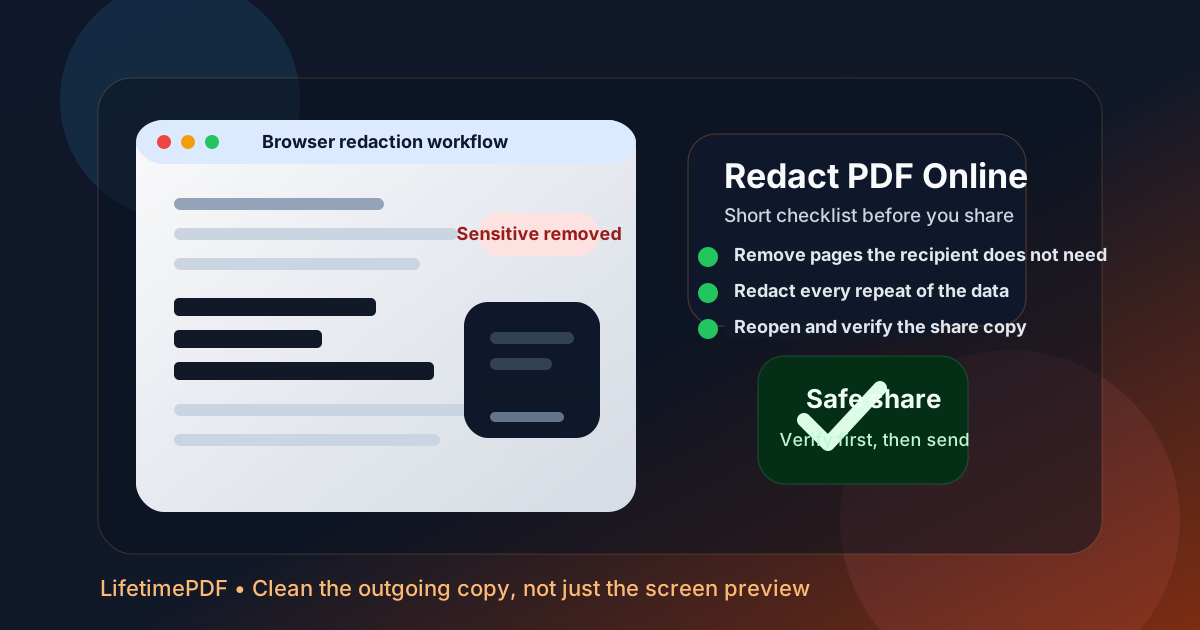
Table of contents
- Quick start: redact a PDF online in a few minutes
- What “redact PDF online” should actually mean
- What to do before you upload the file
- Step-by-step: the clean browser workflow
- What people most often forget to redact
- Scanned PDFs, signatures, and image-heavy files
- How to verify the hidden content is really gone
- Metadata, passwords, and safer sharing
- Related LifetimePDF tools and guides
- FAQ
Quick start: redact a PDF online in a few minutes
If you already know the document contains private details, this is the most dependable order:
- Open Redact PDF.
- If the recipient only needs part of the document, remove the rest first with Delete Pages or Extract Pages.
- Cover every name, number, signature, image, note, or table entry that should not survive in the shared copy.
- Export the redacted PDF and reopen it once.
- Search for a hidden term, inspect the redacted areas closely, and only then email, upload, or archive the finished file.
What “redact PDF online” should actually mean
Many people still use “redact” to mean “draw a black box on top.” That is not a safe definition. When someone searches for redact PDF online, what they usually need is a browser workflow that produces a cleaner outgoing document where sensitive information is no longer exposed to the recipient.
| Task | What it does | When to use it |
|---|---|---|
| Redact PDF | Removes or permanently hides content from the share copy | Private names, account numbers, signatures, pricing, comments, IDs, or visible confidential details |
| Delete Pages | Removes whole pages from the file | When the recipient never needed those pages at all |
| Password Protect | Controls access to the remaining file | After the content is already cleaned and still deserves restricted access |
| Crop PDF | Trims visible borders or wasted space | Scanner edges or giant margins that make review harder, not as a substitute for privacy cleanup |
That distinction matters because people often protect or crop a PDF and think they solved the privacy problem. They did not. If the recipient should never see the information, the reliable move is redaction. If the recipient can see the cleaned document but only under controlled access, add a password after the redaction work is done.
What to do before you upload the file
Good online redaction starts before you touch the tool. A little prep removes most of the avoidable mistakes.
1. Decide which version is the one that should leave your machine
If the PDF still needs a signature, a page reorder, a corrected date, or a page removal, do that first when possible. Otherwise you may carefully redact one version and accidentally send a newer copy that still exposes the sensitive details.
2. Remove pages that nobody needs to receive
If the last six pages are appendices, internal notes, or unrelated records, the cleanest privacy win is to delete them rather than redact around them. Use Delete Pages or Extract Pages first. A shorter document is easier to verify and safer to share.
3. Make a quick list of repeated details
Most redaction misses are boring, not sophisticated. A surname appears on page 1, then again in the footer on page 4, then in a table on page 9. A contract number shows up in the title block and again in the appendix. Taking ten seconds to note the repeated details gives you a checklist while you work.
Step-by-step: the clean browser workflow
Once you have the right file, the online process should feel straightforward.
Step 1: Open the redaction tool in your browser
Go to LifetimePDF Redact PDF. A browser-based workflow is useful because it keeps the sequence short: upload, inspect, redact, export, verify.
Step 2: Upload the final share copy
Use the actual version intended for email, client delivery, portal upload, or internal handoff. This sounds obvious, but it is one of the most common failure points in real office work. If you are juggling “draft,” “final,” and “final-final,” rename the file before you begin.
Step 3: Redact every sensitive appearance, not just the main one
Look beyond the big obvious block in the center of the page. Sensitive information often hides in line items, initials, side comments, form boxes, annex pages, and summary rows. If the PDF includes tables, check the first and last columns carefully. If it includes signatures, verify nearby printed names and titles too.
Step 4: Export the cleaned PDF
Treat the exported file as the new outgoing document. The untouched original can stay private for your own records, but the redacted export is the only version that should travel externally.
Step 5: Reopen and verify before sharing
Verification is not a luxury step. It is part of the job. Open the finished file once, inspect the redacted areas closely, and test at least one hidden term. The two minutes you spend here are worth more than the twenty seconds you saved by skipping it.
Need the shortest reliable sequence? trim pages → redact the sensitive details → export → reopen → verify → protect the cleaned copy if required.
What people most often forget to redact
The biggest redaction mistakes are usually the least dramatic ones. They happen because the information looks secondary even though it still identifies the person, file, or transaction.
Easy-to-miss text
- Footers with case numbers, employee IDs, or account references
- Table rows that repeat names or invoice codes
- Printed names next to signatures
- Email addresses in quoted threads or approval chains
- Headers that repeat the same matter name on every page
Easy-to-miss visuals
- QR codes or barcodes tied to identity or tracking
- Stamp boxes containing dates, initials, or office names
- Handwritten notes in scan margins
- Profile photos or ID-card thumbnails
- Background exhibits or attachments tucked behind summary pages
A simple rule helps here: if a stranger could use the detail to identify a person, transaction, account, matter, or location, assume it deserves a second look before the file leaves your hands.
Scanned PDFs, signatures, and image-heavy files
Scanned documents change the feel of the workflow, but not the goal. The information may live inside images instead of selectable text, yet it still needs to disappear from the outgoing copy.
Scanned PDFs
Scans are often bulkier, messier, and harder to review because of dark borders, skewed pages, or uneven contrast. If those problems make inspection harder, fix them before or around redaction with tools such as Rotate PDF or Crop PDF.
Signatures and initials
People usually notice the handwritten signature first, but forget the printed name, job title, or license number sitting right beside it. Treat the entire signature block as one unit until you know exactly which parts may remain.
OCR timing
If a scan needs searchable text, the safer default is often clean structure first → redact next → OCR later only if needed. That order keeps privacy ahead of convenience. Use OCR PDF on the already redacted copy if searchability still matters.
How to verify the hidden content is really gone
Most real-world redaction failures happen because nobody verified the exported file. The document looked fine at a glance, and that was the end of the review. A short checklist is usually enough to avoid that.
- Search for a unique hidden term such as a surname, case number, account fragment, or invoice ID.
- Zoom in on every redacted area to check borders, line wraps, and nearby table cells.
- Review headers and footers page by page because repeated details hide there constantly.
- Reopen the exported file so you know you are checking the actual share copy, not an editor preview.
- If the stakes are high, compare versions with Compare PDFs and do one calm page pass before sending.
Metadata, passwords, and safer sharing
Visible content is only part of the story. PDFs can also carry titles, author names, subject lines, keywords, and other properties that reveal more context than the page itself. After online redaction, two follow-up steps are worth considering.
Clean metadata when the file identity matters
Use PDF Metadata Editor if the filename, title, author, or subject still exposes internal names, project labels, or personal details. A page can look clean while the file properties still whisper more than you intended.
Protect the already cleaned copy
Use PDF Protect only after the sensitive content is gone. Password protection helps control access to the remaining document. It is not a substitute for removing information that should never reach the recipient.
Compress only if delivery needs it
If the finished file is too large for email or a portal, run Compress PDF on the final cleaned copy. That keeps your workflow tidy and reduces the chance of accidentally reusing an older unredacted file.
Sharing something sensitive? clean the pages first, clean the file properties second, and add a password only to the already safe share copy.
Related LifetimePDF tools and guides
Redaction is usually one step in a bigger workflow. These tools fit naturally around the same job:
- Redact PDF — remove private visible content from the share copy.
- Delete Pages — remove pages the recipient never needed.
- Extract Pages — keep only the exact range you need to send.
- PDF Metadata Editor — clean hidden file properties after redaction.
- PDF Protect — add a password to the final cleaned document.
- OCR PDF — restore searchable text to a cleaned scanned copy when it is useful.
- Compare PDFs — review before-and-after changes when accuracy matters.
Related reading on LifetimePDF: Redact PDF, Redact PDF Online Free, Redact PDF Without Monthly Fees, Redact PDF Online Permanently, PDF Metadata Editor, and Delete Pages From PDF.
Published by LifetimePDF — Pay once. Use forever.
FAQ: Redact PDF online
How do I redact a PDF online?
Open an online PDF redaction tool, upload the file, cover every sensitive text block or image, export the cleaned copy, and verify that the hidden details are gone before you send it anywhere.
Is blacking out text on screen the same as real redaction?
Not always. A visual black box can still leave the original content available in the file. Real redaction produces a safer outgoing document where the hidden information is no longer exposed to the recipient.
Should I remove pages before I redact a PDF online?
Usually yes. If whole pages do not need to be shared, delete or extract them first. That reduces exposure and gives you a shorter document to verify carefully.
Can I redact scanned PDFs online too?
Yes. Scanned PDFs can be redacted visually like regular PDFs. If you still need searchable text afterward, run OCR on the already redacted copy instead of treating OCR as the privacy step.
What should I do after redacting a PDF online?
Reopen the exported file, search for hidden terms, inspect the redacted areas, clean metadata if it still reveals context, and password-protect the finished share copy when the remaining document is still sensitive.