PowerPoint to PDF: Best Way to Turn Finished Slides Into a Clean Shareable Document
To convert PowerPoint to PDF, upload or export the finished presentation into PDF so the slides keep a more stable layout and are easier to share, print, upload, and archive.
Before you send it anywhere important, review the title slide, one chart-heavy slide, and one image-heavy slide, then compress or protect the PDF only if the next step actually requires it.
Most people searching this phrase are not trying to do anything fancy. They have a deck that is finished enough to leave edit mode. Maybe it is headed to a client, a board packet, a class portal, an internal approval chain, a print job, or an email attachment that should look calm on every device instead of acting like a live presentation. That is where PDF becomes the better delivery format.
Fastest dependable workflow: convert the presentation to PDF, review a few representative slides, then use follow-up PDF tools only if the file needs to be smaller, merged into a packet, or locked before sharing.
Want the short version? Jump to Quick start: PowerPoint to PDF in about 3 minutes.
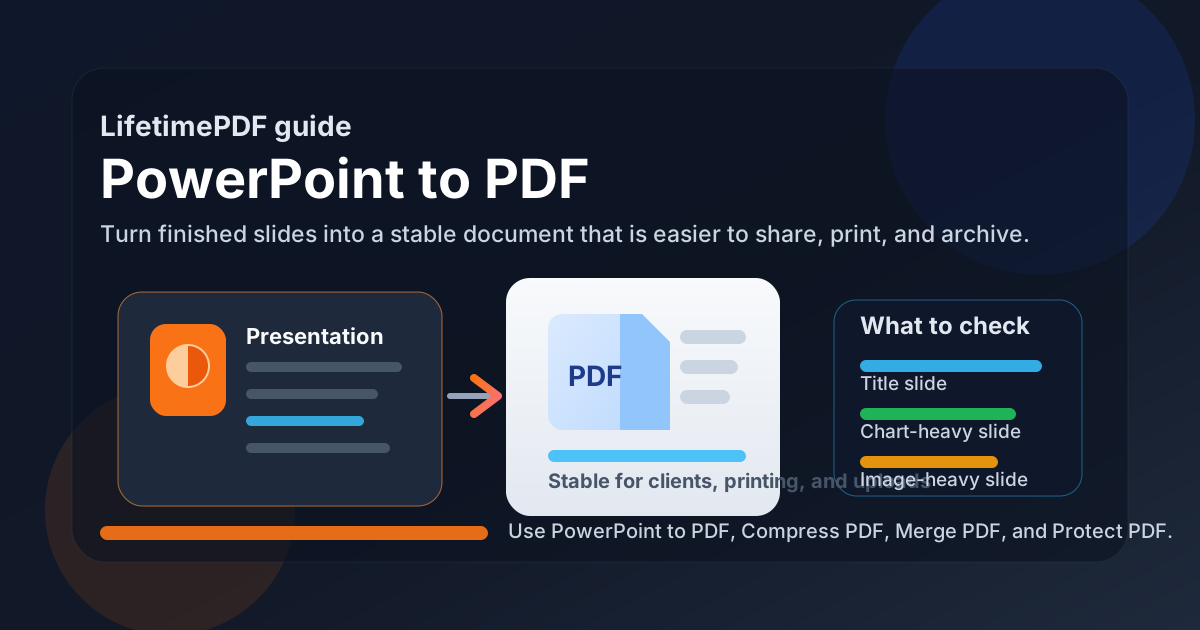
Table of contents
- Quick start: PowerPoint to PDF in about 3 minutes
- Why PowerPoint to PDF is usually the better final-sharing format
- Step-by-step: convert the presentation without layout surprises
- What stays the same and what changes after PDF conversion
- Best real-world use cases
- How to keep slides readable and professional
- How to reduce file size and handle the next PDF step
- When to keep the PowerPoint and when to send the PDF
- Related LifetimePDF tools and companion guides
- FAQ (People Also Ask)
Quick start: PowerPoint to PDF in about 3 minutes
If the deck is already finished and you just need the shareable version, this is the clean workflow most people want:
- Open PowerPoint to PDF.
- Upload the presentation file.
- Convert it and download the PDF.
- Review the title slide, one chart-heavy slide, and one image-heavy slide.
- If the PDF is too large, use Compress PDF.
- If the deck belongs with other documents, use Merge PDF after conversion.
Why PowerPoint to PDF is usually the better final-sharing format
A PowerPoint file is good while you are still shaping the message. A PDF is better when the message is set and the next job is distribution. That is the real logic behind this keyword. People are rarely searching it because they love file conversion. They are trying to stop presentation drift.
| Format | Best when | Main tradeoff |
|---|---|---|
| PowerPoint | You still need to edit slides, reorder sections, or keep speaker-flow flexibility | Layout can feel less predictable across devices and apps |
| You want a stable copy for review, upload, printing, archive, or outside sharing | Animations, transitions, and live presentation behavior become static |
PDF helps because it reduces environmental surprises. The recipient does not need the same presentation software, the same fonts, or the same display setup to get a clean reading copy. That matters for clients, recruiters, committees, school systems, procurement portals, and anyone opening the file on a phone when you assumed a laptop.
Step-by-step: convert the presentation without layout surprises
The conversion itself is quick. The quality of the outcome mostly comes from what you review immediately afterward.
1) Convert the file from the version you actually mean to send
This sounds obvious, but it is where many avoidable mistakes begin. Make sure the deck really is the current one, not an older export or a version with speaker notes, hidden slides, or draft charts you did not mean to distribute.
2) Open PowerPoint to PDF and upload the presentation
Use LifetimePDF PowerPoint to PDF to turn the finished PPT or PPTX file into a stable document. This is usually the fastest route when the next goal is to email the deck, attach it to a larger packet, print handouts, or upload it to a portal.
3) Download the PDF and check the stress points first
Do not review every slide line by line on the first pass. Start with the places most likely to reveal trouble:
- the title slide with large typography
- a slide with charts, tables, or smart graphics
- a slide with dense text or tight spacing
- an image-heavy slide or background-heavy layout
4) Decide what the file needs next
Many decks are done at this point. Some are not. If the PDF is too large for email or a portal, compress it. If it belongs with a contract, proposal, appendix, or handout packet, merge it after conversion. If it contains sensitive internal material, protect the final copy before it leaves your environment.
Reliable sequence: convert the deck, review the risky slides, then compress, merge, or protect the PDF only when the real workflow calls for it.
What stays the same and what changes after PDF conversion
One reason people hesitate is uncertainty about what the PDF will preserve. In most cases, the answer is good news. The slide design usually survives better as a PDF than as an editable deck opened in the wrong environment.
| Usually preserved well | Usually becomes static or changes |
|---|---|
| Slide order, text blocks, colors, charts, tables, images, and general layout | Animations, transitions, embedded media behavior, clickable presentation flow, and other live-show effects |
That is why PowerPoint to PDF works so well for handoff. You are trading presentation interactivity for document stability. For most business, academic, and approval workflows, that is exactly the right trade.
Best real-world use cases
The need usually shows up in ordinary work, not exotic edge cases. These are the situations where PowerPoint to PDF helps most.
Client review and stakeholder sign-off
A PDF makes the deck easier to open, easier to forward, and less likely to shift when someone outside your environment reviews it.
School submissions and upload portals
Many systems handle PDF more predictably than presentation files, especially when the goal is record-keeping or document preview.
Board packets and internal approvals
Once the content is final, PDF is easier to combine with reports, appendices, and supporting pages in one packet.
Printing handouts or archive copies
PDF is usually the better format for printing cleanly and preserving a stable historical version of the final deck.
In each case, the win is the same. You stop shipping a living slide deck and start shipping a document that behaves more predictably.
How to keep slides readable and professional
Good conversion is not just about the button. It is about checking the slides most likely to expose weak spots before the file reaches someone important.
Check large-title slides first
Big typography reveals wrapping issues fast. If the title slide still looks balanced after conversion, that is a good sign for the rest of the deck.
Review dense charts and tables
Presentation charts often look fine on a large monitor but cramped in a static document. If labels feel tight or small, this is where you will notice it immediately.
Watch full-bleed images and screenshots
Heavy image slides are where file size balloons and where blurry source graphics become noticeable. If a slide depends on a screenshot, zoom in once and make sure the important text is still comfortable to read.
Be realistic about motion-dependent slides
A slide built around animation reveals or click-order storytelling may need a quick redesign if the PDF version has to stand alone. PDF preserves the visible state, not the pacing logic of a live talk.
How to reduce file size and handle the next PDF step
Many presentation PDFs are perfectly good but too large. That usually comes from screenshots, photo-heavy backgrounds, diagrams, and visual-rich slides. The easiest fix is not to overcomplicate the source first. Convert the deck, confirm it looks right, then optimize the actual finished file.
- Convert the PowerPoint to PDF.
- Review the output for readability.
- If the file is too heavy, use Compress PDF.
- If the deck belongs with appendices or contracts, use Merge PDF.
- If the file is sensitive, use PDF Protect before sharing externally.
| If you need to... | Best next step |
|---|---|
| Send the deck by email | Compress the finished PDF if the attachment is too large |
| Build one board or client packet | Merge the presentation PDF with the other PDFs after conversion |
| Restrict access | Protect the final PDF before sharing it outside the team |
| Get an approval signature | Send the finished PDF into Sign PDF |
Practical sequence: make it right first, then make it lighter, safer, or easier to package.
When to keep the PowerPoint and when to send the PDF
You usually want both. Keep the PowerPoint as the editable source. Send the PDF when the recipient should review, approve, print, archive, or forward the file without accidentally changing it.
- Keep the PowerPoint when feedback is still changing the slides.
- Send the PDF when the layout should stay consistent across devices.
- Keep both when you need a working version and a stable record.
Related LifetimePDF tools and companion guides
PowerPoint to PDF usually sits inside a bigger workflow. These tools and nearby guides fit naturally around it:
- PowerPoint to PDF - convert finished presentations into stable PDFs.
- Compress PDF - reduce file size for email, job portals, or LMS uploads.
- Merge PDF - combine the presentation with appendices, handouts, or supporting documents.
- PDF Protect - add a password to sensitive decks before sending them outside your team.
- Sign PDF - collect sign-off on a stable final version.
- PDF to PPT - move the other direction if you later need to rebuild editable slides.
Useful related reading: PowerPoint to PDF Online Free, PowerPoint to PDF Without Monthly Fees, PPT to PDF, PPTX to PDF, Merge PDF and PowerPoint Files, and Convert PDF to PowerPoint.
Bottom line: PowerPoint to PDF is less about changing the file type and more about creating a cleaner final handoff.
FAQ (People Also Ask)
How do I convert PowerPoint to PDF?
Open a PowerPoint-to-PDF converter, upload your PPT or PPTX file, convert it, and download the PDF. Review a few key slides before sharing it, then compress or protect the final file only if the next step needs that.
Will PowerPoint to PDF keep my slide formatting?
Usually yes for slide layout, text, images, charts, and colors. What normally stops being interactive are animations, transitions, embedded media behavior, and presenter-style flow.
Can I convert both PPT and PPTX files to PDF?
Yes. Both older PPT files and newer PPTX files can be converted to PDF. Older files deserve a slightly closer review because legacy formatting and fonts can be less predictable.
Why is PDF better than sending the original PowerPoint?
PDF is easier to open across devices, more stable for printing, better for upload systems, and less likely to be edited accidentally. Keep the PowerPoint for revisions and use the PDF for final sharing.
How do I make a PowerPoint PDF smaller for email?
Convert the presentation first, then use Compress PDF on the finished file. That is usually the cleanest way to shrink the attachment without guessing too early.
Ready to turn the deck into a clean delivery copy?
Best workflow for most people: finish the deck → convert to PDF → review the risky slides → compress, merge, protect, or sign only if the next real-world step needs it.
Published by LifetimePDF - Pay once. Use forever.