PPT to PDF: Convert PowerPoint Presentations Into a Stable File for Sharing, Printing, and Review
To convert PPT to PDF, upload the presentation, export it as a PDF, then review a few representative slides before you share, print, or archive the final file.
PDF is usually the better delivery format when you want PowerPoint slides to stay readable and consistent across email, browsers, client devices, meeting rooms, and upload portals.
The real goal is not just “make a PDF.” It is to make a version of the deck that behaves predictably once it leaves your machine. A good PPT-to-PDF workflow protects layout, reduces compatibility headaches, and gives you a file that is easier to review, send, print, sign off on, or store for later. That is why a short review step matters just as much as the conversion itself.
Fastest path: convert the presentation first, review the slides that are most likely to reveal formatting issues, then compress or protect the PDF only if the next step actually requires it.
Need the short version? Jump to Quick start: convert PPT to PDF in a few minutes.
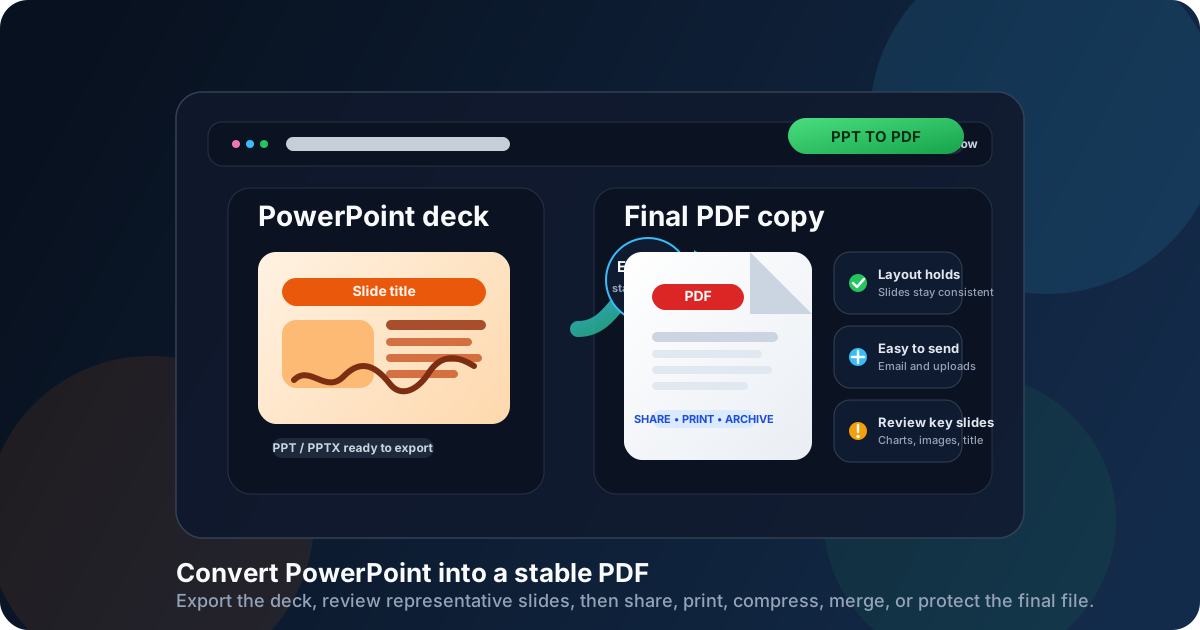
Table of contents
- Quick start: convert PPT to PDF in a few minutes
- Why people convert PPT to PDF in the first place
- Step-by-step: how to convert PPT to PDF
- PPT vs PPTX: what actually matters for PDF conversion
- What PDF preserves and what it does not
- What to review before you send the final deck
- Common PPT-to-PDF problems and the fastest fixes
- What to do after converting the presentation
- Related LifetimePDF tools and guides
- FAQ (People Also Ask)
Quick start: convert PPT to PDF in a few minutes
If the presentation is ready and you just need a dependable PDF, this workflow covers most situations:
- Open PowerPoint to PDF.
- Upload the .ppt or .pptx file.
- Convert it and download the PDF.
- Check a title slide, a chart or table slide, an image-heavy slide, and the final slide.
- If the file is too large, run it through Compress PDF after the layout looks right.
Why people convert PPT to PDF in the first place
Most people searching for PPT to PDF are not trying to do something fancy. They are trying to make a presentation easier to send and safer to open on someone else's device. That comes up all the time in real work:
- Client sharing: you want the deck to look the same for the recipient even if they do not have the same fonts or PowerPoint version.
- Printing: you need a handout, board packet, meeting deck, or review copy that stays fixed on the page.
- Upload portals: a school, job application, or internal system wants PDF instead of editable slides.
- Archiving: you want a stable record of the final presentation, not a file that keeps changing.
- Approval workflows: PDF is often easier to annotate, combine with appendices, sign, or lock before distribution.
In other words, PDF is usually the distribution copy. The original PowerPoint remains the editing file. Once you separate those two jobs, the workflow gets much simpler.
| Situation | Why PDF helps | Typical next step |
|---|---|---|
| Client or stakeholder review | Keeps slides visually stable across devices | Email or portal upload |
| Printed handouts | Creates a fixed page layout that is easier to print consistently | Print or combine with supporting material |
| School or application submission | Meets systems that prefer PDF over editable decks | Upload the final file |
| Internal record keeping | Preserves a final version of the deck for later reference | Archive, store, or attach to documentation |
Step-by-step: how to convert PPT to PDF
The mechanics are simple, but the order matters. A clean sequence saves time and usually avoids the "why does this slide look weird now?" moment later.
1) Start with the presentation you actually plan to share
Make sure you are converting the right deck. If there are still final edits coming, do them first in PowerPoint. PDF is best treated as the stable output copy, not the file you plan to keep revising slide by slide.
2) Upload the PPT or PPTX file
Open LifetimePDF PowerPoint to PDF and upload the presentation. Browser-based conversion is useful here because it gets you from presentation file to delivery copy without adding extra software or detouring into print drivers and desktop settings.
3) Convert and download the PDF
Once the conversion finishes, download the result and open it once before you send it anywhere. This review step matters because it catches the handful of slides most likely to expose spacing, font, chart, or image issues.
4) Review the slides that reveal problems fastest
You do not need to inspect every page like an auditor unless the deck is unusually high-stakes. Review these first:
- the title slide
- a chart-heavy or table-heavy slide
- an image-heavy slide
- the final slide
Those four checkpoints uncover most practical issues quickly.
5) Only then move into the follow-up PDF task
After the layout looks right, decide what the PDF needs next. If it is too large, compress it. If it belongs in a report packet, merge it. If it contains private content, protect it. If it needs sign-off, route it through a signature workflow.
Simple working sequence: PPT to PDF → quick slide review → compress, merge, protect, or sign only if needed.
PPT vs PPTX: what actually matters for PDF conversion
One quiet source of confusion is that people use "PPT" in two different ways.
Sometimes they mean the older .ppt file type specifically.
Sometimes they mean PowerPoint presentations in general.
For PDF conversion, both are fine, but the older format deserves a slightly more careful review.
| Format | What it is | What to watch for |
|---|---|---|
| PPT | The older PowerPoint 97-2003 format | Legacy fonts, older media, and dated formatting choices may need a quick check |
| PPTX | The newer XML-based PowerPoint format | Usually straightforward, but still worth reviewing if the deck is design-heavy |
The good news is that PDF works well as a stabilizing output for both. Even older decks often become easier to share once they are turned into a fixed-layout file. If you specifically work with newer presentations, the related guide on PPTX to PDF Online Free goes deeper into that angle.
What PDF preserves and what it does not
PDF is great at preserving the visual output of a presentation. It is not meant to preserve PowerPoint as an interactive editing environment. That difference explains most expectations problems.
What PDF usually preserves well
- Slide layout and page order
- Text placement and general typography
- Charts, images, icons, and branding
- A print-ready version of the deck
What PDF does not keep as a live presentation feature
- Animations and transitions
- Presenter view behavior
- Editable slide objects
- Most interactive presentation behavior
What to review before you send the final deck
A 30-second review usually saves more trouble than another round of guessing. Here is what matters most.
Title slides and branded slides
These often use larger fonts, custom spacing, and visual elements that reveal formatting shifts fastest.
Charts, tables, and dense text slides
If anything is going to feel cramped or lose readability, it will usually show up here first.
Image-heavy slides
These are the best indicator of whether the file might become too large for email or upload limits after conversion.
Speaker notes and hidden content assumptions
If your workflow depends on notes, remember that a normal slide PDF is not the same thing as a notes handout. Check what output you actually need before you send it to clients, classmates, or leadership.
Common PPT-to-PDF problems and the fastest fixes
The PDF is too large
This usually comes from image-heavy slides, dense backgrounds, or media-rich presentations. If the layout looks correct, use Compress PDF after conversion instead of trying to diagnose size problems inside the original deck first.
The recipient needs one stable version, not an editable deck
That is exactly where PDF helps. Send the PDF as the distribution copy and keep the PowerPoint file as the editable source.
You need the presentation inside a larger packet
Convert the slides to PDF first, then use Merge PDF to combine the deck with appendices, contracts, reports, or handouts.
The file contains sensitive material
After conversion, use PDF Protect if you need to add restrictions before sharing the final deck. Security decisions make more sense once the PDF itself is already correct.
The presentation needs a sign-off step
Once the PDF is final, send it through Sign PDF rather than collecting approval on a moving PowerPoint file.
| Problem | Usually means | Fastest next step |
|---|---|---|
| PDF is too big to email | The deck likely has heavy images or background graphics | Compress the finished PDF |
| You need one final non-editable copy | The deck is ready for distribution | Share the PDF, keep the PPT for edits |
| The presentation belongs with other documents | You are building a packet, not sending a standalone deck | Merge the PDF with the other files |
| The PDF includes private or client-sensitive material | The output needs access control before distribution | Protect the PDF after conversion |
What to do after converting the presentation
The conversion is often only the middle of the workflow. Once the deck becomes a PDF, the next task usually becomes obvious:
- Need a smaller attachment? Use Compress PDF.
- Need one combined packet? Use Merge PDF.
- Need to lock or restrict access? Use PDF Protect.
- Need a formal approval or signature step? Use Sign PDF.
This is why a browser-based PDF toolkit is useful. People rarely stop at "convert the file." They usually need to do something with that PDF immediately afterward.
Ready to turn the presentation into a clean delivery copy?
Convert the deck, review a few key slides, then move straight into compression, merging, protection, or signing if the workflow calls for it.
Related LifetimePDF tools and guides
PPT-to-PDF work usually sits inside a broader document workflow. These pages are the most useful companions:
- PowerPoint to PDF - convert PPT and PPTX presentations into PDF.
- Compress PDF - reduce file size for email and upload limits.
- Merge PDF - combine a deck with appendices or related reports.
- PDF Protect - add restrictions before sharing sensitive slides.
- Sign PDF - collect approval once the presentation is final.
Useful related reading
- PPT to PDF Online Free
- Convert PowerPoint to PDF Online
- PowerPoint to PDF Online Free
- PPTX to PDF Online Free
- Merge PDF and PowerPoint Files Online
- Compress PDF for Email
FAQ (People Also Ask)
How do I convert PPT to PDF?
Upload the PPT or PPTX file to a PowerPoint-to-PDF converter, create the PDF, then review a few representative slides before you send, print, or upload the final file.
Will PPT to PDF keep my slide layout?
Usually yes. PDF normally preserves slide layout, text placement, images, charts, and overall visual structure well, but it is still smart to review the title slide and a few dense slides before sharing.
What is the difference between PPT and PPTX when converting to PDF?
PPT is the older PowerPoint format and PPTX is the newer one. Both convert well to PDF, but older PPT files deserve a quick review for legacy fonts, media, and formatting.
Why convert PowerPoint to PDF instead of sharing the presentation file?
PDF is easier to view, print, upload, and archive because it reduces compatibility problems and gives you a more stable final version of the slides.
Can I make the PDF smaller after converting PPT to PDF?
Yes. Convert the presentation first, confirm the slides look right, then compress the finished PDF if you need a smaller attachment or a file that fits upload limits.
Ready to turn your slide deck into a clean shareable PDF?
Best workflow for most presentation files: convert the deck → review key slides → compress, merge, protect, or sign only if the next handoff needs it.
Published by LifetimePDF - Pay once. Use forever.