Merge PDF and PowerPoint Files: Combine Slides, Handouts, and Supporting Pages Into One Clean PDF
To merge PDF and PowerPoint files, the safest workflow is to convert the PowerPoint deck to PDF first, then use Merge PDF to combine that slide PDF with the rest of your documents in the right order.
That keeps slide layout steadier and gives you one final PDF that is easier to share, print, upload, archive, or hand off as a finished packet.
Most people searching this phrase are not trying to do something fancy with file types. They are trying to finish a real handoff: a sales deck with a signed proposal, a training deck with worksheets, a board presentation with an appendix, or a client packet that should arrive as one clean document instead of scattered attachments. PowerPoint is still a presentation format. PDF is the format you use when the content should feel final. Once you treat the deck as the source and the merged PDF as the delivery format, the workflow gets much simpler.
Fastest dependable path: export the deck to PDF, merge the PDFs in the right order, then compress or protect the finished packet only if the real handoff needs it.
Need the short version? Jump to Quick start: merge PowerPoint and PDF files in about 5 minutes.
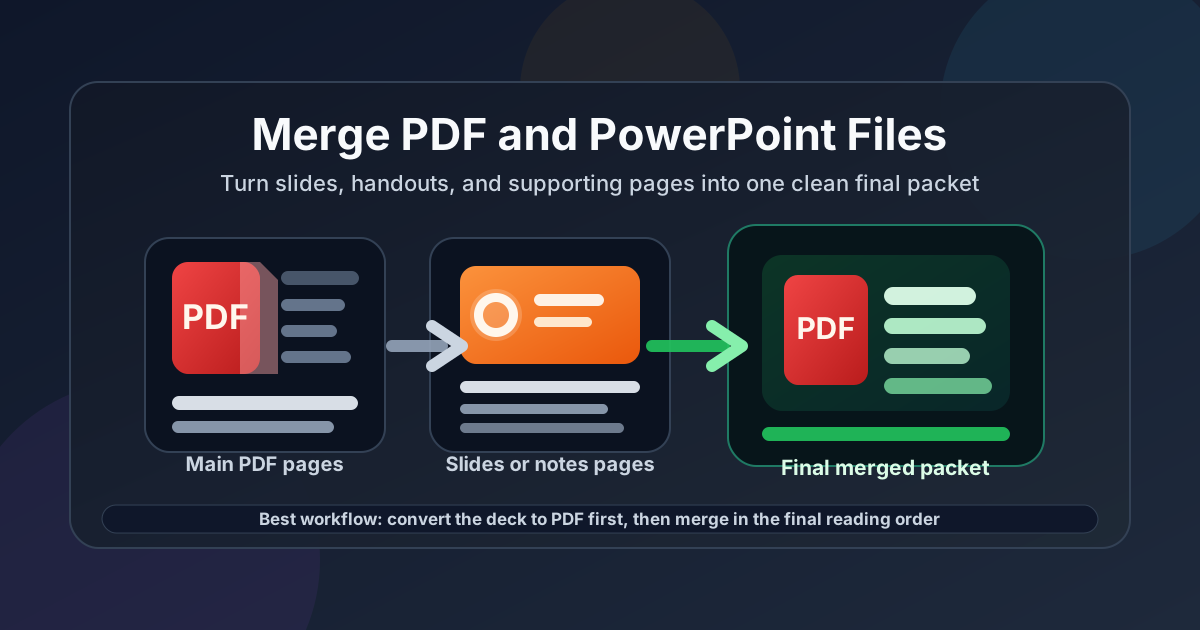
Table of contents
- Quick start: merge PowerPoint and PDF files in about 5 minutes
- Why PowerPoint to PDF first is the cleanest workflow
- Step-by-step: merge the files without breaking slide flow
- How to keep slides readable after conversion
- How to order decks, handouts, and appendices
- Common real-world use cases
- Troubleshooting notes pages, giant files, and awkward slides
- Related LifetimePDF tools and companion guides
- FAQ (People Also Ask)
Quick start: merge PowerPoint and PDF files in about 5 minutes
If the deck is already finalized and you just need one clean file, this is the workflow most people actually want:
- Open PPT to PDF.
- Convert the final PPT or PPTX deck into PDF.
- Open Merge PDF.
- Upload the new slide PDF together with the agenda, appendix, signed pages, worksheet, contract, or supporting PDF files.
- Drag the files into the exact order you want, merge them, and download the final packet.
- If the result is too large for email or a portal upload, use Compress PDF.
Why PowerPoint to PDF first is the cleanest workflow
There are two ways people imagine this job. One sounds convenient: upload a PowerPoint file and a PDF together and hope the service handles everything perfectly in one pass. The other is calmer: stabilize the presentation first, then merge only PDFs. The second path is usually the better one because it gives you one fixed version of the slides before they become part of a larger packet.
| Workflow | Best when | Main tradeoff |
|---|---|---|
| Convert PowerPoint to PDF, then merge | Pitch decks, board packs, training handouts, proposals, client packets, archives | One extra step, but much better layout control |
| Try to combine mixed files immediately | Low-stakes internal jobs where exact visual consistency matters less | Less predictable slide rendering, order, and output quality |
In practice, merge PDF and PowerPoint files usually means convert the editable presentation into a stable PDF, then package everything together. That is how you keep the result readable for the recipient instead of just technically combined.
Step-by-step: merge the files without breaking slide flow
The workflow is simple, but doing the steps in the right order prevents the usual presentation problems from leaking into the final packet.
1) Finalize the deck before conversion
Settle the slide order, remove placeholder notes, hide or delete backup slides that should not ship, and confirm whether you want full slides, notes pages, or a handout-style export. If the presentation still feels half-finished, the merged PDF will preserve that half-finished feeling in a less editable form.
2) Decide what the PDF version should look like
This matters more for presentations than many people expect. A speaker deck with click-by-click builds may not read well as a static PDF. A training deck may need notes pages. A client-facing sales deck may be better as clean full-slide pages. Make that decision before you export.
3) Convert PowerPoint to PDF once
Use PPT to PDF with the exact deck you plan to send. This freezes the slide appearance so the merge becomes packaging, not guesswork.
4) Gather the supporting PDFs
That may include an agenda, worksheet, appendix, contract, signed approval pages, proposal, report summary, or speaker materials. Putting everything in one folder first makes the merge feel less chaotic and reduces the chance that you attach the wrong version later.
5) Merge in the final reading order
Open Merge PDF, upload the slide PDF and the supporting PDFs, then drag them into the final sequence. The right order matters more than people expect because the recipient will experience the packet from top to bottom, not as a pile of source files.
6) Review the packet once before sharing
- Check the first page: does the packet open with the cover slide, agenda, or summary you intended?
- Check slide readability: are charts, labels, and screenshots still easy to read at normal zoom?
- Check transition points: do appendices, handouts, or signed pages begin where you meant them to?
- Check orientation: did any landscape pages or inserts rotate oddly?
- Check file size: is the final packet still reasonable for email, uploads, or download speed?
Calmest sequence: finish the deck, export once, merge once, review once, then only compress or protect if the real handoff needs that extra step.
How to keep slides readable after conversion
The technical merge is easy. The real quality of the result comes from whether the slide pages are still understandable once they live inside a PDF packet.
| If the presentation problem is... | The better fix is usually... |
|---|---|
| Text looks too small in PDF | Simplify crowded slides, avoid packing too much detail on one page, and test the exported PDF at normal laptop zoom |
| Charts or screenshots feel cramped | Use cleaner source images, split one overloaded slide into two, or export a supporting appendix instead of forcing everything onto one slide |
| Animations carried meaning during the live presentation | Export the deck in the exact static state you want the reader to see because PDF pages do not preserve interactive reveals |
| Speaker notes matter | Choose notes pages deliberately before conversion instead of assuming the recipient can infer context from slide fragments alone |
One common mistake is building slides for a projector and expecting them to work perfectly as a reading document. Projected slides can rely on narration, timing, and emphasis. A merged PDF has to stand on its own. If the audience will read it without you present, make sure each slide still communicates clearly as a page.
How to order decks, handouts, and appendices
A merged presentation packet is not just a stack of files. It is a reading experience. Many packets fail not because the files are wrong, but because the order makes the reader work too hard.
| If you are sending... | A strong page order is usually... |
|---|---|
| Sales or pitch deck | Cover or title slide, deck, proposal or pricing appendix, signed pages if needed |
| Board or leadership packet | Agenda or summary, presentation slides, supporting reports, appendix, backup material |
| Training pack | Deck, worksheet or handout, reference guide, completion form or sign-off pages |
| Event or workshop materials | Overview, slides, schedule, handouts, venue or logistics appendices |
If the packet has one clear main document, lead with that. Attachments should support the story, not compete with page one. That simple choice instantly makes the final PDF feel more intentional.
Common real-world use cases
This keyword exists because mixed-format presentation packets are ordinary work. Here are the situations where it comes up most often.
Client and sales handoffs
A pitch deck may need to travel with pricing sheets, a proposal, signed approvals, or scope appendices so the recipient receives one polished packet instead of a loose bundle.
Board and executive packs
Leadership decks often need supporting reports, financial pages, or appendix material behind the main slides so the narrative and the evidence stay together.
Training and onboarding materials
Slides, worksheets, checklists, and sign-off pages often belong in one downloadable PDF packet that learners can review or print more easily.
Workshop and conference content
A presentation may need to sit beside schedules, speaker bios, maps, or handouts so attendees receive one coherent PDF instead of hunting through multiple files.
In all of these cases, the goal is not just to combine files. The goal is to hand over one document that feels deliberate, readable, and easy to review later.
If the packet is headed to a portal or inbox: merge first, then compress if necessary so you are optimizing the real finished file instead of guessing too early.
Troubleshooting notes pages, giant files, and awkward slides
The slides looked good live, but feel weak in PDF
That usually means the deck relied on your narration, builds, or stage context. Tighten the export version so the pages still make sense without the spoken presentation.
The final merged PDF is too large
Merge first, then use Compress PDF on the finished packet. That way you optimize the actual file you plan to send instead of compressing a bunch of intermediate versions.
I need notes pages, not just plain slides
Decide that before export. A notes-page PDF and a slide-only PDF serve different readers. Training, facilitator, and internal review packets often benefit from notes pages, while client-facing or submission packets usually look cleaner as standard slide pages.
The page order feels wrong after the merge
Rebuild the order based on how a recipient reads, not how the source files were created. If the deck is the main story, it should usually come before the appendix. If the PDF memo is the main story, the slides may belong behind it.
The packet contains confidential content
After merging, consider using PDF Protect before sharing it. Protection does not replace access control or judgment, but it can help when the final file genuinely needs another layer.
Related LifetimePDF tools and companion guides
Most people who merge decks into a packet need one or two follow-up tools. These are the most useful next moves:
- PPT to PDF for turning the deck into a stable export first
- Merge PDF for assembling the final packet
- Compress PDF if the merged file is too heavy for email or a portal
- PDF Protect when the finished packet contains sensitive information
- PPT to PDF if you need more detail on the conversion step first
- Merge PDF and PowerPoint Files Online for the broader browser-first workflow
- Merge PDF and PowerPoint Files Without Monthly Fees for the pay-once angle
- Merge PDF and Word Files and Merge PDF and Excel Files if the packet includes documents beyond the slide deck
Need to finish the packet now? Convert the deck first, merge the PDFs second, and only optimize the final file after the structure feels right.
FAQ (People Also Ask)
How do I merge PDF and PowerPoint files?
The cleanest method is to convert the PowerPoint deck to PDF first, then merge that slide PDF with your other PDFs. That keeps the layout more stable than trying to combine a live presentation file and a PDF at the last second.
Can I combine a PPTX file and a PDF into one final PDF?
Yes. Convert the PPT or PPTX deck to PDF, review the exported pages for readability, then merge that new PDF with your other PDF files into one final packet.
Will animations and transitions stay in the merged PDF?
No. PDF pages are static, so animations, click builds, and transitions do not stay interactive. Export the deck in the exact visual state you want the reader to see.
Should I merge full slides, notes pages, or handouts?
Choose based on the audience. Full slides are usually best for client decks and presentations, notes pages work well for training or internal review, and handouts can be better when the file is mainly for reading or printing.
What should I do if the merged presentation PDF is too large?
Finish the merge first, then use Compress PDF on the final packet. That gives you a size reduction based on the actual file you plan to send.
Published by LifetimePDF - Pay once. Use forever.