Merge PDF and Word Files: Combine DOCX, Signed Pages, and Appendices Into One Clean PDF
To merge PDF and Word files, the most reliable workflow is to convert the Word file to PDF first, then use Merge PDF to combine that new PDF with the rest of your documents in the right order.
That approach keeps formatting steadier, reduces layout surprises, and gives you one final PDF that is easier to share, print, upload, or archive.
Most people searching this phrase are not trying to perform a clever file-format trick. They are trying to finish a real packet: a proposal with a cover letter, a contract with signed pages, a school submission with an appendix, or a client bundle that should arrive as one calm document instead of six attachments. The good news is that this workflow is straightforward once you stop treating Word and PDF as equal at the last second. Word is still editable. PDF is the format you use when the packet should feel final.
Fastest dependable path: export the Word document to PDF, merge the PDFs in the right order, then compress or protect the finished packet only if the real workflow needs it.
Need the short version? Jump to Quick start: merge Word and PDF files in about 4 minutes.
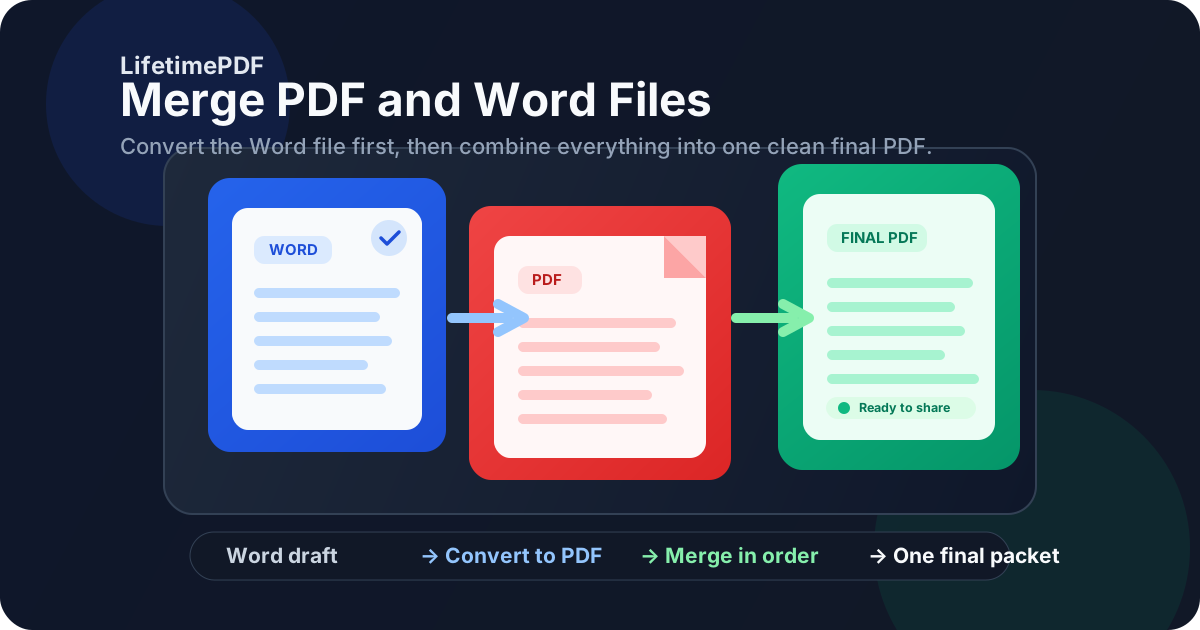
Table of contents
- Quick start: merge Word and PDF files in about 4 minutes
- Why Word to PDF first is the cleanest workflow
- Step-by-step: merge the files without wrecking layout
- How to order the final packet so it reads well
- How to keep formatting stable
- Common real-world use cases
- Troubleshooting file size, locked files, and weird page flow
- Related LifetimePDF tools and companion guides
- FAQ (People Also Ask)
Quick start: merge Word and PDF files in about 4 minutes
If the content is already finalized and you just need one finished file, this is the workflow most people actually want:
- Open Word to PDF.
- Convert the final DOC or DOCX file into PDF.
- Open Merge PDF.
- Upload the new PDF together with the other PDF pages, signed sheets, references, or appendices.
- Drag the files into the exact order you want, merge them, and download the final packet.
- If the result is too large for email or an upload portal, use Compress PDF.
Why Word to PDF first is the cleanest workflow
You can think of this phrase in two different ways. One version sounds convenient: upload a Word file and a PDF together and hope the service handles everything perfectly in one pass. The other version is calmer: stabilize the Word file first, then merge only PDFs. The second path is usually the better one.
| Workflow | Best when | Main tradeoff |
|---|---|---|
| Convert Word to PDF, then merge | Proposals, contracts, school submissions, client packets, formal archives | One extra step, but much better layout control |
| Try to combine mixed files immediately | Quick internal packets or low-stakes convenience jobs | Less predictable formatting and more room for surprises |
In practice, merge PDF and Word files usually means convert the editable file into a stable PDF, then package everything together. That is how you keep the final result readable for the recipient instead of just technically combined.
Step-by-step: merge the files without wrecking layout
The actual workflow is simple, but doing each step in the right order prevents the usual messes.
1) Finalize the Word document before conversion
Remove comments, settle tracked changes, fix page breaks, and make sure tables and images already look right. If the Word document still feels half-finished, the merged PDF will preserve that half-finished feeling in a less editable form.
2) Convert Word to PDF once
Use Word to PDF with the exact DOC or DOCX file you plan to send. This step freezes the layout so the merge is packaging, not guesswork.
3) Gather the supporting PDFs
That may include signed signature pages, invoices, appendices, exhibits, scanned pages, references, certificates, or existing PDF forms. Put everything in one folder first if you want the process to feel less chaotic.
4) Merge in the final reading order
Open Merge PDF, upload the converted Word PDF and the supporting PDFs, then drag them into the final sequence. The right order matters more than people expect because the recipient will experience the packet from top to bottom, not as a pile of source files.
5) Review the merged packet once before sharing
- Check the first page: does the packet open with the right cover page or main document?
- Check transition points: do appendix pages or signed pages start where you intended?
- Check page orientation: did any scanned pages rotate oddly?
- Check file size: is it still reasonable for email or a portal upload?
- Check naming: does the final file name make sense to the recipient?
Calmest sequence: finish in Word, convert once, merge once, review once, then only compress or protect if the real handoff needs that extra step.
How to order the final packet so it reads well
The technical merge is easy. The reading order is where the quality of the packet shows up. Many merged files are not broken, just badly sequenced.
| If you are sending... | A strong page order is usually... |
|---|---|
| Proposal or pitch | Cover letter or summary, main proposal, pricing, appendix, supporting references |
| Contract packet | Main agreement, signature pages, exhibits, schedules, supporting documents |
| School submission | Title page, main paper, references, appendix, scanned extras if required |
| Client report | Executive summary, main report, charts, data appendix, supplemental pages |
If the packet has one clear main document, put that first. Attachments should support it, not compete with it. That simple rule instantly makes the final PDF feel more intentional.
How to keep formatting stable
Most people blame the merge when the real problem started earlier. A merge step usually preserves what it receives. If the Word export was unstable, the merged packet just makes that instability official.
Use real page breaks in Word
Manual blank lines and improvised spacing are still one of the fastest ways to create ugly page transitions after export. If a section belongs on a new page, use an actual page break.
Watch oversized screenshots and images
They can make the Word-to-PDF stage heavy, and then the merged packet becomes heavier still. If you are building a file for email or a submission portal, keep image sizes under control before you merge.
Export once from the correct source
Do not keep half a dozen nearly identical PDFs with names like final, final-2, final-fixed, and final-real. Convert the right Word source once, then merge with confidence.
Protect the final version only after the order is settled
If the packet is sensitive, use PDF Protect after the merge, not before. Protecting separate pieces too early usually creates extra friction for no real benefit.
Common real-world use cases
This keyword exists because the need is ordinary and practical. Here are the situations where it comes up most often.
Proposals and client packets
The main proposal may start in Word, while pricing sheets, signed approvals, or exhibits already exist as PDFs. One final packet feels more polished than asking a client to piece it together manually.
Contracts with signature pages
The agreement may be drafted in Word, exported to PDF, signed in part, and then combined with signature pages or exhibits. A merged PDF becomes the cleaner file for records and follow-up.
School or grant submissions
The written statement often begins in Word, while supporting forms, transcripts, or scanned letters already live as PDFs. One organized file is easier to upload and much easier for reviewers to navigate.
Reports with appendices
The narrative report might be the Word portion, while charts, source documents, or signed acknowledgments sit separately as PDF attachments. The merged version turns them into one coherent handoff.
If the packet is headed to a portal or inbox: merge first, then compress if necessary so you are optimizing the real final file instead of guessing too early.
Troubleshooting file size, locked files, and weird page flow
Most problems in this workflow are fixable without starting over.
The merged file is too large
Finish the merge first, then run Compress PDF on the combined result. That gives you a size fix based on the real packet instead of separate guesses.
A PDF page will not merge cleanly
Check whether the source PDF is locked, damaged, or exported oddly. If needed, create a clean copy of that piece first, then merge again. One stubborn source file can make the whole packet look unreliable.
The page order feels wrong after download
Reopen the merge step and reorder the files more intentionally. This is common when somebody uploads files in creation order instead of reading order.
The Word pages still look strange after conversion
Go back to the Word source. The merge is rarely the culprit. Fix page breaks, tables, image scaling, or section spacing in the Word file, export again, and replace only that piece.
Related LifetimePDF tools and companion guides
This workflow works best as part of a small document toolkit rather than one heroic button. These are the most useful next steps and nearby guides:
- Word to PDF - convert DOC and DOCX files into stable PDFs before the merge.
- Merge PDF - combine the converted file with appendices, signed pages, or supporting documents.
- Compress PDF - reduce the final packet for email or upload limits.
- PDF Protect - add a password if the merged file contains confidential material.
- Sign PDF - add approvals or signatures after the packet is finalized.
For related reading around the same topic, these guides fit naturally next: Merge PDF and Word Files Online, Merge PDF and Word Files Without Monthly Fees, Word to PDF, Convert Word to PDF Without Losing Formatting, and Merge PDF and Images Online.
Bottom line: the smartest way to merge PDF and Word files is boring in the best possible way - stabilize the Word file first, merge the PDFs second, and hand off one final packet that feels finished.
FAQ (People Also Ask)
1) How do I merge PDF and Word files?
The cleanest method is to convert the Word file to PDF first, then use a PDF merger to combine that new PDF with the rest of your PDF files. That keeps layout steadier and makes the final packet easier to review and share.
2) Can I combine a DOCX file and a PDF into one final PDF?
Yes. Convert the DOCX file into PDF, then merge it with the other PDF. That gives you one final file that is more stable than trying to keep an editable format alive at the last step.
3) Will merging Word and PDF files keep formatting?
Usually yes, especially when the Word document is exported to PDF before the merge. Most formatting issues begin in the Word source, not in the actual merge.
4) What order should I use when I merge Word and PDF files?
Put the main reader-facing document first, then signed pages, appendices, exhibits, references, or supporting pages after it. Review the result once so the packet reads naturally from page one.
5) What should I do if the merged file is too large?
Finish the merge first, then use Compress PDF on the final packet. That gives you a size reduction based on the real finished file rather than on scattered parts.
Ready to build one clean final packet?
Best workflow: Finalize in Word - Export to PDF - Merge in order - Review once - Then compress or protect only if needed.
Published by LifetimePDF - Pay once. Use forever.