PPTX to PDF: Convert Modern PowerPoint Decks into Stable, Share-Ready PDFs
To convert PPTX to PDF, upload the .pptx deck to LifetimePDF's PowerPoint to PDF tool, export the PDF, and review slide size, fonts, charts, and screenshots once before sharing.
If the deck is truly final, PDF is usually the safer handoff because it keeps the visible presentation stable without inviting accidental edits or playback surprises.
That is the short answer. The useful part is understanding what makes PPTX slightly different from older PPT files and from broad generic "PowerPoint" advice. Modern slide decks often depend on widescreen layouts, theme fonts, image-heavy slides, animations, speaker notes, and cloud-sharing habits that affect how the finished PDF feels. A good PPTX-to-PDF workflow does not just change the file extension. It turns a live presentation into a calm final document people can open, review, print, upload, or archive without wondering whether the deck will look different on their screen.
Fastest path: clean the deck once, confirm the right slide size once, convert it once, then compress, merge, sign, or protect the PDF only if the next step actually needs that extra polish.
In a hurry? Jump to Quick start: convert PPTX to PDF in a few minutes.
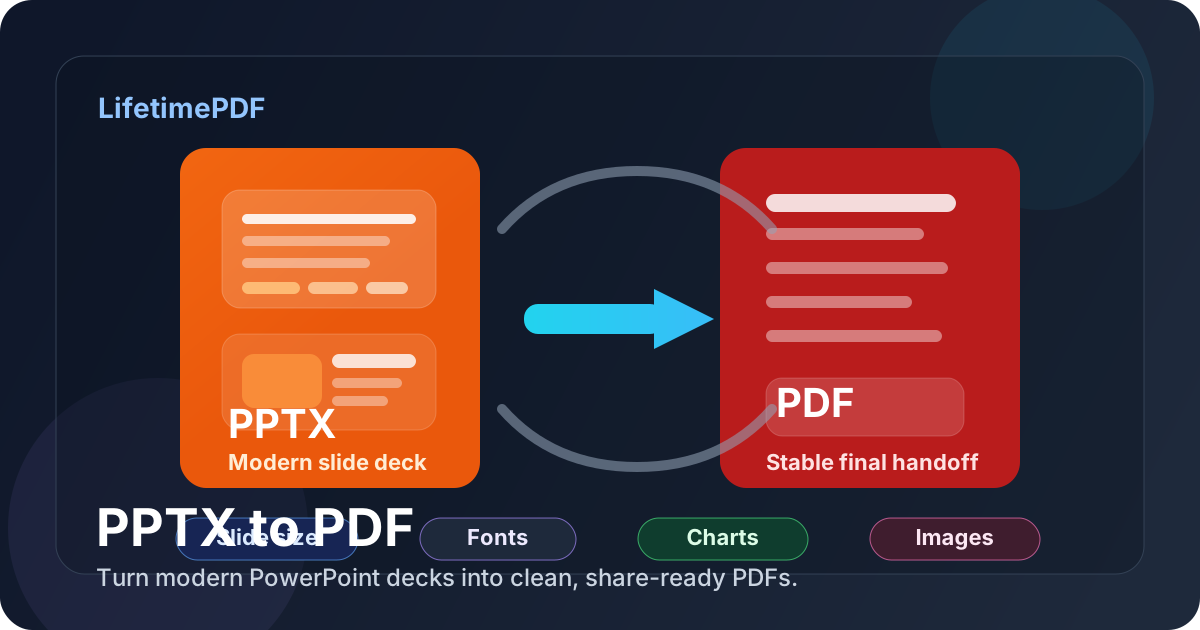
Table of contents
- Quick start: convert PPTX to PDF in a few minutes
- Why PPTX deserves its own PDF conversion page
- Step-by-step: the cleanest PPTX-to-PDF workflow
- How to keep slide size, fonts, charts, and images stable
- PPTX vs PPT vs PDF
- Common PPTX-to-PDF problems and fixes
- What to do after converting PPTX to PDF
- Related tools and companion guides
- FAQ
Quick start: convert PPTX to PDF in a few minutes
If the deck is already approved and you just need a dependable PDF, the workflow is simple:
- Open LifetimePDF PowerPoint to PDF.
- Upload the .pptx file.
- Convert it to PDF and download the finished file.
- Check the title slide, one chart-heavy slide, one image-heavy slide, and the last slide once.
- If needed, compress, merge, sign, or protect the PDF after the layout looks right.
The conversion itself is the easy part. What matters is making sure the PDF still feels like a polished deck rather than a presentation file that lost its timing, spacing, or visual hierarchy halfway through export.
Why PPTX deserves its own PDF conversion page
PPTX is not just a newer extension. It is the modern presentation format most people use for sales decks, investor updates, class presentations, client reviews, training slides, pitch materials, internal reporting, and conference handouts. That matters because the search intent is more specific than a broad "PowerPoint to PDF" search.
- They already know the file is a modern .pptx deck.
- They want a final handout or review copy, not another editable presentation.
- They need the slides to survive email, upload portals, or printing.
- They want fewer playback and font surprises than sharing the presentation file directly.
- Modern decks often use widescreen layouts, theme fonts, and image-heavy slides.
- Animations, transitions, and embedded media do not stay interactive in PDF.
- Speaker notes, hidden slides, and cloud comments can create export decisions.
- The right result is usually a stable visual snapshot, not a live presentation environment.
In plain terms: PowerPoint to PDF is the broad category, while PPTX to PDF is the modern-file version of that workflow. It deserves its own page because current slide decks carry their own predictable risks and expectations.
Step-by-step: the cleanest PPTX-to-PDF workflow
1) Clean the source deck before converting
Modern slide decks can look polished while quietly carrying clutter: hidden slides, outdated charts, speaker notes meant only for rehearsal, comment leftovers, embedded media, or screenshots that were dropped in at the last minute. Before you convert anything, decide whether the deck is actually final. If the answer is "almost," it probably needs one more pass.
2) Decide what the PDF is supposed to preserve
PDF preserves what is visible, not what is interactive. That means animations, transitions, embedded video, and live presentation behavior usually flatten into static slides. If a slide only makes sense when motion happens in sequence, you may need to simplify it or create a version that still communicates clearly when frozen on the page.
3) Use the correct conversion tool
Open PowerPoint to PDF. The tool name is broader than the keyword, but the match is exact in practice: it is the right LifetimePDF workflow for PPTX, PPT, and similar presentation files when the goal is a stable PDF.
4) Convert and download the PDF
Upload the file, run the conversion, and save the finished PDF locally. If the deck is short, the review takes seconds. If it includes detailed charts, small labels, screenshots, dense tables, or carefully arranged layouts, give those slides a deliberate look before sending the file anywhere important.
5) Review the high-risk slides first
- Title slide: make sure branding, typography, and spacing still feel intentional.
- Chart slides: check axes, legends, labels, and contrast.
- Image-heavy slides: confirm screenshots and photos are still sharp enough to read.
- Dense text slides: look for line-wrap shifts or cramped spacing.
- Final call-to-action or appendix slides: these often matter most in handout form.
Practical rule: do not re-review every slide obsessively. Check the slides where formatting failure actually changes meaning, readability, or professionalism.
How to keep slide size, fonts, charts, and images stable
Most PPTX-to-PDF problems are not mysterious. They usually come from the way the slide deck was built. Modern format helps, but it does not rescue weak presentation habits by itself.
Slide size matters more than people expect
A modern deck is often designed in 16:9 widescreen. If the file was built for one aspect ratio and reviewed in another, content can feel cramped, tiny, or oddly padded in the exported PDF. Before converting, make sure the deck is using the intended slide size and that charts, screenshots, and text blocks were designed for that canvas.
Fonts still matter even in presentation files
Theme fonts and decorative type choices can make a deck look strong on the creator's laptop and slightly off everywhere else. If the PDF is headed to a client, hiring team, board packet, or printout, dependable typography usually beats clever typography. PDF reduces risk, but it does not excuse a deck that already leans too hard on fragile visual choices.
Charts and screenshots deserve an extra look
Presentation slides often shrink big ideas into small spaces. Charts that were easy to explain live can become harder to understand when frozen into a standalone PDF. The same goes for screenshots, dashboards, or interface captures with tiny labels. If a slide depends on detail, zoom in and make sure the export still feels readable without your voice talking over it.
Animations and notes do not survive the same way
A PDF captures a moment, not a performance. Sequential builds, reveals, hover effects, and embedded videos turn into static content. Speaker notes also need a conscious decision: do they belong only in rehearsal, or are you creating a handout that should include additional explanation elsewhere?
| Problem | What usually causes it | Best response |
|---|---|---|
| Text feels cramped or tiny | Deck built for the wrong aspect ratio or overloaded slides | Confirm slide size and simplify crowded slides before export |
| Visual story stops making sense | Animations or staged reveals carried the meaning live | Make sure each exported slide can stand on its own |
| Charts are hard to read | Small labels, weak contrast, or over-dense data | Check the exported PDF at normal viewing size |
| PDF becomes too large | High-resolution screenshots, photos, or media-heavy slides | Convert first, then compress the finished PDF |
A calm source deck produces a calmer PDF. If the presentation already feels slightly improvised, the best workflow is to stabilize the deck first and only then convert it.
PPTX vs PPT vs PDF
These three formats belong to the same family of work, but they do not behave the same. The distinctions are simple and useful.
| Format | Typical reality | What to watch for |
|---|---|---|
| PPTX | Modern editable PowerPoint deck used in current workflows | Aspect ratio, theme fonts, notes, animations, screenshots, chart density |
| PPT | Legacy presentation file, often older templates or archived decks | Older fonts, legacy layouts, embedded media quirks, compatibility issues |
| Best final sharing format in most cases | Review once, then use it for handouts, submissions, printouts, or archiving |
My practical rule is simple: if the file is still a live PPTX, it is a working presentation. Once it becomes a good PDF, it becomes the distribution version. That distinction removes a lot of confusion about which file should be sent to other people.
Common PPTX-to-PDF problems and fixes
The PDF looks flatter than the live deck
That usually means the original presentation relied on animation, timing, or spoken explanation. A PDF cannot perform the deck for you. If the slides now feel abrupt or incomplete, revise the source deck so each page makes sense when viewed statically.
Small labels or screenshots are hard to read
This is common in data slides, software walkthroughs, and dashboard captures. If a reader will view the PDF without your narration, enlarge the important visual elements in the deck before conversion or split overloaded slides into simpler ones.
The file is too large to email or upload
Convert first, then shrink the finished file with Compress PDF. In modern slide decks, bulky screenshots and high-resolution photography are the usual reason PDFs become heavier than expected.
You need one packet with appendices or attachments
Convert the presentation first, then combine it with supporting material using Merge PDF. That is especially useful for proposals, sales packets, investor updates, school submissions, and presentation handouts that need extra reference material.
You need a private or locked final copy
Use PDF Protect when the deck contains financial, HR, client, legal, or internal strategy information. If information must be removed permanently rather than merely restricted, use a true redaction workflow instead of relying on visual cover-ups.
You need approvals after conversion
Once the PDF layout looks right, open Sign PDF. That is usually cleaner than trying to keep approval loops inside a live presentation file.
What to do after converting PPTX to PDF
For most people, conversion is only the first step. The real workflow usually looks like this:
- Need a smaller file? Use Compress PDF.
- Need one final packet? Use Merge PDF.
- Need approvals or signatures? Use Sign PDF.
- Need restricted access? Use PDF Protect.
- Need to edit again later? Keep the original PPTX file and treat the PDF as the final distribution version.
This is why PDF is usually the better delivery format while PPTX remains the better editing and presenting format. You do not have to choose one forever. You just need to know which one belongs to which stage of the presentation's life.
Best simple sequence: PPTX → PDF → review → compress / merge / sign / protect → send.
Related tools and companion guides
If this PPTX-to-PDF task is part of a broader presentation workflow, these are the most relevant next steps:
- PowerPoint to PDF for the core conversion step
- Compress PDF when the result is too large for upload or email
- Merge PDF for combining the finished deck with appendices or support material
- Sign PDF when the final file needs approval or sign-off
- PDF Protect for password protection
- PowerPoint to PDF Online Free for the broader browser-first companion angle
- PowerPoint to PDF Without Monthly Fees for the pricing-angle companion page
- PPTX to PDF Online Free for the exact-keyword browser-first companion
- PPTX to PDF Without Monthly Fees for the exact-keyword pricing companion
- PPT to PDF for the legacy-format companion page
FAQ
How do I convert PPTX to PDF?
Use a PPTX to PDF converter, upload the .pptx file, convert it, and download the finished PDF. Check slide size, fonts, charts, screenshots, and any slide that relied on animation once before you share or print the result.
Does PPTX to PDF keep animations and transitions?
No. A PDF keeps the visible slide state, not the interactive presentation behavior. If motion carried the meaning, make sure the exported slide can still stand on its own.
Is PPTX to PDF different from PowerPoint to PDF?
PPTX to PDF is the modern-file version of the broader PowerPoint to PDF workflow. The destination is still PDF, but current .pptx decks usually need more attention to aspect ratio, theme styling, chart readability, screenshots, and animation loss than to legacy compatibility issues.
Can I convert PPTX to PDF on my phone?
Yes. You can upload a PPTX file from your phone or tablet, convert it in the browser, and download the PDF. It is still worth previewing a few important slides before sending it to anyone else.
Should I share the PPTX file or the PDF?
Keep the PPTX file for editing and presenting, but share the PDF when you want a more stable version for review, printing, client delivery, portal uploads, or archiving.
Published by LifetimePDF — Pay once. Use forever.