JPG to PDF Online: Convert Photos, Scans, and Screenshots Into One Clean PDF in Your Browser
To convert JPG to PDF online, open a browser-based image-to-PDF tool, upload one or more JPG files, arrange them in the right order, and download one clean PDF.
If the images came from phone photos or scans, review the result once, then compress, OCR, or protect the PDF only if the next step actually needs it.
The easy part is clicking the convert button. The part that decides whether the result feels polished or sloppy is everything around it: whether the pages are in the right order, whether a receipt became too tiny to read, whether one screenshot turned sideways, whether the file is now too heavy for a portal upload, and whether you accidentally included more than you meant to. A good online JPG-to-PDF workflow keeps the browser convenience while still producing a document that is genuinely ready to send.
Fastest reliable path: upload the right JPG files, keep the page order simple, create the PDF, then use follow-up PDF tools only when the finished file still needs smaller size, searchable text, or extra protection.
In a hurry? Jump to Quick start: JPG to PDF online in a few minutes.
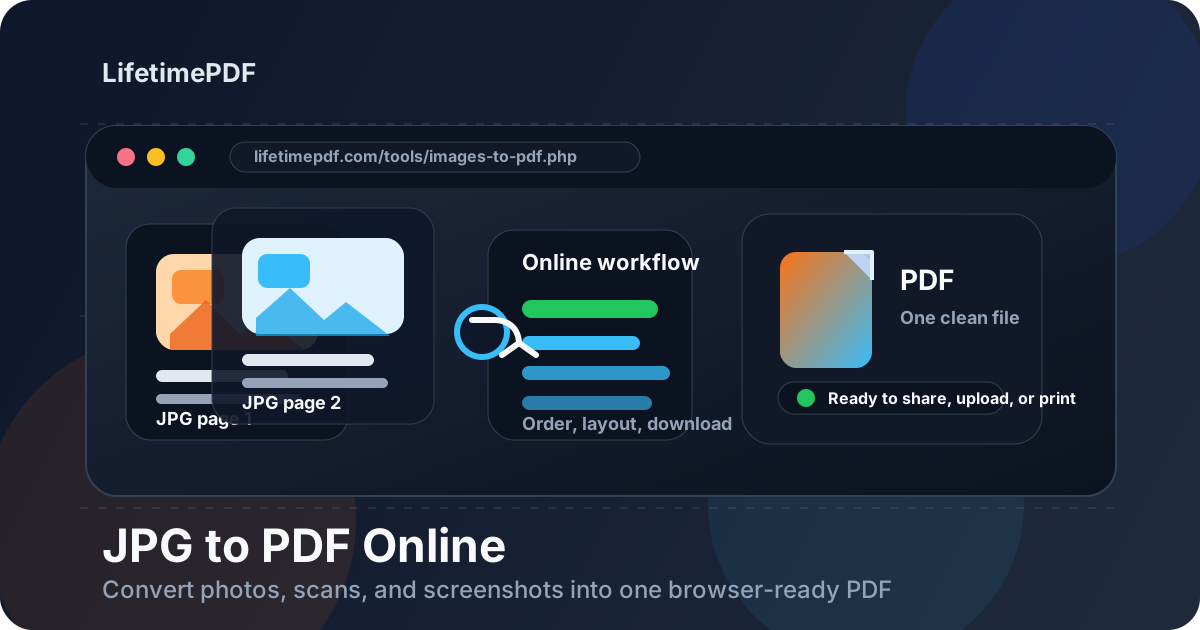
Table of contents
- Quick start: JPG to PDF online in a few minutes
- Why people choose JPG to PDF online
- What to decide before you upload the JPG files
- Step-by-step: how to convert JPG to PDF in your browser
- How to combine multiple JPG files into one PDF without a mess
- How to keep the PDF readable without making it huge
- JPG to PDF online on phone vs desktop
- What to do after conversion: compress, OCR, rotate, protect
- A simple privacy check before you send the PDF
- Related LifetimePDF tools and useful next steps
- FAQ (People Also Ask)
Quick start: JPG to PDF online in a few minutes
If the images are already ready to go, the clean workflow is simple:
- Open Images to PDF.
- Upload the JPG files you want in the final document.
- Arrange them in the correct reading order.
- Create the PDF and download it.
- Check the first page, one middle page, and the last page before you share it.
Why people choose JPG to PDF online
People search for JPG to PDF online because the files already exist and the job is usually practical, not creative. They have receipt photos on a phone, scanned pages from a copier, screenshots that belong together, photographed forms, or school and work documents that need to become one proper file fast. An online tool is attractive because it works in the browser, across devices, without turning the task into a software-install project first.
That convenience is real, but it only helps if the output actually behaves like a good document. The point is not simply to change the file format. The point is to end up with something another person can open, review, print, upload, archive, or forward without confusion.
| What you have | Best first move | Why it helps |
|---|---|---|
| Phone photos of receipts or forms | JPG to PDF online | Turns a scattered image set into one upload-ready document |
| Several screenshots that tell one story | JPG to PDF online | Keeps the sequence together instead of making someone open separate files |
| Scanned pages that still need text search later | JPG to PDF online, then OCR | Creates the document first, then adds searchable text |
| Image packet that is too big for a portal | JPG to PDF online, then compress | One file is easier to manage, and the final PDF can be optimized afterward |
What to decide before you upload the JPG files
Most bad JPG-to-PDF results are not caused by the converter. They happen because the input set was never cleaned up or thought through.
1. Which images actually belong in the final PDF
Remove duplicates, throwaway retakes, and unrelated images first. If you took three photos of the same receipt, only one of them should travel into the final document.
2. The order a human should read them
Put pages in logical sequence before converting. A PDF with the right images in the wrong order still feels broken.
3. Whether the document is for reading, printing, or uploading
Those goals overlap, but they are not identical. Upload-focused files care more about size. Print-focused files care more about page framing. Archive-focused files care most about order and readability.
4. Whether the JPGs are really just pictures or scanned text you will need later
If the pages contain text you expect to search or copy later, plan for OCR PDF after conversion. JPG to PDF creates the document, but OCR is what makes scanned text truly usable.
Good setup habit: clean the image set first, put it in the right order, then make the PDF once instead of rebuilding it after avoidable mistakes.
Step-by-step: how to convert JPG to PDF in your browser
Once the images are ready, the actual conversion should feel straightforward. The useful part is pausing briefly at the review points instead of treating the first output as automatically final.
1. Open the JPG-to-PDF tool
Go to Images to PDF. This is the right LifetimePDF tool when your source files are JPG, JPEG, PNG, GIF, BMP, WEBP, TIFF, or similar image formats.
2. Upload only the files you need
Keep the set tight. A smaller, cleaner image group usually creates a cleaner PDF and makes every next step easier.
3. Arrange the pages in human order
Treat the PDF like a document, not like a camera roll. The final file should make sense even if the recipient never saw the original images.
4. Create the PDF
Generate the file and download it. If the JPGs came from mixed devices or quick phone captures, do not skip the preview step just because the conversion itself was fast.
5. Review it once before sending
Check for upside-down pages, text that became too small, awkward cropping, giant margins, or a page that clearly belongs somewhere else. Ten seconds here is cheaper than a rejected upload or an embarrassing resend later.
Recommended sequence: upload the right JPGs, order them carefully, create the PDF, then add compression, OCR, or protection only if the finished document still needs it.
How to combine multiple JPG files into one PDF without a mess
Combining several JPGs into one PDF is one of the main reasons this keyword exists. The trick is to decide what kind of document you are building before you hit convert.
Receipt and reimbursement sets
Keep them in date order or claim-form order. The PDF should match the reviewer’s mental flow.
Scanned paperwork batches
Group pages by document instead of mashing several unrelated things into one mega-file. Three smaller PDFs are often better than one confusing packet.
Screenshot evidence or tutorial packets
Put the images in narrative order so the person reading the PDF understands what happened first, second, and last.
| Input set | Best ordering method | Helpful follow-up |
|---|---|---|
| Receipts | Date order or claim-form order | Compress if the portal has strict size limits |
| Scanned forms | Page 1 through final signature page | Run OCR if you need searchable text |
| Screenshots | Chronological or explanatory order | Protect the PDF if it includes private information |
| Photos of notes or reports | Logical reading sequence | Rotate pages if some were captured sideways |
How to keep the PDF readable without making it huge
JPG to PDF often creates a tension between clarity and size. The answer is rarely to squeeze the file as hard as possible right away. It is usually better to create the PDF first, then optimize the finished document based on the actual destination.
What usually makes the PDF too large
- high-resolution phone photos that are much larger than the document needs
- too many pages traveling together in one file
- duplicate or unnecessary images
- one packet trying to serve several audiences at once
What usually makes the PDF hard to read
- blurry or dim source photos
- crooked camera angles
- tiny receipts shrunk into unreadable boxes
- aggressive compression before the PDF was even reviewed
The most reliable sequence is usually this: capture better JPGs, create the PDF, then use Compress PDF if the result is still heavier than it needs to be. That gives you more control than trying to pre-ruin the source images.
JPG to PDF online on phone vs desktop
The basic steps stay the same, but the pain points change depending on where the images already live.
On phone
- you are more likely to start with camera photos, not neat flat scans
- perspective distortion, glare, and sideways pages show up more often
- it is worth opening the final PDF on a larger screen if the document matters
On desktop
- you are more likely to combine screenshots, scanner exports, or downloaded images
- ordering multiple pages usually feels easier
- follow-up steps like compression, OCR, and protection are often faster to handle in one sitting
The main principle is simple: capture on the device that is convenient, then polish on the device that gives you the most control if the PDF is important.
What to do after conversion: compress, OCR, rotate, protect
Converting JPG to PDF online is often the first step, not the last one. The right follow-up depends on what kind of file you created.
If the PDF is too large
Use Compress PDF. This is the common fix for email attachments, application portals, and mobile sharing.
If the JPGs contain scanned text
Use OCR PDF after conversion. That is what turns photographed or scanned text into something searchable and easier to reuse later.
If a page came out sideways
Use Rotate PDF. Fixing one bad page after conversion is usually easier than starting over from scratch.
If the file is sensitive
Use PDF Protect before sharing when the PDF contains personal or financial information. If private data should be removed rather than merely hidden behind a password, use Redact PDF first.
Best practical sequence: JPG files → PDF conversion → review once → compress, OCR, rotate, or protect only if the final file truly needs that extra step.
A simple privacy check before you send the PDF
A lot of JPG-to-PDF jobs are not casual image bundles. They are IDs, invoices, receipts, signed pages, medical forms, internal screenshots, or other files that should not be shared carelessly.
- Open every page once: make sure no unrelated image slipped in from your phone or downloads folder.
- Keep only what the recipient needs: smaller packets are often both cleaner and safer.
- Remove sensitive data if necessary: redaction is safer than hoping nobody notices something you meant to hide.
- Password-protect sensitive copies: especially when the PDF is going through email or shared inboxes.
Related LifetimePDF tools and useful next steps
JPG to PDF online is often the first move, not the whole job. These tools commonly fit around it:
- Images to PDF — combine JPG, PNG, and other image files into one PDF
- Compress PDF — reduce file size after conversion
- OCR PDF — make scanned-looking PDFs searchable
- Rotate PDF — fix sideways pages after conversion
- Split PDF — break oversized image packets into smaller documents
- PDF Protect — lock sensitive documents before sharing
Related blog guides
- JPG to PDF
- JPG to PDF Online Free
- JPG to PDF Online Without Monthly Fees
- JPG to PDF Without Monthly Fees
- JPEG to PDF Online Free
- PNG to PDF Online Free
- Compress PDF
- OCR PDF
- Browse all LifetimePDF articles
Ready to turn loose JPG files into one document that is actually easy to use?
Best practical sequence: choose the right JPGs → order them clearly → create the PDF → review once → compress or OCR only when the final document actually needs it.
FAQ (People Also Ask)
How do I convert JPG to PDF online?
Open a browser-based JPG-to-PDF converter, upload one or more JPG files, arrange the page order, create the PDF, and download the result. Review the finished file once before you send it anywhere important.
Can I combine multiple JPG files into one PDF online?
Yes. That is one of the most useful JPG-to-PDF workflows for receipts, scans, screenshot sets, application uploads, and other multi-page image collections.
Why is my JPG-to-PDF file so large?
The most common causes are high-resolution phone photos, extra pages, or too many images traveling together in one file. Convert first, then compress the finished PDF if the destination has file-size limits.
Will JPG to PDF make my scanned pages searchable?
No by itself. JPG to PDF combines the images into one document, but you need OCR afterward if you want searchable and selectable text.
Is JPG to PDF online safe for sensitive documents?
It can be, but you should still review the final file carefully, keep only the pages that belong there, and password-protect sensitive versions before sharing them onward.
Published by LifetimePDF — Pay once. Use forever.