Compress PDF for Telegram: Keep Chat Documents, Group Files, and Shared PDFs Small Without Losing the Details
To compress a PDF for Telegram, upload it to LifetimePDF's Compress PDF tool, start with Medium compression, and keep the smaller copy only after checking the smallest text, screenshots, signatures, and scan details once.
For most Telegram sharing, under 2MB feels especially fast on mobile, while 2MB to 5MB is usually a comfortable target for longer notes, forms, invoices, manuals, and scan-heavier files that still need to stay readable.
Telegram makes it easy to send documents, but that does not mean every PDF feels pleasant once it lands in a chat, group, channel, or Saved Messages. Bloated files upload slower than they should, forward less smoothly, eat more mobile data, and create extra friction for people opening them on phones. The goal is not the tiniest possible file. The goal is a Telegram-friendly PDF that feels lighter without becoming annoying to read.
Fastest path: use LifetimePDF's Compress PDF tool, start with Medium compression, and only split, extract, or trim pages if the result still feels heavier than your Telegram chat actually needs.
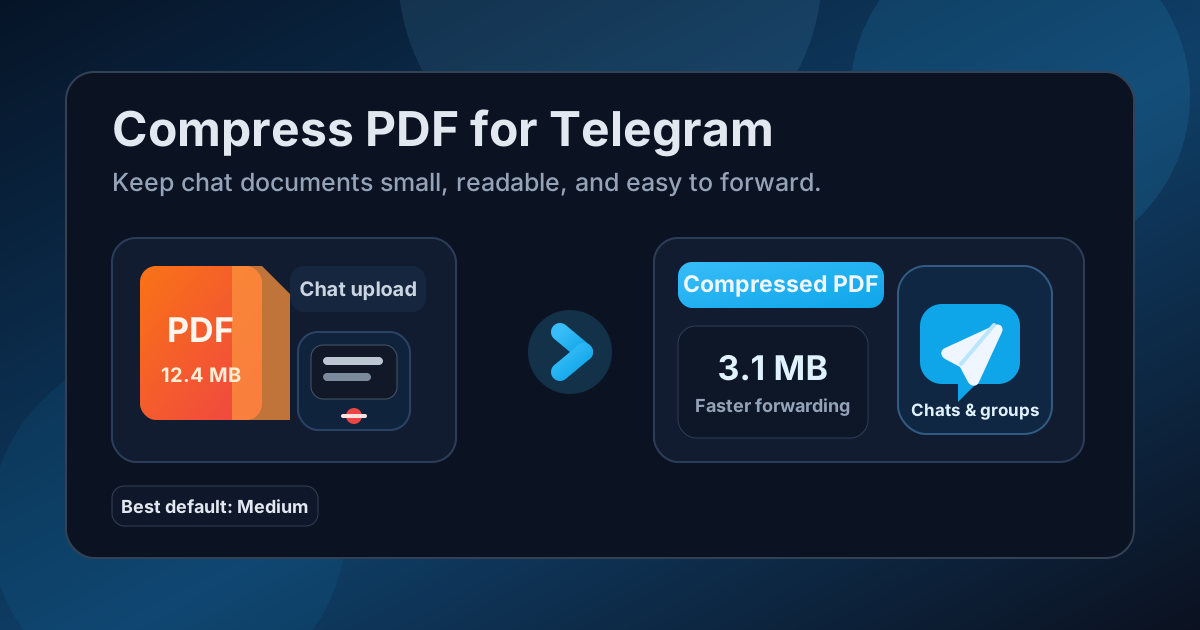
Table of contents
- Quick start: compress a Telegram PDF in about 2 minutes
- Why smaller PDFs help on Telegram
- What file size should you aim for?
- Which compression level should you choose?
- Step-by-step: shrink a Telegram PDF with LifetimePDF
- Best strategy for common Telegram PDF types
- What if the PDF is still too large?
- How to protect readability and privacy
- Workflow habits that reduce PDF bloat
- Related LifetimePDF tools and useful reading
- FAQ (People Also Ask)
Quick start: compress a Telegram PDF in about 2 minutes
If your real goal is simply make this file lighter so I can send it without drama, this workflow is usually enough:
- Open Compress PDF.
- Upload the PDF you actually plan to send, not the bloated draft that still includes old scans, duplicate pages, backup material, or giant appendices nobody needs.
- Choose Medium compression first.
- Download the smaller result and compare the new size with the original.
- Open it once and check the weak points: small text, totals, signatures, labels, screenshot captions, and the busiest page in the file.
- If the PDF is still heavier than you want, extract the needed pages, split the packet, crop scanner waste, or delete duplicates before forcing harsher compression.
Why smaller PDFs help on Telegram
Telegram handles documents well, but that does not mean every large PDF feels painless once it lands in a chat. Smaller files upload faster, forward more cleanly, and feel less annoying for the person opening them on a phone with ordinary mobile data. That matters whether you are sending a contract to one person, posting a handout in a study group, sharing a rate card in a channel, or saving your own documents in Saved Messages.
In practice, Telegram PDF problems are usually simple. The file technically works, but it is bigger than it needs to be. It takes longer to upload, takes longer to open, and asks people to download more weight than the information justifies. Compression removes that unnecessary friction.
It also helps with repeated sharing. A lighter PDF is easier to resend, easier to archive, and less likely to become one more messy file sitting in a chat thread just because the original export was oversized.
What file size should you aim for?
There is no magic number, but a few rough targets are useful:
- Under 2MB: excellent for quick chats, routine forwarding, school notes, short forms, and simple documents people will open on phones.
- 2MB to 5MB: a comfortable range for longer guides, invoices, proposals, brochures, manuals, and scan-heavier files that still need to stay readable.
- Above 5MB: usually a sign that either the PDF contains oversized images, unnecessary pages, scanner waste, or material that should be split into separate parts.
The right target depends on what the recipient needs. A short signed form should feel lighter than a product catalog. A one-page school handout should probably not be the same size as a multi-page illustrated manual. The best Telegram PDF is the smallest one that still feels trustworthy when somebody zooms in on the details that matter.
Which compression level should you choose?
Most people do not need a complicated workflow. They need a reliable first choice. That first choice is usually Medium compression.
- Low compression is useful when the file already feels close to acceptable and you only want to shave off some weight without touching quality much.
- Medium compression is the best default for most Telegram documents because it usually reduces file size while keeping text, tables, signatures, screenshots, and normal scans readable.
- High compression is best treated as a rescue setting when the file is still bulkier than you want after cleaner fixes, or when the content is less detail-sensitive.
High compression can work fine for casual reading copies, but it is also where tiny labels, screenshot text, and scan detail are more likely to get rough. That is why it makes sense to clean the PDF before you keep pushing the compression harder.
Step-by-step: shrink a Telegram PDF with LifetimePDF
- Start with the final file. If you already know some pages are outdated, duplicated, or irrelevant, remove them first.
- Open Compress PDF.
- Choose Medium compression. It is the safest first pass for Telegram sharing.
- Download the smaller file.
- Preview the weak spots once. Check small text, signatures, stamped areas, screenshot captions, diagrams, and the busiest page.
- Only if needed, clean the file further. Use Extract Pages, Split PDF, Delete Pages, or Crop PDF before trying a stronger compression level.
That order matters. People often jump straight to harsher compression when the real issue is that the PDF is carrying too much unnecessary weight. Cleaner page selection usually preserves quality better than trying to squeeze everything into the tiniest file possible.
Best strategy for common Telegram PDF types
Telegram PDFs are not all the same. The best compression choice depends on what kind of file you are sharing.
Study notes, handouts, and text-first documents
These usually compress well. Medium compression is often enough to make them feel lighter without damaging the reading experience. If the PDF still feels too large, check whether it contains image-heavy pages, screenshots pasted at full resolution, or duplicate exports.
Invoices, forms, contracts, and approval packets
These files are usually detail-sensitive. Small totals, signatures, stamps, and fine print still need to read clearly. Medium compression is again the safest starting point. If the file is too bulky, page cleanup is usually smarter than immediately jumping to High.
Scanned documents
Scans are often the worst offenders because every page behaves like an image. Big empty margins, crooked pages, scanner shadows, and unnecessary blank pages all add size without adding value. Crop the waste, delete blank pages, and then compress the cleaned file. That workflow usually beats harsher compression on the original scan.
Manuals, brochures, guides, and image-heavy PDFs
These may need a more balanced judgment. If the images are mostly supportive and the document only needs to read comfortably in Telegram, Medium may be enough. If the entire point is high visual fidelity, accept a slightly larger final size rather than crushing the images until the file feels cheap.
Files meant for forwarding to several people
This is where compression pays off most. A lighter PDF creates less friction every time it gets resent, downloaded, or opened on another phone. If you know a document will keep traveling through multiple chats, prioritize a cleaner file early.
What if the PDF is still too large?
If one compression pass is not enough, do not assume your only option is to make the entire PDF uglier. Often the better move is to change the packaging.
- Extract only the pages the recipient actually needs.
- Split the main document from the appendix or supporting material.
- Delete repeated pages, drafts, or outdated inserts.
- Crop empty scan borders and oversized margins.
- Re-scan the worst pages more cleanly if the original scan is genuinely terrible.
The pattern is simple: remove useless weight before you punish useful detail. That tends to produce the most readable Telegram-friendly file.
How to protect readability and privacy
Compression solves file size. It does not automatically solve privacy. If you are sending personal, financial, client, or internal material through Telegram, it is worth checking what is actually visible in the PDF before you send it.
- Remove pages that should not travel with the main document.
- Crop scanner borders if they reveal notes, desk clutter, or accidental page edges.
- Check whether metadata, comments, or hidden pages should be cleaned up first.
- If needed, protect the final file before sharing it more widely.
Readability matters too. Always review the smallest meaningful details once before you post the file in a group or forward it to somebody important. That quick preview is usually the difference between a clean handoff and an annoying do-over.
Workflow habits that reduce PDF bloat
The easiest PDF to compress is the one that was not bloated in the first place. A few habits help a lot:
- Export the final version instead of a working draft packed with backup material.
- Delete duplicate pages before you compress.
- Crop scan borders and remove blank pages early.
- Use screenshots carefully instead of pasting massive images into otherwise simple documents.
- Split long appendices when they are not essential for every reader.
Those habits make compression more effective and make your Telegram sharing workflow feel cleaner in general.
Related LifetimePDF tools and useful reading
If you send PDFs in Telegram regularly, these tools and guides pair well with this workflow:
- Compress PDF for the first size-reduction pass.
- Extract Pages when the recipient only needs part of the file.
- Split PDF for long packets with summaries and appendices.
- Delete Pages to remove duplicate or unnecessary sections.
- Crop PDF to remove empty scanner borders.
- Compress PDF for Telegram: Send Smaller Documents Fast Without Killing Quality for a companion guide focused on the broader Telegram sending workflow.
- Compress PDF for Telegram Without Monthly Fees if avoiding subscription creep is part of the search.
- Compress PDF for WhatsApp, Compress PDF for Discord, and Compress PDF for Slack if your document sharing jumps across multiple chat apps.
Bottom line: for most Telegram PDFs, start with Medium compression, review the smallest useful details once, and trim page weight before you use stronger compression.
FAQ (People Also Ask)
How do I compress a PDF for Telegram?
Upload the PDF to a compressor, start with Medium compression, and keep the smaller copy only if small text, screenshots, signatures, and scans still look clear. Medium compression is usually the safest first pass because it lowers file size without making the document frustrating to read in chats or groups.
What file size should I aim for on Telegram?
Under 2MB feels especially light for quick Telegram sharing. Longer notes, invoices, manuals, forms, and scan-heavier files usually land best around 2MB to 5MB as long as the details people need still read clearly.
Will compression make my Telegram PDF blurry?
It can if you compress too aggressively, especially with scan-heavy or image-heavy PDFs. That is why Medium compression is usually the safest starting point. Always review small text, labels, signatures, and screenshot captions before you keep the smaller file.
Should I split a Telegram PDF instead of compressing it harder?
Often, yes. If one PDF combines the main guide, form, proposal, or packet with a long appendix, repeated screenshots, or backup pages, splitting it usually works better than forcing stronger compression across the whole document.
Which LifetimePDF tools pair best with Telegram sharing?
Compress PDF is the main starting point. Extract Pages, Split PDF, Delete Pages, Crop PDF, and other cleanup tools are especially useful when you want smaller, cleaner Telegram uploads without sending the entire working packet every time.