Compress PDF for Slack: Keep Contracts, Specs, and Shared Files Small Without Losing the Details
To compress a PDF for Slack, upload the file to LifetimePDF's Compress PDF tool, start with Medium compression, and keep the smaller copy only after checking the smallest text, screenshots, signatures, and tables once.
For most Slack workflows, under 2MB feels fast for routine sharing, while 2MB to 5MB is usually a comfortable target for longer reports, proposals, and scan-heavier files that still need to stay readable.
Most Slack PDF problems are not dramatic. The file uploads, but it drags. It takes longer than it should, previews less smoothly than people want, and feels heavier than the job really requires. A better workflow is not about crushing every document into the tiniest possible number. It is about making the file easy to post, easy to open, and easy to trust once it lands in a channel or DM.
Fastest path: use LifetimePDF's Compress PDF tool at Medium, then trim appendices, duplicate pages, or scan waste only if the file is still bulkier than the chat actually needs.
Need the short version? Jump to Quick start: compress a Slack PDF in about 2 minutes.
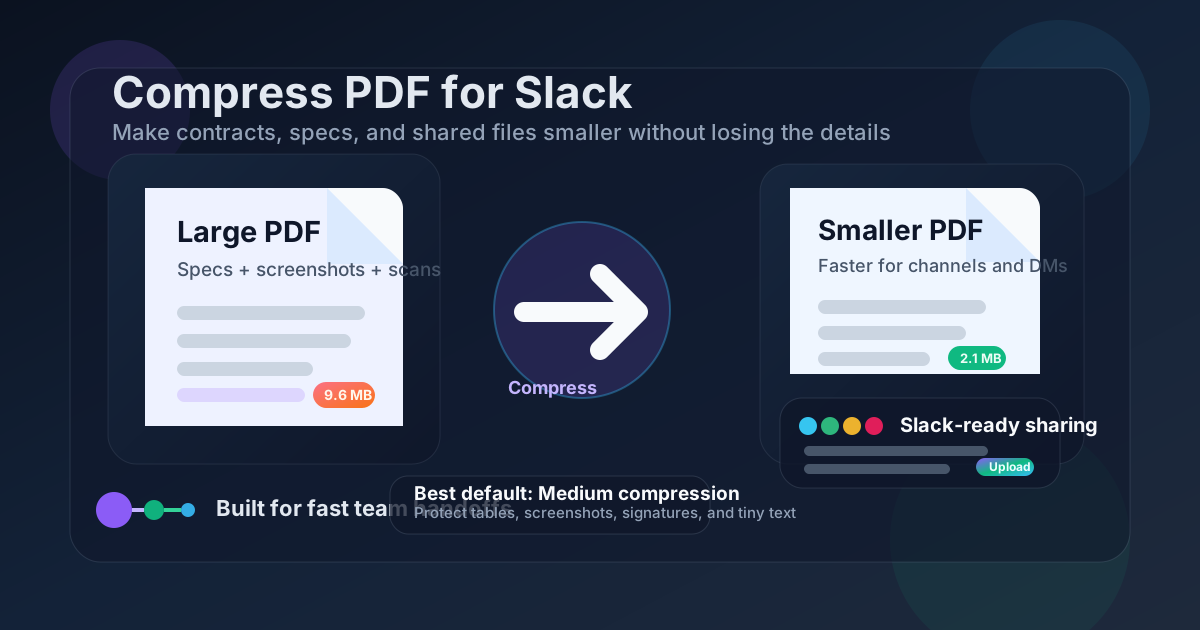
Table of contents
- Quick start: compress a Slack PDF in about 2 minutes
- Why smaller PDFs help in Slack workflows
- What size should a Slack PDF be?
- Which compression level should you choose?
- Step-by-step: shrink a PDF with LifetimePDF
- Best approach for common Slack document types
- What to do if the PDF is still too large
- How to keep important details readable
- Safer sharing habits for channels and DMs
- Related LifetimePDF tools and useful reading
- FAQ (People Also Ask)
Quick start: compress a Slack PDF in about 2 minutes
If your real goal is simply make this PDF smaller so I can post it in Slack without friction, this workflow is usually enough:
- Start with the final contract, spec, proposal, report, handbook, approval packet, or scan bundle you actually plan to share.
- Open Compress PDF.
- Choose Medium compression first.
- Download the smaller file and compare the new size.
- Check the fragile details once: fine print, screenshots, signature blocks, chart labels, dense tables, and the smallest useful text.
- If the packet is still awkward, use Delete Pages, Extract Pages, Split PDF, or Crop PDF before trying stronger compression.
Why smaller PDFs help in Slack workflows
Slack is a handoff environment. People are usually not sitting down for a long ceremony with your PDF. They are moving through a thread, checking a DM between meetings, opening a proposal from a phone, reviewing a spec during a call, or pulling up a signed document in the middle of something else. A bloated file adds drag at exactly the wrong moment.
Smaller PDFs help because they are easier to move through the system and easier for humans to reopen later. The useful goal is not the smallest document possible. The useful goal is the smallest document that still preserves the proof, detail, and clarity people actually need.
Why compression usually pays off in Slack
- Faster uploads: handy when you are sending from weak Wi-Fi, a browser tab, or your phone.
- Smoother previews: lighter files are less annoying when someone wants a quick look before downloading.
- Cleaner mobile opening: many teammates first open shared documents on mobile.
- Less thread friction: a smaller file fits the pace of work chat better than a giant attachment dropped into a live conversation.
- Easier repeated sharing: if the same file gets reused across channels and DMs, every unnecessary megabyte becomes repeated friction.
What size should a Slack PDF be?
There is no single magic number for every Slack workflow, but practical target ranges stop you from over-optimizing:
| Document type | Good target range | What to protect |
|---|---|---|
| Text-heavy specs, memos, forms, invoices, and short contracts | About 0.5MB to 2MB | Tables, totals, dates, names, footnotes, and the smallest text people must read quickly |
| Proposals, reports, decks exported to PDF, and mixed text-plus-image files | About 2MB to 5MB | Screenshots, charts, comparison tables, signatures, and visual callouts |
| Scanned packets, handbooks, manuals, and long approval bundles | About 5MB to 10MB | Legibility, page order, and whether the whole packet really needs to travel together |
| Anything above 10MB | Usually needs cleanup first | At that size, duplicate pages, oversized screenshots, empty scan borders, or unnecessary appendix material are often the real problem |
The right size depends on what the next reader actually needs. If the PDF exists to prove a decision, show an approval, explain a workflow, or share a few key pages, protect those details first. The number matters less than the experience of opening and trusting the document.
Which compression level should you choose?
Most quality problems begin when someone jumps straight to the strongest setting because the file looks larger than they want. That is how clean screenshots get mushy and dense tables become irritating to read. In most Slack workflows, a measured approach works better:
- Low compression: useful when the PDF is already fairly clean and only needs a light trim without touching small text, diagrams, or polished design too much.
- Medium compression: the best default for most contracts, specs, reports, proposals, forms, and mixed-content PDFs because it usually cuts size without hurting trust.
- High compression: best after you have already removed duplicate pages, cropped scan waste, or split a bulky appendix and still need the file smaller.
Step-by-step: shrink a PDF with LifetimePDF
- Start with the version people will really receive. Use the final file, not an earlier export with backup pages or stale attachments still inside it.
- Open Compress PDF.
- Upload the file. This might be a contract, proposal, policy doc, incident report, product spec, onboarding packet, board deck export, or scan bundle.
- Choose Medium compression first. It is the safest starting point for most Slack-bound PDFs.
- Download the smaller result. Check whether the file already feels easier to send and reopen.
- Preview the weak spots. Look at the smallest text, chart labels, screenshots, signatures, initials, and any page that already felt visually dense.
- Use structure fixes only if needed. If the PDF is still too heavy, remove duplicate pages, extract the useful section, split the appendix, or crop scan waste before trying a stronger setting.
Useful sequence: compress first, then clean the packet structure. In Slack workflows, oversized PDFs are often carrying too much baggage, not too little compression.
Best approach for common Slack document types
1. Contracts, approvals, and signed PDFs
Be a little conservative here. Signatures, initials, dates, and fine print matter more than dramatic percentage savings. Compress once, then check every signature area and the smallest legal text. If the file is huge because it includes exhibits, duplicates, or scanned backup pages, trim those before you push compression harder.
2. Product specs, reports, and process docs
These usually compress well, but screenshots and diagrams deserve a quick check. If the document exists so someone can skim instructions or verify details mid-conversation, clarity beats extreme file reduction. Medium compression is often enough.
3. Proposals, pitch decks exported to PDF, and mixed visual files
These documents often contain text, tables, charts, logos, and screenshots all in the same packet. Compress them moderately, then zoom in on the sections that actually carry the decision: pricing tables, charts, screenshots, and the smallest notes.
4. Scanned packets and phone-created PDFs
These are where file size gets silly quickly. Shadows, borders, slightly crooked pages, and repeated backs of pages all add weight without adding value. A smarter workflow is usually to rotate, crop, delete, or split first, then compress the cleaned file.
5. Handbooks, manuals, and long reference docs
Ask whether the whole thing belongs in Slack at once. If people only need one chapter or section, extract that portion instead of forcing an entire large manual into one tiny file. Better document packaging often beats harsher compression.
What to do if the PDF is still too large
When a Slack PDF stays heavy after one reasonable compression pass, the issue is often structure rather than image density. Try these in order:
- Delete repeated or blank pages. This solves more than people expect.
- Extract only the pages the reader needs. A focused packet is better than a giant archive dump in a work chat.
- Split the appendix. Keep the main document in one PDF and backup material in another.
- Crop empty borders and background. Scan waste adds size without adding value.
- Rebuild the source export. A cleaner original PDF often beats harsher compression every time.
- Only then try stronger compression. By that point, the file is usually leaner already.
How to keep important details readable
Before you keep the compressed copy, check the weakest details on the page rather than the strongest ones. Big headings almost always survive. The useful details are what quietly fail.
- Tables and totals: make sure small columns, decimals, and labels still read cleanly.
- Screenshots and diagrams: check interface text, callouts, and tiny annotations.
- Signatures and initials: confirm they still look intentional rather than smudged.
- Fine print and footnotes: zoom in on the smallest meaningful text.
- Dates and names: especially on approvals, legal docs, and HR paperwork.
- Charts and visual proof points: the file should still support the decision it is meant to support.
A 20-second review saves more time than rebuilding the packet later because someone could not read the exact line they needed during a fast-moving conversation.
Safer sharing habits for channels and DMs
Slack documents are often not casual at all. They can include invoices, contracts, HR paperwork, policy drafts, customer reports, and internal plans. Compression helps with convenience, but judgment still matters.
- Share only what is necessary: use Extract Pages when the full packet would overshare context or private information.
- Redact before wider sharing: use Redact PDF if sensitive content should disappear permanently.
- Protect the final file if needed: PDF Protect can help when the document needs an extra barrier before it moves beyond a trusted recipient.
- Clean metadata: remove author or document-property details with PDF Metadata Editor if privacy matters.
Related LifetimePDF tools and useful reading
Slack document prep often turns into a few follow-on tasks. These tools usually pair well with compression:
- Compress PDF for the first size-reduction pass.
- Extract Pages when only part of the packet needs to travel.
- Delete Pages to remove duplicate or blank support pages.
- Split PDF when one file is doing two jobs at once.
- Crop PDF to trim dead scan borders.
- OCR PDF when a cleaned scan also needs searchable text.
If you want adjacent reading, these guides fit the same workflow family: Compress PDF for Slack: Share Smaller Files in Channels and DMs, Compress PDF for Slack Without Monthly Fees, Compress PDF for Microsoft Teams, and Compress PDF for Discord.
Bottom line: if the Slack PDF is too large, start with Medium compression, protect the details people actually need to read, and clean the packet structure before you force the file any harder.
FAQ (People Also Ask)
How do I compress a PDF for Slack?
Upload the PDF to a PDF compressor, start with Medium compression, and keep the smaller copy only after checking the smallest text, screenshots, signatures, and tables once. For most Slack sharing, Medium is the safest first move because it reduces file size without making the document feel rough.
What file size should I aim for before posting a PDF in Slack?
Under 2MB feels great for quick Slack sharing, while 2MB to 5MB is usually comfortable for longer reports, proposals, and scan-heavier files that still need to stay readable. If the file is well above that, page cleanup often helps more than stronger compression.
Will compression make my Slack PDF blurry?
It can if you compress too aggressively, especially with scans, screenshots, or tiny print. That is why Medium compression is usually the best starting point and why a quick preview matters before you post the file in a channel or DM.
Should I compress before or after splitting a large Slack document?
If you already know people only need part of the file, split or extract the useful pages first and then compress the smaller PDF. If the entire packet really needs to travel together, compress once first and only split it if the result is still bulky.
What if my PDF is still too large after compression?
Delete repeated pages, crop scan borders, extract only the relevant section, or split one huge packet into a main file plus appendix. In many Slack workflows, better document packaging solves more than harsher compression.