Compress PDF for WhatsApp: Send Smaller Documents, Keep Mobile Quality Clear, and Avoid Bloated Chat Attachments
To compress a PDF for WhatsApp, upload the final file to LifetimePDF's Compress PDF tool, start with Medium compression, and keep the smaller copy only if names, totals, signatures, screenshots, and scans still look clear on a phone.
For most WhatsApp PDFs, under 2MB feels especially quick, while everyday forms, receipts, school documents, and work files usually work best around 2MB to 5MB.
WhatsApp can pass along surprisingly large documents, but that does not make bloated PDFs pleasant. Heavy files upload slowly, download slowly, and quietly become annoying the second someone opens them on mobile data, an older phone, or a crowded family or client thread. The real goal is not to crush every file to the smallest number possible. It is to make the PDF lighter while keeping the details the next person actually needs to read.
Fastest path: run the WhatsApp PDF through LifetimePDF's Compress PDF tool at Medium, then extract pages, split long packets, or crop scanner waste only if the result is still bulkier than you want.
Need the short version? Jump to Quick start: compress a WhatsApp PDF in about 2 minutes.
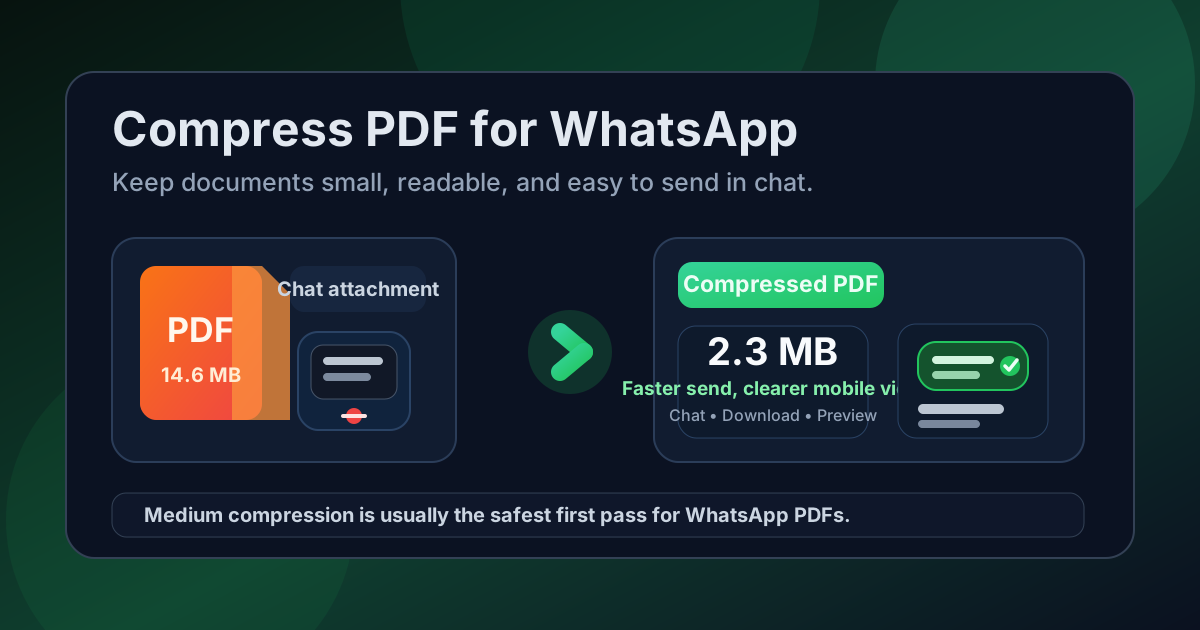
Table of contents
- Quick start: compress a WhatsApp PDF in about 2 minutes
- Why WhatsApp PDFs get heavy so quickly
- What file size should you aim for?
- Which compression level should you choose?
- Step-by-step: shrink a WhatsApp PDF with LifetimePDF
- Best strategy for common WhatsApp PDF types
- What if the PDF is still too large?
- How to protect readability and privacy in chat
- Workflow habits that make WhatsApp sharing easier
- Related LifetimePDF tools and useful reading
- FAQ (People Also Ask)
Quick start: compress a WhatsApp PDF in about 2 minutes
If your real goal is simply make this file lighter so I can send it without drama, this workflow is usually enough:
- Open Compress PDF.
- Upload the PDF you actually plan to send, not the bloated draft that still contains duplicate pages or unused backup sheets.
- Choose Medium compression first.
- Download the smaller result and compare the size difference.
- Check the weak points once: names, totals, signatures, screenshot labels, and the busiest page in the file.
- If the PDF still feels too large, split the appendix, extract only the useful pages, or crop scan waste before trying harsher compression.
Why WhatsApp PDFs get heavy so quickly
WhatsApp PDFs often get bigger than necessary because one file is doing too many jobs at once. The same document might be a proof copy, archive copy, scan dump, client handoff, school submission, and chat attachment all at the same time. Compression helps, but it works best when you stop treating every draft page, appendix, and crooked scan as if it belongs in the final version.
In many real chat workflows, the size problem is not the core document. It is the extra weight around it: giant scan borders, duplicate pages, old revisions left in the same PDF, full packets when only three pages matter, or screenshots saved far larger than the next person needs to view on a phone. A smaller WhatsApp PDF usually comes from better file hygiene first and compression second.
What usually adds weight
- Scan-heavy pages: every page behaves more like an image than a normal document.
- Long mixed-purpose packets: the actual pages someone needs are buried inside backup material.
- Oversized screenshots or exports: useful detail, but often saved much larger than a phone viewer needs.
- Duplicate versions: old revisions sitting inside the same PDF even though chat history already preserves earlier copies.
- Unused support pages: attachments, blank dividers, and just-in-case appendix material that slow down every send and download.
What file size should you aim for?
There is no single magic number for every WhatsApp document, but practical ranges keep you from over-compressing:
| Type of WhatsApp PDF | Good target | Why it helps |
|---|---|---|
| Very lightweight sharing | Under 2MB | Feels fast on mobile data and opens more comfortably on phones |
| Everyday forms, receipts, letters, and work files | 2MB to 5MB | Usually the best balance of readability, speed, and convenience |
| Scan-heavy or image-heavy documents | 5MB to 10MB | Still workable, but often worth cleaning up if several people will open it |
| Over 10MB | Compress again or split it | Often heavier than necessary for normal chat sharing |
These are not hard platform rules. They are comfort targets. If the file will be opened in a busy chat thread by someone on a phone, the smallest useful file usually wins.
Which compression level should you choose?
LifetimePDF keeps the choice simple: Low, Medium, or High. For WhatsApp, you are usually not trying to preserve print-brochure quality at all costs. You are trying to make the file noticeably lighter while keeping it trustworthy when someone finally opens it.
Low compression
- Best when visual quality matters more than aggressive size reduction.
- Useful for polished proposals, brochures, or image-rich documents you may print later.
- Usually not the best first choice unless the file is already close to the size you want.
Medium compression
- Best starting point for most users.
- Reduces size meaningfully while keeping text, signatures, screenshots, and normal scans readable.
- Good for invoices, school forms, reports, contracts, receipts, handouts, and signed documents.
High compression
- Useful when the file is still too heavy after cleaner fixes.
- More likely to soften small text, screenshot notes, or scan detail.
- Best used after you have already removed unnecessary pages or scanner waste.
Step-by-step: shrink a WhatsApp PDF with LifetimePDF
Here is the practical workflow that works for most chat attachments:
- Open Compress PDF.
- Upload the final PDF you actually plan to send.
- Choose Medium compression.
- Download the smaller result and compare the size difference.
- Open the compressed file once and review the smallest important details at normal zoom.
- If it still feels too large, use Extract Pages, Delete Pages, Crop PDF, or OCR PDF before compressing harder.
That last step matters. Many large chat PDFs do not need harsher compression as much as they need less dead weight. If half the file is appendix material, blank scan margins, or duplicate pages, removing that bulk is usually better than degrading the pages people actually care about.
Best strategy for common WhatsApp PDF types
Forms, receipts, invoices, and letters
These usually compress well because they are mostly text. Medium compression is often enough. The main thing to check is whether totals, dates, signatures, and small footer text still look clean on a phone.
Scanned IDs, forms, and photo-based documents
These get large fast because every page behaves like an image. Start with Medium compression, then crop empty borders, rotate bad scans, or OCR the file if you want a cleaner searchable copy too.
School packets, work reports, and screenshot-heavy PDFs
Screenshot-heavy files can stay readable after Medium compression, but the danger area is small labels and tiny annotations. Check the densest page before you replace the original or drop it into a group thread.
Signed contracts and approval documents
These often compress nicely if they are mostly text, but you should pay extra attention to initials, dates, signature blocks, and any scan artifacts around the signing pages. If a long appendix is attached, splitting it usually works better than forcing stronger compression across everything.
What if the PDF is still too large?
If one pass of compression is not enough, do not immediately jump to the harshest setting. Usually the better fix is structural:
- Extract only the useful pages: perfect when the recipient only needs part of the file.
- Split the appendix: keep the summary light and move the support material into a second PDF.
- Crop scanner waste: empty borders add visual and file-size bulk.
- Delete duplicates: if the same page appears twice, compression is not the real problem.
- Run OCR on image-only scans: searchable text plus lighter cleanup often beats repeated compression alone.
When compression alone is not enough: use a cleanup step before you try High compression.
How to protect readability and privacy in chat
The file is only better if it still works and still shares only what you meant to share. Before you send the compressed PDF, check the details most likely to fail:
- names, dates, totals, and account numbers
- signatures and initials
- chart labels and table columns
- screenshot callouts and annotations
- page numbers and small headers
- the busiest scan in the file
Then do one more sanity check: should the whole file be sent at all? In chat apps, people often overshare because forwarding a long PDF feels easier than preparing a cleaner version. If the recipient only needs two pages, extract two pages. If the file contains extra personal information, remove those pages before compression instead of trusting the chat thread to stay tidy forever.
Workflow habits that make WhatsApp sharing easier
The best long-term fix is not only better compression. It is fewer bloated files entering chat in the first place.
- Send the final shareable version, not every working draft bundled into one PDF.
- Split long packets when different people only need different sections.
- Clean scans before forwarding them again.
- Default to Medium compression for recurring school, client, and admin workflows.
- Think about the recipient opening the file on an average phone, not your best desktop monitor.
- Trim extra personal or financial pages before the file enters a busy chat thread.
That last habit matters more than it sounds. A PDF that feels fine on your laptop can still feel slow and clumsy when someone opens it from a chat notification while commuting, traveling, waiting in line, or juggling several conversations at once. Lighter files travel better.
Related LifetimePDF tools and useful reading
If you share PDFs in chat apps regularly, these tools and guides pair well with this workflow:
- Compress PDF for the first size cut.
- Extract Pages when the recipient only needs part of the file.
- Split PDF for long packets with summaries and appendices.
- Crop PDF to remove empty scanner borders.
- OCR PDF for image-only scans that also need searchable text.
- Compress PDF for WhatsApp: Send Smaller Files on Mobile if you want a companion guide focused on mobile-first sharing habits.
- Compress PDF for WhatsApp Without Monthly Fees if subscription friction is part of the search.
- Compress PDF for Telegram and Compress PDF for Discord if your sharing workflow jumps across chat apps.
Want the whole toolkit ready whenever a file gets bloated? Lifetime access makes more sense than subscription churn if PDF cleanup shows up in everyday life and work.
FAQ (People Also Ask)
How do I compress a PDF for WhatsApp?
Upload the file to a PDF compressor, start with Medium compression, and preview the smaller result before sending it. For most WhatsApp PDFs, Medium is the safest first pass because it cuts file size while keeping text, forms, signatures, and screenshots readable on a phone.
What file size should I aim for on WhatsApp?
Under 2MB feels especially fast for mobile sending and downloading. Everyday forms, receipts, school documents, and work files often feel best around 2MB to 5MB as long as the smallest useful details still look clear.
Will compression make a WhatsApp PDF blurry?
It can if you compress too aggressively, especially with scan-heavy or image-heavy PDFs. That is why Medium compression is usually the best starting point. Always review signatures, small text, screenshot labels, and page numbers before you keep the smaller file.
Should I split a PDF instead of compressing it harder for WhatsApp?
Often, yes. If one PDF mixes a summary, appendix, screenshots, and backup material for different readers, splitting it usually works better than forcing stronger compression across the entire file.
Which LifetimePDF tools pair best with WhatsApp sharing?
Compress PDF is the main starting point. Extract Pages, Split PDF, Crop PDF, Delete Pages, and OCR PDF are the most useful companions when you want a smaller chat-friendly file without carrying extra pages, scanner waste, or mixed-purpose attachments into the final PDF.