Check PDF Crop Box Online: See the Visible Page Boundary in Your Browser Before You Print or Share
To check PDF crop box online, open the exact final PDF in a browser-accessible properties workflow, read the media box first, then compare the crop box with the visible page and the trim box.
If the browser view looks neat but the boxes disagree, decide whether the PDF needs cropping, resizing, or a clean re-export before you print, upload, or share it.
That is the direct answer. The more useful answer is that an online crop-box review helps you catch one of the most common PDF mistakes: a file that seems fine in the browser because the visible page boundary is hiding extra canvas, awkward margins, crop marks, or the wrong finished size. A calm five-minute check can stop a surprisingly expensive round of bad prints, rejected uploads, or embarrassing client handoffs.
Fastest path: inspect the real outgoing PDF, read the media box first, compare crop and trim next, then crop only if the visible page boundary is truly the problem.
In a hurry? Jump to quick start: check PDF crop box online in about 6 minutes.
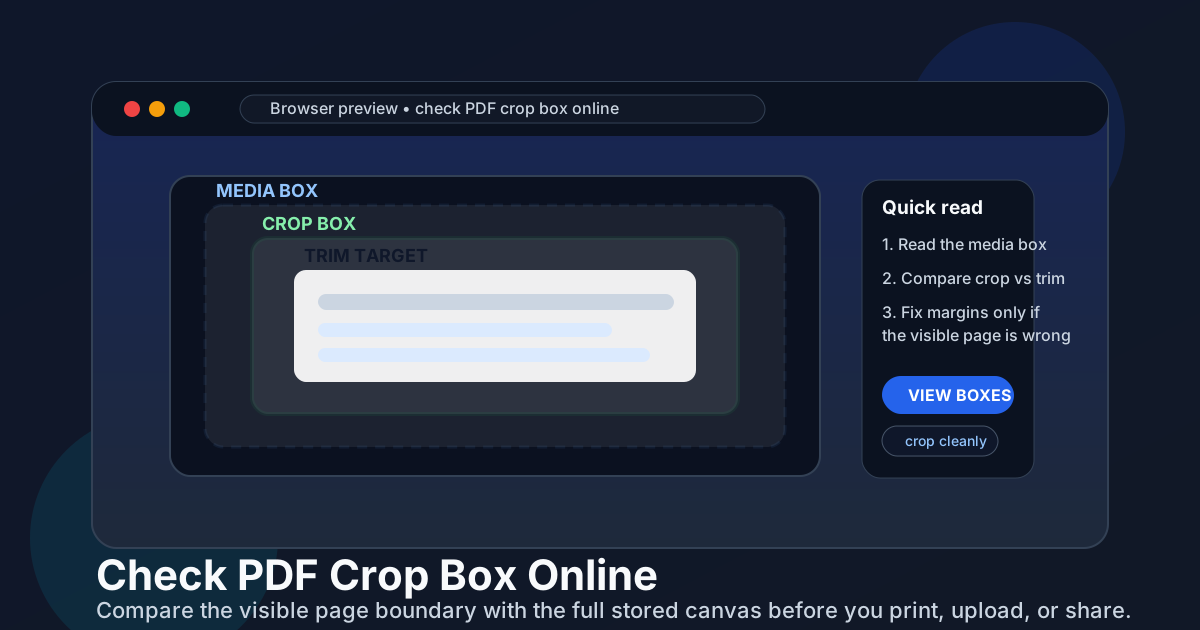
Table of contents
- Quick start: check PDF crop box online in about 6 minutes
- What an online crop-box check can and cannot prove
- Step-by-step: practical browser workflow
- Signs the crop box is the real issue
- When the crop box is not the real problem
- Common online failure patterns
- Final checklist before you print, upload, or share
- Related LifetimePDF tools and guides
- FAQ
Quick start: check PDF crop box online in about 6 minutes
If your real goal is simply tell me whether this PDF's visible page boundary is safe before it leaves the browser, this quick workflow catches most practical problems fast:
- Open the exact final PDF you plan to print, upload, email, archive, or share.
- Use View PDF Properties or a comparable browser-accessible workflow so you can read the stored page-box data instead of guessing from the preview.
- Start with the media box so you know the full page canvas the PDF actually stores.
- Compare that outer canvas with the crop box to see what the browser or viewer is treating as the visible page.
- Check the trim box next if the file is headed to print, packaging, or any workflow with an exact finished-page requirement.
- Crop only when the visible boundary is wrong. If the true page size or source layout is wrong, resize or re-export instead of forcing a cosmetic fix.
What an online crop-box check can and cannot prove
A browser-based review is useful because it is quick, device-neutral, and easy to repeat on the exact file that is about to leave your hands. It can reveal whether the visible page area matches the stored PDF geometry and whether suspicious margins or clipping belong to the crop box or to something deeper. But the preview alone is not enough. The real value comes from comparing what the browser shows with what the page boxes actually say.
| Online check | What it helps you prove | What it cannot prove on its own |
|---|---|---|
| Browser preview | Whether the PDF looks cropped, padded, clipped, or oddly framed in the environment many people will use first. | Whether the visible page matches the full stored canvas or the final trim target without reading the page boxes directly. |
| Media versus crop comparison | Whether extra outer area is being hidden or whether the visible page boundary is smaller than the real canvas. | Whether print workflows will also respect that boundary the same way every time. |
| Crop versus trim comparison | Whether the visible page matches the intended finished size for print, packaging, or precise layout jobs. | Whether the source document itself was built correctly if the boxes already disagree. |
| Online crop action | Whether a visible-boundary cleanup fixes the practical problem fast. | Whether a re-export would be cleaner when the deeper issue is wrong page size, wrong trim intent, or a weak source file. |
The easy mistake
People often trust the browser because the page looks centered and tidy. In reality, the crop box may simply be masking a larger media box, while another app, a portal, or a printer still responds to the deeper geometry.
Step-by-step: practical browser workflow
This is the short workflow that gives you the most useful signal before the file leaves the browser.
1) Open the exact outgoing PDF
Do not inspect an old draft, a chat thumbnail, or a different exported copy. The page-box review only matters if it matches the file you will actually send onward.
2) Read the media box first
The media box tells you the full stored page canvas. It is your anchor for spotting hidden margins, scan padding, crop marks, or oversized export area.
3) Compare the crop box with the visible page
This tells you whether the browser is showing the whole canvas or a smaller visible boundary that could hide trouble until later.
4) Check trim if the final size matters
If the PDF is going to print, place, or upload into a strict system, compare crop and trim so you know whether the visible page is also the intended finished page.
5) Match the box pattern to the real job
A reading problem, a print problem, and a portal problem do not always deserve the same fix. Decide what failure you are preventing before you edit anything.
6) Crop, resize, or re-export deliberately
Crop when the visible boundary is the only issue. Resize or rebuild when the underlying page dimensions or source layout are wrong.
Reliable sequence: view the actual file, read media first, compare crop and trim, then change only the layer that is truly causing the problem.
Signs the crop box is the real issue
Not every margin problem belongs to the crop box, but these signals make the crop box a strong suspect.
The browser looks tidy, but another app shows more page
That often means the crop box is hiding a larger media box that the other workflow still sees.
Outer white space keeps coming back
A file can keep the full canvas even when the visible page looks tighter, which is why a quick crop preview can feel successful until the next handoff.
The content is fine, but the framing is wrong
If the text, graphics, and proportions look right once the margins are ignored, the problem may be the visible boundary rather than the document itself.
The page prints or uploads with odd margins
That can happen when the browser and the downstream workflow disagree about which page boundary matters most.
The crop box becomes especially important when a PDF has scan padding, visible crop marks, merged pages from different sources, or a designer export that preserved more outer space than the visible job actually needs.
When the crop box is not the real problem
Crop-box edits are useful, but they are also easy to overuse. If the deeper issue is the wrong page size, a broken trim target, or a bad source export, forcing a crop can hide the symptom without fixing the document.
| What you notice online | Likely deeper cause | Better response |
|---|---|---|
| The visible page seems fine, but the document prints at the wrong size. | The true page dimensions or trim intent are wrong. | Check page size and trim box before cropping. |
| The browser hides marks, but another workflow exposes them again. | The media box still carries extra canvas or marks outside the visible boundary. | Review the full page-box set and clean the file intentionally instead of trusting one preview. |
| The page feels clipped on one side. | The source export may be off-center or built on the wrong canvas. | Re-export from the source if the content itself is positioned incorrectly. |
| Only some pages look wrong. | The PDF may mix files with different boxes or page sizes. | Inspect page by page and normalize the document before sending it onward. |
Common online failure patterns
Most crop-box trouble repeats the same handful of patterns. Once you recognize them, the next step becomes much clearer.
| Failure pattern | How it looks online | Better response |
|---|---|---|
| Masked outer canvas | The browser view looks clean, but other apps reveal extra margins or marks. | Compare crop with media and clean the outer canvas deliberately. |
| Wrong finished page | The visible page looks acceptable until print or submission exposes a size mismatch. | Check trim and page size before you assume crop alone will fix it. |
| Mixed-source PDF | Only a few pages show odd framing, extra borders, or inconsistent margins. | Inspect the page boxes page by page and normalize the merged file. |
| Scan padding | A scan looks centered but carries a larger background area than the visible page suggests. | Crop the scan cleanly if the content is right, or rescan if the page itself is sloppy. |
| Source-layout problem | No amount of visible-boundary tweaking makes the page truly line up. | Rebuild or re-export the source document instead of patching the PDF repeatedly. |
The useful lesson is that a crop box is a visibility instruction, not a magic repair button. When the wrong box is blamed for the wrong problem, the PDF becomes more confusing, not less.
Final checklist before you print, upload, or share
Before the file leaves your hands, run this short checklist:
- Did you inspect the exact final PDF instead of an older draft or preview?
- Did you read the media box before deciding what the crop box means?
- Did you compare crop and trim if the final page size matters?
- Does the browser view match what the file should do in print, upload, or handoff workflows?
- If you changed the crop, did you test the saved result once instead of assuming the fix is permanent everywhere?
- If the geometry still feels suspicious, did you stop and consider a clean re-export instead of stacking more edits?
You do not need a perfect forensic process. You just need enough discipline to separate a visible-boundary problem from a deeper geometry problem before the PDF reaches someone who cares more about the result than the explanation.
Ready to check the file properly? Compare the page boxes now, crop only if the visible boundary is truly wrong, and send a PDF that behaves the same way outside the browser as it does inside it.
Best online crop-box workflow: open the final PDF → read media first → compare crop and trim → decide whether the visible boundary or the deeper geometry is wrong → fix once and verify.
Related LifetimePDF tools and guides
If the online crop-box check uncovers a wider problem, these are the most useful next steps:
Inspect the surrounding geometry
- Check PDF Page Boxes for the full geometry picture
- Check PDF Trim Box when finished size matters
- Check PDF Page Size when the real issue may be paper format
Fix or validate the file
- Crop PDF for visible-boundary cleanup
- Check PDF Crop Box for the broader non-online guide
- View PDF Properties for a broader document inspection workflow
FAQ
1) How do I check PDF crop box online?
Open the final PDF in a browser-based properties workflow, read the media box first, then compare the crop box with the visible page and the trim box. That tells you whether the browser view matches the real page geometry the rest of your workflow will see.
2) Can a browser preview really reveal crop-box problems?
Yes. A browser preview can show suspicious margins, clipping, or framing, especially when you compare what it shows with the stored page-box data instead of trusting the preview alone.
3) What is the difference between the crop box and the media box?
The media box is the full page canvas stored inside the PDF. The crop box is the area many viewers treat as the visible page. If those boxes differ, the browser may be hiding outer content or padding that another workflow still notices.
4) Should I crop the PDF or re-export it if the crop box looks wrong?
Crop when the visible boundary is the true problem and the deeper page size is otherwise correct. Re-export or resize when the wrong finished size, trim intent, or source layout is what actually broke the document.
5) Why can a PDF look fine online but still print or upload badly?
Because the browser may be obeying the crop box while a printer, upload portal, or another app cares about the media box, trim box, or true page size. A file that looks calm online is not automatically safe everywhere else.
Published by LifetimePDF — Pay once. Use forever.