How to Watermark a PDF on Chromebook: Add Draft, Confidential, and Branded Labels Without Installing Another App
To watermark a PDF on Chromebook, open LifetimePDF's Watermark PDF tool in Chrome, choose the file from Files, Gmail, Google Drive, or Downloads, add a short label such as DRAFT or CONFIDENTIAL, preview the result, and save the updated copy.
If the file is sensitive, add password protection or redact private information afterward, because a watermark helps with labeling but does not control access on its own.
That is the short answer. The useful part is knowing why Chromebook is actually a good PDF watermarking setup, when the built-in viewer is not enough, how to avoid labeling the wrong Drive copy, and how to save a final version that looks polished when you reopen it later from ChromeOS Files.
Fastest path: open Watermark PDF in Chrome, pick the file from Files or Drive, add a short readable label, preview the result once, then save the updated PDF with a clear new filename.
In a hurry? Jump to Quick start: watermark a PDF on Chromebook in a few minutes.
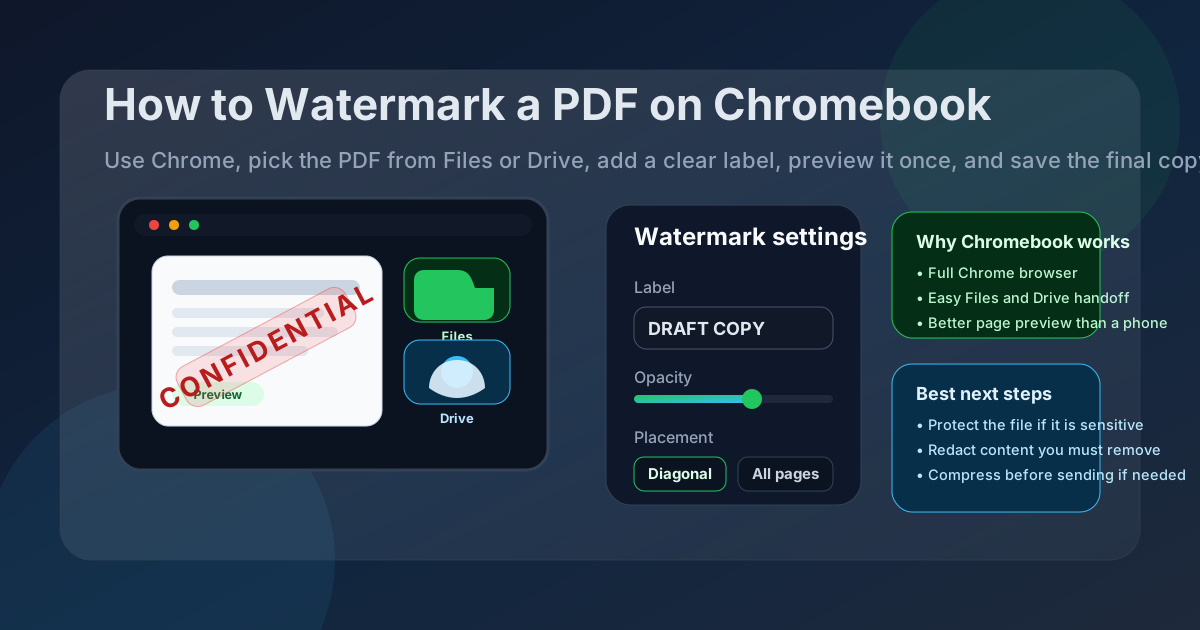
Table of contents
- Quick start: watermark a PDF on Chromebook in a few minutes
- Why Chromebook is a good PDF watermarking workflow
- Chromebook PDF viewer vs a real watermark workflow
- Step-by-step: watermark from Files, Gmail, Drive, or Downloads
- Best watermark text, opacity, and placement on Chromebook
- How to watermark only selected pages on Chromebook
- How to save, share, and secure the final copy
- Common Chromebook watermarking problems and quick fixes
- Related LifetimePDF tools and guides
- FAQ
Quick start: watermark a PDF on Chromebook in a few minutes
If the PDF is already sitting in Files, Gmail, or Drive and you mainly need a clear status label before you send it onward, this is the workflow most people actually want:
- Open Watermark PDF in Chrome on your Chromebook.
- Choose the file from Files, Downloads, Gmail, or Google Drive.
- Enter a short label such as DRAFT, CONFIDENTIAL, SAMPLE, or a project name.
- Keep the watermark readable but light enough that the page still feels easy to read at normal zoom.
- Preview one representative page before saving the final copy.
- If the PDF contains private material, follow up with PDF Protect or Redact PDF.
Why Chromebook is a good PDF watermarking workflow
Chromebook is quietly a very practical place to watermark PDFs. You get a full desktop-style browser, a keyboard and trackpad, and easy movement between Files, Gmail, Drive, and Downloads. That is a better setup than trying to do the whole job on a small phone screen, and it is usually much faster than hunting for a desktop app just to add one visible label.
It is also a good fit for school and work machines where installs are locked down. A browser-based workflow in Chrome means you can still add a clean watermark even on a managed Chromebook where Linux mode is disabled and random Android apps are not worth the hassle.
The cleanest pattern is simple: start with the exact source PDF, add a short label you can defend later, preview the result on at least one text-heavy page, then save a clearly named final copy. When people run into trouble on Chromebook, it is usually not because watermarking is hard. It is because they used a duplicate file from Recents, saved over the wrong version, or made the watermark so strong that the document became annoying to read.
Chromebook PDF viewer vs a real watermark workflow
ChromeOS can open PDFs just fine, and the built-in viewer is useful for reviewing pages. That does not make it the best tool for repeated, intentional watermarking.
| What you need | Best option | Why it works |
|---|---|---|
| Add a visible draft, confidential, or sample label | Watermark | Cleaner for repeated status labels and easier to keep intentional across the document. |
| Leave a quick note or one-off comment | Viewer annotation or markup | Fine for casual notes, but usually not the best choice for a polished copy you plan to share. |
| Prevent casual opening | Password protection | A watermark is visual only. Protection handles access control. |
| Remove private information permanently | Redaction | If information must not remain in the file, it needs removal, not just a translucent label on top. |
In plain English: use a watermark when you want the file clearly labeled. Use annotation tools for casual notes. Use protection when access matters. Use redaction when the content itself should not remain in the shared PDF.
Step-by-step: watermark from Files, Gmail, Drive, or Downloads
1) Start with the exact PDF you plan to share
On Chromebook, the easiest mistake is working from a preview in Gmail, then reopening some other copy from Downloads or Drive later. If the PDF matters, save it somewhere obvious in Files first or make sure you know exactly which Drive version you are using.
2) Open Watermark PDF in Chrome
Open Watermark PDF in Chrome. This is usually the cleanest route on Chromebook because it works without app installs, fits managed devices better, and gives you a full-size preview that is easier to judge than a phone screen.
3) Use short wording that survives different page layouts
Short labels work better than long sentences. DRAFT, CONFIDENTIAL, SAMPLE, REVIEW COPY, or a company-safe project label will stay cleaner across contracts, reports, forms, scanned pages, and presentation exports. The longer the wording, the easier it is to make the page feel cluttered.
4) Preview at least one normal page and one awkward page
Do not just look at the prettiest page. Check one page with dense text and another with signatures, totals, charts, or tables. Chromebook makes this review easier because you have a larger screen and better zoom control than you would on a phone. Use that advantage.
5) Save a clearly named copy and reopen it once
Download the updated PDF, open it once from Files, and look at it the way the next person will. That catches common Chromebook problems quickly: the watermark felt fine in preview but is too heavy at normal size, the wrong file got labeled, or the filename no longer tells you which copy is final.
Best watermark text, opacity, and placement on Chromebook
The best watermark is obvious at a glance without making the document miserable to read. Chromebook gives you more room to inspect the result, which helps you strike that balance better.
What should the watermark say?
Use short wording you can defend later. Good examples include:
- DRAFT
- CONFIDENTIAL
- SAMPLE
- REVIEW COPY
- INTERNAL USE ONLY
- Your company, department, or project name
How dark should the watermark be?
Lighter is usually better than your first instinct. If the label becomes the main thing your eye notices, it is probably too strong. Dense contracts, invoices, and reports usually need a lighter touch than slide decks, image-heavy samples, or mockups.
Where should it sit?
A diagonal center placement is usually the safest starting point because it looks intentional and stays visible on most page layouts. Still, do not trust the default blindly. If the document has a signature block, totals, stamps, or small legal text, preview carefully before you keep it.
How to watermark only selected pages on Chromebook
Not every PDF needs the same label on every page. Maybe the proposal section should say DRAFT, but the signed cover page should stay clean. Maybe only the appendix should carry a sample watermark before the file goes outside your team.
In that case, a selected-page workflow is better than stamping the entire file blindly:
- Use Extract Pages to isolate the section that actually needs the label.
- Apply the watermark to that smaller file.
- Use Merge PDF if you need to rebuild the final packet afterward.
This is especially useful when the PDF mixes a clean cover page, a draft working section, and a signed page that would look clumsy with a big translucent label across it.
How to save, share, and secure the final copy
Save the watermarked PDF with a new filename
Keep the original untouched when you can. A filename such as proposal-draft.pdf, vendor-pack-review-copy.pdf, or contract-confidential.pdf prevents version confusion later.
Protect the file if access actually matters
A watermark tells people how to treat the document. It does not stop them from opening or forwarding it. If the file should not be casually opened, add a password with PDF Protect.
Redact information that should not remain
If there is private information on the page, use Redact PDF. A watermark is not a privacy tool. It is just a visible label.
Compress the file before sending if needed
If the PDF got bulky because of scans, screenshots, or exported slides, shrink it with Compress PDF before attaching it to Gmail or uploading it to a portal from your Chromebook.
Common Chromebook watermarking problems and quick fixes
The watermark looked fine in preview but feels too strong in the saved file
Reopen the final PDF in the ChromeOS viewer at normal size. If the label dominates the page, dial the opacity back. What matters is the saved result, not the editor moment while you were zoomed in.
I labeled the wrong copy from Gmail, Drive, or Downloads
Move the source PDF to one obvious folder in Files before you start, or rename it clearly before watermarking. Chromebook makes it easy to bounce among Recents, downloads, and synced Drive folders, which is convenient right up until you send the wrong version.
The watermark covers a signature, total, or important paragraph
Preview a representative page before you finish. If only one part of the PDF needs the label, extract that section and watermark it separately instead of forcing the same placement everywhere.
The built-in viewer or annotation route still looks messy
Switch to a real watermark workflow in Chrome. Viewer tools are fine for a note or rough comment, but they are usually not the cleanest way to label a PDF you plan to share professionally.
The file is sensitive and I do not trust a visual label alone
That instinct is correct. Add password protection or redact the information that should not remain. Watermarking helps with clarity, not with actual removal or access control.
Related LifetimePDF tools and guides
Watermarking on Chromebook often turns into one or two extra cleanup steps. These are the most useful companions:
- Watermark PDF — add draft, confidential, sample, or branded labels cleanly.
- PDF Protect — add a password when the file should not open casually.
- Redact PDF — permanently remove information that should not stay in the shared copy.
- Compress PDF — shrink large scanned or image-heavy files before sending.
- Extract Pages and Merge PDF — better for selected-page watermark workflows.
Related reading on LifetimePDF: Watermark PDF, How to Redact a PDF on Chromebook, How to Compress a PDF on Chromebook, How to Sign a PDF on Chromebook, and Extract Pages From PDF.
Chromebook shortcut: watermark the PDF when you need a visible label, protect it when access matters, and redact it when the content itself should not remain.
FAQ: How to watermark a PDF on Chromebook
How do I watermark a PDF on Chromebook without installing an app?
Open a browser-based watermark tool in Chrome on your Chromebook, choose the PDF from Files, Gmail, Google Drive, or Downloads, enter a short label such as DRAFT or CONFIDENTIAL, preview the page, and save the updated copy.
Can I watermark a PDF with the built-in Chromebook PDF viewer?
The built-in viewer is useful for reading and doing a final check, but a dedicated browser-based watermark tool is usually cleaner when you want a repeated, intentional label across the document.
What should I write in a PDF watermark?
Short labels work best: DRAFT, CONFIDENTIAL, SAMPLE, REVIEW COPY, INTERNAL USE ONLY, or a company or project name. Short wording stays readable on more page layouts.
Can I watermark only one page of a PDF on Chromebook?
Yes. Extract the page or section that needs the label, apply the watermark there, then merge it back into the final packet if necessary.
Does a watermark protect a PDF from copying or sharing?
No. A watermark is mainly visual. If the file is sensitive, add password protection or redact information that should not remain in the shared copy.
Published by LifetimePDF — Pay once. Use forever.