Table of contents
- Quick start: watermark a PDF in Chrome in a few minutes
- What Chrome does well and where watermarking actually happens
- The best Chrome workflow for watermarking PDFs
- Step-by-step: watermark from Downloads, Gmail, or Google Drive
- Best watermark text, opacity, and placement in Chrome
- How to watermark only selected pages
- How to save, share, and secure the final copy
- Common Chrome watermarking problems and quick fixes
- Related LifetimePDF tools and guides
- FAQ
Quick start: watermark a PDF in Chrome in a few minutes
If the PDF is already open in your browser and you mainly want a clear status label before you send it, this is the workflow most people actually need:
- Open the exact PDF in Chrome from Downloads, Gmail, Google Drive, or another trusted tab.
- Open Watermark PDF in Chrome because the built-in viewer is for previewing, not true watermarking.
- Add a short label such as DRAFT, CONFIDENTIAL, SAMPLE, or REVIEW COPY.
- Keep the watermark readable but light enough that the document still feels easy to scan at normal zoom.
- Preview one representative page before you download the result.
- If the file is sensitive or oversized, follow up with PDF Protect, Redact PDF, or Compress PDF.
What Chrome does well and where watermarking actually happens
Chrome is often where a PDF arrives first. You click a Gmail attachment, open a Google Drive preview, follow a portal link, or revisit a downloaded file from your browser history. That makes Chrome a great launch point for PDF work.
It is also where people sometimes get confused. Chrome's built-in PDF viewer is excellent for opening, checking, and reviewing a PDF, but that is different from applying a polished watermark that should look intentional on every page.
In practice, Chrome works best when you split the job like this:
- Open and verify the right file: excellent inside Chrome.
- Apply a real watermark: better through a browser-based PDF watermark tool running in Chrome.
- Protect a private file: use PDF Protect after the watermark is done.
- Remove sensitive content: use Redact PDF because a watermark does not hide information.
Once you think of Chrome as the browser front door instead of the full watermark engine, the workflow gets much cleaner.
The best Chrome workflow for watermarking PDFs
A good Chrome watermark workflow is mostly about reducing avoidable mistakes. The label itself is usually simple. The trouble starts when people watermark the wrong download, use a label that is too long, or save the final file with a vague name that gets mixed up with the original an hour later.
The clean workflow has four parts:
- Start from the real source PDF. If the file matters, decide whether the true copy lives in Downloads, Gmail, Drive, or a synced folder before you touch anything.
- Use short wording. A watermark should be readable at a glance, not turn into a paragraph floating across the page.
- Preview one representative page. This catches the classic problem where the label sits on top of a signature, total, chart, or tiny legal text.
- Save one obvious final copy. Chrome stays tidy when the labeled PDF is easy to identify later.
| What you need to do | Best Chrome-friendly option | Why it usually works better |
|---|---|---|
| Open and review a PDF | Chrome built-in viewer | Fast, familiar, and perfect for checking the file you are about to label. |
| Add a visible draft or confidential label | Watermark PDF in Chrome | You get cleaner placement and a more predictable saved result than improvised print or annotation workarounds. |
| Prevent casual opening | PDF Protect | A watermark tells people how to treat the file, but it does not control access. |
| Remove private content permanently | Redact PDF | If the content should not remain visible, it needs removal, not a translucent label on top. |
In plain English: use Chrome to reach the right file quickly, use a real watermark tool to label it cleanly, then secure or compress the result only if the workflow actually needs those extra steps.
Step-by-step: watermark from Downloads, Gmail, or Google Drive
1) Open the real source file first
This matters more in Chrome than people expect. It is easy to preview a Gmail attachment, download a second copy, then later reopen an older Drive version and wonder why your watermark disappeared. If the document matters, decide which file is the real source before you start.
2) Use Chrome to verify the document, not to fake the watermark
Open the PDF in Chrome and confirm you have the right file, page count, and version. Then open Watermark PDF in another tab for the actual label. This keeps the browser convenient without forcing the built-in viewer to do something it was never designed to do.
3) Choose a short label that stays readable
Short labels work best because they survive more page layouts. Contracts, invoices, scanned reports, slide exports, and dense forms all react differently to big diagonal text. DRAFT, CONFIDENTIAL, SAMPLE, and REVIEW COPY are usually safer than long phrases.
4) Preview a representative page before saving
Do not skip this. Check at least one page with normal body text and one page with signatures, tables, charts, or totals if the document includes them. If the watermark lands on the one thing someone needs to read quickly, the file feels rushed even if the label itself is technically correct.
5) Save a clearly named copy and reopen it once
Download the labeled PDF with a filename such as proposal-draft.pdf, contract-confidential.pdf, or review-copy.pdf. Reopen that exact saved copy once in Chrome before you email it, upload it, or hand it back to Drive.
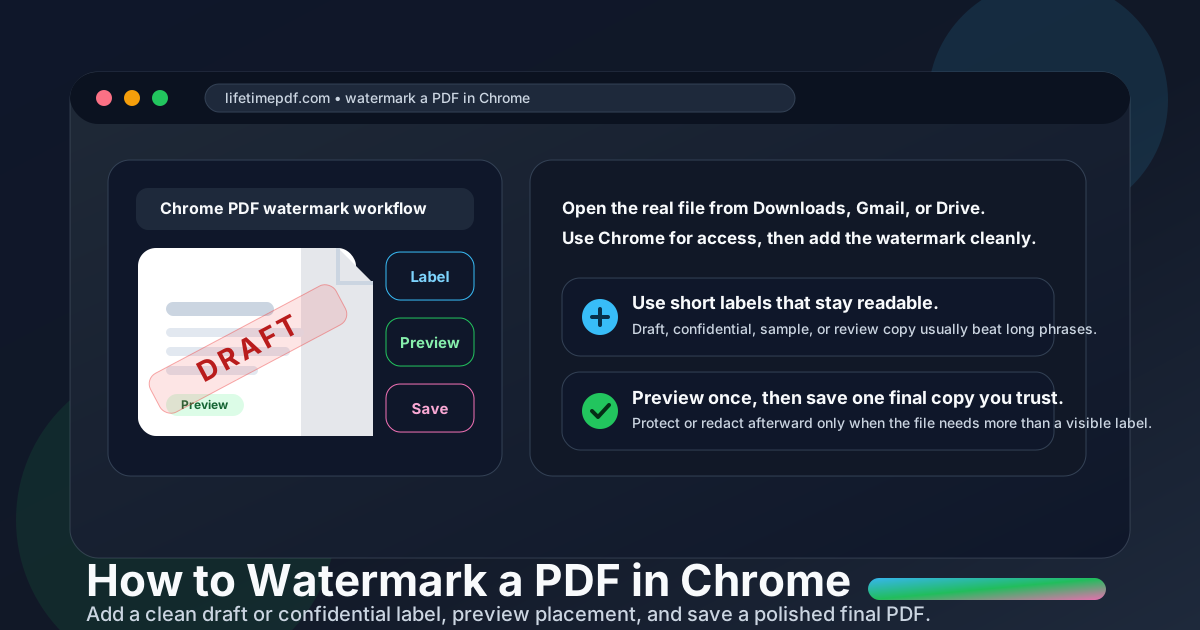
Clean sequence: open the source file in Chrome → use Watermark PDF for the label → preview the result once → save a clearly named copy → protect, redact, or compress only if the next step really needs it.
Best watermark text, opacity, and placement in Chrome
The best watermark is obvious at a glance but does not bully the document. If the label is the only thing anyone notices, it is probably too strong.
What should you write?
Use wording that makes instant sense and still feels professional if the file gets forwarded or reopened later. Good options include:
- DRAFT
- CONFIDENTIAL
- SAMPLE
- REVIEW COPY
- INTERNAL USE ONLY
- A short company or project name
How dark should the watermark be?
Usually lighter than your first instinct. If the page becomes annoying to read at 100 percent zoom, the watermark is doing too much. Dense legal text, forms, and invoices usually need a softer touch than slide exports or image-heavy pages.
Where should it sit?
Diagonal center placement is popular because it is hard to miss without hammering the same exact line on every page. Still, the right placement depends on the document. Preview first if the PDF includes signatures, totals, small footnotes, or busy charts.
How to watermark only selected pages
Not every PDF should carry the same label on every page. Maybe only the proposal section should say DRAFT. Maybe the appendix should be marked SAMPLE while the signed cover page stays clean.
In those cases, a selected-page workflow is better than stamping the whole file blindly:
- Use Extract Pages to isolate the section that actually needs the label.
- Apply the watermark to that smaller file in Chrome.
- Use Merge PDF if you need to rebuild the final packet afterward.
This is a cleaner approach than trying to force one watermark across a mixed document where some pages should stay untouched.
How to save, share, and secure the final copy
Save the labeled PDF with a new filename
Avoid vague names like final-v2.pdf. Chrome workflows stay much cleaner when the finished file says exactly what it is, like contract-confidential.pdf or proposal-draft.pdf.
Protect the file if access actually matters
A watermark is a visible label, not a lock. If the file should not open casually, add a password with PDF Protect after the content is final.
Redact information that should not remain
If private details are visible in the file, use Redact PDF. A watermark does not actually remove names, numbers, or clauses underneath it.
Compress the file before sending if needed
If scans or images made the PDF bulky, shrink it with Compress PDF before you attach it to email or upload it to a portal.
Common Chrome watermarking problems and quick fixes
I thought Chrome could do this by itself
Chrome can open and preview the file beautifully, but a real watermark usually comes from a browser-based tool used in Chrome rather than from the built-in viewer alone.
I watermarked the wrong Gmail attachment or Drive copy
Start from one real source file, save the finished PDF with a fresh filename, and reopen that exact copy once. Browser convenience is great until you lose track of which tab or download is the real version.
The watermark covers a signature, total, or chart
Preview a representative page before you finish. If only part of the file needs the label, extract that section and watermark it separately.
The saved copy feels too dark or cluttered
Reopen the final PDF in Chrome at normal zoom. If the watermark dominates the page, reduce the opacity or shorten the wording.
I need more than a visible label
Add protection when access matters and redaction when information should not remain. A watermark is mainly for status and context, not for true security.
Related LifetimePDF tools and guides
Watermarking a PDF in Chrome often turns into one or two related cleanup steps. These are the most useful companions:
- Watermark PDF — add draft, confidential, sample, or review labels cleanly.
- PDF Protect — add a password when access matters.
- Redact PDF — permanently remove sensitive information.
- Compress PDF — shrink scans or image-heavy files before sending.
- Extract Pages and Merge PDF — better for selected-page watermark workflows.
Related reading on LifetimePDF: Watermark PDF, Add Watermark to PDF, how to watermark a PDF on Windows, how to watermark a PDF on Mac, how to watermark a PDF on Chromebook, and how to watermark a PDF on Android.
Chrome shortcut: use the browser to open the right file fast, use Watermark PDF for the actual label, and protect or redact the file afterward only when the workflow genuinely needs more than a visual status mark.
FAQ: How to watermark a PDF in Chrome
Can I watermark a PDF directly in Chrome?
Chrome is great for opening and reviewing PDFs, but a real watermark usually comes from a browser-based PDF tool running in Chrome rather than from the built-in viewer alone.
What should I write in a PDF watermark in Chrome?
Short labels work best: DRAFT, CONFIDENTIAL, SAMPLE, INTERNAL USE ONLY, or REVIEW COPY. Short wording stays readable across more page layouts.
Can I watermark only one page of a PDF in Chrome?
Yes. Extract the page or section that needs the label, apply the watermark there, then merge it back into the final packet if needed.
Does a watermark protect a PDF from sharing?
No. A watermark is mainly visual. If access matters, add password protection, and if information should not remain visible, redact it instead of relying on the watermark alone.
How do I avoid watermarking the wrong PDF from Gmail or Google Drive?
Open the exact source file first, save the finished PDF with a new clear filename, and reopen that saved copy once in Chrome before you send or upload it.
Published by LifetimePDF — Pay once. Use forever.