How to Redact a PDF on Linux: Permanently Hide Sensitive Info Before You Share It
To redact a PDF on Linux, open LifetimePDF's Redact PDF tool in Firefox or Chrome, choose the file from your file manager, Downloads, Thunderbird, or a shared folder, black out every sensitive detail, and export the cleaned copy before you share it.
If the document still reveals context through repeated names, comments, scan borders, or metadata, clean those too so the Linux copy you send is the safe one.
That is the short answer. The useful part is avoiding the classic Linux mistake of cleaning one copy while the old file still lives in Downloads, a synced folder, or an email attachment with almost the same name. On Linux, the safest workflow is usually simple: start with the exact PDF you plan to send, redact it once carefully, reopen the exported file, and only then upload or forward it.
Fastest path: open Redact PDF on Linux, clean the content first, review the exported copy once, then use metadata cleanup or password protection only if the remaining file still needs them.
In a hurry? Jump to Quick start: redact a PDF on Linux in 3 minutes.
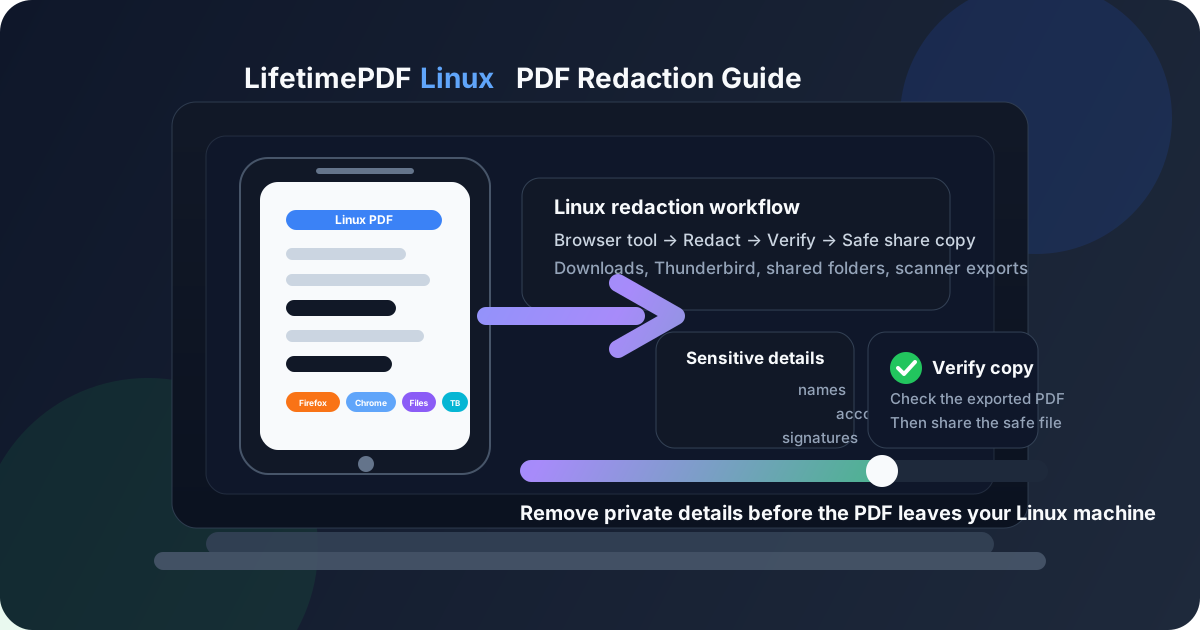
Table of contents
- Quick start: redact a PDF on Linux in 3 minutes
- The safest Linux workflow for redacted PDFs
- Step-by-step: redact a PDF from your file manager, Downloads, Thunderbird, or a shared folder
- What to redact before you send a file
- Viewer annotations vs real redaction on Linux
- Common Linux PDF sources and the best move for each
- Metadata, passwords, and safer Linux sharing
- Common Linux redaction problems and quick fixes
- Related LifetimePDF tools and guides
- FAQ (People Also Ask)
Quick start: redact a PDF on Linux in 3 minutes
If the file is already on your Linux machine and you just need a safe version to send, this is the workflow most people want:
- Open Redact PDF in Firefox or Chrome.
- Choose the file from Nautilus, Dolphin, Thunar, Downloads, a saved Thunderbird attachment, or a synced folder.
- Black out every sensitive name, number, signature, note, barcode, or table value that should not appear in the outgoing copy.
- Download the redacted PDF and reopen it once.
- If the file still reveals context through extra pages or file properties, use Delete Pages or PDF Metadata Editor before you share it.
The safest Linux workflow for redacted PDFs
On Linux, the hard part is rarely finding a way to cover text. The real friction is file handling. The PDF may be sitting in Downloads after a portal export, inside a synced team folder, attached in Thunderbird, or dropped into a scanner share that still holds yesterday's copies. Once you know which file is the real source and which file is the safe output, the rest becomes much cleaner.
A good Linux redaction workflow has four jobs: identify the right input file, remove every detail the recipient does not need, verify that the exported PDF is the one you intend to send, and clean any leftover context such as metadata or extra pages. That sounds obvious, but it prevents most of the real-world mistakes: sending the wrong version, leaving a repeated account number in a footer, or relying on a visual annotation that only looks hidden.
If the document is a scan, be extra deliberate. Scanner borders, crooked pages, and repeated stamps can make private data harder to notice. If the file came from a shared folder, rename the cleaned copy clearly so nobody grabs the wrong version later. Privacy is less about one button and more about choosing a clean, boring, repeatable handoff.
Step-by-step: redact a PDF from your file manager, Downloads, Thunderbird, or a shared folder
1) Start with the file you really plan to send
Before you redact anything, make sure you are holding the right PDF. On Linux, duplicates pile up fast: one in Downloads, one in a synced folder, one renamed by Thunderbird, one copied into Documents, and one already half-reviewed somewhere else. If you are not certain which one is leaving your machine, pause and sort that out first.
A quick rename helps. Something like contract-redacted.pdf or bank-statement-safe-copy.pdf makes it much harder to attach the original by mistake. Clean filenames are underrated privacy protection.
2) Open Redact PDF in Firefox or Chrome
Open LifetimePDF Redact PDF in Firefox or Chrome. A browser workflow is often the simplest path on Linux because it works the same whether you are on Ubuntu, Debian, Fedora, Mint, Pop!_OS, Arch, or another distro with a modern browser.
Choose the file from your preferred Linux file picker. That can mean Nautilus, Dolphin, Thunar, Nemo, Downloads, a saved Thunderbird attachment, or a mounted shared directory. The important part is not which file manager you use. It is choosing the exact copy you want to clean.
3) Redact every place the private detail appears
Most redaction misses happen because the first occurrence gets covered and the repeated ones do not. Search visually for every place a name, account number, signature, internal note, or identifier appears. Look at headers, footers, sidebars, annex pages, repeated table rows, stamps, and summary pages too.
Be especially careful with scanned PDFs. A private detail might appear faintly in a scan border, inside a handwritten note, or across multiple pages where the layout looks almost identical. Redact the whole context the recipient should not see, not just the most obvious line.
4) Export the redacted copy
After the sensitive details are hidden, export the cleaned PDF as the version meant for sharing. Do not rely on a temporary browser view and assume you will remember which copy is safe later. Download the outgoing version with a clear filename so the redacted file stands apart from the original.
If you are working from a shared team folder, consider saving the cleaned copy separately first and only then moving it into the shared location. That reduces the chance that someone else opens the unredacted source while you are still working.
5) Reopen the final PDF and verify it
This step is where privacy becomes real. Open the exported PDF once on Linux and inspect it as if you were the recipient. Search for the hidden terms, zoom in on the redacted areas, and scroll through the whole file to confirm the outgoing copy is the cleaned one.
If the document came from a scan, this is also the moment to look for clipped text, missed notes near page edges, and repeated identifiers in forms or tables. A one-minute review is much cheaper than a permanent leak.
6) Clean metadata or protect the final copy if needed
Some PDFs still reveal too much even after the visible content is cleaned. The title, author field, subject, or saved filename can expose client names, case numbers, or project context that the recipient does not need. If that matters, run the file through PDF Metadata Editor before you share it.
If the file still needs access control after redaction, add a password with PDF Protect. The safer order is usually: redact first, verify second, clean metadata third, protect last.
What to redact before you send a file
People usually remember the obvious sensitive field and forget the supporting context around it. Before you send a PDF from Linux, check for:
- Names, addresses, phone numbers, and email addresses that are not necessary for the recipient.
- Account numbers, invoice IDs, case numbers, policy references, and employee IDs that can identify a person or account.
- Signatures, initials, approval stamps, seals, and handwritten notes that reveal more than intended.
- QR codes, barcodes, tracking references, and portal tokens that can still expose useful information.
- Repeated headers, footers, side notes, and appendix tables where the same private detail quietly appears again.
- Extra pages that do not need to travel with the final share copy at all.
If a detail would make you uncomfortable in a forwarded email thread, a shared drive, or a screenshot in the wrong Slack channel, it probably belongs in the redaction plan.
Viewer annotations vs real redaction on Linux
A black rectangle on the screen is not automatically a safe redaction. Linux users often preview PDFs in a browser tab or a document viewer, add a visual markup, and assume the problem is solved. Sometimes that does create a good final copy. Sometimes it only hides the text in the current view while the underlying content still survives in the file.
The safer mindset is simple: redaction is not about making the page look hidden. It is about creating a share copy where the hidden detail no longer travels with the outgoing PDF. That is why verification matters so much. Reopen the exported file, search for the hidden terms, and make sure the cleaned copy stands on its own.
Common Linux PDF sources and the best move for each
File manager folders and local documents
If the PDF already lives in Documents, Desktop, Downloads, or another local folder, this is the easiest case. Open the redaction tool, choose the file from your file manager, export the safe copy, and rename it clearly before you move on.
Thunderbird attachments
Thunderbird makes it easy to open or save an attachment quickly, which is also how people end up with confusing duplicate copies. Save the attachment first or choose the saved file deliberately, redact that exact version, then attach the cleaned copy when you reply. That is safer than editing from a temporary preview and hoping the right file gets attached later.
Shared folders, NAS paths, and synced directories
Shared folders add another kind of risk: someone else may see or use the source PDF while you are still working. If the file lives in Nextcloud, Syncthing, SMB storage, a NAS mount, or a team share, consider exporting the cleaned copy to a clearly named private location first. After verification, move the safe version into the shared space if needed.
Scanner or copier exports
Linux PDF bundles from scanners often include dark borders, rotated pages, blank backsides, or uneven page sizes. If the scan is messy, pair redaction with Crop PDF, Rotate PDF, or Delete Pages so the final copy is both safer and easier to read.
Portal downloads and compliance packets
PDFs exported from banking portals, HR systems, insurance dashboards, legal portals, and vendor systems often contain more context than expected. The visible sensitive field is only part of the problem. Portal names, reference numbers, embedded notes, and extra pages can reveal just as much. Review the whole packet before assuming the job is done.
Metadata, passwords, and safer Linux sharing
Clean file properties when context matters
Some PDFs look clean on the page but still carry revealing metadata. If the file title, subject, author, or filename exposes a person, client, employer, medical context, or case reference, use PDF Metadata Editor before the file leaves Linux.
Protect the already redacted copy if access still matters
Password protection and redaction solve different problems. Redaction removes information that should never be in the outgoing file. Password protection limits who can open the cleaned copy that remains. If you need both, do the privacy cleanup first and the access control second.
Common Linux redaction problems and quick fixes
I redacted the page, but the PDF still feels too revealing
That usually means the context around the obvious field is still there. Check headers, footers, summary tables, side notes, attachment pages, metadata, and filenames. Sometimes the right move is to redact a little more. Sometimes it is to delete pages or crop away unnecessary scan clutter.
I keep opening the wrong version
Rename the safe copy immediately after export and store it in a predictable place. If you keep both files in the same folder with nearly identical names, the wrong one will eventually get uploaded.
The document is a scan and hard to inspect
Clean the page first if needed. Rotating, cropping, or removing blank pages can make missed details easier to spot. If the final shared copy also needs searchable text, use OCR PDF after you finish the redaction workflow.
I am worried I missed repeated details
Slow down and review the file page by page. Repeated content often appears in tables, appendix pages, signature blocks, invoice references, or the same field copied across multiple form pages. A short final review is the best insurance against this mistake.
The cleaned PDF still contains too many pages
Use Delete Pages to strip anything the recipient does not need. Redaction is safer when the outgoing file is not carrying irrelevant pages full of context you never meant to send in the first place.
Related LifetimePDF tools and guides
If your Linux PDF needs more than redaction, these tools usually fit the next step:
- Redact PDF — remove sensitive content from the outgoing copy.
- PDF Metadata Editor — clean revealing titles and document properties.
- PDF Protect — add a password after the privacy cleanup is finished.
- Delete Pages — remove appendix pages, duplicate scans, and blank sheets.
- Crop PDF — trim scan borders and wasted margins before final review.
- Rotate PDF — fix sideways pages before you inspect them closely.
- OCR PDF — make the cleaned scan searchable when appropriate.
Related reading on LifetimePDF: Redact PDF, How to Redact a PDF on Windows, How to Redact a PDF on Mac, How to Crop a PDF on Linux, How to Rotate a PDF on Linux, How to OCR a PDF on Linux, How to Password Protect a PDF on Linux, and Remove PII From PDF Metadata.
Ready to make a safe Linux share copy?
Best Linux privacy order: choose the right file → redact → verify the export → clean metadata → protect if needed.
FAQ: How to redact a PDF on Linux
How do I redact a PDF on Linux without Adobe Acrobat?
Open a browser-based PDF redaction tool in Firefox or Chrome on Linux, choose the file from your file manager, Downloads, Thunderbird, or a shared folder, redact the sensitive details, export the cleaned copy, and review it before sharing.
Can I redact a Thunderbird attachment on Linux?
Yes. Save the attachment or choose it from the file picker, redact the exact version you plan to send, and rename the exported copy clearly so it does not get mixed up with the original email download.
Is drawing a black rectangle in a PDF viewer the same as redaction on Linux?
Not always. A visual cover-up can hide text on screen while still leaving the underlying information in the file. Safe redaction is about creating a share copy where the hidden content no longer travels with the PDF you send.
Should I password-protect a PDF before or after redacting it on Linux?
Usually after. Redaction removes the information that should never appear in the outgoing file, while password protection controls access to the already cleaned copy that remains.
Can I redact scanned PDFs on Linux?
Yes. If the scan is crooked, full of dark borders, or padded with extra pages, clean those issues too, then verify the finished copy and run OCR afterward only if the final shared version still needs searchable text.
Published by LifetimePDF — Pay once. Use forever.