How to Merge PDFs on Chromebook: Use Chrome, Files, Gmail & Google Drive Without Losing Order
To merge PDFs on Chromebook, open a browser-based Merge PDF tool in Chrome, choose the files from Files, Downloads, Gmail, or Google Drive, arrange them in the right order, and save the combined PDF.
If one item is still a photo, scan, or screenshot instead of a PDF, convert it first so the final packet behaves like one document instead of a pile of mixed file types.
That is the short answer. The useful part on Chromebook is knowing how to move cleanly between Files, Drive, and email attachments without grabbing the wrong version, when the built-in PDF viewer is enough, and when a real merge step saves you from awkward print tricks. ChromeOS is excellent at browser-first document work when you keep the workflow simple and deliberate.
Fastest path: gather the PDFs in one easy-to-find place, open LifetimePDF's Merge PDF tool in Chrome, set the reading order carefully, merge once, then only clean up the finished packet if it still needs size, rotation, or page-order fixes.
In a hurry? Jump to Quick start: merge PDFs on Chromebook in a few minutes.
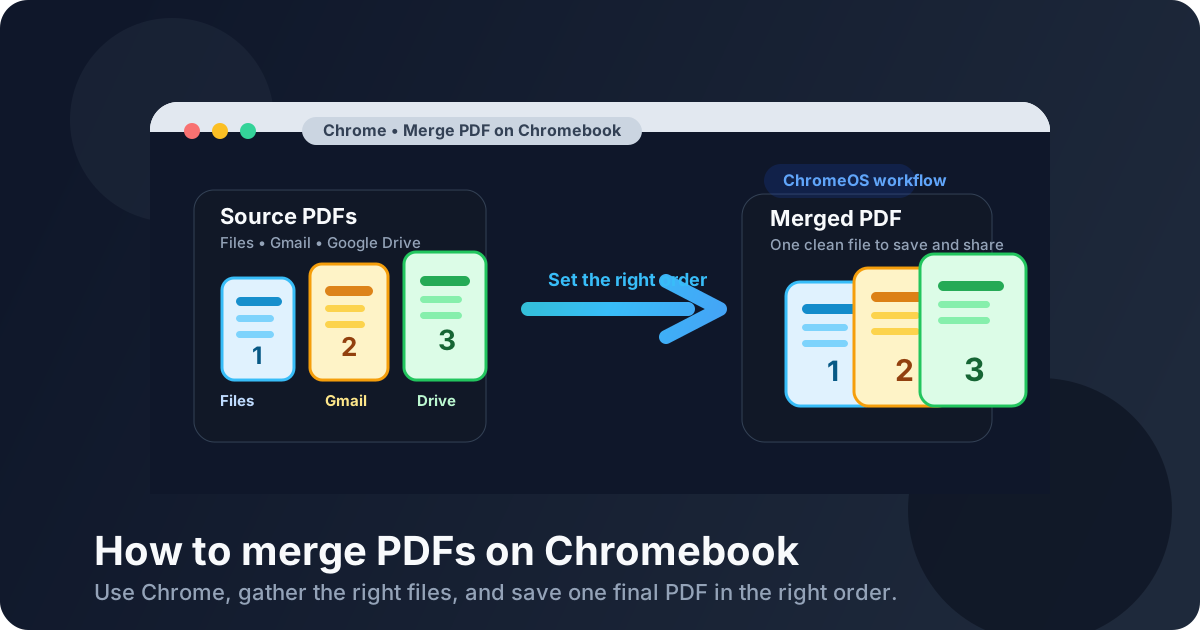
Table of contents
- Quick start: merge PDFs on Chromebook in a few minutes
- The easiest Chromebook workflow for combining PDFs
- Step-by-step: merge PDFs in Chrome
- How to pull files from Files, Downloads, Gmail, and Google Drive
- ChromeOS PDF viewer vs a browser-based merge tool
- What to do with scans, screenshots, and image-only pages
- How to keep the final packet in the right order on Chromebook
- What to do if the merged PDF is too large or still needs cleanup
- Related LifetimePDF tools and guides for Chromebook workflows
- FAQ (People Also Ask)
Quick start: merge PDFs on Chromebook in a few minutes
If the source files are already PDFs and you just need one final document, this is the Chromebook workflow most people actually want:
- Open Merge PDF in Chrome.
- Choose the files from Files, Downloads, a saved Gmail attachment, or Google Drive.
- Arrange the PDFs in the exact order another person should read them.
- Run the merge and download the combined PDF.
- Open the finished file once before you email, upload, submit, or share it.
The easiest Chromebook workflow for combining PDFs
Chromebook works best when you lean into the browser workflow instead of fighting it. One PDF may live in Downloads after a teacher, client, or coworker sent it by email. Another may still be inside Gmail. A third may sit in Google Drive because you opened it on another device earlier. The easiest move is not to print each file, rename everything three times, or bounce between tabs until you forget which copy is current. The easiest move is to gather the right files, merge them once, and save one finished PDF with a clear name.
That makes Chromebook surprisingly good for real document tasks such as combining invoices, signed pages, class handouts, onboarding forms, or a travel packet. ChromeOS does not need to behave like a full desktop publishing setup for this job. It just needs a clean browser-based merge flow and a little attention to order.
| Method | Best for | Where it struggles |
|---|---|---|
| ChromeOS Files app | Finding PDFs and checking where the files live | It helps you locate documents, but it does not turn several PDFs into one clean final packet by itself |
| Built-in PDF viewer | Previewing each file and reviewing the finished result | Good for inspection, not for combining multiple PDFs into one deliverable |
| Browser-based Merge PDF | Combining PDFs from Downloads, Gmail, Files, and Drive into one final file | You still need to pick the right versions and set the order deliberately |
In other words, Chromebook already gives you good tools for locating and previewing PDFs. What it usually does not give you is a one-click way to combine three or four PDFs from different places into one polished document unless you use a purpose-built merge step.
Step-by-step: merge PDFs in Chrome
Once you know which files belong in the final packet, the actual merge is straightforward.
- Open Merge PDF in Chrome on your Chromebook.
- Choose the PDFs from Files, Downloads, Google Drive, or a Gmail attachment you saved locally.
- Arrange the files in the exact order the next person should read them.
- Run the merge and download the final PDF.
- Open the merged file once and confirm the first pages, one middle section, and the ending all look right.
If you are merging a school packet, put the assignment instructions first and reference pages after them. If you are merging a lease or contract set, place the main agreement first and exhibits after it. If you are merging travel records or receipts, use the order another human reviewer expects, not the random order ChromeOS happened to list in the picker.
How to pull files from Files, Downloads, Gmail, and Google Drive
The hardest part of merging PDFs on Chromebook is usually not the merge itself. It is keeping track of where the files actually came from.
| Source | Typical use | Practical merge tip |
|---|---|---|
| Files | Main place to locate local PDFs | Check filenames carefully so you do not merge an old copy and the final copy together |
| Downloads | Recent portal exports, browser downloads, and saved attachments | Downloads gets messy fast. Confirm the timestamp and preview the file once before merging |
| Gmail | Signed forms, invoices, or school/work attachments | Save the attachment locally first if you are not fully sure which version you are about to use |
| Google Drive | Shared packets, archived forms, and multi-device workflows | Make sure you are selecting the correct file and not an earlier revision with almost the same name |
Gmail is where many Chromebook merge jobs begin, and that is exactly why version mix-ups happen. You preview a PDF in the browser, then later cannot remember whether you merged the attachment from the email, the copy in Downloads, or the older file already sitting in Drive. If the packet matters, save the attachment with a clear name before you merge.
Google Drive creates a different problem: near-duplicate filenames. It is easy to have contract-final.pdf, contract-final-2.pdf, and contract-signed.pdf sitting next to each other. The merge tool cannot fix the wrong source choice. A 10-second preview before you upload saves a lot of embarrassment later.
ChromeOS PDF viewer vs a browser-based merge tool
The built-in Chromebook PDF viewer is useful, and it is worth keeping that role simple. Use it to open each source file, confirm that the pages look right, and review the finished packet after the merge. That is where it shines.
Where it becomes awkward is the moment you need to combine several PDFs into one deliverable. That is when people drift into print menus, export tricks, or improvised workarounds that create extra copies and confusion. A merge tool is better because it is built around the actual goal: pick the PDFs, set the order, make one final file.
What to do with scans, screenshots, and image-only pages
Not every source is ready to merge as-is. Sometimes one item is a phone photo of a signed page, a screenshot from a portal, or a scan that is still sitting as an image file instead of a PDF. If you mix file types carelessly, the final packet becomes harder to manage and easier to misread.
The cleaner approach is to turn image-based material into PDF first. Then merge it with the rest. That gives you one consistent format and makes later cleanup easier if the final packet still needs rotation, compression, or OCR.
- Use Images to PDF when one source is a photo, screenshot, or scanner export that is not already PDF.
- Use Rotate PDF if one page ends up sideways.
- Use OCR PDF if the final packet is scan-heavy and needs searchable text.
The main idea is not to stack problems. Do not compress random source files before the packet exists. Do not OCR pages you may not even keep. Build the right packet first. Improve it second.
How to keep the final packet in the right order on Chromebook
Ordering mistakes are more common than merge failures. The software can combine the PDFs just fine. Humans are the ones who place the appendix before the main document, include two versions of the same form, or leave the signed page at the very end when it belongs beside the document it completes.
A useful Chromebook habit is to think in reading order, not picker order. The way files appear in Files, Drive, or Downloads is not automatically the sequence another person should read. Put the main document first. Then add supporting material in the order that helps the next reader understand it.
- Open each source once so you know what it actually is.
- Remove accidental duplicates before you merge.
- Place the primary document first and the supporting PDFs after it.
- Check the merged result before you send it anywhere important.
01-main.pdf, 02-signature-page.pdf, and 03-receipts.pdf. You do not need to keep those names forever. You only need enough clarity to build the packet correctly once.
What to do if the merged PDF is too large or still needs cleanup
Once the files are merged, you may discover one of three normal second-step problems: the final PDF is too large, one page is rotated incorrectly, or the packet still includes a page you no longer need. Those are cleanup jobs, not reasons to rebuild the entire document from scratch unless the actual order is wrong.
- Too large for upload or email: run the finished file through Compress PDF.
- One page is sideways: fix orientation with Rotate PDF.
- Blank or unwanted pages slipped in: clean them up with Delete Pages or Organize PDF.
- The packet contains scans and needs search: add a text layer using OCR PDF.
Think of merging as the moment the packet becomes structurally correct. Cleanup is about making that correct packet easier to send, search, archive, or review. Keeping those phases separate usually saves time on Chromebook instead of creating one more version called final-final-really-final.pdf.
Related LifetimePDF tools and guides for Chromebook workflows
Merging is usually the center of the job, but a few related tools make Chromebook document work much easier:
- Merge PDF to combine the files into one final packet.
- Organize PDF to reorder pages or inspect the combined result.
- Images to PDF when one source starts as a photo, screenshot, or scan.
- Compress PDF when a portal or email attachment limit rejects the finished file.
- How to Extract Pages from PDF on Chromebook if you only need selected pages rather than one combined packet.
- Scan to PDF on Chromebook when part of the workflow still starts on paper.
If you handle PDFs on Chromebook often: a clean merge workflow plus a few follow-up tools usually covers most real-life document tasks without making ChromeOS feel limiting.
FAQ: how to merge PDFs on Chromebook
How do I merge PDFs on Chromebook without installing another app?
Open a browser-based Merge PDF tool in Chrome, choose the files from Files, Downloads, Gmail, or Google Drive, arrange them in the right order, merge them, and save the finished PDF. That is usually the fastest no-app workflow on ChromeOS.
Can I merge Gmail attachments and Google Drive PDFs together?
Yes. Save the Gmail attachment first if needed, then combine it with PDFs from Files, Downloads, or Drive in one workflow. The important part is making sure you selected the correct versions before you merge.
Should I use the built-in PDF viewer or a browser-based merge tool?
Use the built-in viewer to preview source files and review the final result. Use a browser-based merge tool when you need to combine several PDFs into one finished packet and control the order cleanly.
What if one of my sources is a photo, screenshot, or scan instead of a PDF?
Convert that image-based file into PDF first, then merge it with the rest. That keeps the final packet more consistent and avoids clumsy workarounds with screenshots or print menus.
What should I do if the merged PDF is too large to upload?
Keep the merged packet, confirm the order is correct, and then compress the finished PDF. That is usually cleaner than guessing which source file to change before you even know whether the merge itself is right.