How to Merge PDFs in Brave: Combine Downloads, Attachments, and Portal Files Without Losing Order
To merge PDFs in Brave, open LifetimePDF's Merge PDF tool in Brave, choose the files from Downloads, saved attachments, local folders, or portal exports, arrange them in the correct order, then save the combined PDF.
If one source is still a screenshot, photo, or scan instead of a proper PDF, convert it first so the final merged file is easier to review, upload, and share.
That is the short answer. The part that actually saves time in Brave is avoiding duplicate downloads, stale attachment previews, private-window confusion, and bad page order before you create the final file someone else has to read.
Fastest path: open Merge PDF in Brave, add only the exact PDFs you want, put them in reading order, merge once, then compress or tidy up the finished file only if the destination still rejects it.
In a hurry? Jump to Quick start: merge PDFs in Brave in a few minutes.
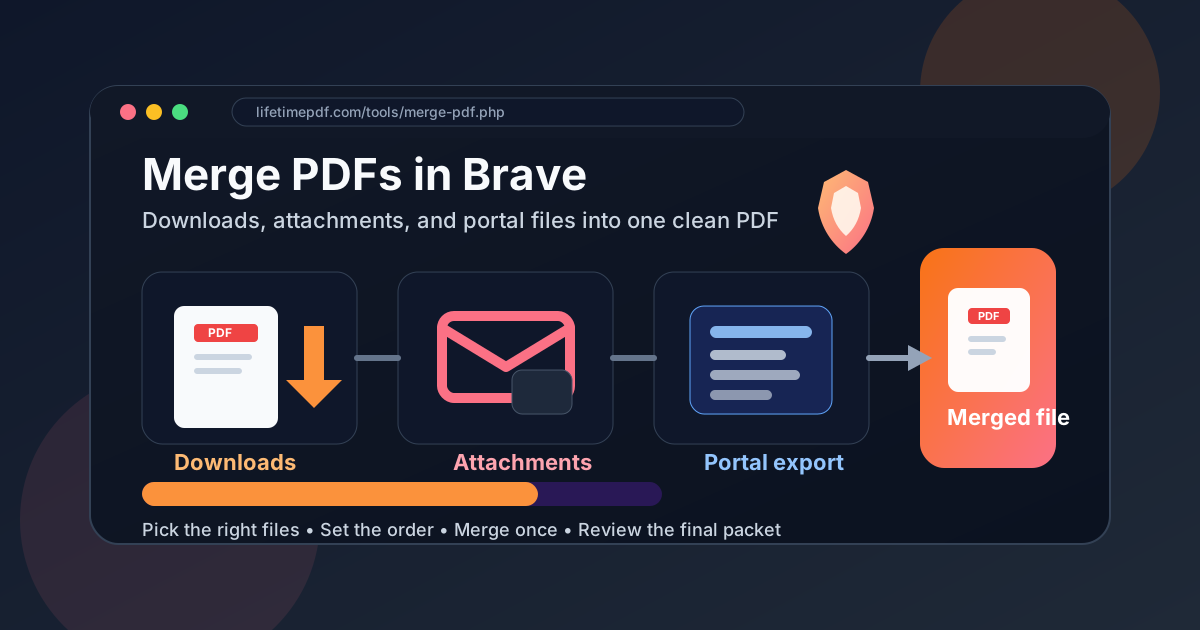
Table of contents
- Quick start: merge PDFs in Brave in a few minutes
- What Brave handles well and where merging actually happens
- Step-by-step: merge PDFs in Brave
- How to gather files from Downloads, attachments, portals, and cloud folders
- What to do with scans, screenshots, and image-based files
- How to avoid wrong versions and keep the reading order sane
- What to do if the merged PDF is too large or still messy
- Related LifetimePDF tools and guides
- FAQ
Quick start: merge PDFs in Brave in a few minutes
If the files are already proper PDFs and you simply need one finished document, this is the Brave workflow most people actually want:
- Open Merge PDF in Brave.
- Choose the source files from Downloads, a local folder, saved email attachments, or exported copies from a portal or cloud drive.
- Arrange the files in the exact order another person should read them.
- Run the merge and download the combined PDF.
- Open the final file once and check the beginning, one middle section, and the ending before you upload or send it.
What Brave handles well and where merging actually happens
Brave is a good place to start PDF work because many documents already pass through the browser. A bill arrives by email. A school form opens in a portal. A signed agreement downloads from a secure page. Another file sits in cloud storage. Brave makes it easy to open all of them quickly.
The limit is the same one you hit in most browsers: viewing a PDF is not the same as combining several PDFs into one polished final document. Brave's built-in PDF viewer is useful for checking whether you opened the right file. It is not the part that actually merges the files.
The cleaner workflow is simple:
- Use Brave to gather, review, and download the right files.
- Use Merge PDF to combine them into one final packet.
- Use Images to PDF if one source is still a photo or screenshot.
- Use Compress PDF only after the merged packet is already correct.
| Method | Best for | Where it struggles |
|---|---|---|
| Brave PDF viewer only | Opening one file quickly and checking whether it is the right document | It can preview PDFs, but it does not combine several files into one finished PDF by itself |
| Attachment or portal previews | Spot-checking one file before downloading it | Easy to mix up old versions, duplicate downloads, and temporary previews when you need a real final packet |
| Brave + Merge PDF | Combining several PDFs while staying inside a browser-first workflow | You still need to choose the correct sources and set the order deliberately |
| Merge first, compress after | Keeping the process fast and predictable | Only works if you actually review the finished PDF before sharing it |
In other words, Brave is the workspace, not the whole solution. Once you accept that, the task becomes much calmer: collect the final PDFs, merge them once, and judge the result afterward instead of improvising your way through six open tabs.
Step-by-step: merge PDFs in Brave
If you want a repeatable Brave routine for proposals, onboarding documents, receipts, school packets, visa paperwork, signed agreements, or application materials, use this:
- Open the merge tool. Launch Merge PDF in Brave.
- Pick only the files that belong together. Do not throw every related download into the same packet just because it came from the same conversation or portal.
- Set the reading order deliberately. Put the main document first, supporting pages after it, and receipts, exhibits, or proof pages last.
- Run the merge once. Download the finished file somewhere obvious so it does not disappear into a pile of similarly named browser downloads.
- Review the final packet. Open the merged PDF and check the first pages, one middle section, and the ending before you attach it, upload it, or share it.
Useful rule: the correct order is the order a stranger should read the packet, not the order Brave happened to show the tabs or downloads.
If the merged file looks wrong, do not keep patching it blindly. Go back to the source list, remove the stale download, replace the attachment preview with the real saved copy, export the right portal version, or fix the order and rerun the merge once. A clean rerun is usually faster than rescuing a messy packet afterward.
How to gather files from Downloads, attachments, portals, and cloud folders
The most common Brave merge problem is not technical. It is source confusion. You might have one file open in a secure portal tab, another already saved to Downloads, and a third attached to an email thread with a very similar filename. If you merge the wrong combination, the finished PDF becomes unreliable fast.
A cleaner approach is to identify the final version of each document before you merge:
- Downloads: useful for recent files, but often full of duplicates with added numbers at the end.
- Email attachments: convenient for previewing, but save the file locally if you need a dependable merge workflow.
- Portal exports: often the real source of truth, but easy to confuse with older versions you already downloaded.
- Cloud folders: helpful if you use several devices, but confirm you are taking the correct revision.
- Local folders: usually the simplest place to keep the final versions together before you merge them.
If you want the least confusing method, create one temporary folder and place the exact PDFs you intend to merge inside it first. That tiny bit of organization prevents a surprising number of mistakes because it separates the real inputs from everything Brave merely happens to remember.
This matters even more if you use private windows or aggressive browser cleanup. Brave may be excellent at privacy, but privacy features do not magically organize your documents. The more deliberate you are about saving the right files, the less likely you are to merge a preview, a duplicate, or an outdated copy.
What to do with scans, screenshots, and image-based files
Not every file you open in Brave begins as a clean PDF. Sometimes it is a phone photo, a screenshot, a scan from a printer, or an exported image from a portal. Those files can still belong in the final packet, but they usually need one quick normalization step first.
The simplest rule is this: if the source is not already a proper PDF, convert it into PDF before the merge. That makes the combined document more predictable and prevents the final packet from feeling like a stack of mismatched file types stitched together at the last second.
If a page is scan-based and the text is hard to read or search, run OCR before you worry about the final combined file. A scan that becomes a cleaner PDF is easier to review, easier to search later, and less likely to create weird surprises once everything is merged.
Use Images to PDF for image files before the merge. If the finished combined document ends up larger than expected, use Compress PDF after you confirm the content and order are right.
How to avoid wrong versions and keep the reading order sane
The easiest way to ruin a merged PDF in Brave is to assume your open tabs or download timestamps reflect the correct order. They usually do not. Tabs reflect what you clicked. Downloads reflect what arrived last. Neither one automatically reflects how another person should read the final document.
Before you merge, answer one question: What should page one of the final packet be? Once that is clear, everything else gets easier. Put the main document first, then any required support pages, then receipts, signature confirmations, evidence, or appendices after that.
- Keep the primary document first.
- Do not bury the important file behind attachments just because that is how they arrived.
- Double-check filenames that look nearly identical, especially if Brave created numbered duplicate downloads.
- Open the finished file once and spot-check the beginning, middle, and end.
That review matters. A merge can technically succeed while still being wrong in a human way. One attachment may be outdated. A portal export may be incomplete. A duplicate page may slip in. Catching that before you send the file is far better than explaining later why the packet feels scrambled.
What to do if the merged PDF is too large or still messy
Once the combined PDF is correct, only then decide whether it needs more work. The most common follow-up problems are file size, extra pages, and pages that arrived sideways because of scans or mobile exports.
| If this happens | What to do next |
|---|---|
| The merged PDF is too large for email or an upload form | Use Compress PDF after the merge is already correct |
| The packet contains one blank or unnecessary page | Remove it with Delete Pages |
| One scanned page is sideways | Fix it with Rotate PDF |
| One source is still a picture rather than a PDF | Convert it first with Images to PDF, then rerun the merge if needed |
Resist the urge to pre-fix everything. A lot of merged files are perfectly fine once the content and order are right. If the final PDF opens cleanly, reads properly, and uploads without complaint, you are done.
Related LifetimePDF tools and guides
Merge is usually the center of the job, but browser-based PDF work often touches one or two related tools too:
- Merge PDF — combine files into one finished packet.
- Images to PDF — convert screenshots, photos, or scans before merging.
- Compress PDF — shrink the finished PDF for email or upload limits.
- Delete Pages — remove blank sheets or extra pages from the final packet.
- Rotate PDF — fix pages that arrived sideways.
Related reading on LifetimePDF: How to Merge PDFs in Chrome, How to Merge PDFs in Edge, How to Merge PDFs in Firefox, How to Merge PDFs in Safari, How to Merge PDFs on Mac, and How to Merge PDFs on iPhone.
Brave shortcut: save the exact files, merge them once, review the result, and only then fix size or stray pages if something still needs work.
FAQ: How to merge PDFs in Brave
How do I merge PDFs in Brave?
Open a browser-based Merge PDF tool in Brave, choose the files from Downloads, saved attachments, local folders, or cloud exports, arrange them in the right order, merge them, and save the finished PDF.
Can Brave merge PDFs by itself?
Brave can preview PDFs in tabs, but its built-in viewer does not combine several files into one final document by itself. Use a merge tool inside Brave for the actual merge.
What if one of my files is still an image or scan?
Convert image files into PDF first, or run OCR if the source is scan-based, then merge the cleaned-up files. That usually produces a more predictable final document.
Should I merge first or compress first in Brave?
Usually merge first. Once the final combined PDF is correct, compress it only if the file size still causes trouble when you email, upload, or share it.
How do I avoid merging the wrong PDF versions in Brave?
Save or gather the exact final files first, especially if the same document exists in a browser tab, an attachment preview, and a Downloads folder copy. Then merge from that intentional set instead of from whatever happens to be open.
Published by LifetimePDF — Pay once. Use forever.