How to Flatten a PDF on iPhone: Lock Filled Forms Before You Email, Upload, or Print
To flatten a PDF on iPhone, open LifetimePDF's Flatten PDF Form Data or Flatten PDF tool in Safari, choose the file from Files, Mail, or Messages, flatten the final copy, then save it back to Files.
If the PDF still needs edits, stop before flattening; if it is already final, review the output once and use that calmer copy for email, uploads, printing, or archiving.
That is the short answer. The useful part is knowing when flattening actually helps on iPhone, which flattening workflow matches the document in front of you, and how to avoid the classic mobile mess where one copy lives in Files, another came from Mail, a third is inside a portal preview, and nobody is completely sure which version is the real final version anymore.
Fastest path: finish the form or annotation work first, flatten the exact copy you plan to send, reopen it once on iPhone, and only then email, upload, or print it.
In a hurry? Jump to Quick start: flatten a PDF on iPhone in a few minutes.
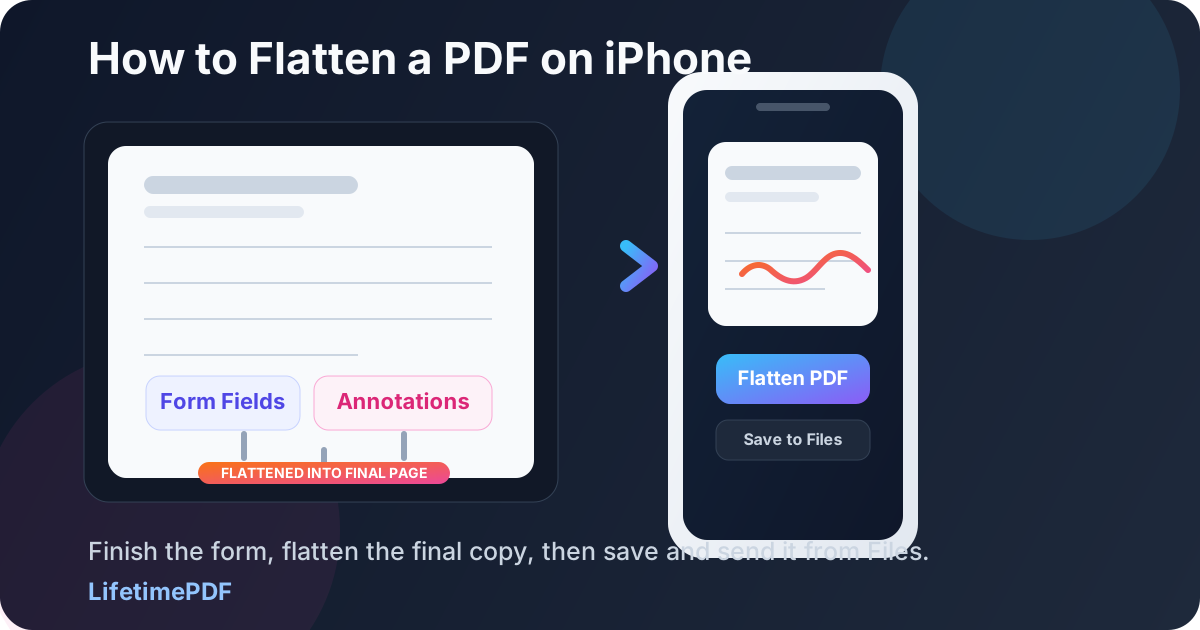
Table of contents
- Quick start: flatten a PDF on iPhone in a few minutes
- The easiest iPhone workflow for flattening PDFs
- When flattening helps and when it is unnecessary
- Step-by-step: flatten a PDF from Files, Mail, Messages, or Safari
- Flatten PDF Form Data vs Flatten PDF on iPhone
- Markup, print workarounds, and dedicated flattening tools
- Filled forms, signatures, scanned PDFs, and upload portals
- How to save, rename, and send the final iPhone copy
- Related LifetimePDF tools and guides
- FAQ (People Also Ask)
Quick start: flatten a PDF on iPhone in a few minutes
If the PDF is already on your phone and you just want a dependable final version, this is the workflow most people actually need:
- Open Flatten PDF Form Data in Safari if the document is a completed fillable form.
- Use Flatten PDF if the whole file needs a broader finalization pass.
- Choose the file from Files, a saved Mail attachment, Messages, or another iPhone file source.
- Flatten the final copy once, then download it back to Files.
- Open the result once and check the smallest important thing in the document: a date, checkbox, signature block, total, initials, or tiny text.
- If the file is still too large for an upload limit, run that finished copy through Compress PDF.
The easiest iPhone workflow for flattening PDFs
On iPhone, flattening is less about a mysterious technical button and more about finalizing the document at the right moment. The PDF may have started in Mail, a portal download, Messages, Files, or a scan workflow. By the time you are ready to flatten it, the real question is usually: is this now the final sharing copy?
If the answer is yes, a Safari-based flattening workflow is usually the least annoying route. You upload the document from wherever it already lives, create one stable output, save it to Files, and then use that reviewed copy for the next step. That is cleaner than mixing Markup edits, temporary previews, duplicate downloads, and improvisational printing workarounds on a small screen.
| Situation | Best move on iPhone | Why it helps |
|---|---|---|
| A fillable form is complete and ready to send | Flatten PDF Form Data | Visible field values stay more consistent across previews, viewers, and other devices |
| The document includes overlays, layers, or broader finalization needs | Flatten PDF | You get a more stable delivery copy instead of leaving the file half-finished |
| The PDF is only a scan with no active fields | Flatten only if you actually need a finalization pass | Some scanned PDFs already behave like static pages, so flattening may add less than you expect |
| The final file is correct but still too large | Compress after flattening | You reduce size on the exact copy you are really sending |
In plain English: flattening is a finishing step. It works best when the document is already the right document.
When flattening helps and when it is unnecessary
People often search for this because something feels unstable. A filled form looks fine on the phone but might appear blank in an email preview. A recipient keeps clicking into fields that should already be final. An upload portal shows odd formatting. Those are the moments where flattening usually earns its keep.
Flattening is usually the right move when:
- the form is complete and you are sending the final version,
- you want filled fields, checkboxes, or visible answers to behave more like normal page content,
- the PDF will be uploaded to a portal, emailed, printed, or archived,
- you are tired of viewer-specific weirdness and want a calmer delivery copy.
Flattening is usually unnecessary when:
- the document still needs edits,
- someone else still needs to complete form fields,
- you are keeping the file as a reusable blank template,
- the PDF is already just a simple static scan and the real problem is file size, not editability or appearance.
Step-by-step: flatten a PDF from Files, Mail, Messages, or Safari
Here is the practical iPhone workflow most people need.
1) Start with the exact file you plan to send
If the PDF is still sitting inside a Mail preview or a browser tab, save it first if that will make the final handoff clearer. Working from one obvious copy in Files reduces the chance that you flatten one version and accidentally attach another one later.
2) Open the flattening workflow in Safari
Go to Flatten PDF Form Data when the goal is locking completed form fields into the page, or use Flatten PDF when the whole document needs a broader flattening pass. Safari is usually the cleanest route because it keeps the process short and predictable on iPhone.
3) Upload the file from Files, Mail, Messages, or another source
Choose the document from the place where you will actually manage the final version. If it arrived by email, saving it to Files first is often worth the extra tap because the finished download is easier to compare and rename afterward.
4) Flatten the final copy once
This is not a step to repeat casually. The point is to create one stable output you can inspect and trust. If you already know the document still needs field changes, back out now instead of creating rework for yourself.
5) Open the result and check the details that matter
On iPhone, do not just glance at the first page. Check the smallest useful thing in the file: a typed name, a date, a signature area, a checked box, a total, a note, or a narrow line of text. That quick review is what turns flattening from a hopeful step into a reliable workflow.
6) Save the reviewed copy with a clear name
Good names help more than people expect. If the original is still on your phone, a clear name for the flattened version makes it much less likely that you upload the wrong file later from Files or Mail.
Recommended sequence on iPhone: save the source, flatten once, review once, then send the reviewed copy.
Flatten PDF Form Data vs Flatten PDF on iPhone
These two workflows sound similar, but they solve slightly different problems.
Flatten PDF Form Data is the better choice when the PDF is mainly a completed fillable form and you want the visible field values to become part of the page. That is the common iPhone situation for applications, school forms, HR packets, contracts, and approval documents.
Flatten PDF is the better choice when the whole file needs a broader finalization pass. That can make more sense when the document includes more than just interactive form fields or when you want the entire PDF to behave like a more fixed final version.
- Need to lock completed form fields into the page? Use Flatten PDF Form Data.
- Need a broader whole-file flattening workflow? Use Flatten PDF.
- Still entering answers? Finish the document first with PDF Form Filler.
On iPhone, choosing the right path first matters because it keeps the workflow short. Fewer detours usually means fewer version mistakes.
Markup, print workarounds, and dedicated flattening tools
iPhone users often bounce between three instincts: use Markup, try some print workaround, or use a dedicated flattening tool in Safari. All three can produce a result, but they are not equally clean.
When Markup is useful
- you need to add a quick note, shape, highlight, or visible signature,
- the document is simple and you are still in editing mode,
- you are not yet at the final delivery step.
When a print workaround feels tempting
- you want a fast hack and do not care about workflow elegance,
- you are trying to force the PDF into a more static output,
- you are working around a viewer or form issue in a hurry.
When a dedicated flattener is the cleaner answer
- the document is already complete,
- you want a stable output for email, uploads, printing, or archiving,
- you want the visible form results to survive other viewers more gracefully,
- you want to reduce the chance of casual edits or odd portal previews.
In short: Markup helps you change the document. Flattening helps you finish the document.
Filled forms, signatures, scanned PDFs, and upload portals
This is the part that matters in real life, because most people are not flattening PDFs for fun. They are finishing a document that is about to go somewhere important.
Filled forms on iPhone
This is the clearest flattening use case. If you used PDF Form Filler or completed a fillable form another way, flattening the final copy helps the visible answers behave more predictably when that file gets opened elsewhere.
Signatures and signing order
Be careful with order. If you are simply placing a visible signature appearance, you still want the document finalized before you send it. If the file uses formal digital signatures, changing the PDF after signing can invalidate them. The safe default is to finish the content first, flatten if appropriate, and then sign the exact version you actually plan to preserve or send.
Scanned PDFs
Some scanned PDFs are already pretty static by nature. In those cases, flattening may matter less than other steps like OCR PDF, Compress PDF, or signing the scan cleanly. If the real problem is that the scan is huge, sideways, or hard to read, solve that problem instead of flattening just because the word sounds useful.
Upload portals and email previews
This is where flattening often pays off. Portals and browser previews are not always elegant PDF environments. A more stable final copy can help the document survive those rougher viewing conditions with less drama.
Useful iPhone sequence for final forms: fill the form, flatten the delivery copy, reopen it, then sign, protect, or compress only if the final workflow still needs those steps.
How to save, rename, and send the final iPhone copy
Once the flattened PDF looks right, save it somewhere obvious in Files and give it a name that tells the truth. That small habit is what keeps the rest of the workflow calm.
A reviewed flattened copy is usually the version you want for:
- email attachments,
- portal uploads,
- Messages or chat sharing,
- printing from iPhone,
- keeping a stable record alongside your editable working file.
If the file is too large, compress the flattened version rather than the draft. If it contains sensitive information, protect the final reviewed copy rather than guessing which earlier version needs the password. The whole idea is to keep one obvious, trustworthy output.
Related LifetimePDF tools and guides
Flattening a PDF on iPhone is often only one step in a bigger mobile document workflow. These tools and guides pair well with it:
- Flatten PDF Form Data — lock visible form results into the page for a steadier final copy.
- Flatten PDF — broader flattening for documents that need a whole-file finalization pass.
- PDF Form Filler — finish typed fields before you flatten the final iPhone copy.
- Sign PDF — apply the signature to the exact version you intend to send.
- Compress PDF — reduce size for upload limits after the final copy is correct.
- PDF Protect — protect sensitive final copies before you share them.
Related reading on LifetimePDF: PDF Form Flattener, Flatten PDF Form Data Online, How to Fill Out a PDF Form on iPhone, How to Sign a PDF on iPhone, How to Compress a PDF on iPhone, and Scan to PDF on iPhone.
Ready to make an iPhone PDF feel final before you send it?
Flatten the reviewed copy, keep the important details visible, and send the stable version instead of the editable one.
FAQ (People Also Ask)
How do I flatten a PDF on iPhone without printing it?
Open a flattening tool in Safari, upload the PDF from Files, Mail, or Messages, flatten the final copy, download it, and review it once before you send or upload it anywhere important.
Do I need to flatten a filled PDF form before emailing it from iPhone?
Usually yes if the form is final. Flattening helps the visible field values stay more consistent across email previews, browser viewers, and other devices.
Is iPhone Markup the same as flattening a PDF?
No. Markup helps you add or change visible content, while flattening is the finishing step that turns the completed result into a more stable delivery copy.
Should I sign before or after flattening a PDF on iPhone?
Usually finalize the document first, then apply the signature to the exact version you plan to send. If the PDF uses formal digital signatures, changing it afterward can invalidate them.
What if the flattened PDF is still too large to upload from iPhone?
After you confirm the flattened copy looks right, use Compress PDF on that final version so you shrink the file you are actually sending.
Published by LifetimePDF — Pay once. Use forever.