How to Fill Out a PDF Form in Preview: Use Real Fields When They Exist, Keep Flat Forms Tidy, and Save One Clean Final Copy
To fill out a PDF form in Preview, open the file in Preview, type into the existing fields if the PDF is truly fillable, or use the Markup toolbar for light text-box fixes, then save a clearly named completed copy.
If the form is scanned, locked, or field-heavy, Preview is still useful for quick Mac work, but a browser-based PDF Form Filler is usually the cleaner way to finish and return it.
That is the short answer. The useful part is knowing when Preview is genuinely enough, when it is quietly becoming more fiddly than the form deserves, and how to avoid the classic Apple problem where Finder, Mail, iCloud Drive, and Downloads all seem to contain the same PDF until they absolutely do not.
Fastest path: start with the real PDF, test the actual fields first, use Preview only for the light parts it handles well, then save one obviously named completed version before you upload or email it back.
In a hurry? Jump to Quick start: fill out a PDF form in Preview in a few minutes.
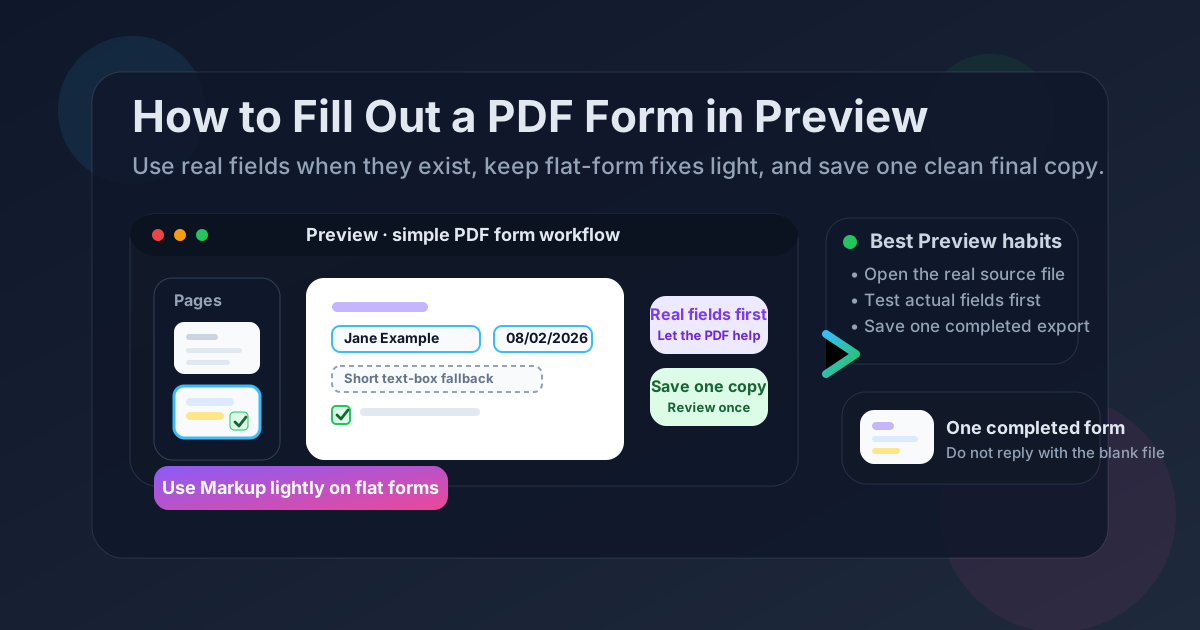
Table of contents
- Quick start: fill out a PDF form in Preview in a few minutes
- When Preview is actually a good form tool
- Step-by-step: fill out a PDF form in Preview
- Fillable fields vs flat forms in Preview
- When Preview becomes awkward and another tool is easier
- How to sign, flatten, save, and send the final copy
- Related LifetimePDF tools and Preview guides
- FAQ
Quick start: fill out a PDF form in Preview in a few minutes
If the PDF is already on your Mac and you mainly want the shortest reliable workflow, this is what usually works:
- Open the exact PDF in Preview from Finder, Mail, iCloud Drive, or Downloads.
- Click into the form and see whether the fields are genuinely fillable.
- If the fields respond normally, type directly into them.
- If the form is only partly workable, use Markup for short text-box fixes rather than trying to rebuild the whole page.
- Finish the answers before you add a signature.
- Save the completed file with a clear name like intake-form-completed.pdf and reopen that exact copy once before sending it anywhere.
When Preview is actually a good form tool
Preview is good when the form job is calm. One Mac, one local file, a small number of fields, and a form that behaves like a normal fillable PDF. In that situation, Preview can be the fastest route because it is already there and does not force you into a heavier workflow than the task needs.
It is especially useful when the PDF is simple enough that you can finish it in one sitting, save the final copy, and move on without wondering whether the file in Mail, the file in Downloads, and the file in Finder are secretly three different versions of your afternoon.
| Situation | Best move | Why it works |
|---|---|---|
| One local PDF with real fillable fields | Use Preview | It is fast, built in, and usually plenty for a straightforward form you only need to complete once. |
| A mostly simple form with one or two awkward blank spots | Use Preview, then add light Markup text boxes | You can keep the workflow local without forcing Preview to do too much. |
| A scanned, flattened, or badly built form | Use PDF Form Filler | It is usually cleaner to place text in a dedicated workflow than to wrestle every answer into position by hand. |
| A completed form headed into a picky portal | Fill first, then flatten the final copy | You keep the visible answers stable before upload instead of discovering a rendering problem at the last second. |
In plain English: Preview is good when the PDF cooperates. The more the file behaves like a stubborn picture of a form instead of a real form, the less pleasant Preview becomes.
Step-by-step: fill out a PDF form in Preview
Here is the practical workflow that prevents most of the usual Mac-side confusion.
1) Start with the real source file
If the form came from Mail, save it first or identify the exact copy you plan to return. If it came from a portal, make sure you opened the version you actually downloaded. If Finder already contains a few suspiciously similar filenames, slow down for ten seconds now instead of uploading the wrong one later with complete confidence.
2) Test whether the fields are real
Click into the first few answer areas. If the PDF contains actual fillable fields, Preview will often let you type normally. That is the cleanest outcome. If the form only looks fillable but behaves like a static page, treat that as a sign that the file is flatter or messier than it appears.
3) Use Markup only for the light parts
Preview's Markup tools can be genuinely helpful for short placed text, a date, initials, or one missing field on an otherwise usable form. They are much less charming when you are manually rebuilding every line of a multi-page packet. If you find yourself fighting placement more than answering the form, the workflow has already outgrown Preview.
4) Work top to bottom and check alignment as you go
Small placement mistakes are easier to catch while the page is still fresh in your head. Check that dates sit on the correct line, checkboxes still read clearly, and short answers are not floating too high or too far left. It is much easier to fix that immediately than to notice it after the file is signed and ready to send.
5) Save the completed file with a name that tells the truth
This matters more than people think. medical-intake-completed.pdf is a useful filename. final.pdf is an invitation to future confusion. A clear filename is the easiest way to avoid replying with the blank original when you meant to send the completed copy.
6) Reopen the saved copy once before sending
Open the finished PDF again in Preview and read it like the next person will. Make sure the answers are in the right places, the signature has not covered anything important, and the file you reopened is the completed copy rather than the original one that still looks comfortingly familiar.
Clean sequence: open the real file → test the built-in fields → use Markup lightly if needed → save the completed copy with a clear name → reopen that exact copy before you send it anywhere.
Fillable fields vs flat forms in Preview
Most PDF-form frustration comes from treating every form like the same kind of file. They are not the same.
| Form type | What it feels like in Preview | Best move |
|---|---|---|
| True fillable PDF | You can click into fields and type normally | Use Preview and keep the workflow simple. |
| Partly fillable PDF | Some fields work, others do not | Use the real fields first, then add only the missing pieces with Markup or switch tools if the page starts looking messy. |
| Flat or scanned form | The page looks like a form but behaves like an image | Use a browser-based PDF Form Filler for cleaner text placement. |
| Locked or restricted PDF | Typing or editing is blocked | Only use Unlock PDF if you are authorized to edit the file. |
The practical rule is simple: if the form already knows where the answers belong, Preview is fine. If you are manually simulating a form field over and over again, you are doing more layout work than most forms deserve.
When Preview becomes awkward and another tool is easier
Preview is helpful, but it is not sacred. Switching tools is not failure. It is usually the moment you stop wasting time.
Switch when the form is scanned or flattened
If the page behaves like a picture, Preview can still help you inspect it, but it is rarely the nicest place to complete it. A dedicated PDF Form Filler is usually easier for neat placement and a cleaner export.
Switch when the file is heading into a portal
Portal workflows reward clarity. If you already know the PDF must be filled, signed, flattened, and uploaded, it often makes more sense to complete it in a browser-based workflow and keep one obvious final copy rather than passing the file through several half-finished Mac steps.
Switch when Preview starts creating version confusion
If the same form exists in Mail, Finder, iCloud Drive, and Downloads, the real challenge is no longer typing. The real challenge is keeping the final file identifiable. Use the route that leaves you with one clearly named completed export you can trust.
Switch when the finished file still needs more work
If the PDF needs a signature, flattening, password protection, or compression right after the form is filled, move into the LifetimePDF tools that match those steps instead of forcing everything through Preview out of habit.
In short: Preview is good for small, cooperative forms. Use broader PDF tools the moment the file stops being cooperative.
How to sign, flatten, save, and send the final copy
Filling the form is usually not the very last step. Most people still need to sign it, upload it, or make sure the visible answers stay put in a picky system.
Sign after the answers are complete
If the form needs a signature, add it after the rest of the content is settled. That keeps you from redoing the signature because one date moved or a final field got missed. You can use Sign PDF for a cleaner browser-based handoff, or read how to sign a PDF in Preview if you want to stay inside the Mac workflow.
Flatten only when the destination needs it
Some portals and internal systems behave better when the final PDF is non-interactive. If that is the case, run the completed form through Flatten PDF after you confirm the answers are correct.
Protect or unlock the file only when appropriate
If the incoming form is restricted and you are authorized to edit it, use Unlock PDF first. If the final copy contains sensitive information, add protection afterward with the appropriate security step rather than leaving private form data exposed by accident.
Compress the final copy if size becomes the issue
If the completed form is too large for email or upload limits, shrink the finished version with Compress PDF. It is usually cleaner to optimize the final export than to rebuild the entire workflow from the beginning.
Good finishing order: fill the form → sign if needed → flatten only if the destination needs it → compress only if size still matters.
Related LifetimePDF tools and Preview guides
Filling out a form in Preview usually sits inside a bigger PDF workflow. These tools and guides pair well with it:
- PDF Form Filler — the cleaner route when Preview starts feeling too manual.
- Sign PDF — add a signature after the form answers are done.
- Flatten PDF — stabilize the final copy for portals and uploads.
- Unlock PDF — remove restrictions when you are authorized to work with the file.
- Compress PDF — reduce file size after the form is complete.
Related reading on LifetimePDF: how to fill out a PDF form on Mac, how to fill out a PDF form in Safari, how to fill out a PDF form on iPhone, how to fill out a PDF form on iPad, how to edit a PDF in Preview, and how to sign a PDF in Preview.
Need the form done cleanly without wrestling the layout?
Use Preview when the PDF cooperates. Use PDF Form Filler when the form is flat, scanned, portal-bound, or simply more annoying than it should be.
FAQ: How to fill out a PDF form in Preview
Can Preview fill out PDF forms on Mac?
Yes, when the PDF contains true fillable fields or only needs a few light additions. Preview is good for straightforward Mac form work, but scanned, locked, or field-heavy forms are often easier in a dedicated browser-based PDF form filler.
What if Preview will not let me type into the PDF form?
The file is usually scanned, flattened, or restricted. In that case, use Preview only for tiny text-box fixes or move the PDF into a cleaner form-filling workflow that can place text properly.
Should I use Preview or a browser-based PDF Form Filler?
Use Preview for small local jobs when the form behaves properly. Use a browser-based PDF Form Filler when the file is awkward, scanned, or headed into a portal workflow where one clean final export matters more than staying inside the Mac app.
When should I sign or flatten the PDF after filling it out?
Usually fill the form first, sign second, and flatten only if the receiving portal or workflow needs a more stable non-interactive final copy.
Why do people send the wrong completed form from Preview?
Because the original file, the Mail attachment, the Finder copy, and the completed export often look nearly identical. Save the finished PDF with a clearly different name and reopen that exact copy once before sending it.
Published by LifetimePDF — Pay once. Use forever.