How to Compress a PDF: Reduce File Size for Email, Uploads, and Sharing Without Wrecking Readability
To compress a PDF, use the exact file you plan to send, aim for the real size limit you need to hit, and shrink it just enough to keep text, signatures, receipts, and screenshots readable.
If one balanced compression pass still is not enough, split the PDF or remove unnecessary pages before you keep crushing quality just to chase a smaller number.
That is the short answer. The practical answer is that most PDF compression mistakes happen because people optimize for the wrong goal. They try to make the file as tiny as possible instead of making it small enough for email, a portal upload, a court filing rule, or a client handoff while still keeping the document usable when somebody actually opens it.
Fastest reliable path: start with the outgoing PDF, compress once with a balanced setting, review the first, middle, and last pages, then split or OCR only if the next step still demands it.
In a hurry? Jump to quick start: compress a PDF in about 5 minutes.
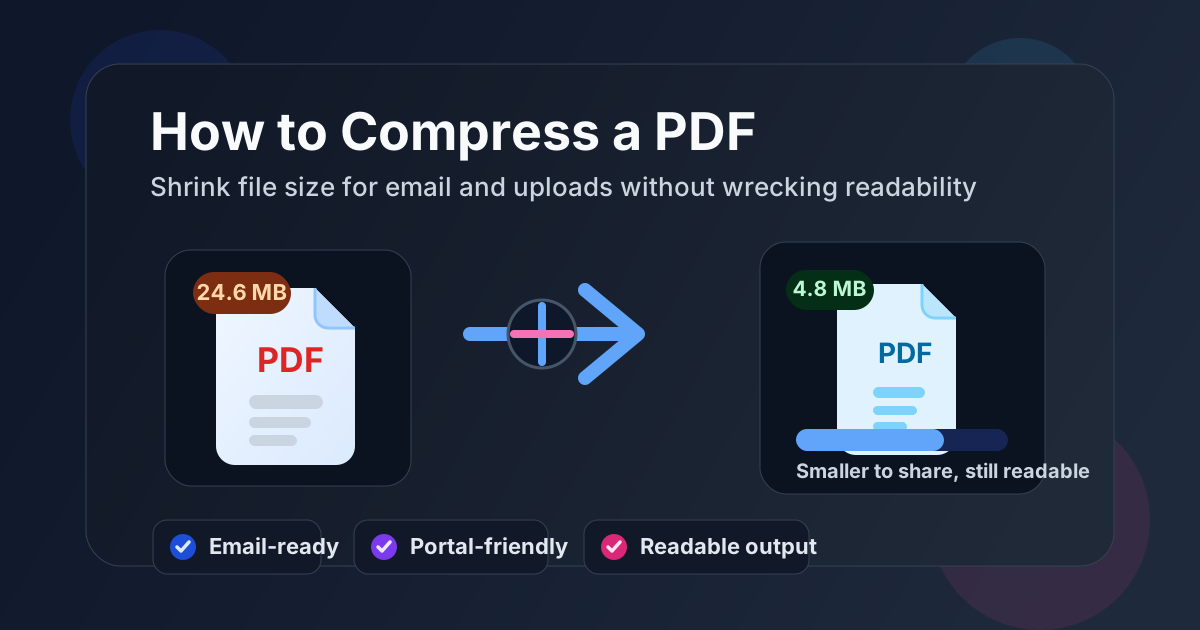
Table of contents
- Quick start: compress a PDF in about 5 minutes
- When PDF compression actually helps
- Why PDFs get large in the first place
- Step-by-step: how to compress a PDF cleanly
- How to keep the PDF readable after compression
- Common compression mistakes that cause bad results
- When to split, OCR, or remove pages instead
- Related LifetimePDF tools and guides
- FAQ
Quick start: compress a PDF in about 5 minutes
If your real job is simply make this file small enough to send without creating a mess, use this order:
- Open the exact PDF you plan to email, upload, or share.
- Know the real target: under an email limit, under a portal cap, or just easier to share.
- Run one balanced pass with Compress PDF.
- Check the first, middle, and last pages for tiny text, signatures, charts, and photos.
- If the file still is not small enough, remove dead pages or use Split PDF before you keep squeezing quality.
- If the pages are scans and you need searchable text, run OCR PDF after the size problem is under control.
When PDF compression actually helps
Compression matters when the document is already doing its job but the file size keeps getting in the way. That usually shows up in a few predictable situations:
Email attachments
The PDF is fine, but Gmail, Outlook, or another mailbox limit says the file is too big.
Portal uploads
A form, job board, school portal, visa upload, or court filing system has a strict size cap.
Shared packets
A proposal, scan packet, or evidence bundle needs to download faster and open more smoothly for someone else.
Mobile viewing
The PDF is technically usable, but it feels too heavy for phone viewing, chat sharing, or repeated download.
Compression helps less when the real problem is not size at all. If a scanned PDF is unreadable, compression will not rescue bad scanning. If the wrong pages are in the file, compression will not fix the packet. If you need searchable text, that is an OCR problem, not a compression problem.
Easy mistake to avoid
People often reach for PDF compression because it is the most obvious tool. Sometimes the better move is to remove duplicate pages, split the file into logical parts, or stop using a giant scan when a smaller export would do the job better.
Why PDFs get large in the first place
Most bloated PDFs are not bloated for mysterious reasons. The size usually comes from one of a handful of sources.
| What makes the PDF large | What it usually looks like | Why compression helps |
|---|---|---|
| Scanned pages | Paper documents saved as image-heavy PDFs | Compression can shrink oversized scan images without changing the page count |
| High-resolution photos | Receipts, site photos, IDs, screenshots, or design exports bundled into one file | Photos often carry more detail than the destination actually needs |
| Print-oriented exports | A PDF built for production print but now being emailed or uploaded | Compression can make the file more web-friendly for sharing |
| Too many unnecessary pages | Blank pages, duplicate pages, appendices, or extra screenshots | Sometimes the best size reduction starts with removing clutter |
| Mixed document types in one packet | Receipts, contracts, photos, and scanned notes all merged together | Compression helps, but splitting often gives a cleaner outcome |
Step-by-step: how to compress a PDF cleanly
A good compression workflow is mostly about deciding what you are optimizing for before you touch the file.
1) Start with the exact outgoing copy
Compress the file that is actually leaving your hands. If you optimize one draft and then email a different export, you did the work on the wrong document. This sounds obvious, but it is one of the easiest ways to waste time.
2) Know the size target before you compress
“Smaller” is not a real target. Under 10 MB for a portal, under 25 MB for email, or just easier to share in chat are real targets. The right amount of compression depends on the job the PDF needs to do next.
- Email target: keep the file comfortable for common attachment limits.
- Upload target: match the portal or system rule instead of guessing.
- General sharing target: make the file light enough to open quickly without over-optimizing it.
3) Compress once with a balanced setting
Use Compress PDF and start with a sensible middle-ground pass. In real workflows, the first balanced pass often solves the problem without making the document look weak. Going straight to maximum shrink mode is how people end up with fuzzy signatures, ugly charts, and receipts nobody can read.
4) Review the parts most likely to break
Do not just glance at the cover page. Check the first, middle, and last pages, then specifically look at the elements that matter most:
- small text in receipts, invoices, and scanned forms
- signatures, initials, stamps, and checkboxes
- charts, screenshots, or tables that depend on fine detail
- photo evidence where the important detail is not obvious at a distance
- pages that already looked marginal before compression
5) If needed, solve the next problem with the right tool
If the file still misses the target, decide whether the answer is more compression or a different move. Often the better next step is Split PDF, removing unnecessary pages, or building separate packets for separate purposes. If the issue is that the scan still behaves like a picture, use OCR PDF after compression so the text becomes searchable.
Reliable sequence: choose the real outgoing file → know the actual size target → compress once → review readability → split, trim, or OCR only if the next step still demands it.
How to keep the PDF readable after compression
Readability is where good compression and bad compression part ways. The file can be smaller and still fail the moment a reviewer cannot read the content that actually matters.
Protect fine text
Receipts, legal exhibits, forms, and financial statements usually fail first when tiny text gets soft or muddy.
Protect proof details
If the PDF contains signatures, seals, stamps, handwritten notes, or evidence photos, review those elements directly instead of assuming the whole file is fine.
Protect purpose
A file for phone viewing, a file for a court system, and a file for print handoff do not all tolerate the same compromises.
If the PDF is mainly text with clean digital pages, you can usually be more aggressive. If it is full of scans, photographed pages, charts, or screenshots, be more cautious. Compression that looks fine on a casual glance can still ruin the one detail the next person needed.
Common compression mistakes that cause bad results
Most bad PDF compression outcomes come from the same few habits.
| Mistake | What usually happens | Better move |
|---|---|---|
| Compressing repeatedly over and over | The file gets smaller, but readability keeps dropping | Start from the original outgoing PDF when trying a stronger pass |
| Chasing the smallest possible number | The PDF meets a size goal but becomes irritating or risky to use | Aim for “small enough,” not “smallest imaginable” |
| Ignoring the actual destination | You optimize for the wrong constraint | Match the compression level to the email, portal, or sharing workflow |
| Using compression to solve a page-count problem | The file stays clumsy because the wrong pages are still inside it | Remove extras or split the packet before over-compressing it |
| Forgetting that scans and OCR are different issues | The file is smaller but still not searchable | Compress for size, then OCR for text behavior if needed |
The cleanest mindset is simple: compression is a delivery step. It should help the PDF travel better, not quietly damage the document just to satisfy your own urge to make the file tiny.
When to split, OCR, or remove pages instead
Sometimes the smartest way to “compress” a PDF is not more compression at all.
Split the PDF when one file is doing too many jobs
If a packet contains a contract, appendix, photo evidence, and reference material all in one file, consider Split PDF. Two clear files often work better than one overstuffed file.
Remove pages when the extras do not belong
Blank pages, duplicate screenshots, outdated drafts, and decorative filler all make compression work harder than it should. If the page does not need to travel, do not spend quality budget keeping it.
Use OCR when the scan needs to behave like text
Compression reduces weight. OCR PDF adds a searchable text layer. If you need people to search, copy, or highlight text inside a scanned PDF, OCR is the real next step.
Blunt version: if compression is starting to hurt the document, stop asking compression to solve the wrong problem.
FAQ
How do I compress a PDF without ruining quality?
Start with the exact outgoing PDF, use a balanced compression pass first, and then review the smallest important text, signatures, charts, and images before compressing further. The goal is the smallest usable file, not the absolute tiniest one.
Why is my PDF so large in the first place?
Large PDFs usually come from scanned pages, high-resolution photos, print-oriented exports, duplicate pages, or mixed packets that include more content than the next workflow actually needs.
Should I compress a scanned PDF or run OCR first?
If the problem is file size, compress first. If the problem is that the scan still behaves like an image and you need searchable text, run OCR on the finished PDF afterward.
What if compressing still does not make the PDF small enough?
Split the PDF into logical sections, remove unnecessary pages, or rebuild the packet more cleanly before you keep forcing lower quality. That usually produces a better result than repeated over-compression.
Can I compress a PDF on iPhone, Windows, or Mac?
Yes. A browser-based workflow works across iPhone, iPad, Windows, Mac, Linux, and Chromebook. The real differences are where the file starts and how you handle it before or after compression.
Published by LifetimePDF — Pay once. Use forever.