How to Compress a PDF on Windows: Shrink Scans, Edge Downloads, and Outlook Attachments Fast
To compress a PDF on Windows, open LifetimePDF's Compress PDF tool in Edge or Chrome, choose the file from File Explorer, Downloads, OneDrive, or a saved Outlook attachment, compress it once, and save the smaller copy back to your PC.
If the PDF is still too large after one pass, remove blank pages or crop wasted scan borders before compressing again so the file gets lighter without making the text miserable to read.
That is the short version. The useful part is knowing when compression is enough, when the real problem is scan waste, and how to avoid the classic Windows mistake of creating a smaller copy and then accidentally emailing the original from Downloads or Outlook anyway. On Windows, the best workflow is usually simple: start with the actual file you plan to send, shrink it once, inspect the fine print, and only then decide whether the document needs extra cleanup.
Fastest path: open Compress PDF on Windows, shrink the file once, review the smallest useful text, then use page deletion, cropping, or OCR only if the finished copy still needs help.
In a hurry? Jump to Quick start: compress a PDF on Windows in 3 minutes.
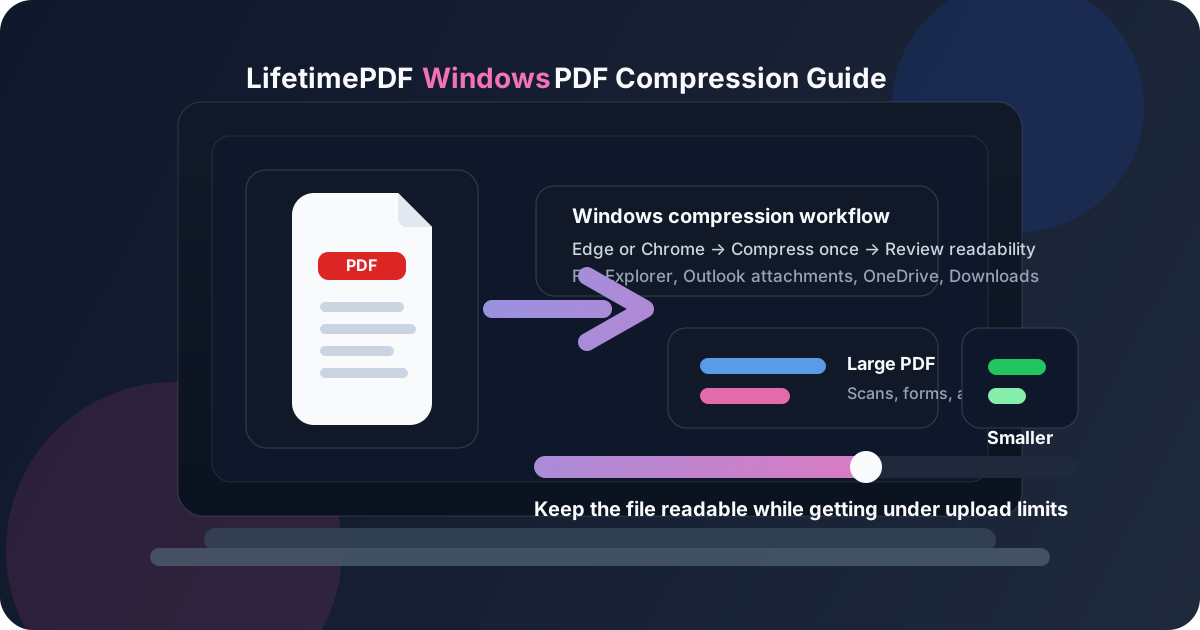
Table of contents
- Quick start: compress a PDF on Windows in 3 minutes
- The easiest Windows workflow for smaller PDFs
- Step-by-step: compress a PDF from File Explorer, Outlook, OneDrive, or Downloads
- When compression is enough and when cleanup works better
- Common Windows PDF sources and the best move for each
- Common Windows compression problems and quick fixes
- Best order for scans, OCR, and compression on Windows
- Related LifetimePDF tools and guides
- FAQ (People Also Ask)
Quick start: compress a PDF on Windows in 3 minutes
If the file is already on your PC and you just need it smaller for email, a portal, or a chat attachment, this is the workflow most people want:
- Open Compress PDF in Edge or Chrome.
- Choose the file from File Explorer, Downloads, Desktop, Documents, OneDrive, or a saved Outlook attachment.
- Compress the PDF once and download the smaller copy.
- Open the result and check the smallest useful text before you send it anywhere important.
- If the file is still too large, remove blank pages with Delete Pages or trim wasted scan borders with Crop PDF.
The easiest Windows workflow for smaller PDFs
On Windows, the hard part is rarely finding a compression button. The real friction is file handling. The PDF might be sitting in File Explorer, buried in Downloads, attached to Outlook, synced through OneDrive, or opened in Edge after a browser save. Once you know where the source file lives and where the final copy should go, shrinking it is straightforward.
A browser-based workflow is often the least annoying route because it keeps the sequence short: choose the file, make one smaller version, save it clearly, and move on. That is cleaner than juggling several duplicate Windows copies and later wondering which one is the version you actually meant to upload.
| Situation | Best move | Why it works |
|---|---|---|
| A normal PDF is slightly above an upload limit | Compress once | You probably need a lighter copy, not a different document |
| A scan has huge margins, dark copier edges, or blank backs | Clean up before or immediately after one test pass | Wasted border space and unnecessary pages add size without adding value |
| The file came from Outlook or a portal download | Save the attachment first, then compress | Working from a stable copy reduces the chance of sending the original later |
| You need to send a scan by email, Teams, Slack, or a portal | Compress the final delivery copy | Smaller files upload, preview, and forward more comfortably |
In plain English: compression works best when the document is already the right document. If the document itself is messy, cleanup is usually the bigger win.
Step-by-step: compress a PDF from File Explorer, Outlook, OneDrive, or Downloads
Here is the practical Windows workflow most people actually need.
1) Start with the file you really plan to send
If the PDF is still inside Outlook or sitting in a browser preview, save it first. Working from a stable file in File Explorer prevents the classic Windows mistake of compressing one version and then attaching the larger original from a different folder.
2) Open Compress PDF in Edge or Chrome
Go to LifetimePDF Compress PDF on your Windows PC. A browser workflow is convenient because it gives you one clear path to upload, shrink, download, and compare the result.
3) Upload the PDF from File Explorer or another saved location
Choose the file from Downloads, Desktop, Documents, OneDrive, or the folder where you store work files. If it came from Outlook, saving it first usually makes the rest of the job cleaner and more predictable.
4) Compress the PDF once
One careful pass gives you something real to judge. Guessing that you need multiple rounds before you even look at the output is how people end up with fuzzy signatures, muddy tables, and small text that feels exhausted.
5) Review the smallest useful text
Do not just inspect the headline on page one. Check the smallest useful thing in the file: a receipt total, a form field, a signature block, a table value, a legal clause, or a paragraph in the middle of the scan. If those still feel comfortable, the result is usually good enough.
6) Save the smaller copy with a clear name
Give the output a filename you will recognize quickly, especially if the original and compressed versions both remain on your PC. On Windows, good filenames solve a surprising amount of confusion.
Need the fastest desktop size fix? Compress first, then clean up only if the result still misses your target.
When compression is enough and when cleanup works better
Many people keep recompressing because they assume smaller file size comes only from stronger compression. On Windows, that is often the wrong instinct.
Compression is usually enough when:
- the PDF came from Word, Google Docs, a business app, or another clean digital export,
- the file is only slightly above the upload limit,
- the pages are already in the right order and reasonably clean,
- you mainly need easier sharing by email, Teams, Slack, or a web portal.
Cleanup usually works better when:
- the PDF includes blank backs, duplicate scans, or pages you do not need,
- dark scanner edges or giant margins waste space,
- only part of the document actually needs to be sent,
- the file came from photographed pages or scan apps and is image-heavy from the start.
This distinction matters because cleanup can reduce size while also making the document more professional. Removing two useless pages is better than making every useful page look worse.
Common Windows PDF sources and the best move for each
Outlook attachments
Save the attachment to a normal folder first, compress the saved copy, and then send or upload the smaller version. That keeps the workflow clear and reduces the chance that the original large attachment comes back by mistake.
Downloads folder PDFs
Downloads folders get messy quickly. If you compress a file there, rename the smaller version immediately or move it to a clearer folder before you forget which file is which.
OneDrive PDFs
If the file is part of a shared workspace, save the smaller copy with an obvious name before replacing anything. That makes it easier to confirm you compressed the right version before the file syncs or gets forwarded again.
Scanner or copier exports
These are often the biggest Windows PDFs because each page behaves like an image. Compression helps, but the smartest workflow often includes cleanup too. If the pages have dark borders, crop them. If the file has blank pages or duplicates, remove them before you keep squeezing the whole bundle.
Portal downloads and form packets
These are the situations where upload limits stop being theoretical. You do not need the smallest PDF in history. You need the smallest PDF that still passes the portal and keeps the text readable.
Common Windows compression problems and quick fixes
The file is still too large after compression
Delete blank or irrelevant pages with Delete Pages. If the file is scan-heavy, trim unused borders with Crop PDF before making another smaller copy.
The compressed PDF looks softer than expected
That usually means the file was image-heavy to begin with. Go back to the cleaner source if possible, remove obvious waste, and compress again more carefully instead of repeatedly shrinking the same weakened copy.
I keep opening the original instead of the smaller version
Save the compressed output with a clear name like invoice-compressed.pdf or application-upload-copy.pdf. This sounds trivial, but on Windows it matters.
The PDF also needs search, copy, or text selection
If the file is a scan, run OCR PDF after the page set is clean. Searchability and smaller file size solve different problems, so treat them as separate steps.
The document is sideways and oversized
Rotate it first with Rotate PDF, then decide whether it also needs cropping, OCR, or compression. A lot of Windows scan problems come in clusters.
Best order for scans, OCR, and compression on Windows
If the PDF started as a scan, the best order is usually not random. This sequence is the safest default:
- save the file to a stable Windows folder,
- rotate pages if orientation is wrong,
- delete blank or duplicate pages,
- crop wasted borders if the scan has dead space,
- run OCR if you need searchable text,
- compress the final delivery copy if size still matters.
That order works because it avoids optimizing the wrong version. You do the structural cleanup first, then searchability if needed, then file-size reduction for the copy you actually plan to send.
Best desktop cleanup order: Rotate → Delete → Crop → OCR → Compress.
Related LifetimePDF tools and guides
Compressing a PDF on Windows is often one step in a bigger document workflow. These tools pair well with it:
- Compress PDF — reduce file size for uploads, email, and sharing.
- Delete Pages — remove blank, duplicate, or unnecessary sheets before compressing again.
- Crop PDF — trim oversized scan borders and wasted white space.
- OCR PDF — make cleaned scans searchable and selectable.
- Rotate PDF — fix sideways pages before the final size-reduction step.
Related reading on LifetimePDF: Compress PDF, Compress PDF Online, Scan to PDF on Windows, How to OCR a PDF on Windows, How to Crop a PDF on Windows, How to Delete Pages from a PDF on Windows, and How to Password Protect a PDF on Windows.
FAQ: How to compress a PDF on Windows
How do I compress a PDF on Windows without Adobe Acrobat?
Open a browser-based PDF compressor in Edge or Chrome on your Windows PC, upload the file from File Explorer or a saved attachment, compress it once, download the smaller copy, and check that the important text still reads clearly.
Why is my PDF still too large after compression on Windows?
Because the file may be full of scan-heavy pages, dark borders, blank backs, or pages you do not really need. Removing waste often helps more than repeatedly shrinking the whole document.
Will compressing a PDF on Windows reduce quality?
It can if you push too far, especially with scanned PDFs. One careful compression pass is usually safer than repeated passes on the same file.
Should I OCR before or after compressing a PDF on Windows?
Usually clean up the page set first, OCR if you need searchability, and compress the final delivery copy if it still needs to be smaller. That keeps the workflow more predictable.
What is the easiest way to shrink an Outlook attachment PDF on Windows?
Save the attachment to a normal folder first, compress the saved copy, then send or upload the smaller version. That is safer than working from a temporary mail preview and accidentally attaching the original again.
Published by LifetimePDF — Pay once. Use forever.