How to Compress a PDF on Android: Make Files, Gmail Attachments & Drive Copies Smaller Fast
To compress a PDF on Android, open LifetimePDF's Compress PDF tool in Chrome, upload the file from Files, Gmail, Google Drive, WhatsApp, or Downloads, compress it once, and save the smaller copy.
If the PDF is still too large, remove blank pages or crop wasted scan borders before compressing again so the file gets smaller without turning small text into mush.
That is the short version. The useful part is knowing when Android compression is enough, when the real problem is a messy scan or extra pages, and how to avoid sending the wrong copy after you download a smaller version back to your phone. A clean mobile workflow takes less time than wrestling with duplicate attachments, giant scan PDFs, or repeated shrinking that only makes the document worse.
Fastest path: save the PDF somewhere obvious in Files, compress it once in Chrome on Android, then use page deletion, cropping, or OCR only if the finished file still needs help.
In a hurry? Jump to Quick start: compress a PDF on Android in 3 minutes.
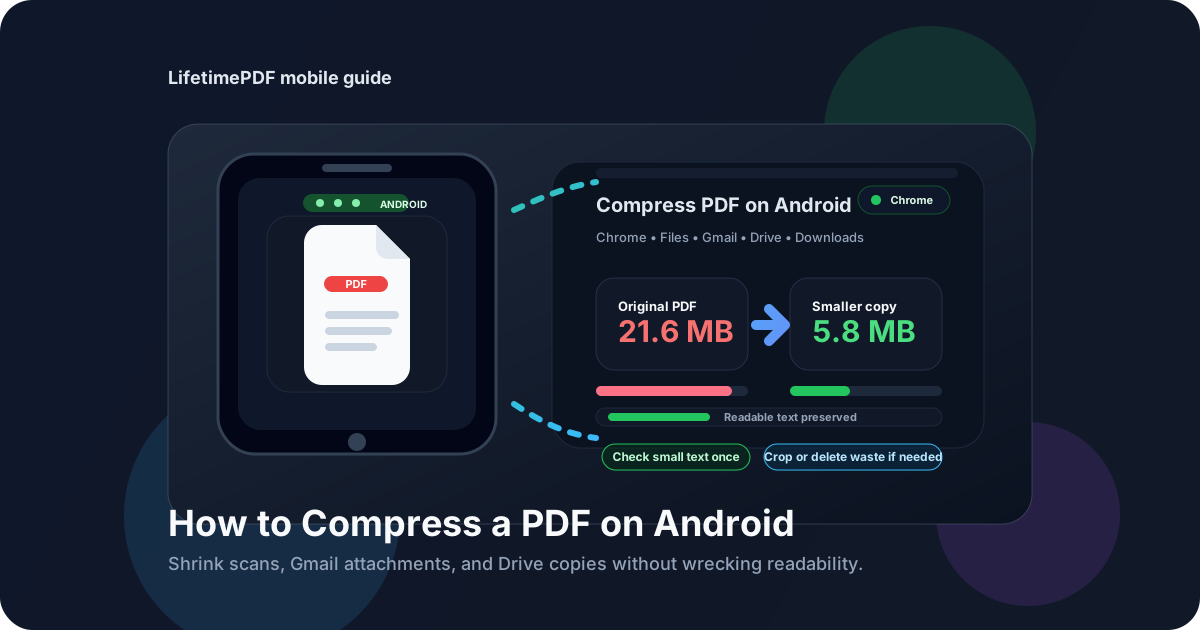
Table of contents
- Quick start: compress a PDF on Android in 3 minutes
- The easiest Android workflow for smaller PDFs
- Step-by-step: compress a PDF from Files, Gmail, Drive, or Downloads
- When compression is enough and when cleanup works better
- Common Android PDF situations and the best move for each
- Common Android problems and quick fixes
- Best order for scans, OCR, and compression on Android
- Related LifetimePDF tools and guides
- FAQ
Quick start: compress a PDF on Android in 3 minutes
If the file is already on your phone and you just need it smaller, this is the workflow most people want:
- Open Compress PDF in Chrome on your Android phone.
- Choose the file from Files, Downloads, Google Drive, a saved Gmail attachment, or another location you can browse easily.
- Compress the PDF once and download the smaller copy.
- Open the result and check the smallest useful text before you upload, email, or message it anywhere.
- If the file is still too large, remove blank pages with Delete Pages or trim wasted borders with Crop PDF.
The easiest Android workflow for smaller PDFs
Most Android PDF jobs move through three places: where the file first arrived, where you keep it, and the browser tab where you actually shrink it. The smoothest compression workflow uses each one for what it does best.
- Gmail, Drive, WhatsApp, or another app is often where the PDF first lands.
- Files is where you keep the original and the smaller copy with a name that still makes sense later.
- Chrome is where you compress the file cleanly without turning the job into a full editing project.
That flow sounds boring, but it prevents the most common Android mess: shrinking one copy, then accidentally sending the older large attachment because both filenames look nearly identical. Good file handling is half the job.
| Situation | Best move | Why it works |
|---|---|---|
| A normal PDF is just a little above an upload limit | Compress once | You probably only need a lighter copy, not a different document |
| A phone scan has giant dark borders | Crop before another compression pass | Wasted image area is making the file heavier than it needs to be |
| The PDF includes blank scanner pages or duplicate pages | Delete waste first | Removing pages often helps more than aggressive shrinking |
| You need searchable text for the final file | Clean up, then OCR, then compress if needed | That keeps you from optimizing the wrong version of the document |
| The PDF is already readable and only needs to email faster | Do the lightest possible compression | The goal is delivery, not maximum shrinkage at any cost |
Step-by-step: compress a PDF from Files, Gmail, Drive, or Downloads
1. Make sure you are working from the right copy
On Android, the same PDF can exist in Gmail, Drive, WhatsApp, Downloads, and Files all at once. Before you shrink anything, confirm which version is the one you actually need to send or upload.
2. Save the file somewhere easy to find again
Even if the PDF arrived as an attachment or chat download, it helps to save it into a predictable location first. That makes it much easier to upload the right file and spot the smaller copy after download.
3. Open Compress PDF in Chrome on Android
A browser-based workflow is usually the least annoying route on Android. You upload the file, create one smaller version, save it back to your phone, and move on without installing another app just for a one-off PDF problem.
4. Compress the PDF once
One careful pass is usually enough. If the document is a contract, form, receipt, invoice, statement, school PDF, or scanned packet, repeated shrinking often costs more readability than it saves in file size.
5. Check the smallest useful text
Do not judge the result at a full-page zoomed-out view. Open the compressed copy and inspect the things that fail first: receipt totals, signatures, fine print, table rows, stamps, handwritten notes, and form labels.
6. Only do extra cleanup if the file is still too large
If the size still misses the target, the answer may not be more compression. It may be removing empty pages with Delete Pages or trimming scan borders with Crop PDF.
7. Save the smaller copy with a clear name
Rename it to something obvious such as invoice-smaller.pdf or application-upload-copy.pdf. That tiny step prevents a lot of Android confusion later when the original and compressed versions sit side by side.
Need the shortest route? Compress once, review the fine print, then delete waste or crop margins only if the file still fails the upload limit.
When compression is enough and when cleanup works better
Compression solves one kind of problem: the file is basically fine, just too heavy. Cleanup solves another: the PDF carries unnecessary baggage.
Compression is usually enough when:
- The PDF is already clean and readable.
- You only need to get under an email or portal size limit.
- The file is a normal digital PDF rather than a messy phone scan.
Cleanup usually helps more when:
- The PDF contains blank pages, duplicate scans, or a page you do not need.
- The scan has huge white or dark borders around the actual content.
- The document is a photographed packet where image-heavy pages dominate the file size.
The practical Android mindset is simple: do the smallest amount of work that gets the result you need. If one compression pass gets you under the limit, you are done. If not, clean the waste instead of crushing the whole document harder.
Common Android PDF situations and the best move for each
Gmail attachment that is too large to forward or upload
Save the attachment first, then compress it from Files or Downloads. That keeps the smaller copy separate from the original email attachment and makes it easier to share the correct version afterward.
Google Drive PDF that must fit a portal limit
Download or open the copy you actually want to shrink, compress it, then save the smaller version back into Drive with a name that tells you which one is the upload copy.
WhatsApp or chat PDF that came through as a scan
If it looks like phone photos inside a PDF wrapper, expect borders and oversized image pages. Compression helps, but cropping margins or deleting accidental extra pages may help even more.
Receipt, invoice, or statement PDF with tiny numbers
Be conservative. These files often still need the smallest text to remain trustworthy. After compression, zoom in on totals, dates, account details, and line items before you send anything official.
School forms, HR forms, or application packets
If the portal only cares about file size, a single careful compression pass is often enough. If the packet is bloated because it includes blank backs, duplicate scans, or unnecessary pages, clean that waste before trying again.
Common Android problems and quick fixes
The PDF is still too large after compression
Look for blank pages, duplicate pages, giant borders, or photo-heavy scans. Those issues often explain stubborn file sizes better than the compression tool itself.
The compressed copy looks fuzzy
This usually means the document was already image-heavy or that you shrank it too aggressively. Go back to the cleaner original if possible, then aim for one lighter pass instead of stacking multiple smaller copies on top of each other.
I cannot tell which file is the original anymore
Rename the smaller copy immediately after download. Android file lists get confusing fast when everything ends in numbers like (1), (2), or final-final.
The portal rejects the PDF even though it is smaller now
Some portals care about more than size. If the file still fails, check whether it needs OCR, a cleaner page structure, fewer pages, or a different file naming convention.
The PDF came from a scan app and includes dark edges
That is a cropping problem as much as a compression problem. Trimming those borders can reduce wasted image data and often produces a cleaner-looking result too.
Best order for scans, OCR, and compression on Android
If the PDF began as a scan, the order of operations matters. The cleanest sequence for most Android users looks like this:
- Start with the best available source copy.
- Delete blank pages or duplicates if they exist.
- Crop wasted borders if the scan is oversized.
- Run OCR PDF if you need searchable text.
- Compress the final working copy for delivery if size still matters.
That order prevents you from shrinking a messy file first and then discovering you optimized a version that still needed cleanup. On mobile, fewer passes usually means better results.
Cleaner final workflow: remove waste first, OCR if needed, then compress the finished copy you actually plan to send.
Related LifetimePDF tools and guides
Compressing a PDF on Android is often just one step in a broader cleanup workflow. These tools and guides fit naturally around it:
- Compress PDF - shrink the file for uploads, email, and mobile sharing.
- Delete Pages - remove blank pages, duplicates, and other waste before compressing again.
- Crop PDF - trim oversized scan borders that inflate file size.
- OCR PDF - make scanned text searchable before you archive or share it.
- Split PDF - break a large packet into smaller files when only one section matters.
Helpful related reading
- How to Compress a PDF on iPhone
- How to Delete Pages from a PDF on Android
- How to OCR a PDF on Android
- Crop PDF to Remove White Margins Online
- Compress PDF
Ready to make the file smaller and move on?
Best workflow for most Android PDFs: compress once → check fine print → remove waste only if the file still misses the target.
FAQ
How do I compress a PDF on Android without installing an app?
Open a browser-based PDF compressor in Chrome on your Android phone, upload the file from Files, Gmail, Drive, WhatsApp, or Downloads, compress it once, save the smaller copy, and check the result before sharing it.
Can I compress a scanned PDF on Android?
Yes. If the scan still feels oversized after compression, look for blank pages, giant borders, or duplicate pages. Cleaning those up often helps more than another aggressive compression pass.
Will compressing a PDF on Android reduce quality?
It can, especially with photographed pages and tiny text. That is why one careful pass plus a quick readability check usually works better than repeatedly shrinking the same file.
Why is my Android PDF still too large after compression?
The real problem may be unnecessary pages, oversized scan borders, or a document that is mostly images. Delete the waste or crop the margins before trying again.
Should I OCR before or after compressing a PDF on Android?
Usually clean the pages first, OCR if you need searchable text, and compress the final delivery copy only after the document is already in the shape you want to keep.
Published by LifetimePDF — Pay once. Use forever.