How to Delete Pages from a PDF on Android: Remove Extras from Files, Gmail & Drive Without Starting Over
To delete pages from a PDF on Android, open a browser-based Delete Pages tool in Chrome, choose the file from Files, Gmail, Google Drive, or Downloads, remove the pages you do not want, save the cleaned PDF, and open it once before sharing.
If you only need one section rather than a cleaned full document, Extract Pages is usually the better Android workflow.
That is the short answer. The useful part is avoiding the messy mobile version of this job: editing the wrong attachment copy, deleting the wrong page because the numbering does not match, or saving a cleaned file with a name that is impossible to recognize later. A good Android routine keeps the PDF smaller, cleaner, and easier to send without forcing you into a desktop app.
Fastest path: save the source PDF somewhere obvious in Files, open LifetimePDF's Delete Pages tool in Chrome, remove the extras in one pass, then save the cleaned copy with a filename that clearly separates it from the original.
In a hurry? Jump to Quick start: delete PDF pages on Android in a few minutes.
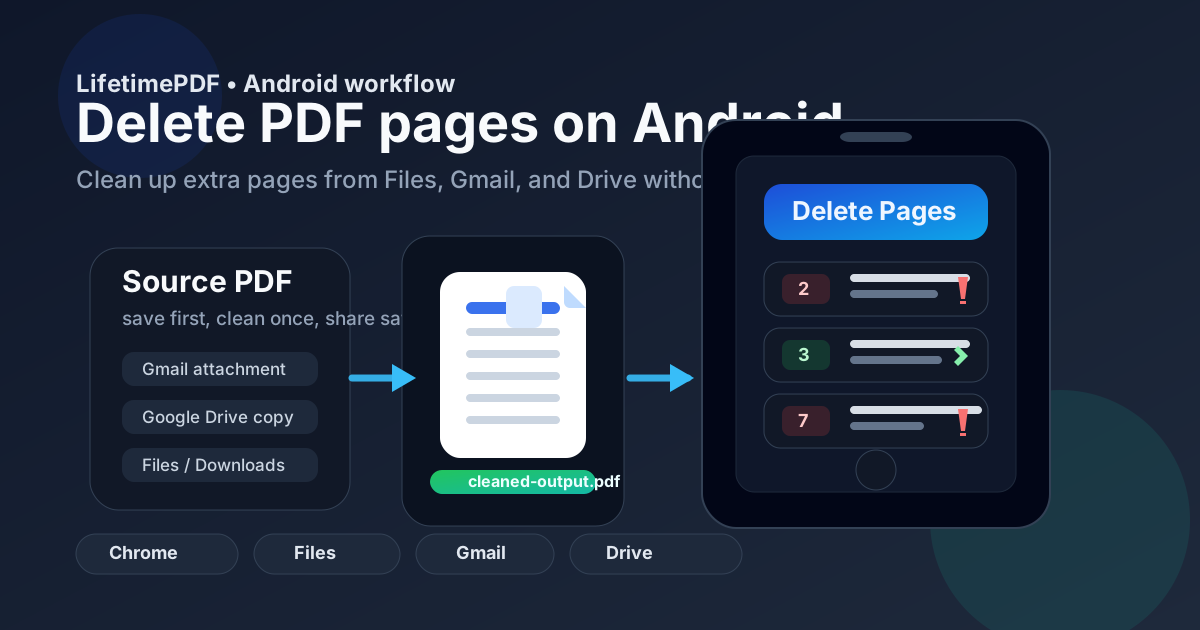
Table of contents
- Quick start: delete PDF pages on Android in a few minutes
- The easiest Android workflow for deleting pages
- Step-by-step: remove the pages you do not need
- Delete pages vs extract pages vs split PDF on Android
- Working with PDFs from Gmail, Drive, Files, WhatsApp, and Downloads
- Best Android use cases for page cleanup
- Common Android problems and quick fixes
- Quality, privacy, and file-handling tips
- Related LifetimePDF tools and guides
- FAQ (People Also Ask)
Quick start: delete PDF pages on Android in a few minutes
If you already know which pages should go, this is the fastest route:
- Open Delete Pages in Chrome on your Android phone.
- Choose the PDF from Files, Downloads, Gmail, Google Drive, or another saved location.
- Check the real PDF page numbers before you remove anything.
- Delete the unwanted pages or ranges in one pass.
- Save the cleaned PDF with a clear filename and open it once to confirm the result.
The easiest Android workflow for deleting pages
Most Android PDF cleanup jobs move through three places: where the file first arrived, the place where you store it, and the browser tab where you actually edit it. The smoothest delete-pages workflow uses each one for what it does best.
- Gmail, Drive, WhatsApp, or another app is usually where the PDF first lands.
- Files is where you keep the original and save the cleaned copy with a name that still makes sense later.
- Chrome is where you remove pages cleanly without turning the job into a bigger editing project.
Android gets confusing when the same PDF exists in multiple places at once: a Gmail attachment preview, a Drive copy, a cached download, and a renamed file in Downloads. If you skip the file-handling step, you can easily delete the right pages from the wrong copy.
The simplest habit is this: save the source PDF locally first, edit that version, then rename the finished file immediately. That one habit prevents most Android PDF mistakes.
Step-by-step: remove the pages you do not need
1) Save the source PDF where you can actually find it again
If the file came from Gmail, Drive, Slack, Teams, or WhatsApp, save it to a clear location in Files before you start editing. Attachment previews are fine for reading, but they are a bad place to make file-management decisions.
2) Open Delete Pages in Chrome on Android
Open LifetimePDF Delete Pages in Chrome, choose the PDF from Files or Downloads, and wait until you can see the page structure clearly. This is the point where you should decide whether you are cleaning a full document or whether you only need one small section.
3) Check the real PDF page numbers first
A very common mistake is trusting the printed number inside the PDF rather than the file's actual page index. A cover page, title page, or blank separator can shift everything by one or two pages. If the document footer says page 1, that may still be page 2 or 3 in the file itself.
4) Remove extra pages in one pass
Delete the blank scan pages, duplicate receipts, unused appendix pages, unwanted cover sheets, or internal notes in one batch if possible. Doing the whole cleanup at once is easier than reopening the file several times and wondering which version is the newest.
5) Save the result with a filename that makes the difference obvious
Avoid names like document-final-new2.pdf. Better names are things like lease-cleaned.pdf, packet-without-appendix.pdf, or receipt-bundle-trimmed.pdf. On Android, a good filename is not cosmetic. It is how you avoid sending the wrong file later.
6) Open the cleaned PDF once before you send it anywhere
Give the result a quick review. Make sure the right pages are still there, the order still makes sense, and you did not remove something that looked disposable but turned out to matter.
Delete pages vs extract pages vs split PDF on Android
These actions sound similar, but they solve different problems:
Delete Pages
Best when the original PDF is mostly correct and you just need to remove a few pages. This is ideal for blank scans, duplicate pages, extra forms, internal notes, or a cover sheet that should not be shared.
Extract Pages
Best when you only need one section from a larger document. If you want pages 8 to 12 and nothing else, extraction is usually faster and safer than deleting every other page around them.
Split PDF
Best when one file needs to become several smaller files. If you are turning a long packet into separate chapters, invoices, or attachments, use Split PDF instead of using delete-pages repeatedly.
Working with PDFs from Gmail, Drive, Files, WhatsApp, and Downloads
Android file handling is where most real-world friction happens. The edit itself is easy. Knowing which copy is the real one is the part that trips people up.
Gmail attachments
If the PDF came from Gmail, save it before you edit it. A mail preview is not the same thing as a clearly named file in Files, and it is easy to lose track of which copy you are about to send back out.
Google Drive files
Drive is convenient, but shared folders and offline copies can create version confusion. Make sure you know whether you are editing a locally downloaded file, the latest shared revision, or an older export that is still sitting in Downloads.
Files and Downloads
This is the cleanest place to manage the finished result. Keep the original and cleaned version side by side until you know you are done, then archive or share only the cleaned one.
WhatsApp and other messaging apps
Message attachments often end up with vague names and scattered storage locations. Rename them before or right after cleanup so you do not confuse a forwarded source document with your finished version.
Best Android use cases for page cleanup
Deleting pages from a PDF on Android is especially useful when you need to move quickly away from your desk:
- Removing blank pages from a mobile scan before sending it
- Deleting duplicate pages from a receipt bundle
- Cleaning up a signed packet before uploading it to a portal
- Removing internal notes or instructions before sharing a file externally
- Trimming a long attachment so only the relevant pages remain
- Dropping an extra cover sheet that was included by mistake
It is not always about making the file smaller. Often the real goal is making the document easier for the next person to read, review, or approve.
Common Android problems and quick fixes
I deleted the wrong page
This is usually a page-number mismatch problem. Reopen the original, compare the file index with the printed numbering inside the document, and try again with one known keeper page as a reference point.
I cannot tell which PDF is the new one
Rename the output immediately after saving it. On Android, confusion often comes from generic filenames like download.pdf or document(1).pdf, not from the editing step itself.
I opened the attachment, but it is not easy to edit
Save the file to Files first, then open the editing tool in Chrome. Attachment previews are optimized for viewing, not for reliable cleanup and file management.
I only need a small section, not a cleaned full copy
Switch to Extract Pages. It is usually faster than deleting most of the document.
The cleaned PDF is still too large to upload
Once the right pages remain, run the result through Compress PDF. Delete pages first, compress second. That order usually gives you a cleaner result.
Quality, privacy, and file-handling tips
- Deleting pages usually does not hurt quality. You are removing pages, not turning the rest of the document into screenshots.
- Keep the original until the cleaned copy is verified. That gives you an easy recovery path if you removed the wrong page.
- Name files clearly before sharing. Clean naming matters more on Android because files move quickly between apps.
- Review sensitive PDFs once before upload. Make sure the deleted pages are actually gone and nothing private remains in the pages you kept.
- Use the right tool for the real job. Delete for cleanup, extract for one section, split for several outputs, and compress only after the page selection is correct.
Related LifetimePDF tools and guides
If your Android PDF job turns into something slightly different, these are the next useful options:
- Delete Pages for removing extra pages from the full document
- Extract Pages when you only want one section
- Split PDF when one document needs to become several files
- Compress PDF after cleanup if the file is still too large
- How to extract pages from PDF on Android
- How to split PDF on Android
- How to merge PDFs on Android
- How to scan to PDF on Android
Want the simplest Android workflow? Open Delete Pages in Chrome, remove the extras, then keep LifetimePDF handy for extract, split, merge, and compression jobs too.
FAQ (People Also Ask)
How do I delete pages from a PDF on Android without installing an app?
Open a browser-based Delete Pages tool in Chrome on your Android phone, choose the PDF from Files, Gmail, Google Drive, or Downloads, remove the pages you do not want, save the cleaned PDF, and open it once before sharing. That is usually the fastest no-install workflow on Android.
What is the difference between delete pages and extract pages on Android?
Delete pages removes unwanted pages and keeps the rest of the original PDF. Extract Pages creates a new PDF containing only the pages you want to keep. Extraction is usually better when only one section matters.
Can I remove blank pages and duplicate scans from a PDF on Android?
Yes. One of the most common Android cleanup jobs is removing blank scan pages, duplicate receipts, extra cover sheets, or accidental pages before the file gets shared again.
Will deleting pages reduce PDF quality on Android?
Usually no. Deleting pages normally keeps the quality of the remaining pages intact because you are removing pages rather than converting the rest of the document into screenshots.
Why do the page numbers on screen not match the numbers printed inside the PDF?
Cover pages, title pages, and front matter often shift the numbering. The page labeled 1 in the footer may actually be page 2 or 3 in the PDF file, so always check the real PDF index before deleting anything.