How to Extract Pages from PDF on Android: Keep Only the Pages You Need
To extract pages from PDF on Android, open a browser-based Extract Pages tool in Chrome or your preferred mobile browser, choose the file from Files or Drive, enter the pages you want to keep, and save the new smaller PDF.
If you only need a few pages from a long report, packet, scan, or form, extraction is usually faster and cleaner than trying to keep the whole document and remove everything else later.
That is the short answer. The useful part is knowing which Android workflow wastes the least time, how to move smoothly between Files, Gmail, Drive, and Chrome, and when to use Extract Pages, Split PDF, or Delete Pages so you do not end up sending the wrong version from your phone.
Fastest path: save the source PDF where you can find it easily, open LifetimePDF's Extract Pages tool in Chrome, keep only the pages you need, then save the finished copy with a clear name.
In a hurry? Jump to Quick start: extract PDF pages on Android in 3 minutes.
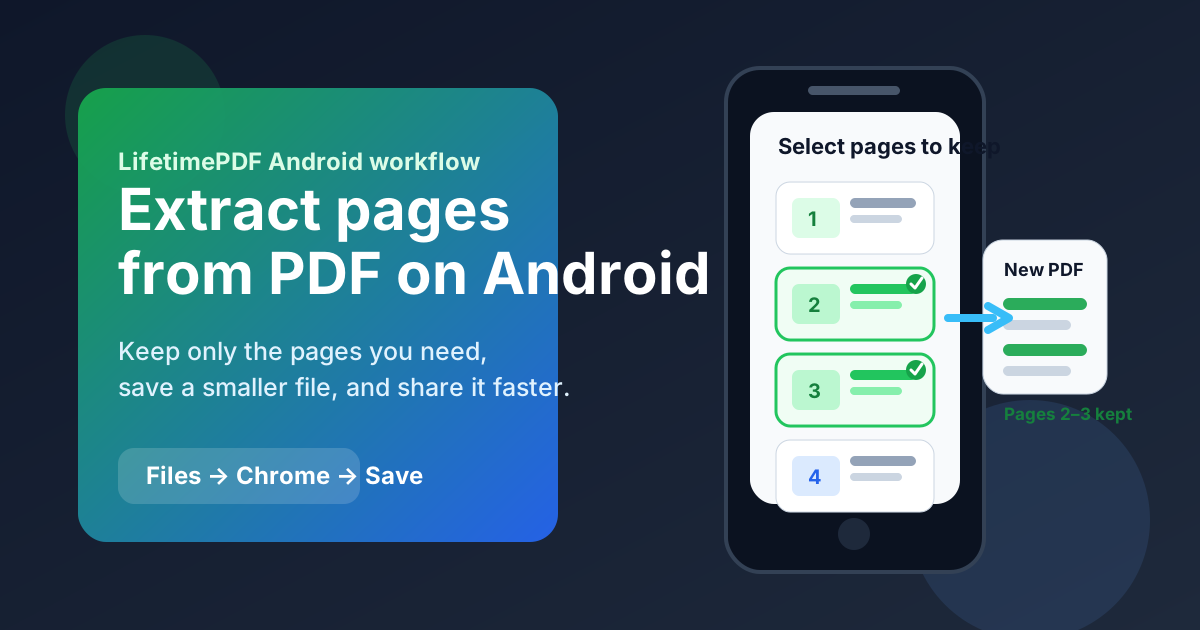
Table of contents
- Quick start: extract PDF pages on Android in 3 minutes
- The easiest Android workflow for extracting pages
- Step-by-step: save only the pages you need
- Extract pages vs delete pages vs split PDF on Android
- Best Android use cases for selected-page PDFs
- Common Android problems and quick fixes
- Quality, privacy, and file-handling tips
- Related LifetimePDF tools for mobile PDF work
- FAQ (People Also Ask)
Quick start: extract PDF pages on Android in 3 minutes
If you already know which pages matter, this is the fastest workflow:
- Open Extract Pages in Chrome or another browser on your Android phone.
- Choose the PDF from Files, Downloads, Drive, Gmail, or another app.
- Enter the page numbers or ranges you want to keep, such as
2-4or1,3,8-10. - Run the extraction and download the new smaller PDF.
- Save it with a clear name and open it once to confirm the right pages were kept.
The easiest Android workflow for extracting pages
Android users usually bounce between three places when dealing with PDFs: the app where the file arrived, the Files app, and the browser where the real document task happens. The cleanest extraction workflow uses each one for what it does best.
- Files or Downloads helps you find the source PDF and save the finished smaller copy.
- Gmail, Drive, WhatsApp, or another app is often where the PDF first shows up.
- Chrome or another Android browser is usually the fastest place to actually create the selected-page PDF without installing a heavy desktop-style app.
This is why people searching for how to extract pages from PDF on Android often waste time with awkward workarounds. The better answer is usually a short browser workflow that turns the job into open, keep, save, check, send.
If the file came from work email, a school portal, a client message, a scanned form, or a travel document bundle, you usually do not want to forward the whole PDF when only a few pages are relevant. A smaller PDF is easier to upload, easier to review on a phone, and less likely to expose pages nobody else needed to see.
Step-by-step: save only the pages you need
Here is the full Android workflow in a practical order.
1) Decide whether you want to keep pages or remove pages
Before you touch the file, ask one simple question: do I only need a small section, or do I need to keep most of the document? If you only need pages 4 through 7, extraction is usually the best option. If you need nearly the whole file except a few unwanted pages, a delete-pages workflow may feel more natural.
2) Save the source PDF somewhere easy to find
If the PDF arrived in Gmail, Drive, WhatsApp, or another app, save it to a location you can recognize later. That cuts down on a common Android mistake: creating the right extracted file and then accidentally sending the original full document because both copies look similar in the share sheet.
3) Open Extract Pages in Chrome
Go to LifetimePDF Extract Pages in Chrome. On Android, the browser route is usually faster than installing a random app, learning its interface, and dealing with extra permissions or subscription prompts.
4) Choose the PDF and enter the pages to keep
Pick the file, then enter the pages you want in the new PDF. Common patterns include:
5for a single page2-7for a continuous range1,4,9for separate pages1,3-5,11for a mixed selection
If you do not know the page numbers yet and need to choose visually, a thumbnail-based split tool may feel easier on mobile. That is one of the few times Split PDF can beat a quick page-range workflow.
5) Extract, save, and rename the result clearly
Download the new PDF and save it with a name that makes sense later, such as contract-signature-pages.pdf, application-pages-2-4.pdf, or invoice-only.pdf. Naming matters on Android because you may be moving between Downloads, Drive, and messaging apps in a hurry.
6) Open the smaller PDF once before sharing it
Do a quick review. Make sure the correct pages were kept, the order still makes sense, and nothing private from the rest of the original file is still present in the version you plan to send.
Ready to keep only the pages that matter?
Extract pages vs delete pages vs split PDF on Android
These three jobs sound similar, but they solve different problems. Choosing the right one prevents version confusion and saves taps on a small screen.
| Goal | Best tool | Why it fits better on Android |
|---|---|---|
| Keep only a few pages | Extract Pages | Fast when you already know the page numbers and want one smaller PDF. |
| Remove a few unwanted pages | Delete Pages | Better when you want to keep most of the original file and only cut a little. |
| Break one file into multiple parts or choose pages visually | Split PDF | Useful when thumbnails or multiple output files matter more than one quick extraction. |
In plain English: if you already know the exact pages you want, extraction is usually the fastest Android answer. If you want to tidy the original document, delete pages. If you are reorganizing a larger packet into several smaller PDFs, split it.
Best Android use cases for selected-page PDFs
Extracting pages on Android becomes useful whenever the full document is bigger, messier, or more private than the recipient really needs.
Applications and forms
- Keep only the signed pages from a lease, consent packet, or onboarding form.
- Send just the certificate, ID, transcript, or claim pages that were requested.
- Upload only the required part of a document to a portal with file-size limits.
Contracts and approvals
- Pull signature pages from a long contract for quick sharing.
- Send only the appendix, pricing pages, or approval pages instead of the full agreement.
- Keep a small final packet on your phone without carrying around the rest of the file.
Scanned paperwork
- Separate the useful pages from blank scans, duplicate pages, or scanner junk.
- Create one clean PDF from a mixed scan bundle.
- Prepare a smaller set of pages before running OCR or sharing the result.
Travel and everyday admin
- Keep only the itinerary, ticket, or booking confirmation pages you actually need on the move.
- Send one short insurance, school, or medical section while away from your desk.
- Trim a large PDF before uploading it over mobile data.
Common Android problems and quick fixes
I cannot tell which copy is the original
Save the source PDF clearly first, then rename the new extracted copy so the difference is obvious. A name like report-pages-5-8.pdf beats document-final-new-2.pdf every time.
I kept the wrong pages
This is usually a page-range mistake, not a tool failure. Recheck whether the PDF uses a cover page, inserted scans, or internal numbering that does not match the actual page count in the viewer.
I need to choose pages visually, not by number
Switch to Split PDF if thumbnails make the job easier. On smaller screens, visual selection can be calmer than remembering page numbers from a long file.
The PDF is still too large after extraction
If the new file is smaller but still awkward for email or upload, run it through Compress PDF after confirming the right pages were kept.
I need to hide information, not just remove extra pages
Extraction only controls which pages remain. If one kept page still contains information that should not be visible, use Redact PDF on that page before sending the final copy.
Quality, privacy, and file-handling tips
Most people worry that extracting pages on Android will make the PDF look worse. In normal workflows, it should not. Extraction usually keeps the original page quality because the selected pages are copied into a new PDF rather than turned into screenshots or low-resolution images.
The bigger risk on mobile is not quality. It is sending the wrong file. Good habits help:
- Save the source and finished copies with different names.
- Open the smaller PDF once before sharing it.
- Make sure the extracted copy truly excludes anything the recipient should not see.
- If the file remains sensitive, add a password afterward with PDF Protect.
Related LifetimePDF tools for mobile PDF work
Extracting pages often sits in the middle of a larger workflow. These tools usually pair well with it:
- Extract Pages — create a new PDF containing only the pages you want.
- Split PDF — use visual selection or break a large file into multiple smaller PDFs.
- Delete Pages — remove a few unwanted pages while keeping the rest of the original.
- Compress PDF — shrink the extracted file for email, uploads, and mobile sharing.
- PDF Protect — add a password after the selected-page version is final.
Best order for most Android users: decide which pages matter, extract them into a smaller PDF, review the result, then compress or protect the finished copy only if the handoff still needs it.
FAQ: How to extract pages from PDF on Android
How do I extract pages from PDF on Android without installing an app?
Open a browser-based Extract Pages tool in Chrome or another Android browser, choose the PDF from Files, Drive, or Downloads, enter the pages you want to keep, download the new smaller PDF, and save it back to your phone. That is usually the quickest no-app workflow on Android.
Can I extract non-consecutive pages from a PDF on Android?
Yes. If the tool supports page ranges, you can usually keep scattered pages such as 1,4,7-9 in one smaller PDF. That is useful when only a few pages from a larger packet matter.
What is the difference between extract pages and delete pages on Android?
Extract pages creates a new smaller PDF containing only the pages you choose. Delete pages removes unwanted pages and keeps the rest of the original file. If you only need a small section, extraction is usually faster.
Will extracting pages reduce PDF quality on Android?
Usually no. Extraction normally preserves the original page quality because the selected pages are copied into a new PDF instead of being turned into screenshots.
Can I extract pages from a PDF that came from Gmail or Google Drive?
Yes. The cleanest route is usually to save the file somewhere easy to find, run the extraction in Chrome, save the finished copy clearly, and then share that smaller version instead of the full original.