How to Check PDF Subject on iPhone: Files, Safari, and Metadata Cleanup Before You Share
To check PDF subject on iPhone, save the real file into Files, open a metadata-friendly workflow, and read the hidden Subject field instead of trusting only the filename, Mail preview, or first page.
If the subject is blank, stale, repetitive, or exposing internal context, rewrite it or clear it before the PDF leaves your iPhone workflow.
This is the kind of problem that hides behind a polished preview. A PDF can look perfectly ready in Files, Safari, Mail, Messages, or iCloud Drive while still carrying a subject like internal review draft, client notes, or some vague export label that never should have survived into the final share copy. A quick iPhone subject check keeps the invisible story of the file aligned with the visible one.
Fastest practical path: save the exact iPhone copy, inspect the Subject field once, compare it with the title and the file's real destination, then keep, rewrite, or clear the field before you send the PDF onward.
In a hurry? Jump to quick start: check PDF subject on iPhone in about 5 minutes.
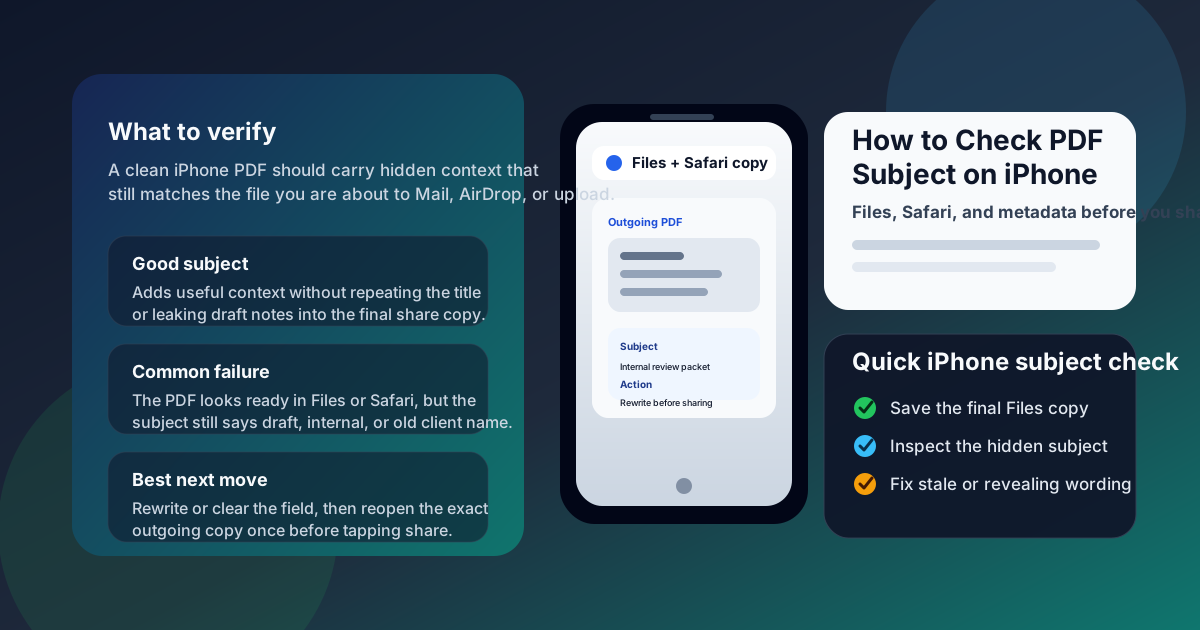
Table of contents
- Quick start: check PDF subject on iPhone in about 5 minutes
- What you are really checking when you review PDF subject on iPhone
- Where iPhone users get misled
- Step-by-step: how to check PDF subject on iPhone
- Mail, AirDrop, and iCloud version drift
- Warning signs that the subject field needs cleanup
- When to edit the subject and when to clear it
- Related LifetimePDF tools and guides
- FAQ
Quick start: check PDF subject on iPhone in about 5 minutes
If your real question is is the hidden subject field safe and useful before I send this PDF from my iPhone?, use this order:
- Save the exact PDF you plan to share into Files instead of trusting a preview in Mail, Safari, Messages, or a cloud app.
- Open the file in a subject-friendly workflow such as PDF Metadata Editor or a document-properties view.
- Read the stored Subject value directly instead of assuming the title, filename, or visible page heading already tells the whole story.
- Ask whether the subject helps someone understand the document in Files, Mail, shared folders, or an upload portal.
- Replace stale, vague, or internal wording with something cleaner, or clear the field if it adds no real value.
- Save the updated PDF and reopen it once to confirm the corrected subject really stuck to the final iPhone copy.
What you are really checking when you review PDF subject on iPhone
The PDF subject field is hidden metadata inside the file. It is not the filename in Files, and it is not the big heading someone sees on page one. Think of it as a short supporting label that can explain what the document covers, where it belongs, or how it should be understood in a larger workflow.
On iPhone, that matters because files move quickly between Mail attachments, Safari downloads, Messages threads, Files folders, AirDrop, and cloud storage. A helpful subject field can make the document easier to file and easier to trust. A sloppy one can quietly reveal internal review notes, the wrong client, or vague wording that makes a polished PDF feel less finished than it should.
| Field | What it does | Common iPhone problem |
|---|---|---|
| Title | Main reader-facing document name | Still carries an old export name or generic template label |
| Subject | Adds supporting context about what the file is about | Leaks draft status, internal shorthand, old project names, or empty filler text |
| Filename | Storage name shown by iPhone apps | Looks clean enough to hide the fact that the hidden metadata is still messy |
| Share label | The quick name people see in Mail, Messages, or AirDrop flows | Can make the PDF look finished even when the underlying subject field tells a different story |
Where iPhone users get misled
iPhone gives you several fast ways to preview a PDF. The trap is that a successful preview feels like proof. It is not. A PDF can open perfectly while the hidden subject field still tells the wrong story.
| iPhone path | What it is good for | What it cannot safely prove |
|---|---|---|
| Files preview | Confirming the filename, location, and which copy you are about to share. | That the hidden Subject field is accurate, useful, or even visible in the way you need. |
| Mail, Messages, or Safari preview | Checking that the PDF opens and looks familiar on screen. | That the embedded subject still matches the final file's real purpose. |
| AirDrop or share sheet | Fast handoff review before sending the file elsewhere. | Whether the copy you are sending is still carrying a stale, repetitive, or overexposed subject value under the hood. |
| iCloud Drive or cloud app preview | Making sure the synced or uploaded file looks like the right document. | That the stored copy is not still carrying an old client label, internal review note, or leftover draft subject. |
| Metadata editor or document-properties view | Giving you a more dependable view of the hidden document properties. | You still have to decide whether the subject helps a human or only adds metadata noise. |
That last point is the key one. Metadata tools can show you the stored subject. They cannot decide for you whether the wording is smart, current, and safe for the file's next destination.
Step-by-step: how to check PDF subject on iPhone
This workflow is quick enough for everyday use and strong enough to catch the mistakes that matter most.
Step 1: Start with the exact iPhone copy you plan to share
Save the PDF locally first. If it is still sitting in a Mail preview, Safari tab, Messages thread, portal page, or cloud browser view, download the real copy you are about to send. Checking one version and sharing another is one of the easiest ways to miss stale subject metadata.
Step 2: Inspect the Subject field directly
Use PDF Metadata Editor, a document-info panel, or a practical properties workflow like View PDF Properties. Do not assume the filename or title already reflects the same context. Those fields often drift apart on reused templates, downloaded packets, and files people keep resending from old conversations.
Step 3: Compare the subject with the title, heading, and real document job
Ask whether the subject would make sense to the next person who sees the file. If the PDF is an invoice pack, onboarding guide, proposal, contract, policy update, school packet, or signed form, the subject should support that identity rather than whisper something like review set or notes for call.
Step 4: Decide whether to keep, rewrite, or clear the field
Keep the subject when it genuinely adds useful context. Rewrite it when the idea is right but the wording is sloppy, stale, or too internal. Clear it when the title already does enough work and the subject only adds clutter, repetition, or privacy risk.
Step 5: Save the corrected PDF and verify once
This is the part people skip when they are in a hurry. Reopen the final iPhone file once and confirm the subject now matches the version you are actually sending. One last check is often enough to catch the classic mistake of editing the wrong copy or attaching the untouched file from an earlier thread.
Reliable sequence: save the exact iPhone copy, inspect the hidden subject field, compare it with the title and document purpose, keep only what helps, then verify the final file once before sharing.
Mail, AirDrop, and iCloud version drift
iPhone subject mistakes often happen because the wrong copy gets cleaned. The file in Files may not be the same one still sitting in a Mail draft, iMessage thread, Safari download list, or iCloud folder. That is how people fix a subject field and still send the old version anyway.
Where copy drift usually starts
- You open a Mail attachment, edit a saved copy in Files, then attach the older Mail version again.
- You download a PDF from Safari, fix it locally, but later upload the original file still sitting in the browser workflow or portal cache.
- You share an iCloud Drive item that synced before your cleanup finished.
- You AirDrop or message a file with a familiar filename and assume it is the cleaned one without reopening it.
What catches the mistake
Open the saved PDF in Files, confirm the subject field there, and only share from that verified copy.
Why it matters
The subject field often sounds fine in isolation but obviously wrong once the exact outgoing copy is compared with the destination message or folder.
Warning signs that the subject field needs cleanup
These patterns show up constantly in iPhone workflows that involve shared folders, exported reports, email attachments, and recycled templates.
| What you notice | What it usually means | Best next move |
|---|---|---|
| The subject still says draft, review, or internal only | The file inherited workflow language that should not travel with the finished PDF. | Rewrite or clear the field before the PDF leaves your phone. |
| The subject names the wrong client, month, or project | The metadata likely came from an older template or reused export. | Fix the wording so the hidden context matches the current document. |
| The subject just repeats the title word for word | The field may not be helping at all, even if it is technically filled in. | Decide whether the extra line adds real value or should simply disappear. |
| The PDF looks finished on iPhone, but the subject feels vague | The visible document was polished, but the hidden context was never reviewed. | Give the field a clearer purpose or remove it. |
| The subject exposes ticket numbers, case names, or internal shorthand | The file may be revealing background context you did not mean to share. | Sanitize the subject and review the rest of the metadata too. |
Healthy default
If the hidden subject line would make a recipient think “why does this file describe itself that way?”, the PDF probably deserves one more metadata pass before it leaves iPhone.
When to edit the subject and when to clear it
Not every iPhone PDF needs the same answer. The useful question is whether the subject field improves the finished file or just drags extra workflow noise along for the ride.
Edit the subject when
- the title alone does not give enough context,
- the PDF will live in a shared archive or document library,
- the field helps someone file, search, or recognize the document faster,
- the current wording is almost useful but still sloppy or outdated.
Clear or minimize the subject when
- the title already does the labeling job well enough,
- the subject only repeats the title,
- the file is public-facing or client-facing and should not expose internal background context,
- the subject leaks case names, draft status, team shorthand, or sensitive project clues.
For most iPhone workflows, the best answer is not “fill every box” and not “strip everything blindly.” It is intentional metadata. Keep the hidden details that help the file make sense. Remove the ones that only create confusion or exposure.
Keep it
When the subject adds real context that helps someone understand, search, or file the PDF.
Rewrite it
When the idea is helpful but the wording still sounds like a draft note, internal label, or stale export description.
Clear it
When the field adds no value, duplicates the title, or exposes more context than the recipient needs.
If the subject problem is part of a broader cleanup, continue with How to Check PDF Metadata on iPhone or Remove Metadata From PDF so the rest of the hidden file properties do not undermine the polished document.
FAQ
How do I check PDF subject on iPhone quickly?
Save the PDF into Files, open a metadata or document-properties view, read the hidden Subject field, and compare it with the title and the document's real purpose before you share the file.
Can Files or Safari show the PDF subject field on iPhone?
Files or Safari can help with a first look, but a fuller metadata workflow is more reliable when you need to inspect the Subject field with confidence and decide whether it should stay, change, or disappear.
Is PDF subject the same as PDF title on iPhone?
No. The title is usually the main reader-facing name of the document, while the subject adds supporting context about what the file covers or how it should be understood.
Should I keep or remove the subject field from an iPhone PDF?
Keep it when it adds useful context for search, filing, or clarity. Rewrite or remove it when it is stale, repetitive, vague, or revealing information that should not travel with the file.
Why does the subject field matter if the PDF pages already look correct?
Because hidden metadata still travels with the file. A polished page layout does not stop an old subject line from revealing draft history, internal project language, or confusing context in document libraries and handoffs.
Check the hidden subject before the PDF leaves your iPhone.
A clean iPhone workflow is simple: inspect the Subject field, compare it with the title and the file's real purpose, keep only the context that helps, and verify the final copy once before you send it.
Published by LifetimePDF — Pay once. Use forever.