How to Check PDF Spot Colors on Linux: Confirm Named Inks, Specialty Plates, and Brand Separations Before You Share
To check PDF spot colors on Linux, save the exact PDF locally, compare what you see in Okular, Evince, or another everyday Linux view with a properties or separations-aware review path, and confirm the actual named inks, white-ink layers, varnish plates, or brand separations before the file goes anywhere important.
If the names are missing, duplicated, or quietly replaced by CMYK builds, fix the export before you proof, upload, approve, or print the final PDF.
That is the short Linux answer. The practical answer is that a PDF can look completely fine in Firefox, Chrome, a mail preview, Nextcloud, Okular, or Evince while the hidden plate logic has already changed. A brand color can become process color, a white-ink layer can vanish, or two nearly identical ink names can create extra plates and extra cost. The safest Linux habit is simple: check the real outgoing file, then verify the spot-color story instead of trusting appearance alone.
Fastest practical path: review the real Linux copy, confirm the named inks, compare them with the print spec, then cross-check overprint and output intent before approval.
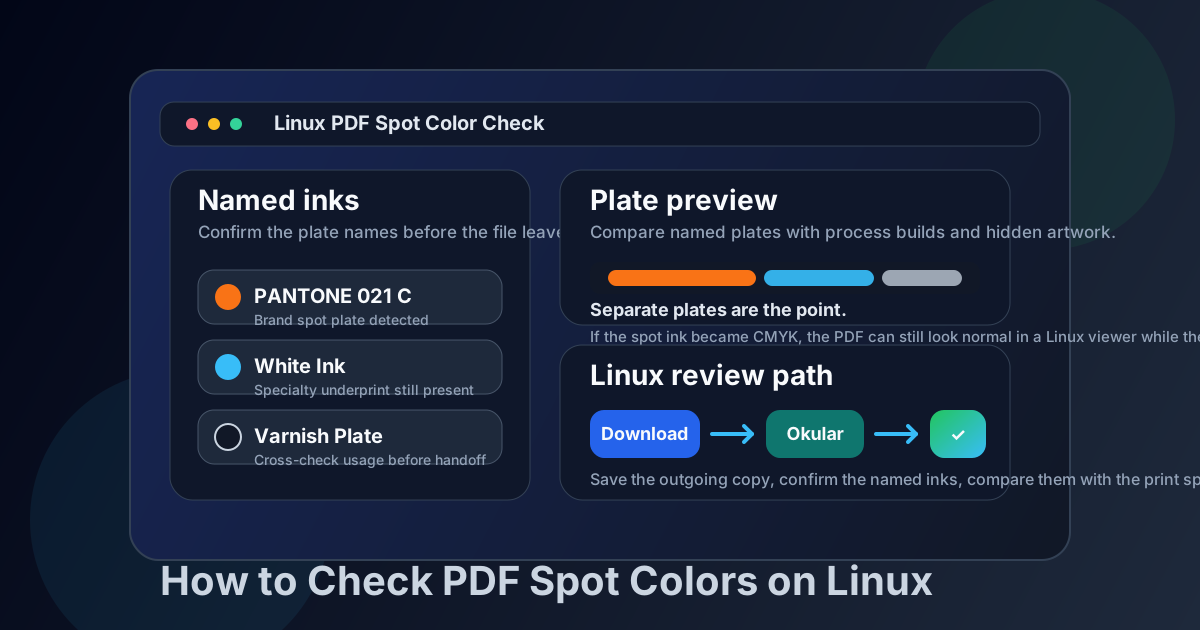
Table of contents
- Quick start: check PDF spot colors on Linux in about 6 minutes
- What spot colors mean on Linux
- Where Linux users get misled
- Step-by-step: how to review PDF spot colors on Linux
- What else to check besides spot colors
- Common Linux spot-color problems and what to do next
- Related LifetimePDF tools and guides
- FAQ
Quick start: check PDF spot colors on Linux in about 6 minutes
If your real goal is simply make sure this Linux PDF still contains the right named inks before I share it, use this order:
- Save the exact PDF you plan to proof, upload, archive, print, or hand off instead of trusting a browser tab, webmail preview, or cloud-storage preview.
- Open the saved file in Okular, Evince, or another normal Linux viewer first so you know what a casual desktop check suggests.
- Then switch to a properties, separations, or preflight-style review path and confirm the actual named spot inks or specialty plates present in the PDF.
- Compare those ink names with the real job ticket, print brief, brand guide, or vendor instructions. Small naming differences can become real extra plates.
- Cross-check overprint and output intent so the rest of the production story still agrees.
- If the plates, names, or usage do not match the job, re-export a clean PDF and verify that final Linux copy again.
What spot colors mean on Linux
Spot colors are named inks or special plates that are supposed to stay separate from ordinary process color. That could mean a Pantone brand ink, a white-ink layer, a varnish plate, a metallic plate, a dieline color, or another specialty separation that exists for a production reason, not just a visual one.
On Linux, the challenge is not opening the PDF. It is proving that the final exported file still carries those named separations exactly the way the workflow expects. A PDF can look right to your eye while already being wrong for the press, converter, label printer, or proofing team downstream.
| What to confirm | Why it matters | What often goes wrong |
|---|---|---|
| The ink name itself | The press or finishing workflow may depend on that exact named plate. | The spot color is renamed, duplicated, lowercased, or converted into a similar-looking process build. |
| Whether the plate is still separate | A true spot plate behaves differently from CMYK artwork that merely looks similar on screen. | The export flattened or converted the separation during the final PDF creation step. |
| Where the spot color is used | You need to know whether the ink is applied to the intended logo, panel, varnish area, or white-underprint object. | The right plate exists but is attached to the wrong objects, or extra objects were pulled onto it accidentally. |
| Whether the spot-color story matches the rest of the file | Output intent, overprint, ICC profile, and plate behavior should all point in the same direction. | The spot plate survived, but the surrounding print settings contradict the intended production workflow. |
Where Linux users get misled
Linux gives you several honest-looking ways to inspect a PDF, but not every path answers the same question. A quick open can confirm that the file renders. It does not always confirm that the final PDF still carries the right named plates.
| Opening path | What it is good for | What it cannot safely prove |
|---|---|---|
| Firefox, Chrome, webmail preview, or a cloud-storage tab | Checking that the attachment or download looks familiar and that you have roughly the right file. | That the final saved PDF still contains the correct named spot inks or specialty plates. |
| Okular, Evince, or another normal Linux PDF viewer | Opening the real file, confirming the page content, and spotting obvious layout mistakes before a deeper check. | That the plate names, plate count, and separation logic are all correct for production. |
| Print dialog or CUPS-style preview | Seeing whether the file reaches the print path at all and whether the page basics still look sane. | That specialty inks, white underprints, varnish layers, or knockout logic remain intact. |
| Rasterized export, screenshot, or image conversion | Showing what the page appears to look like visually. | Anything trustworthy about named separations, because the plate story may already be flattened away. |
| Properties or separations-aware review | Confirming the actual ink names and whether the PDF still carries separate specialty plates. | You still have to compare the result with the real print specification rather than assuming the plate names are automatically correct. |
Step-by-step: how to review PDF spot colors on Linux
This workflow gives you a dependable answer without turning a routine print check into a giant desktop detour.
1) Save the exact Linux copy first
Do not judge a browser tab, a mail attachment preview, or a synced-folder web view if another file is the one actually headed to print. Review the real outgoing PDF.
2) Start with the normal view
Open the saved PDF in Okular or Evince so you understand what a casual Linux review suggests before you move into a more technical spot-color check.
3) Confirm the named inks clearly
Use a properties or separations-aware path and verify the actual spot-ink names, white-ink layers, varnish plates, or other specialty separations that the PDF still carries.
4) Compare the names with the real spec
Check the exact ink naming against the job ticket, print brief, packaging instructions, or brand guide. Similar names are not always the same plate.
5) Inspect usage, not just existence
A plate can be present and still be wrong. Make sure the spot color is applied to the right logo, panel, dieline, white underprint, or finish area.
6) Cross-check the wider print story
Use overprint, output intent, and ICC-profile checks to confirm that the rest of the PDF agrees with the spot-color result before you approve the file.
Step 1: Save the exact Linux copy first
If the PDF is still inside Firefox, Chrome, webmail, a portal tab, a Nextcloud preview, or a temporary download bar, save it first. The spot-color check should apply to the exact file you are about to send, upload, or print. That habit alone prevents a classic mistake: checking one copy while a slightly different export is the one that actually leaves your machine.
Step 2: Let the normal Linux view set the baseline
Open the file in Okular, Evince, or your preferred Linux viewer. This is not the final verdict. It is the baseline that tells you whether the page looks ordinary to a casual reviewer. That matters because many spot-color failures are invisible until a more production-aware workflow looks at the same PDF.
Step 3: Confirm the spot plates in a properties or separations-aware path
Now switch to a review path that actually exposes the hidden plate story. The goal is to answer a very plain question: which named inks are really in this PDF right now? If the file should contain one brand spot, one white-ink layer, and one varnish plate, you should be able to confirm exactly that instead of guessing from appearance alone.
Advanced Linux users sometimes like a quick terminal pass to confirm they are still looking at the same file after re-export. That can be helpful for file sanity, but it is still supporting evidence. The spot-color verdict comes from confirming the actual separations, not from trusting the filename or a casual render.
Step 4: Compare the names against the real production language
This is where expensive surprises often start. A PDF may carry almost the right plate names while still being wrong in production. Two very similar ink names can become two real plates. A brand color can be spelled inconsistently across files. A white-ink layer can have the wrong label for the printer's workflow. On Linux, do not stop at “a spot color exists.” Confirm that the spot color is the right one.
Step 5: Check usage and problem areas
Once the named inks are confirmed, inspect where each one is used. Focus first on the parts that tend to cause trouble:
- Brand logos or packaging panels that must stay in a named spot ink.
- White-ink objects that should sit under artwork on clear or metallic stock.
- Varnish, foil, cut, or finish layers that should exist only in very specific areas.
- Objects that visually match the brand color but may secretly be built from CMYK instead of a spot plate.
- Areas where the spot plate might interact with overprint or knockout behavior.
Step 6: Reconcile the rest of the file before approval
Spot colors do not live alone. If the file still uses the correct named inks but the overprint behavior is wrong, the PDF can still fail in production. If the output intent or ICC profile points in a different direction, the file can still tell a confused production story. A good Linux spot-color check ends when the plates, behavior, and declared destination finally agree.
What else to check besides spot colors
A clean named-ink result is excellent, but it is not the whole prepress story. These surrounding checks catch the problems that often travel with spot-color issues.
Overprint
Use Check PDF Overprint when black text, white objects, or stacked spot-color artwork might behave differently in print than they do in a normal Linux preview.
Output intent
Use Check PDF Output Intent when the file is headed to a standards-aware print path and the declared destination matters as much as the appearance.
ICC profile
Use Check PDF ICC Profile when you need the wider color-management story to agree with the named-ink workflow.
Properties and version
Use View PDF Properties and Check PDF Version when you want the hidden file details to match the production story too.
Common Linux spot-color problems and what to do next
Most spot-color trouble on Linux falls into a few repeat patterns. Once you know which one you are seeing, the next move becomes much clearer.
| What you notice | What it usually means | Best next move |
|---|---|---|
| The PDF looks fine in Okular or Evince, but the named spot plate is missing in a deeper review | The export likely converted the spot color into process color or flattened the specialty layer. | Go back to the source artwork or export settings, generate a fresh PDF, and verify the saved Linux copy again. |
| Two very similar spot-color names appear | The file may now create two separate plates for what should have been one ink. | Standardize the ink naming in the source, re-export, and confirm that only the intended plate remains. |
| The right spot plate exists, but it is attached to unexpected objects | Artwork assignment drifted during editing, import, or PDF creation. | Inspect the objects carrying the plate, fix the assignments, and rebuild the final PDF cleanly. |
| A white-ink or varnish layer is present but behaves strangely in proofing | The specialty plate may be interacting badly with overprint, transparency, or layer intent. | Check the plate names first, then review overprint and output intent before you approve anything. |
| The print vendor flags a plate issue that your Linux preview never showed | The casual desktop view was never exposing the real separations story. | Adopt a save-first, separations-aware workflow for every final delivery copy instead of trusting appearance alone. |
A useful mental model for Linux spot-color checks
Think of the ordinary viewer as the place where you confirm this is the file I meant to inspect. Think of the spot-color review as the place where you confirm this is the file production can actually trust. Those are related questions, but they are not the same question.
FAQ
How do I check PDF spot colors on Linux?
Save the exact PDF locally, open it in a normal Linux viewer such as Okular or Evince, then use a properties or separations-aware review path to confirm which named spot inks or specialty plates are actually present before you share or print it.
Can Okular or Evince prove that a PDF still uses spot colors?
Okular and Evince are useful for checking the saved file and understanding what a casual Linux review suggests, but they are not the safest place to trust spot-color truth on their own. When the plates matter, compare that view with a deeper properties or separations-aware workflow.
Why do spot colors disappear after I export a PDF on Linux?
The export path may have converted the spot ink into a process build, renamed the plate, flattened a specialty layer, or created a different final PDF than the one you thought you were checking. That is why the final saved copy needs its own verification.
Is checking spot colors the same as checking overprint on Linux?
No. Spot-color checks answer whether the named inks or special plates are present and assigned correctly. Overprint checks answer how stacked objects behave when they print on top of each other. They often affect the same file, but they solve different questions.
What should I do if two nearly identical spot-color names appear?
Treat that as a real production warning. Two names that look almost the same can create two plates. Go back to the source artwork or export settings, standardize the ink naming, make a fresh PDF, and verify the final Linux copy again.
Verify the named inks before the PDF surprises someone downstream.
On Linux, the safest sequence is simple: save the outgoing copy, confirm the spot plates, compare them with the real production spec, and only approve the PDF when overprint, output intent, and color details finally agree.
Published by LifetimePDF — Pay once. Use forever.