How to Check PDF Resolution on Android: Catch Blurry Scans, Soft Screenshots, and Upload Problems Before You Share
To check PDF resolution on Android, save the final PDF from Files, Drive, Gmail, or your download folder, open that exact copy in a PDF viewer, and pinch-zoom into the scans, screenshots, logos, signatures, and labels that actually matter.
If those image-heavy areas turn soft, break into visible pixels, or look muddy when you zoom to a practical reading level, the PDF is carrying weak raster detail inside the file rather than suffering from Android alone.
That is the short answer. The more useful Android answer is that small screens, quick previews, and fast share flows make a shaky PDF feel safer than it really is. A scan can look acceptable in Drive preview, a screenshot can seem readable in Gmail, and a one-page contract can feel fine in Files until you try to upload it to a portal, print it later, or read the tiny text inside an embedded image. A quick resolution check helps you catch that trouble before the file leaves your phone or tablet.
Fastest practical path: inspect the real Android copy, review it at a normal reading size, pinch-zoom into raster-heavy areas, and extract images or render pages when the viewer answer still feels uncertain.
In a hurry? Jump to quick start: check PDF resolution on Android in about 6 minutes.
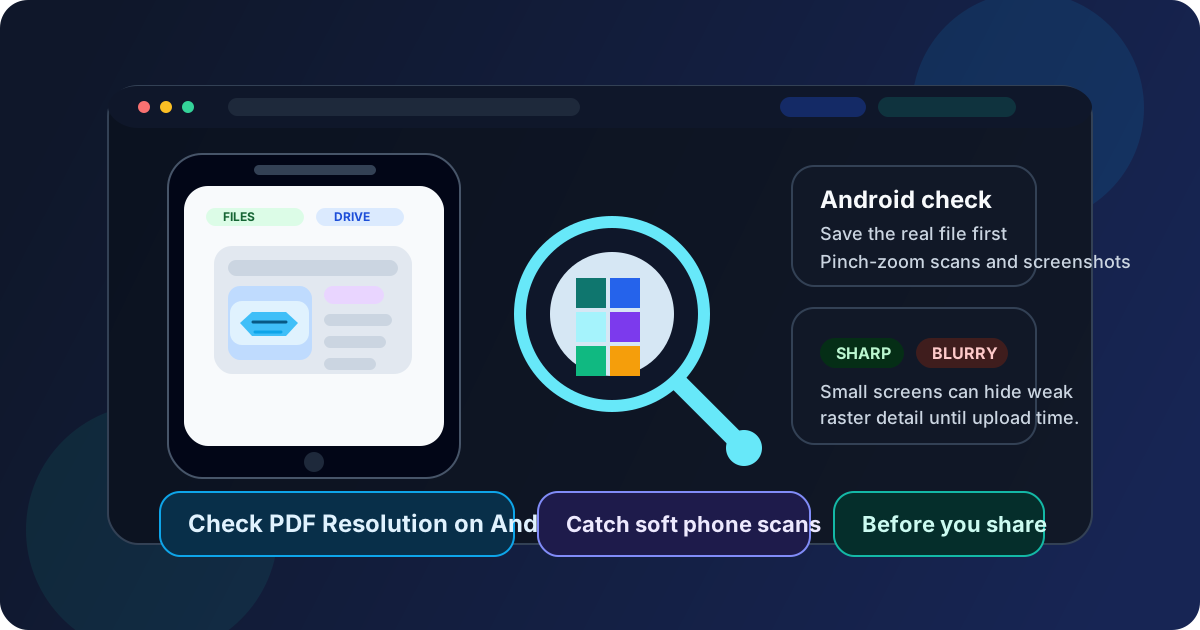
Table of contents
- Quick start: check PDF resolution on Android in about 6 minutes
- Why Android users get fooled by PDF resolution problems
- Where to inspect resolution on Android
- Step-by-step: how to review PDF resolution on Android
- Common Android resolution problems and what to do next
- When to rescan, re-export, compress less, or use OCR
- Related LifetimePDF tools and guides
- FAQ
Quick start: check PDF resolution on Android in about 6 minutes
If your real question is is this Android PDF sharp enough to trust before I send it, use this order:
- Save the exact PDF you plan to upload, email, print, submit, archive, or share into a stable Android location such as Files, Downloads, or a specific folder in Drive.
- Open that final copy in your preferred PDF viewer and look at it at a normal reading size before you start hunting microscopic flaws.
- Pinch-zoom into the pages that contain screenshots, scanned text, signatures, receipts, photos, charts, or logos instead of judging the whole file by body text alone.
- If the answer is still unclear, use Extract Images from PDF or PDF to Image to see what quality the document is truly carrying.
- If the weak area came from a scan or screenshot, replace that source or rescan it before you rely on OCR or another compression pass.
- Reopen the final Android copy once more before it leaves your device so you know the fixed file is the same one you actually send.
Why Android users get fooled by PDF resolution problems
Resolution problems are easy to miss on Android because the device experience is built for speed. You tap a file from Gmail, Drive, Chrome, WhatsApp, or Files, the page opens fast, and your brain quietly marks the PDF as done. That is useful for everyday sharing. It is not enough when the document contains tiny screenshot text, a phone scan, a receipt, a signature block, or a chart that will later be enlarged or printed.
The screen itself also changes your judgment. A weak scan can seem fine on a phone simply because everything is physically smaller. Some viewers smooth the preview enough that the problem only becomes obvious after a closer pinch-zoom, on a larger display, or inside the upload system where somebody else opens the file. By then, the PDF is already out of your hands.
Small-screen illusion
A phone can make a soft scan or weak screenshot look better than it really is because the detail is physically compressed into a tiny viewing area.
Preview comfort
Drive, Gmail, browser, and chat previews are great for opening the file quickly, but they do not always prove the embedded images are strong enough for real use.
Sharp text, weak images
Vector body text can stay crisp while screenshots, scanned pages, or logos inside the same PDF are already soft.
Too many handoffs
Phone scans, cloud saves, exports, compression, and reshares can quietly lower image quality before the final Android copy gets reviewed.
Common false assumption
If the PDF opens fine on Android and the main text looks readable, many people assume the whole file is high quality. In reality, the failure point is often a scan, screenshot, label, or photo that only reveals itself when somebody needs the fine detail.
Where to inspect resolution on Android
Different Android viewing paths answer different questions. The best result comes from using the right path for the right job instead of trusting one preview to answer everything.
| Android path | What it is good for | What it cannot safely prove |
|---|---|---|
| Files app or Downloads folder | Confirming you saved the correct outgoing PDF and opening the exact copy that matters. | That the screenshots, scans, and embedded images still hold enough detail for the real job ahead. |
| Drive, Gmail, or browser preview | Quick triage and checking whether the final file opens on your device. | Whether the document will still hold up when someone zooms closer, prints it, or reviews it on a larger screen. |
| Pinch-zoom review in a PDF viewer | Finding soft scans, screenshot text, fuzzy logos, and image-based detail that breaks apart under closer inspection. | Why the weakness happened in the source workflow. |
| Extract Images from PDF | Inspecting the actual embedded image objects instead of only the mobile page preview. | Whether the whole rendered page layout also suffers from flattening or export softness. |
| PDF to Image render | Judging how the finished page behaves as output outside the original Android viewer. | Which exact embedded object caused the problem if you need a very specific diagnosis. |
Step-by-step: how to review PDF resolution on Android
This workflow gives you a dependable answer without turning a normal mobile file check into a giant production project.
1) Save the exact Android copy first
Do not judge one preview while another file is the one heading to a portal, printer, or client. Review the actual saved copy that will leave your phone or tablet.
2) Start at a practical reading size
A lot of PDFs look worse than they really are if you begin by zooming far beyond real use. First ask whether the file looks solid at the size someone would normally read on mobile or desktop.
3) Pinch-zoom into the risky areas
Check scanned text, screenshot labels, signatures, receipts, charts, photos, and logos. Those areas usually reveal the truth faster than normal body paragraphs do.
4) Separate vector sharpness from raster softness
If the typed text stays crisp while the pictures or scans go muddy, the viewer is not the main problem. The weakness is likely inside the embedded image content.
5) Extract or render when the answer is unclear
Use Extract Images from PDF to inspect the image objects or PDF to Image to judge the whole page as output.
6) Fix the cause, then reopen the final file
Replace bad screenshots, rescan weak pages, compress less aggressively, or run OCR after cleanup, then open the final Android copy once more before you share it.
Reliable sequence: save the real Android copy → inspect it at reading size → pinch-zoom into the weak spots → extract images if needed → fix the true source of softness → reopen the final file.
Common Android resolution problems and what to do next
Most Android resolution trouble falls into a few repeat patterns. Once you recognize which pattern you have, the next move becomes much easier.
| What you notice | What it usually means | Best next move |
|---|---|---|
| Typed text looks sharp but screenshots look muddy | The PDF mixes crisp vector text with weak raster screenshots | Replace the screenshots or inspect them with Extract Images from PDF |
| The phone scan seems readable at a glance but breaks when you zoom in | The source capture never held enough real detail | Rescan the page or request a cleaner source before you rely on OCR |
| The compressed copy looks worse than the earlier one | Compression or export settings softened the image-heavy pages | Re-export or recompress less aggressively |
| The PDF seems fine on your phone but weak on a larger screen or in print | The small-screen view hid the loss of detail | Judge the file against the real destination and inspect the risky areas more closely |
| Only one page or section looks poor | The problem is local to one inserted scan, exhibit, receipt, or screenshot block | Fix or replace the weak section instead of rebuilding the entire PDF blindly |
Source problem
The original scan, photo, or screenshot never had enough detail, so the PDF can only carry weakness forward.
Workflow problem
The source was decent, but a later export, flattening step, or compression pass degraded the file before the final Android copy was checked.
Review problem
The file may be acceptable, but the wrong preview path made it hard to judge until someone tried to use the PDF for a real task.
When to rescan, re-export, compress less, or use OCR
The smartest fix depends on where the detail was lost. Not every weak-looking Android PDF should be treated the same way.
Rescan when the original capture is weak
If the page was fuzzy, shadowy, underlit, or shot from too far away, no later PDF trick can honestly recreate the missing detail. A fresh scan or a cleaner source image is usually the best answer.
Re-export when the source looked better than the final PDF
If the earlier copy looked cleaner and the final Android PDF became softer later, the damage likely happened during export, flattening, or another save step. Rebuild the file intentionally instead of stacking more conversions on top of it.
Compress less when file size matters but detail still counts
Compress PDF is useful when the file is too large, but it should not quietly destroy the screenshots, scans, receipts, or diagrams that make the document useful. If the compressed copy is clearly softer, the balance is wrong.
Use OCR after the visuals are acceptable
OCR PDF adds searchability and text selection after the scan is good enough to keep. It does not fix blurry image quality on its own.
Easy mistake to avoid
Do not let a clean preview, a successful upload, or an OCR text layer fool you into thinking the visual quality is settled. If the underlying image detail is weak, the PDF is still weak no matter how convenient it becomes.
Before the PDF leaves your Android workflow, run this short sanity check:
- Did you inspect the exact final Android copy instead of an earlier preview?
- Did you look at the image-heavy sections, not only the sharp body text?
- Did you compare normal reading size with a closer zoom where the risky detail lives?
- If print or desktop review matters, did you judge the file against that real outcome instead of mobile comfort alone?
- If compression or OCR was involved, did you reopen the finished file and make sure the visuals still hold up?
Ready to verify the file? Inspect the embedded images, render a page if needed, and fix weak source material before the PDF gets forwarded, uploaded, printed, or archived.
Best workflow: check the final Android PDF → inspect the image-heavy areas → extract images when needed → fix the source → compress or OCR only after the visual quality is good enough.
FAQ
How do I check PDF resolution on Android?
Save the final PDF locally on your Android device, open it in a PDF viewer, and pinch-zoom into scans, screenshots, logos, signatures, and other image-heavy areas. If those sections still look uncertain, extract the images or render the pages to confirm the real embedded quality.
Can Android previews hide a low-resolution PDF?
Yes. Small screens, preview smoothing, and quick attachment views can make a weak PDF feel better than it really is until you zoom in, print it, or review it on a larger display.
Why does the text look sharp while pictures still look blurry in my Android PDF?
Because PDFs often mix vector text with raster images. Vector text can stay crisp at almost any zoom, while screenshots, scans, logos, and photos may already be low resolution inside the same document.
Can compression make a PDF look worse on Android?
Yes. Aggressive compression can downsample or soften image-heavy pages, especially phone scans, screenshots, receipts, and photos. That is why it helps to inspect the compressed file itself instead of assuming the original quality survived.
Should I use OCR if my Android PDF looks blurry?
Use OCR after the scan is visually acceptable and you need searchable text. OCR improves the text layer, but it does not create image detail that the original scan or screenshot failed to capture.
Published by LifetimePDF — Pay once. Use forever.