Extract Images from PDF: Pull Photos, Logos, and Graphics Without Screenshots or Quality Loss
Yes — the fastest way to extract images from PDF files is to pull the embedded photos, logos, charts, and graphics directly when they exist, instead of taking screenshots or cropping pages by hand.
If the PDF is really a scan or you need the whole page as an image, export the page itself — because that is a different job than recovering reusable image assets from inside the file.
That distinction matters more than most people expect. A product brochure, investor deck, research report, press kit, or design handoff can all look like "a PDF with pictures," but the pictures inside are not always stored the same way. Sometimes the logo or photo is sitting there as a clean embedded asset you can reuse immediately. Sometimes the whole page is effectively one big image. The best workflow starts by recognizing which case you have, so you do not waste time with blurry screenshots or downloads that are technically complete but practically useless.
Fastest practical path: start with embedded-image extraction for reusable assets, switch to full-page export for scans, and isolate only the pages you actually need before processing.
In a hurry? Jump to Quick start: extract images from a PDF in a few minutes.
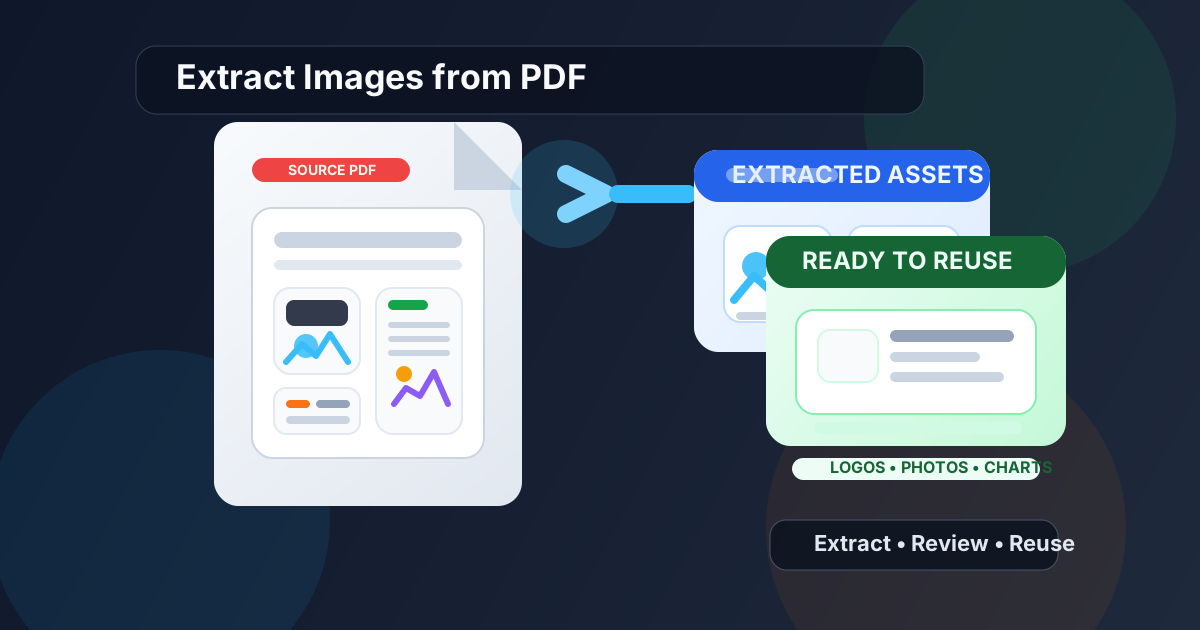
Table of contents
- Quick start: extract images from a PDF in a few minutes
- What counts as an image inside a PDF?
- Step-by-step: how to extract images from PDF files
- When extraction beats screenshots and page crops
- Scanned PDFs: what changes
- How to keep image quality as high as possible
- Common problems and practical fixes
- Related LifetimePDF tools and next steps
- FAQ
Quick start: extract images from a PDF in a few minutes
If your PDF contains logos, product photos, charts, infographics, screenshots, or other graphics you want to reuse, this is the shortest useful workflow:
- Open PDF to Image.
- Upload the PDF.
- If only a few pages matter, first trim the file with Extract Pages.
- Recover the embedded images when the file contains reusable assets.
- If the PDF is scan-based or the result shows whole-page visuals instead, switch to PDF to Image for page export.
- Review the output before you send or publish the extracted files.
What counts as an image inside a PDF?
Not every visual element in a PDF behaves the same way. One file might contain separate embedded JPEG or PNG assets for each photo, icon, or chart. Another might be built from vectors, layered design elements, or scanned full-page images. That is why "extract images from PDF" can mean slightly different things depending on the source.
Embedded images
These are the easiest and most valuable assets to recover. They are often product photos, team headshots, logos, diagrams, report visuals, or screenshots that were inserted into the document as separate image objects. When extraction works well, you get files that are much more reusable than a screenshot.
Rendered pages
Sometimes there is no separate image object to pull out cleanly. A scanned page, a flattened design export, or a page built from mixed layers may be better treated as a full-page image instead. In those cases, exporting the page is the honest workflow.
Why people get confused
Visually, both situations look like "a PDF with images." Technically, they behave very differently. That is why the same file may give you a perfect extracted logo in one case and only a page render in another. The mistake is assuming every PDF is hiding clean standalone assets that can be recovered with zero tradeoffs.
Step-by-step: how to extract images from PDF files
A clean workflow is less about clicking a button and more about using the right path for the document you actually have.
1. Start with the original PDF whenever possible
If someone already re-exported the document several times, compressed it heavily, or sent you a screenshot of a PDF instead of the file itself, you have already lost quality before extraction begins. Start from the original PDF when you can.
2. Keep only the pages you really need
Large reports and decks often contain dozens of pages you do not care about. Using Extract Pages first makes the job faster and keeps the final download easier to review. If you only need one appendix chart, one brochure spread, or one slide export, do not process the entire document blindly.
3. Run embedded-image extraction first
Open PDF to Image and let the PDF reveal what it actually contains. This is usually the best starting point for logos, brand assets, charts, photos, and screenshots that were inserted into the document as separate objects.
4. Switch methods if the PDF behaves like a scan
If the output tells you the document is basically page images, do not fight the file. Move to PDF to Image and export the relevant pages cleanly. You will get more predictable results than trying to force "asset extraction" out of something that was never stored that way.
5. Review before reuse
Check whether you recovered the original asset, whether transparency or edges still look right, and whether the image dimensions are good enough for the next job. A chart that looks fine in a browser preview may still be the wrong asset for a slide deck, a report, or a website upload.
When extraction beats screenshots and page crops
People reach for screenshots because they are quick, but screenshots are usually the worst long-term option when you need a clean reusable asset. They introduce screen scaling, browser chrome, accidental cropping, and quality loss that you do not need.
Common cases where direct extraction is better
- Brand kits and press kits where you need logos, icons, or promotional graphics without rebuilding them manually.
- Product catalogs and brochures where the PDF already contains usable product photos or marketing imagery.
- Research reports and investor decks where one chart or infographic is more useful than the whole page.
- Client deliverables and design reviews where you need embedded screenshots or annotated visuals for follow-up work.
- Internal documentation where teams want to reuse diagrams or page graphics without re-exporting the original design file.
If your goal is simply to show the appearance of a page, then page export is perfectly reasonable. But if your goal is to reuse the underlying visual asset, extraction is usually cleaner, sharper, and less frustrating.
Scanned PDFs: what changes
Scanned PDFs are where expectations often break. They may look like ordinary documents, but many are basically stacks of page photographs. That means there may be no separate logo file, no separate chart image, and no separate product photo hidden inside the document.
What usually works with scans
- Exporting the full page as a JPG or PNG
- Extracting only the pages that matter before export
- Using OCR PDF when you also need searchable text or follow-up editing
What usually does not work well
- Expecting the scan to split neatly into individual logos, photos, and charts
- Expecting low-resolution scans to become high-resolution assets
- Assuming OCR will recreate missing original image files
The useful mindset is simple: a scan is usually a page-image workflow first, not an embedded-asset workflow first.
How to keep image quality as high as possible
Quality depends on the source PDF more than the search term does. The better the original asset and the less unnecessary re-exporting you do, the better the result will be.
Practical quality tips
- Start from the original PDF instead of a forwarded screenshot or a heavily recompressed copy.
- Use embedded-image extraction when the file supports it instead of taking screenshots.
- Use page export only when you actually need page renders or the file is scan-based.
- Trim the PDF first so you are not sorting through unnecessary images from pages you did not need.
- Review the extracted image dimensions before using them in a presentation, website, or print workflow.
Sometimes people blame the extraction tool when the real issue is the source. If a chart was already tiny inside the PDF, or a brochure used compressed photos, the recovered image can only be as good as the file you started with.
Common problems and practical fixes
"I only got page images, not separate pictures"
The PDF is probably scan-based, flattened, or not storing the graphics as separate embedded assets. Switch to PDF to Image for predictable page exports.
"The extracted image looks blurry"
That usually points back to the source PDF. It may contain a low-resolution original image, or you may have exported a whole page when you really wanted an embedded asset.
"I only need one chart from a big report"
Use Extract Pages first. Smaller inputs make the extraction process cleaner and save you from sorting through a large pile of unrelated visuals.
"The PDF is locked"
If you have permission to work with it, unlock the document first using PDF Unlock.
"I need text from the scan too"
Run OCR PDF for text recognition, but treat that as a separate need from image extraction. OCR improves searchable text. It does not magically turn a scan into a fully layered design file.
Related LifetimePDF tools and next steps
Extracting images is often one step inside a larger document workflow. These tools pair naturally with it:
- PDF to Image for recovering reusable image assets from inside the PDF.
- PDF to Image for exporting full pages when that is the better fit.
- Extract Pages for isolating only the relevant section before processing.
- OCR PDF for searchable text when the source is scan-based.
- Images to PDF if you want to rebuild a cleaner PDF from the visuals you kept.
- Compress PDF if the source file is oversized before upload or sharing.
If you want adjacent reading, the most natural follow-up guides are PDF to Image, Extract Pages From PDF, and OCR PDF.
Ready to pull the visuals out cleanly? Start with embedded-image extraction, keep only the pages you need, and switch to page export when the file is really a scan.
FAQ
How do I extract images from PDF files?
Use an image-extraction tool when you want the actual embedded photos, logos, or charts stored inside the PDF. If the file is really a scan or you need every page as an image, export the pages instead of relying on screenshots.
Will the extracted images keep their original quality?
Usually yes when the PDF contains real embedded images and the tool recovers those assets directly. If the source PDF was already compressed heavily, or if you export whole pages instead, quality depends on the original file and output settings.
What is the difference between extracting images and converting PDF pages to images?
Extracting images pulls individual graphic assets from inside the PDF. Converting PDF pages to images renders each entire page as a JPG or PNG. Use extraction for reusable logos, photos, and charts; use page export when you need a visual copy of the whole page.
Can I extract images from a scanned PDF?
Sometimes, but many scanned PDFs are just page-sized images. In that case you are usually exporting pages rather than recovering separate embedded assets. OCR helps with searchable text, not with splitting every visual element into its own original file.
How can I avoid blurry results when extracting images from PDF?
Start from the original PDF, avoid screenshots, choose embedded-image extraction when possible, and use page export only when you actually need a rendered page. If the source PDF is low-resolution or scan-based, the final image quality can only be as good as the original file.