How to Check PDF Permissions on Mac: Preview, Acrobat, and Restriction Checks Before You Share
To check PDF permissions on Mac, save the file locally, open a viewer or properties workflow that shows the security settings, and review whether printing, copying, editing, comments, or form filling are allowed before you share the PDF.
If the rules do not match what the next person actually needs to do, change them before the file leaves your Mac so the PDF is neither overlocked nor too open.
That is the short answer. The useful Mac answer is that Finder, Quick Look, Mail preview, Safari preview, and even a quick open in Preview can make a PDF feel fine when the real restrictions only show up later, usually when someone tries to print, copy text, add comments, fill a form, or sign. A file may open normally on your screen and still block the exact next step the recipient expects to work.
Fastest practical path: inspect the permission summary, test the one action that matters most, then protect or unlock the PDF only if the current rules do not fit the real workflow.
In a hurry? Jump to quick start: check PDF permissions on Mac in about 5 minutes.
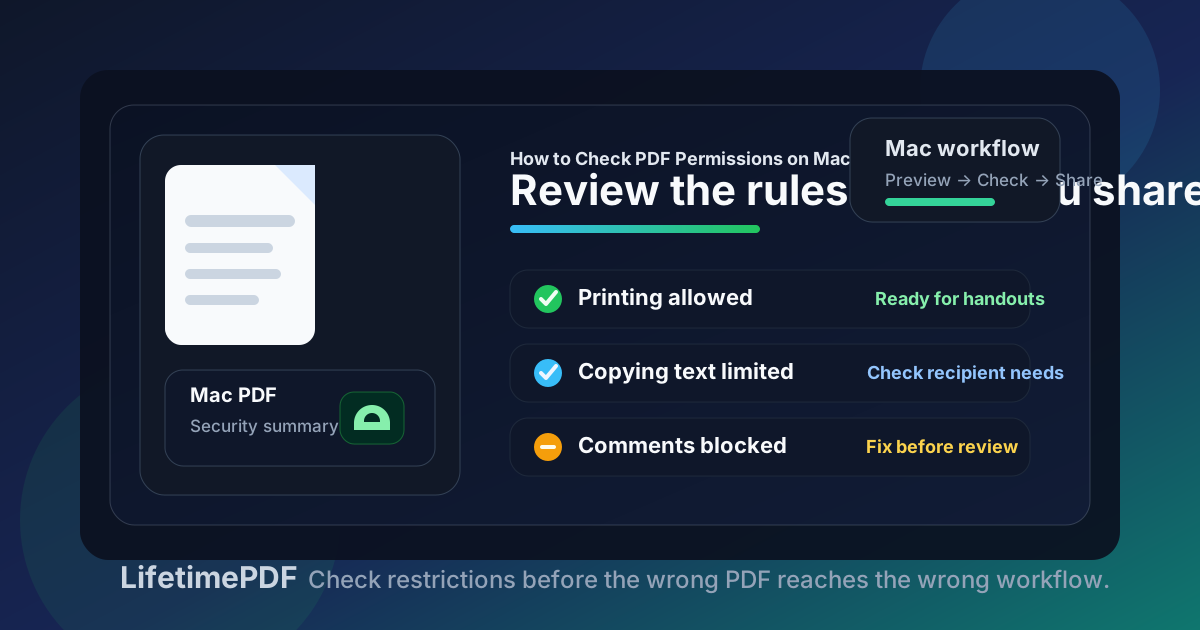
Table of contents
- Quick start: check PDF permissions on Mac in about 5 minutes
- What PDF permissions mean on Mac
- Where Mac users get misled
- Step-by-step: how to review PDF permissions on Mac
- Common signs the permissions need attention
- When to keep, relax, or remove the restrictions
- Related LifetimePDF tools and guides
- FAQ
Quick start: check PDF permissions on Mac in about 5 minutes
If your real goal is simply make sure this Mac PDF will let the next person do the right thing, use this order:
- Save the exact PDF you plan to email, upload, print, archive, or send for review into a clear Finder folder.
- Do not rely only on Mail preview, Messages preview, Safari preview, Quick Look, or the fact that the file opened in Preview.
- Use View PDF Properties or PDF Metadata Editor to inspect the security or permissions story directly.
- Check the practical restrictions first: printing, copying text, comments, editing, form filling, and signing.
- Test the action the next person really needs, such as print, annotate, copy a clause, fill a field, or sign.
- If the file is too tight or too loose, use Protect PDF or Unlock PDF, then reopen the saved copy once.
What PDF permissions mean on Mac
PDF permissions are the hidden rules attached to a file that control what someone can do after the document opens. On Mac, the most important restrictions usually involve printing, copy-paste, editing, comments, form filling, signatures, or content extraction.
| Permission area | What it usually controls | Why it matters on Mac |
|---|---|---|
| Printing | Whether someone can print the PDF, sometimes with different quality limits | Critical for contracts, handouts, approval packets, and any workflow that still ends in paper or a print-to-PDF step |
| Copying text or images | Whether text selection, copy-paste, or content extraction is allowed | Important when reviewers need to quote language, reuse data, or move details into Word, Notes, or another Mac app |
| Comments and annotations | Whether highlights, notes, and markups are allowed | Easy to miss until the review copy reaches a client, lawyer, or teammate who needs to comment in Preview or Acrobat |
| Editing | Whether pages or content can be changed | Useful for controlling final deliverables, but frustrating when the file is still in active revision |
| Form filling and signatures | Whether interactive fields and signing actions still work | One of the highest-friction failures because the document can look normal until the exact moment someone tries to complete it |
The important distinction is that a PDF can feel ordinary on Mac while the permission layer quietly decides what the next person can or cannot do. That is why a permissions review belongs in the final share check, not after the confused reply comes back.
Where Mac users get misled
macOS gives you several fast ways to glance at a PDF, but not every path proves the restriction settings are right. A quick open usually answers does the file render? It does not always answer will the next step actually work?
| Opening path | What it is good for | What it cannot safely prove |
|---|---|---|
| Finder plus a quick open in Preview | Confirming you saved the right file and seeing whether the PDF opens without obvious access problems. | That printing, copy-paste, comments, editing, or form completion will behave the way a real recipient needs. |
| Mail, Messages, Safari, or browser preview | Checking that the attachment or download appears to be the right document. | That the downloaded final copy has the same permission behavior or that the actual workflow will succeed after the preview closes. |
| Preview or Acrobat Reader | Getting a more useful security and interaction picture than a bare preview can show. | You still need to judge whether the restrictions fit the job rather than just reading them mechanically. |
| Dedicated properties or metadata workflow | Reviewing the permission summary before the file leaves Mac. | It still does not fix the file for you. You have to decide whether to keep, tighten, or remove the rules. |
Step-by-step: how to review PDF permissions on Mac
This workflow gives you a dependable answer without turning a simple restriction check into a giant security project.
Step 1: Save the exact Mac copy first
If the PDF is still inside Mail preview, Messages preview, iCloud Drive preview, a browser download page, or a chat attachment card, save it first. The permission check should apply to the exact file you are about to send, upload, archive, sign, or print. That habit prevents the classic mistake where one version was inspected but a different version was the one that actually left your Mac.
Step 2: Read the permission story instead of guessing from a lock icon
A lock icon, warning banner, or viewer quirk is not the same thing as a real permission review. Use View PDF Properties or PDF Metadata Editor so you can understand whether the file is restricting printing, copying, comments, edits, or form actions. If the PDF also seems locked at the access level, compare the result with Check PDF Encryption so you do not confuse open-password protection with ordinary permission rules.
Step 3: Start with the restriction that matters most
You do not need a perfect theoretical understanding before you know whether the file is ready. Start with the real task:
- If someone needs paper or a hard-copy workflow, test printing.
- If someone needs to quote language or move details into Pages, Word, or Notes, test copy-paste.
- If the file is in review, test comments or annotations.
- If the PDF is interactive, test form filling or signing.
- If the file is still a draft, check whether editing is blocked too early.
Step 4: Compare the rules with the visible purpose of the file
A healthy Mac permission check is not just a list of allowed and blocked actions. It is a judgment call about whether the hidden rules match the visible purpose. A review copy should usually allow comments. A signature packet should allow completion. A public handout may not need editing rights. A tightly controlled final deliverable may reasonably block changes.
Step 5: Keep, tighten, or remove the rules deliberately
If the file needs more control, use Protect PDF. If the file is overrestricted and legitimate users are getting stuck, use Unlock PDF. If the current rules already fit the workflow, leave them alone. The goal is not maximum locking. The goal is the right amount of control.
Step 6: Reopen the saved copy once
This is the part people skip when they are rushing on Mac. After you change the file, reopen the saved PDF and test the key action once. That final check catches the annoying failure where the working copy was fixed but the outgoing file still carries the wrong restrictions.
Need a faster cleanup flow? Review the permissions first, then jump straight into the tool that matches the outcome you need.
Common signs the permissions need attention
These patterns come up repeatedly when a Mac PDF looks share-ready on screen but still carries the wrong restriction settings.
| What you notice | What it usually means | Best next move |
|---|---|---|
| The PDF opens, but printing fails or is greyed out | The file may be carrying a print restriction even though the viewer itself looks normal | Confirm whether the restriction is intentional or whether the file needs a less restrictive share copy |
| You can read the file but cannot copy important text | Copy or extraction permissions may be blocked | Decide whether that limitation helps the workflow or just frustrates legitimate reuse |
| Reviewers cannot comment or mark up the file | The PDF may be protected more like a final deliverable than a review copy | Relax the restrictions before the review loop starts fighting the document |
| A form opens but the fields or signature step do not work | The permission settings may be blocking the exact interaction the file exists to support | Test the completion path and adjust the restrictions instead of guessing |
| The file feels strangely locked for an internal draft | An old owner-password or inherited permission profile may have survived from another workflow stage | Review the security state and remove inherited clutter if the control no longer serves a purpose |
Healthy default
If the restrictions would make a reasonable recipient ask “why can I open this PDF but not do the one task it was clearly meant for?”, the permission settings probably deserve another look.
When to keep, relax, or remove the restrictions
A lot of people assume the safest Mac workflow is to lock every PDF down as much as possible. Sometimes that is right. Often it just creates friction. The better question is whether the restrictions match the next step in the document's life.
Keep the permissions when
- the file is a final deliverable that should stay stable,
- you want to discourage casual edits or uncontrolled reuse,
- the recipient only needs to view the PDF and not interact deeply with it,
- the restrictions support a real review, legal, or client-handling policy.
Relax or remove permissions when
- the next person must print, comment, fill, sign, or copy from the file,
- the current rules are leftovers from a draft or another workflow stage,
- the PDF is meant for internal revision rather than final distribution,
- the file keeps generating support friction for authorized users.
For many Mac workflows, the best answer is not “fully locked” or “fully open.” It is intentional permissions. Keep the control that serves the job. Remove the control that only creates noise, delay, or confusion.
FAQ
How do I check PDF permissions on Mac?
Save the PDF locally, inspect the file through a properties or security-aware workflow, and review whether printing, copying, editing, comments, or form filling are allowed before the file leaves your Mac.
Can Preview show all PDF permissions on Mac?
Preview is useful for a quick real-world test, especially for opening, printing, and text selection, but a fuller properties or metadata workflow is better when you want a clearer summary of the permission rules.
Are PDF permissions the same as a password to open the file?
No. An open password controls whether someone can access the PDF at all. Permissions usually control what they can do after it opens, such as print, copy, comment, edit, or fill fields.
Why should I check PDF permissions before printing or sending a file from Mac?
Because a PDF can look perfectly normal on your Mac while still blocking the exact action that matters next. A short Mac permissions review helps you catch that mismatch before it reaches someone else.
Should I remove PDF permissions on Mac?
Only if the restrictions no longer fit the file's purpose. Keep them when they support a real policy or final-deliverable workflow, and relax them when they are blocking legitimate review, printing, form filling, or signing.
Published by LifetimePDF — Pay once. Use forever.