How to Check PDF Page Size on Chromebook: Chrome, Files, and Letter-vs-A4 Problems Before You Print
To check PDF page size on Chromebook, save the final PDF locally, open a page-size-aware properties view, and read the real dimensions in inches, millimeters, or points instead of trusting the preview.
If the file mixes Letter, A4, Legal, or custom page sizes, catch that before you print, upload, merge, or share it.
That is the fast answer. The useful Chromebook answer is that Chrome, Files, Drive preview, and cloud-shared links make almost any PDF look calm and usable on screen. The pain shows up later as white borders, clipped pages, upload failures, or a print dialog that quietly scales the file in a way you did not intend.
Fastest practical path: save the exact Chromebook copy, read the stored page dimensions, confirm every page matches, then decide whether the real fix is crop, resize, re-export, or no change at all.
In a hurry? Jump to quick start: check PDF page size on Chromebook in about 5 minutes.
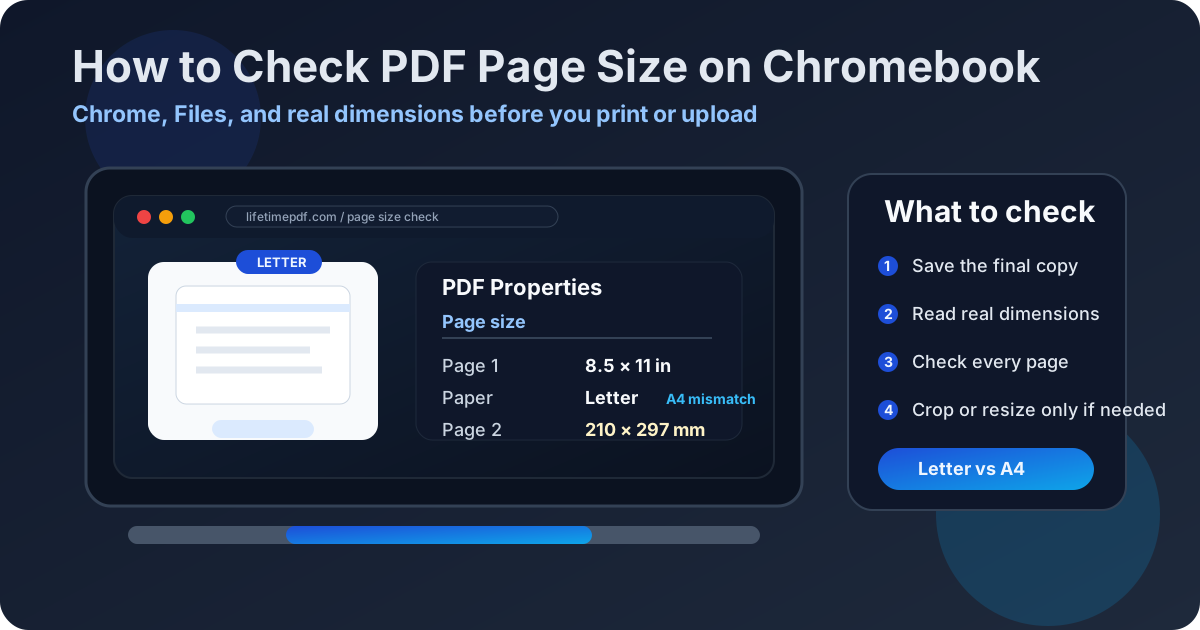
Table of contents
- Quick start: check PDF page size on Chromebook in about 5 minutes
- Why page size matters more on Chromebook than people expect
- Where Chromebook users get misled about PDF page size
- Step-by-step: how to review PDF page size on Chromebook
- How to spot mixed-size PDFs before printing or uploading
- Common Chromebook page-size problems and what to do next
- Related LifetimePDF tools and guides
- FAQ
Quick start: check PDF page size on Chromebook in about 5 minutes
- Save the exact file first. Move the PDF out of Gmail preview, Drive preview, or a browser-only tab and into Downloads, Files, or the folder you actually plan to use.
- Open a page-size-aware view. Chrome is fine for seeing the file, but use a workflow that shows the stored dimensions clearly when accuracy matters.
- Read the actual page size. Confirm whether the file is Letter, A4, Legal, or a custom size.
- Check more than page one. Merged packets, scanner apps, and exported classroom or office PDFs often hide one odd page later in the file.
- Choose the right fix. Crop extra borders when the content area is already correct. Resize or re-export only when the underlying page size is wrong.
- Test the final copy once. Run one print preview or one upload check so you know the corrected Chromebook file behaves the way you expect.
Why page size matters more on Chromebook than people expect
Chromebook workflows are deceptively smooth. A PDF opens fast, looks sharp, and scrolls well. That convenience is exactly why page-size problems get missed. The preview is optimized for readability, not for warning you that one page is Legal, another is A4, and the rest are Letter.
Page size helps with
- avoiding print scaling surprises on home, school, and office printers
- meeting portal requirements for court forms, class submissions, or vendor uploads
- spotting mixed-size pages before you merge, sign, or archive the file
- deciding whether the real fix is crop, resize, rebuild, or nothing at all
Page size matters most when
- the PDF must print cleanly on a specific paper standard
- you are combining scans from different devices or people
- the document is headed into a strict upload portal
- you see odd margins, clipped edges, or inconsistent preview behavior
Page size matters less when
- the file will only be read on screen
- small white borders do not matter to the workflow
- the document is intentionally mixed-size and everyone involved expects that
Where Chromebook users get misled about PDF page size
Most page-size mistakes on Chromebook are not caused by the PDF itself. They are caused by trusting the preview too early.
- Chrome zoom and fit: the browser makes different page sizes look visually consistent.
- Drive preview: shared PDFs feel official and finished, even when one page has the wrong stored dimensions.
- Files thumbnails: a quick glance is good for confirming the file exists, not for confirming its paper format.
- Print dialog scaling: the real issue often appears only when the print preview applies fit, shrink, or margin behavior.
In other words, Chromebook previews are great for readability, but they are terrible at telling you whether the document really matches the paper or portal requirement.
Step-by-step: how to review PDF page size on Chromebook
1) Save the exact Chromebook copy first
Do not inspect the email thumbnail and assume that is enough. Save the file into Downloads, Files, or your chosen Drive folder so you are reviewing the same PDF that will actually be printed, uploaded, or shared.
2) Read the stored dimensions clearly
Open a page-size-aware workflow and read the stored dimensions in inches, millimeters, or points. This separates the real document size from how large Chrome happens to draw it on screen.
3) Confirm the actual paper format
Decide what the document is supposed to be. If the portal wants Letter and the PDF is A4, the file is not wrong in a universal sense, but it is wrong for the job you are about to do.
4) Check more than the first page
Chromebook users often review the first page, see that it looks normal, and move on. That is where mixed-size files sneak through. Check later pages, especially around scanned inserts, signatures, attachments, and packet boundaries.
5) Decide whether the fix is crop, resize, re-export, or no change
Crop when the paper size is effectively correct but the page carries extra scanner borders or crop marks. Resize or re-export only when the stored paper format itself is wrong. If the dimensions already match the requirement, leave the file alone and avoid needless damage.
6) Test one final output
Print one sample page or reopen the corrected file and check the destination workflow again. A one-minute verification step on Chromebook is much cheaper than finding out later that the portal or printer handled the PDF differently than the preview did.
How to spot mixed-size PDFs before printing or uploading
The first pages look fine but one later page shrinks or clips
This usually means the file contains a page from a different source or paper standard. A packet that begins in Letter and suddenly flips to A4 or Legal will often reveal itself only in print or upload behavior.
The print preview suddenly adds much larger white borders
When one page carries extra margins or a mismatched paper size, Chromebook print preview often compensates by scaling it differently. The border is a clue, not the root cause.
The upload portal rejects only one page or one packet
That is a classic mixed-size or custom-size warning. The PDF may be readable everywhere else, but the portal is stricter than Chrome preview and notices the dimension mismatch.
Drive preview looks calm, but the final output still misbehaves
Drive preview is optimized for easy viewing, not for catching technical page-size issues. If the preview feels fine but printing or uploading fails, trust the dimensions, not the preview.
Common Chromebook page-size problems and what to do next
| Situation | What it usually means | Best next move |
|---|---|---|
| Letter PDF sent to an A4-only workflow | The file is readable, but the stored page size does not match the system requirement. | Resize or re-export only if the destination truly requires A4. Otherwise keep the original dimensions. |
| White borders appear only on some pages | Those pages often carry extra scanner space, crop marks, or a different paper size from the rest of the packet. | Check page dimensions and crop the extra border if the content size itself is already correct. |
| Portal rejects the PDF for size or format | A custom page size or one outlier page is breaking the upload rule. | Inspect every page, isolate the mismatch, then resize or rebuild only the offending pages. |
| Someone merged pages from different sources | One person exported from Word, another scanned from a phone, and a third printed to PDF with a different default paper size. | Audit the dimensions page by page before sharing the combined Chromebook copy onward. |
FAQ
How do I check PDF page size on Chromebook?
Save the PDF locally on your Chromebook, open a properties-aware page-size workflow, and read the real dimensions in inches, millimeters, or points. Do not rely on Chrome zoom, Drive preview, or how large the page looks on screen.
Can Chrome preview look normal while the PDF still has the wrong page size?
Yes. Chrome scales PDFs to fit the window, so a Letter, A4, Legal, or mixed-size file can look completely normal until you print it, upload it, or compare it with a paper requirement.
Why do white borders appear when I print a PDF from Chromebook?
White borders usually mean the stored page size does not match the printer paper, or the file carries extra scanner margins or crop marks. Checking the page dimensions tells you whether to crop, resize, or leave the file alone.
How do I know whether a Chromebook PDF mixes page sizes?
Check more than the first page. If one page prints differently, shows bigger borders, or triggers an upload warning, inspect the stored dimensions page by page and look for a Letter, A4, Legal, or custom-size outlier.
Should I crop or resize a PDF when the page size seems wrong on Chromebook?
Crop when the real content size is already correct but the page carries extra borders or marks. Resize or re-export only when the underlying paper size itself is wrong for the printer, upload form, or workflow requirement.
Check the stored dimensions before the Chromebook preview surprises you later.
When a PDF matters, the safest move is simple: save the final copy, confirm the real page size, and make a deliberate fix instead of guessing from a nice-looking preview.