How to Check PDF Keywords on Mac: Finder, Preview, and Metadata Cleanup Before You Share
To check PDF keywords on Mac, save the final PDF locally, inspect the hidden Keywords field in document properties or a metadata editor, and decide whether those tags actually help Spotlight, Finder, or archive search.
If the field is blank, stale, inherited from an old template, or carrying internal labels you would not want surfacing through Mail, iCloud Drive, AirDrop, or a client portal, rewrite it or clear it before the PDF leaves your Mac.
Mac workflows often make PDFs feel polished earlier than they really are. The filename looks tidy in Finder, the file opens cleanly in Preview, and Quick Look makes the document feel share-ready in seconds. Meanwhile the hidden keyword field may still be carrying old folder logic, reused template tags, internal department shorthand, or client labels that never belonged on the outgoing copy. The useful goal is not just proving the PDF opens. It is proving the invisible filing layer still makes sense for the exact file you are about to send.
Fastest practical path: save the final Mac copy, inspect the keyword field once, decide whether the tags help a real filing workflow, then keep only the metadata that still belongs on the share-ready PDF.
In a hurry? Jump to quick start: check PDF keywords on Mac in about 5 minutes.
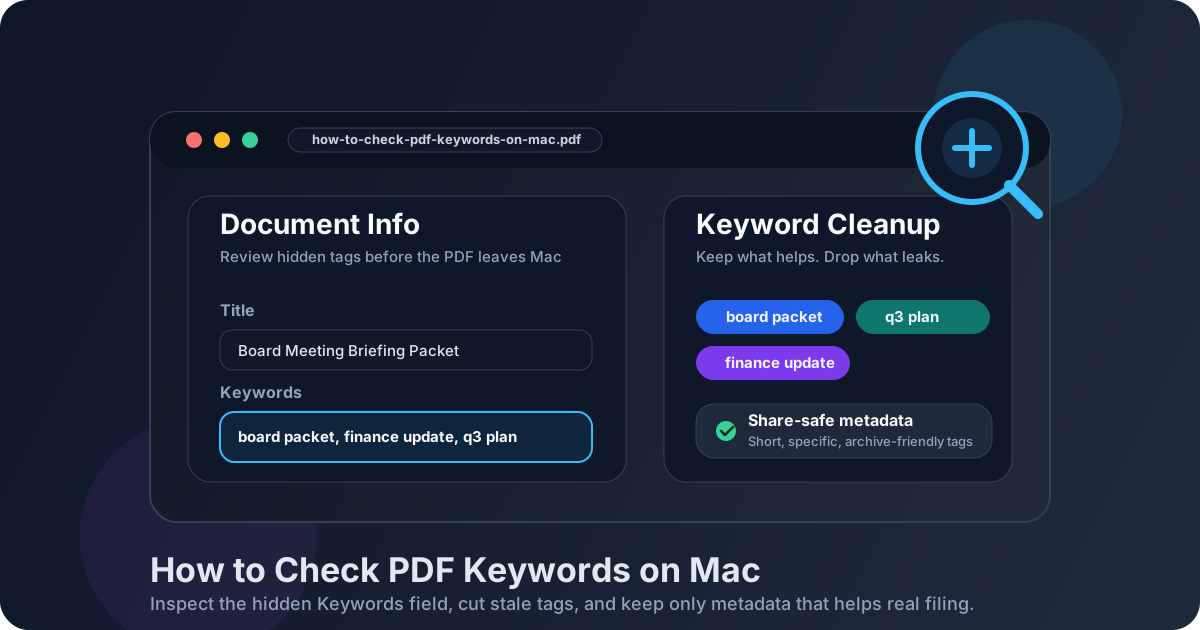
Table of contents
- Quick start: check PDF keywords on Mac in about 5 minutes
- What you are really checking when you review PDF keywords on Mac
- Where Mac users get misled
- Step-by-step: how to check PDF keywords on Mac
- Warning signs the keyword field needs cleanup
- When to keep, rewrite, or remove PDF keywords
- Related LifetimePDF tools and guides
- FAQ
Quick start: check PDF keywords on Mac in about 5 minutes
If your real question is does this Mac PDF still carry useful keyword metadata before I send it?, use this order:
- Open the exact PDF you plan to email, upload, archive, publish, or AirDrop from Downloads, Desktop, iCloud Drive, Mail, Messages, or your project folder.
- Inspect the hidden Keywords field with a metadata-aware workflow such as PDF Metadata Editor or View PDF Properties.
- Ask whether the stored tags would help a real person find, sort, or understand the file later.
- Remove duplicated, stale, private, stuffed, or vague terms.
- Keep a short, specific keyword set only if it adds genuine Spotlight, filing, or archive value.
- Save the cleaned PDF and reopen it once so you confirm the updated keywords really stuck to the final Mac copy.
What you are really checking when you review PDF keywords on Mac
The Keywords field is hidden metadata stored inside the PDF. It is not the filename you see in Finder, not the visible heading on page one, and not the color tags you may use to organize files on your Mac. Think of it as a quiet filing layer that some viewers, archives, search systems, and document workflows can read. That layer can be helpful when it is deliberate. It can also be awkward when it survives from an older export, a recycled template, a previous client matter, or an internal filing habit that should not travel with the final document.
On Mac, the confusion usually starts because surrounding cues feel strong enough. A PDF may sit in a clearly named folder, open beautifully in Preview, and look finished in Quick Look. That does not prove the keyword field is good. The hidden tags may still reflect last quarter's campaign, an old event name, a legal matter code, or a pile of broad filler words nobody would actually search for.
| Field | What it usually means | Typical Mac mistake |
|---|---|---|
| Filename | The storage name shown in Finder, iCloud Drive, or shared folders. | People assume a tidy filename means the hidden keyword field must also be clean. |
| Finder tags | Mac organizational labels used in your local workflow. | They get confused with PDF keyword metadata even though they are completely different systems. |
| Visible title or heading | The reader-facing label shown on the page itself. | It gets treated like proof that the hidden metadata matches, even when the PDF was exported from an older template. |
| PDF Keywords | Hidden tags stored inside the document for metadata, filing, or retrieval purposes. | They stay untouched for months and quietly carry stale project labels, internal shorthand, or keyword clutter into the share-ready copy. |
Where Mac users get misled
Mac gives you several fast ways to glance at a PDF, but not every path proves the keyword metadata is healthy. A beautiful preview answers whether the file opens. It does not answer whether the hidden tags are useful, harmless, or quietly embarrassing.
| Mac view | What it is good for | What it cannot safely prove |
|---|---|---|
| Finder or iCloud Drive | Confirming which copy you are about to share and how the filename looks in a real folder. | That the embedded keyword field is relevant, current, or safe for the audience receiving the PDF. |
| Quick Look | Fast visual confirmation that the PDF is the right document. | Whether the hidden keyword field still matches the final version rather than an older export path. |
| Preview, Mail, or Safari preview | Showing how the PDF behaves in a normal Mac reading and sharing workflow. | That the document is not carrying private project tags, template leftovers, or cluttered metadata from upstream tools. |
| PDF properties or metadata editor | Reading the actual stored Keywords field and comparing it with the file's real purpose. | You still have to decide as a human whether the tags help retrieval or only create noise. |
That last line matters most. Tools can show you the tags. They cannot decide whether those tags still deserve to travel with the final PDF.
Step-by-step: how to check PDF keywords on Mac
This workflow is quick enough for everyday Mac use and detailed enough to catch the metadata mistakes that most often survive into client files, archives, and public downloads.
Step 1: Start with the exact Mac copy you plan to share
Review the real file from the folder, email draft, AirDrop destination, iCloud location, or project directory that actually matters. If the PDF passed through Mail, Safari, Messages, a browser download, or a shared drive, inspect that final copy directly. Checking one version while sending another is one of the easiest ways to miss stale keywords.
Step 2: Read the Keywords field directly
Use PDF Metadata Editor, Acrobat document properties, or the broader workflow in View PDF Properties. Do not rely on the filename, Finder tags, or visible page content alone. On Mac, those outer signals often look cleaner than the hidden keyword field actually is.
Step 3: Judge usefulness instead of quantity
Keywords do not get better just because there are more of them. A short set of specific tags can help archives and document libraries. A long comma-heavy list usually looks like leftovers from an old export habit. The real test is whether the terms would help a future user retrieve the file without seeing your internal workflow history.
Step 4: Remove obvious noise first
Cut duplicated terms, generic filler words, old client labels, internal ticket numbers, stale event names, and department shorthand that nobody outside your immediate workflow would understand. In most Mac review sessions, the biggest improvement comes from subtraction rather than adding more tags.
Step 5: Keep the remaining tags short, stable, and aligned
If you decide the keyword field is worth keeping, make sure it aligns with the file's title, subject, filename, and visible purpose. Good keyword metadata should still make sense later in Finder, in a shared drive, or after the PDF has been forwarded far away from its original folder structure.
Step 6: Save and verify the final copy once
Reopen the cleaned PDF and confirm the Keywords field really changed on the file you are about to share. This catches the classic Mac problems: editing the wrong copy, trusting a quick preview, or saving the cleanup into one folder while the outgoing attachment still points somewhere else.
Reliable sequence: open the real Mac copy, inspect the hidden keyword field, remove stale or private tags, keep only the terms that genuinely help filing, then verify the final saved PDF once before it leaves your workflow.
Warning signs the keyword field needs cleanup
These patterns show up constantly in Mac workflows built around email attachments, reused templates, shared drives, portal uploads, and fast export handoffs.
| What you notice | What it usually means | Best next move |
|---|---|---|
| The keyword field looks like a long stuffed list | The PDF probably inherited tags from an old export habit instead of a real filing strategy. | Cut the list back to the few terms that would genuinely help retrieval, or clear it entirely. |
| The tags mention an old client, quarter, or project code | The file likely carried metadata forward from an earlier draft or template. | Rewrite the keywords so they reflect the current document, not its backstory. |
| Every exported PDF carries nearly the same keywords | A template or upstream workflow is stamping generic or stale metadata onto new files. | Fix the template if possible and clean the final PDF before sharing. |
| The title, subject, and keywords tell different stories | The metadata layer is inconsistent and may confuse archives, libraries, or reviewers. | Bring the hidden fields back into the same document identity. |
| The PDF is going outside your organization, but the tags reveal internal language | The keyword field may be exposing more workflow context than the recipient needs to see. | Remove or neutralize the internal tags before the PDF leaves Mac. |
Healthy default
If someone opened the PDF properties and the keywords would look stale, cluttered, or oddly revealing, the file deserves one more metadata pass before you send it.
When to keep, rewrite, or remove PDF keywords
Not every Mac PDF needs the same answer. The useful question is whether the keyword field earns its place in the final file.
Keep the keywords
Best when the tags support a real archive, records, or document-library workflow and still describe the finished PDF accurately.
Rewrite the keywords
Useful when the field still matters, but the current tags are stale, duplicated, overgrown, or inherited from an earlier version.
Remove the keywords
Smart when the field adds no retrieval value, creates privacy risk, or reveals internal context that should not travel with the share-ready file.
In practice, good PDF keywords behave like calm filing labels. They are short, stable, and understandable. Bad PDF keywords behave like scraps from old folders, inherited exports, and internal systems that nobody meant to expose. A blank field is often better than a noisy one.
- Keep the field when it helps real retrieval.
- Rewrite it when the concept is useful but the current tags are messy.
- Remove it when the tags are vague, private, stuffed, or more confusing than helpful.
- Align keywords with the title, subject, and filename so the file tells one consistent story.
FAQ
How do I check PDF keywords on Mac quickly?
Save the final PDF locally on your Mac, inspect the hidden Keywords field in document properties or a metadata tool, and keep only the tags that actually help Spotlight search, filing, or archives.
Can Finder or Quick Look show PDF keywords clearly?
Not always. Finder and Quick Look are useful for confirming the right file, but a dedicated PDF properties or metadata workflow is more reliable when you need the full keyword field and related hidden-property context.
Should every PDF have keywords?
No. Many PDFs work better with a blank keyword field than with a cluttered one. Keep keywords only when they help a real archive, library, or retrieval workflow.
What makes PDF keywords bad?
Bad keywords are usually stale, duplicated, vague, stuffed, private, or full of internal shorthand that would not help the next person understand or find the file later.
Can PDF keywords leak internal information?
Yes. Keywords can expose internal taxonomy, project codes, client names, and workflow labels that never appear on the visible pages, so they are worth checking before the PDF leaves your normal Mac environment.
Check the hidden tags before the PDF leaves your Mac.
A clean Mac workflow is simple: inspect the keyword field, keep only the terms that help real retrieval, remove stale or private tags, and verify the final saved copy once before you share it.
Published by LifetimePDF — Pay once. Use forever.