How to Check PDF ICC Profile on Windows: Verify Embedded Color Profiles Before Print, PDF/A Review, or Delivery
To check PDF ICC profile on Windows, save the real PDF locally, inspect the embedded ICC profile in a metadata-aware properties or preflight-style view, and compare it with the file's output intent and actual destination.
If the profile is missing, inherited, generic, or mismatched, fix that before the PDF goes to print, proofing, PDF/A review, archive storage, or client delivery.
That is the short Windows answer. The practical answer is that a PDF can look perfectly fine in File Explorer, an email attachment, a browser tab, or Microsoft Edge while still carrying weak color-management data underneath. When the embedded profile does not match the real workflow, you usually do not get a dramatic warning. You get slower problems instead: odd proofing behavior, printer questions, color shifts after conversion, or a file that passes a casual glance but fails trust once someone downstream inspects it properly.
Fastest practical path: inspect the embedded ICC profile, compare it with output intent and the real destination, then verify PDF version and archive expectations before the file leaves your Windows PC.
In a hurry? Jump to quick start: check PDF ICC profile on Windows in about 5 minutes.
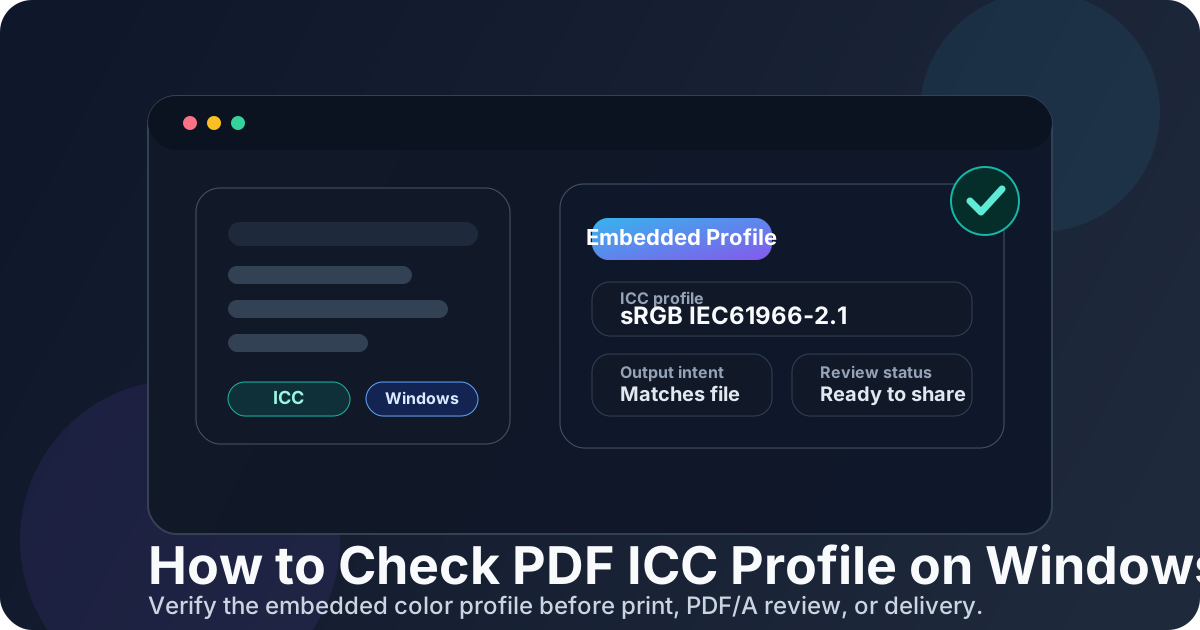
Table of contents
- Quick start: check PDF ICC profile on Windows in about 5 minutes
- What you are really checking on Windows
- Where Windows users get misled
- Step-by-step: how to check PDF ICC profile on Windows
- Warning signs the profile data needs a second look
- When to leave the file alone and when to re-export
- Related LifetimePDF tools and guides
- FAQ
Quick start: check PDF ICC profile on Windows in about 5 minutes
If your real question is does this Windows PDF carry the right color-profile data before I send it?, use this order:
- Save the exact PDF you plan to email, upload, print, archive, or send for review into a local Windows folder.
- Open a metadata-aware workflow such as View PDF Properties so you can read whether an embedded ICC profile exists and what it appears to represent.
- Compare that with the real destination of the file: office print, commercial press, proofing, digital delivery, or PDF/A-style archive review.
- Check whether the output intent and PDF version support the same workflow instead of telling a different story.
- If the profile is missing or clearly wrong for the job, rebuild or re-export the PDF and verify the final saved copy once.
What you are really checking on Windows
An ICC profile is color-management data that tells software how to interpret color for a device, space, or output condition. Inside a PDF, that profile helps other systems understand the file more consistently when it moves between apps, proofing stages, print workflows, or archive checks.
On Windows, the confusion starts because surrounding cues look more trustworthy than they really are. The filename is tidy, the preview opens, the pages render normally in Edge, and everything feels finished. None of that guarantees the PDF is carrying the right embedded profile data. The visible pages can look normal even when the file inherited stale profile settings from an older export preset, a reused template, or a different destination than the one you are using now.
ICC profile helps with
predictable print handoff, cleaner proofing, smoother color-aware conversion, and fewer surprises in standards-driven workflows.
ICC profile matters most when
the PDF is headed to print, prepress, proofing, archive review, or any workflow where color assumptions need to travel with the file.
ICC profile matters less when
the PDF is only for casual reading and nobody downstream depends on precise color-management behavior.
Where Windows users get misled
Windows gives you several quick ways to glance at a PDF, but not every path proves the profile data is healthy. A fast open tells you the file renders. It does not prove the embedded color profile still makes sense for the real job.
| Windows path | What it is good for | What it cannot safely prove |
|---|---|---|
| File Explorer and a quick open in Edge | Confirming you saved the correct file and checking whether it opens normally on your PC. | That the embedded ICC profile matches the real print, archive, or delivery destination. |
| Email preview, Teams preview, or browser download tab | Spotting whether the document looks like the right attachment or download. | That the saved final PDF is carrying the same color-management data you assume it is. |
| Acrobat or another full viewer | Giving you more useful metadata context than a bare preview window. | You still need to compare the profile with output intent and the real workflow instead of trusting the file automatically. |
| Dedicated properties or metadata workflow | Reading whether the PDF embeds a profile and what that profile says about the file. | It does not decide for you whether the metadata fits the real business handoff. You still have to make that call. |
That last point matters most. Software can show you the profile. It cannot tell you whether the file is still honest about where it is headed next.
Step-by-step: how to check PDF ICC profile on Windows
This workflow is fast enough for everyday Windows use and strong enough to catch the profile mistakes that most often survive into print jobs, shared folders, and archive pipelines.
1) Save the exact outgoing Windows copy
Inspect the file you will actually send, not an Outlook preview, Teams preview, browser cache, or an older draft sitting nearby in another folder.
2) Read the embedded profile data clearly
Use View PDF Properties or another metadata-aware review path so you can see whether an ICC profile exists instead of guessing from appearance alone.
3) Compare the profile with the real destination
Ask whether the embedded profile makes sense for office print, commercial press, proofing, digital delivery, or archive review rather than assuming any profile is automatically correct.
4) Check output intent and version too
Review output intent and PDF version so the file's production clues support the same story.
5) Judge the mismatch by real risk
A weak profile may not matter on a casual share copy. The same weakness can matter a lot on a press-ready file or a standards-aware archive workflow.
6) Reopen the final saved file once
If you rebuild the PDF, verify the exact saved Windows copy again. That catches the common mistake where the workflow changed, but the outgoing file did not.
Best default sequence: save the real Windows copy → inspect the embedded profile → compare it with output intent and the real destination → verify version or PDF/A expectations → re-export only if the file's color story no longer holds together.
Warning signs the profile data needs a second look
These are the patterns that most often show up when a Windows PDF feels fine on the surface but still deserves a real ICC profile check.
No embedded profile shows up at all
That does not automatically make the PDF unusable, but it does mean downstream color-managed workflows have less guidance than you may expect.
The profile looks inherited or generic
A reused export preset or old template may have stamped the PDF with profile data that made sense for another job, not this one.
Output intent and profile tell different stories
When the file declares one destination but embeds profile data that points somewhere else, the PDF stops being trustworthy for serious handoff work.
Colors look wrong even though a profile exists
The real problem may live in the source artwork, conversion settings, or delivery target. The existence of a profile is not the same thing as a correct workflow.
When to leave the file alone and when to re-export
Not every ICC profile issue needs the same response. The useful question is whether the profile data still deserves your trust for the handoff that matters.
Leave it alone
Best when the embedded profile matches the real destination and the surrounding metadata supports the same workflow.
Correct the workflow
Useful when the file is broadly fine but clearly inherited stale profile data from an old preset, template, or upstream process.
Re-export the PDF
Safest when the profile, output intent, and actual destination all point in different directions and the PDF's color story has become structurally unreliable.
A good Windows habit is to stop editing correct files. If the profile data is right for the real job, extra tinkering only creates fresh risk. If the profile problem is merely a symptom of a broken export path, the safer repair is usually a clean re-export from the real source instead of patching fields blindly.
FAQ
How do I check PDF ICC profile on Windows?
Save the final PDF locally, open a metadata-aware properties or preflight-style view, read the embedded ICC profile data, and compare it with the output intent and real destination before you approve the file.
Can I check a PDF ICC profile in Microsoft Edge on Windows?
Edge is useful for confirming you opened the correct saved file, but a fuller properties workflow is better when you need to inspect the embedded ICC profile clearly.
Is a PDF ICC profile the same as output intent?
No. The ICC profile is the embedded color-profile data, while output intent is the PDF-level declaration about the intended destination. They are related, but they do not answer the same question.
Why should I check ICC profile data before printing or archiving a PDF?
Because a PDF can look normal on Windows while still carrying missing, inherited, or mismatched color-management data that causes avoidable print, proofing, or standards-review problems later.
Should I change the ICC profile if the PDF colors look wrong on Windows?
Only if the profile itself is clearly wrong for the job. Many color problems start in source artwork, export settings, or a destination mismatch, so changing profile data alone is not always the real fix.
Check the embedded profile before the file surprises someone downstream.
On Windows, the cleanest color-management workflow is simple: inspect the ICC profile, compare it with output intent and the real destination, verify the final saved copy once, and only rebuild the PDF when the file's hidden color story has genuinely gone stale.
Published by LifetimePDF — Pay once. Use forever.