How to Check PDF ICC Profile on iPad: Files, Split View, and Color-Profile Checks Before You Share
To check PDF ICC profile on iPad, save the exact PDF from Files, Mail, Safari, or iCloud Drive, open it in a metadata-aware properties workflow, and read the embedded ICC profile instead of trusting the preview alone.
If the profile is missing, generic, or out of step with the file's output intent and real destination, fix that before the PDF leaves your iPad for print, proofing, archive review, or client delivery.
iPad workflows make documents feel finished quickly. A PDF opens neatly in Files, looks crisp beside Mail in Split View, and can be sent through AirDrop or a share sheet in seconds. That smooth experience is useful, but it can also hide the real question: does the PDF's color metadata still match the job, or are you only trusting a nice screen preview? When a printer, archive system, or downstream reviewer checks the file more carefully, the embedded ICC profile and output intent matter far more than how comfortable the preview looked on your tablet.
Fastest practical path: save the real iPad copy, inspect the embedded ICC profile, compare it with output intent and the actual job, then verify the final file once before you send it anywhere important.
In a hurry? Jump to quick start: check PDF ICC profile on iPad in about 5 minutes.
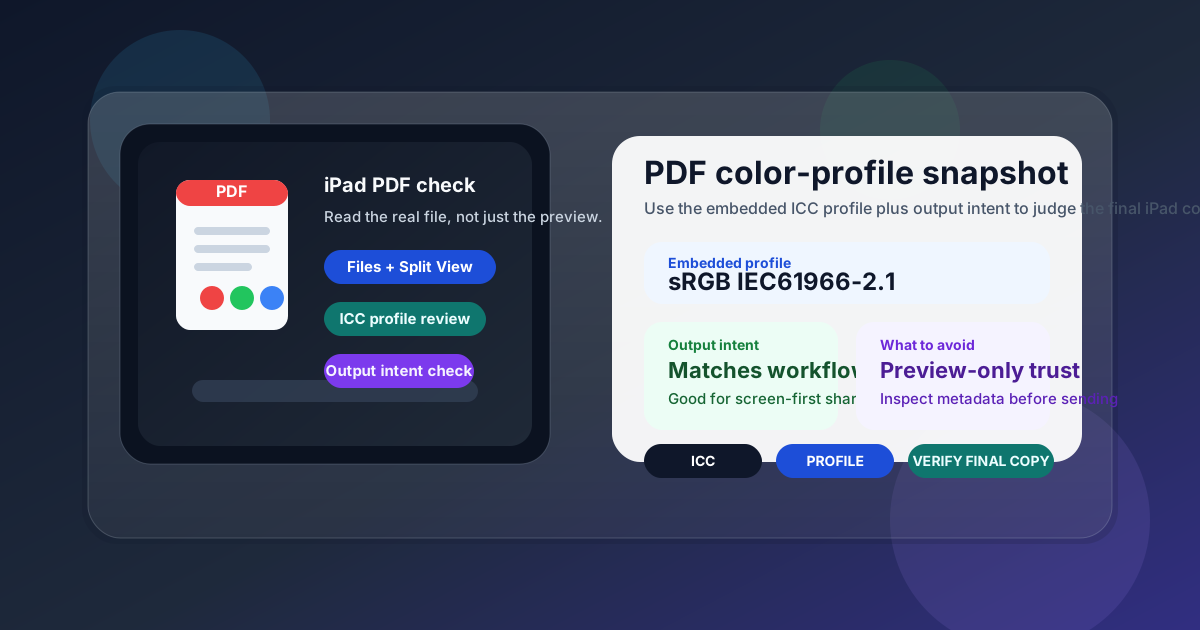
Table of contents
Quick start: check PDF ICC profile on iPad in about 5 minutes
If your real question is does this iPad PDF carry the right color profile before I send it?, use this order:
- Save the exact PDF you plan to upload, print, archive, email, or AirDrop into Files or another stable folder so you are checking the real outgoing copy.
- Open the file in a metadata-aware workflow such as Acrobat Reader, a document-properties view, or View PDF Properties.
- Read the embedded ICC profile and note whether it reports something sensible, such as sRGB IEC61966-2.1 or another profile that matches the job.
- Compare that profile with the file's declared destination using Check PDF Output Intent.
- If the profile is missing, vague, or contradictory, run a broader review with Check PDF ICC Profile before you share the file.
- If you re-export the PDF, reopen the final saved iPad copy and verify the profile one more time.
What an ICC profile tells you on iPad
A PDF ICC profile tells other systems how the color data inside the file should be interpreted. Sometimes that profile is embedded clearly. Sometimes it is generic. Sometimes it is missing. In a healthy workflow, the profile should make sense alongside the file's output intent, the expected destination, and the reason the PDF exists in the first place.
On iPad, this matters because the screen preview is only one layer of the story. A PDF can look perfectly normal in Files, Mail, Safari, or an iCloud preview even when the underlying profile is weak for commercial print, PDF/X handoff, archive validation, or any other workflow where color metadata gets checked by something stricter than your tablet screen.
| Profile clue | What it usually means | Why an iPad user should care |
|---|---|---|
| sRGB IEC61966-2.1 | A common web and office-friendly RGB profile | Often reasonable for screen-first sharing, browser viewing, and many everyday office workflows |
| Press-oriented CMYK profile | A profile chosen for a specific print condition or production target | Worth checking carefully before print handoff because it should match the real press workflow |
| No clear embedded profile | The PDF may rely on defaults, inherited assumptions, or incomplete export settings | This is where downstream confusion starts, especially when the file moves into a stricter review process |
| Profile and output intent disagree | The file is telling two different stories about color handling | That mismatch is often a better warning sign than the preview itself when something feels off |
Why iPad previews can hide profile problems
iPad makes PDF review feel fast and polished. You can preview the file in Files, park it beside Mail in Split View, mark it up with Apple Pencil, and send it forward without ever feeling like you left a comfortable workflow. That convenience is great for ordinary reading. It is not proof that the color metadata is ready for print, archive review, or production delivery.
| iPad view | What it is good for | What it cannot safely prove |
|---|---|---|
| Files or Downloads | Confirming the filename, folder, and which copy you are actually about to share. | Whether the embedded ICC profile exists, matches the output intent, or fits the destination. |
| Mail, Safari, or iCloud preview | Quickly checking whether the PDF opens and roughly looks normal on your iPad. | Whether the color-management metadata is strong enough for formal delivery, print, or archive review. |
| Split View with Files beside the PDF | Helping you stay on the correct copy while you inspect the file and compare locations. | Whether the embedded ICC profile tells the same story as the output intent and real workflow. |
| Metadata or validation tools | Showing the profile, output intent, and nearby PDF signals in a way a casual preview cannot. | You still need to compare the results with the destination you actually care about. |
The main point is simple: an iPad preview tells you the file is readable here. It does not automatically tell you it is production-safe everywhere else.
Step-by-step: how to check PDF ICC profile on iPad
This workflow keeps the check practical. You do not need to turn your tablet into a prepress workstation. You only need a dependable way to confirm the profile story before the file leaves your control.
Step 1: Start with the exact iPad copy that will travel
Save the PDF from Mail, Safari, iCloud Drive, Google Drive, OneDrive, Messages, or another app into Files or another stable location. The goal is to inspect the same copy that will actually be sent onward. If you inspect one file and share another, even a perfect ICC profile check is wasted effort.
Step 2: Open a metadata-aware properties view instead of trusting the preview
A preview can reassure you that the pages render. It cannot reliably expose the embedded profile. Use Acrobat Reader, another viewer with document details, or a tool like View PDF Properties so you can inspect the PDF deliberately.
Step 3: Read the embedded ICC profile clearly
Look for the actual profile name, the color space, and whether the file reports an embedded profile at all. Familiar values can still be wrong for a specific job, so treat the profile as evidence rather than a magic safety label.
- If the profile is present and familiar, note it instead of assuming familiar means correct.
- If the profile is absent, do not panic, but do treat the file as worth a closer review.
- If the profile looks highly specific, make sure it actually belongs to the destination you are targeting.
Step 4: Compare the profile with output intent and the real destination
This is the step that turns raw metadata into a practical decision. Use Check PDF Output Intent and ask whether the embedded profile agrees with the file's declared destination and the real job in front of you.
| Destination | What to verify | Practical takeaway |
|---|---|---|
| Everyday office sharing | The profile is present or at least not obviously contradictory to the file's purpose. | If the PDF is screen-first, a familiar RGB profile may be completely reasonable. |
| Commercial print or proofing | The profile and output intent match the print condition you actually expect. | This is where vague or mismatched profile data creates expensive back-and-forth. |
| Archive or standards review | The profile story supports the broader compliance expectations of the workflow. | A file that looks normal on iPad can still fail a serious validation check later. |
| Client or vendor delivery | The metadata does not raise avoidable questions before the file reaches someone else. | Clean metadata reduces email chains that begin with a request for a safer or cleaner PDF. |
Step 5: Check nearby PDF signals when the job is important
ICC profile data rarely lives in isolation. If the file matters, review the nearby clues too: output intent, PDF version, and broader document properties. A profile that looks acceptable on its own can still sit inside a PDF whose wider production story does not hold together.
Reliable sequence: confirm the real iPad copy, inspect the embedded profile, compare it with output intent and the actual job, then review nearby PDF signals before you share the file.
Step 6: Re-export only when you have a reason
Do not rebuild a PDF just because the first check made you nervous. If the profile matches the destination and the broader PDF signals look clean, leave the file alone. If the profile is missing, stale, or clearly mismatched, then re-export intentionally and verify the new copy once more before it leaves your iPad.
When the profile is fine, missing, or mismatched
Most ICC profile decisions on iPad fall into three practical buckets.
The profile looks fine
The embedded profile is present, the output intent supports the same destination, and nothing else in the file suggests a conflict.
Best move: stop editing and send the file. A clean PDF is not improved by unnecessary conversions.
The profile is missing or vague
The file may still open fine, but the metadata is not giving you enough confidence for a stricter workflow.
Best move: inspect properties more deeply and treat the file as a candidate for a cleaner export if the destination is sensitive.
The profile and workflow disagree
The embedded profile suggests one destination while the real job expects another, or the output intent tells a different story.
Best move: rebuild or correct the file before it reaches a printer, archive, or client who will notice the inconsistency for you.
A useful rule of thumb is this: if the workflow is casual, you are usually deciding whether the metadata feels sane. If the workflow is strict, you are deciding whether the metadata is defensible.
Common iPad mistakes to avoid
- Checking a preview from Mail, Safari, or iCloud instead of the exact file that will be sent.
- Assuming a normal-looking screen preview proves the color profile is right.
- Changing the file repeatedly before you know whether the profile is actually the problem.
- Ignoring output intent even when the PDF is headed into print, validation, or archive review.
FAQ
How do I check PDF ICC profile on iPad?
Save the exact PDF locally in Files, open a metadata-aware properties workflow, inspect the embedded ICC profile, and compare it with output intent and the real destination before you approve the file.
Can I check a PDF ICC profile in Files or Mail on iPad?
Files and Mail are useful for confirming the copy you are about to send, but a metadata-aware viewer or PDF properties workflow is better when you need to read the embedded profile clearly.
Is an ICC profile the same as output intent?
No. The ICC profile is the color-profile data itself, while output intent is the PDF-level declaration about the intended destination condition.
Why should I check ICC profile data before sending a PDF from iPad?
Because the PDF can look normal on your tablet while still carrying missing, generic, or mismatched metadata that creates avoidable printer questions, validation issues, or delivery friction later.
Should I change the ICC profile if the colors look wrong on iPad?
Only if the profile itself is clearly wrong for the job. Many color problems start in the artwork, export settings, or destination mismatch, so changing the profile alone is not always the real fix.
Check the profile before the file surprises someone downstream.
On iPad, the cleanest color workflow is simple: save the real file, inspect the embedded ICC profile, compare it with output intent and the actual destination, and only rebuild the PDF when the metadata and the workflow genuinely disagree.
Published by LifetimePDF — Pay once. Use forever.