How to Check PDF Alt Text on Mac: Preview, Acrobat, and Image Descriptions Before You Share
To check PDF alt text on Mac, open the final PDF, review every meaningful image in Preview or Acrobat, and confirm the description tells a non-visual reader what matters.
If a chart, screenshot, logo, or figure is important but silent, vague, or wrongly treated as decorative, the file is not ready to share.
Mac previews are calm and polished, which is exactly why they can mislead you. A PDF can look excellent in Quick Look, Preview, Mail, or iCloud Drive and still fail people who rely on screen readers or structured accessibility checks. The real goal is not proving that the page looks neat on a Retina display. It is proving that the meaning of each important visual still survives when the reader cannot see the visual at all.
Fastest practical path: review the real Mac copy, list meaningful visuals, run an accessibility check, judge the descriptions manually, fix the source if needed, and retest before the PDF leaves your machine.
In a hurry? Jump to quick start: check PDF alt text on Mac in about 8 minutes.
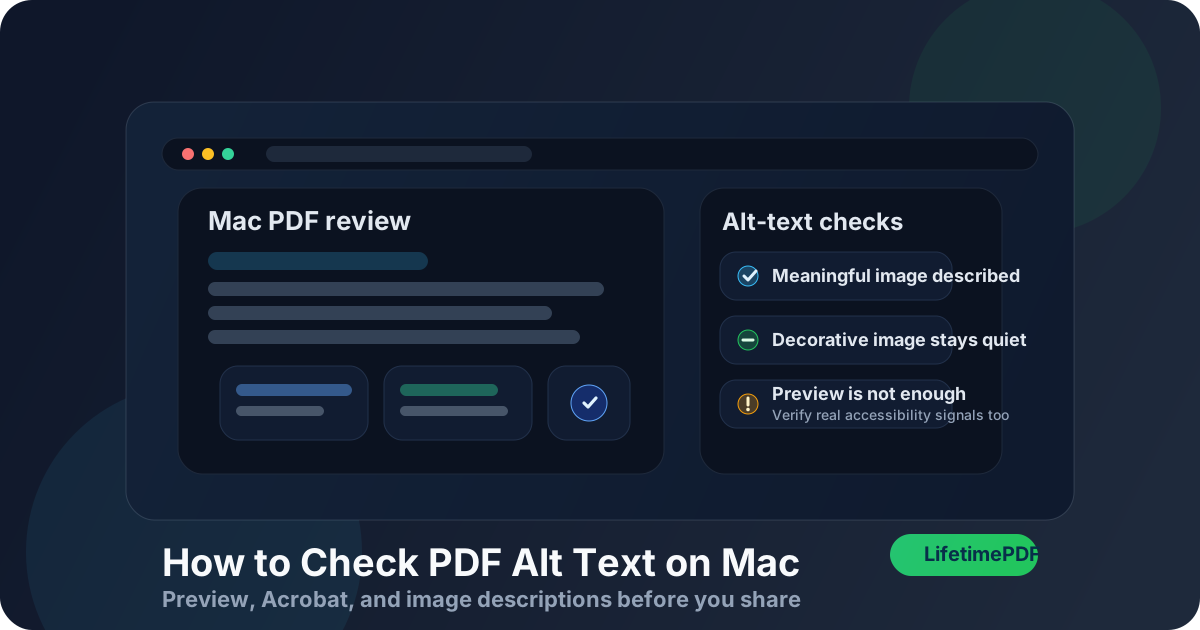
Table of contents
- Quick start: check PDF alt text on Mac in about 8 minutes
- What you are really checking when you review PDF alt text
- Where Mac users get misled
- Step-by-step: how to check PDF alt text on Mac
- Warning signs that the PDF only looks accessible
- Charts, screenshots, logos, and decorative artwork
- When to fix the source versus patch the PDF
- Related LifetimePDF tools and guides
- FAQ
Quick start: check PDF alt text on Mac in about 8 minutes
If your real question is tell me whether this Mac PDF handles image descriptions properly, use this order:
- Open the exact PDF you plan to send, upload, archive, or publish from Finder, Downloads, iCloud Drive, Mail, Messages, or an AirDrop save.
- List the visuals that carry meaning: charts, screenshots, product images, diagrams, logos, maps, or figures. Ignore purely decorative separators for now.
- Confirm the file is not hiding a deeper scan problem. If text selection is broken, run OCR PDF before acting too confident about accessibility.
- Use Acrobat or your strongest available Mac review tool to inspect the figures, then compare that with a broader PDF accessibility check.
- Judge whether each description explains the useful takeaway, not just whether some field exists.
- If several descriptions are missing, duplicated, or obviously exported badly, repair the source file and make a cleaner PDF instead of treating the current export as good enough.
What you are really checking when you review PDF alt text
Checking PDF alt text on Mac is not the same as asking whether every image has a caption. It is a more precise review. You are verifying whether the document communicates the purpose of important visuals to non-visual readers while keeping decorative clutter out of the way.
In practice, that means looking for three things:
- Meaningful coverage: the charts, screenshots, diagrams, logos, and figures that matter actually have a useful description.
- Context over noise: the description explains the point of the image in this document, not a robotic inventory of colors, shapes, or buttons.
- Decorative restraint: flourishes, background art, and non-essential accents are not announced as if they were core content.
Good outcome
A non-visual reader learns what the image contributes and does not get buried under decorative nonsense.
Common failure
The PDF technically contains an image-description field, but it is empty, generic, duplicated, or useless in context.
Best next move
Review the real file, then fix the original authoring workflow if the export repeatedly strips or weakens descriptions.
Alt text also overlaps with bigger accessibility signals. If the PDF is badly tagged, missing structure, or built from poor OCR, the image-description review often becomes messy too. That is why I like checking alt text as part of a broader Mac accessibility pass, not as an isolated checkbox.
Where Mac users get misled
Mac gives you several pleasant ways to glance at a PDF. The problem is that convenience is not proof. A polished preview in Quick Look, Preview, Adobe Acrobat, Mail, or an iCloud Drive pane can still hide weak or missing descriptions underneath.
| Mac view | What it is good for | What it cannot safely prove |
|---|---|---|
| Quick Look | Fast first look at the actual pages, layout, and whether meaningful visuals stand out. | That the important figures have strong descriptions or that decorative art is marked appropriately. |
| Preview | Manual review, text selection, and a quick sense of whether the Mac copy behaves like a normal readable PDF. | You still need judgment. A page can look polished while the actual image descriptions are weak or missing. |
| Acrobat or another stronger PDF app | Deeper manual inspection, accessibility-oriented review, and a better chance of spotting weak figure treatment. | A field can exist and still say almost nothing useful. Tool visibility is not the same as content quality. |
| Mail or Messages preview | Quick confirmation that you are reviewing the right attachment or received version. | That the exported PDF kept the image descriptions from the source document. |
| Accessibility checker results | Surfacing likely issues, missing structure, and patterns worth inspecting first. | Whether the wording is truly helpful to a human reader in context. |
That last row matters most. Automated checks are useful, but strong alt text still needs human judgment. A checker can tell you that something might be missing. It cannot always tell you whether the description actually helps.
Step-by-step: how to check PDF alt text on Mac
This workflow gives you a dependable answer without turning a routine Mac review into a full remediation project.
Step 1: Start with the real Mac copy
Review the exact file that will leave your machine. If the PDF lives in Downloads, iCloud Drive, Mail, Messages, or a shared folder, open the final copy directly. Temporary previews and older exports create fake confidence fast.
Step 2: Identify the visuals that actually carry meaning
Make a quick inventory. Which visuals would leave a reader confused if they disappeared? Those are the ones that need real attention: charts, screenshots, diagrams, photos with business value, scanned signatures in context, logos that identify the source, product images, maps, and figure panels.
Step 3: Confirm the text layer before you judge the rest
If the PDF is a scan or a weak export, the alt-text review may sit on top of a bigger structural problem. Try selecting text, searching a visible word, or running OCR PDF when the file behaves like a picture. OCR will not magically write thoughtful alt text, but it can make the Mac accessibility review far less murky.
Step 4: Review the figures in the strongest Mac tool you have
Preview is fine for a quick visual pass. For a real check, use the best accessibility-oriented review path available to you on Mac, then compare what it shows with your own list of meaningful visuals. If your document contains five important figures and your review only surfaces two, something is off already.
Step 5: Judge the quality of the description, not just the existence of one
Weak alt text usually fails in one of four ways: it is blank, generic, copied from a filename, or so literal that it misses the point. A good description explains what the reader needs from the image in this document. For a chart, that is usually the trend or takeaway. For a screenshot, it is the important state, setting, or result. For a logo, it may only need identification.
Step 6: Separate decorative visuals from meaningful ones
One of the most common Mac review mistakes is treating every visible graphic as equally important. That produces noisy, exhausting output for assistive technology users. Decorative flourishes should stay quiet. Meaningful visuals should speak clearly.
Step 7: Rebuild the source when the export is obviously weak
If the same file has several missing or low-quality descriptions, the problem usually started upstream. Use PDF to Word when you need an editable starting point, repair the original content, and export a cleaner final PDF. Repeated patching of a bad export is usually slower than fixing the real source once.
Warning signs that the PDF only looks accessible
These are the patterns that matter most in real Mac workflows, especially when PDFs move through email, cloud storage, compliance review, or public download pages.
| What you notice | What it usually means | Best next move |
|---|---|---|
| The PDF looks polished, but important charts are silent | The export likely lost descriptions or never had them. | Check the source file and rebuild the PDF. |
| Every image has the same vague wording | The descriptions may have been auto-filled or copied mechanically. | Rewrite the important ones so each image has a real purpose statement. |
| Decorative icons are described, but the main diagram is not | The file has priority backwards. | Mark decorative visuals appropriately and rewrite the meaningful image descriptions first. |
| The PDF is scan-heavy and hard to inspect | You may be fighting both OCR and accessibility problems at once. | Repair the text layer first, then revisit the figures. |
| A screenshot description names colors and buttons but misses the actual result | The wording is visual but not useful. | Rewrite it around the outcome the reader needs to know. |
Charts, screenshots, logos, and decorative artwork
Mac PDF review gets trickiest when the file mixes several visual types. The alt-text approach should change with the job the image is doing.
Charts and diagrams
Describe the takeaway, relationship, or decision-driving fact. A reader usually needs the point of the chart, not a literal inventory of every bar and color.
Screenshots
Say what the screenshot proves, shows, or confirms. If the image documents a setting, error, workflow state, or result, that meaning belongs in the description.
Logos and brand marks
Most logos only need identification if they matter in context. Do not turn every small brand mark into a verbose paragraph.
Decorative artwork
Background swirls, divider flourishes, and mood-setting graphics are usually better kept silent than announced as meaningful content.
My practical opinion: if you are debating whether a visual matters, ask what breaks when a reader never sees it. If the answer is nothing important, it is probably decorative. If the answer is they miss a key claim, result, or instruction, it needs a thoughtful description.
When to fix the source versus patch the PDF
Not every Mac accessibility issue deserves the same response. The useful question is whether the PDF is close enough to healthy that a light repair makes sense, or whether the source file is clearly the better place to fix it.
Patch lightly or leave the PDF alone when
- only one or two meaningful visuals need small wording improvements,
- the rest of the document already behaves well in accessibility review,
- the source file is unavailable but the final PDF is otherwise solid,
- you are making a minor correction rather than rescuing a broken export chain.
Fix the source and re-export when
- multiple important images are missing descriptions,
- decorative visuals are repeatedly treated as meaningful content,
- the document comes from a template or workflow that keeps repeating the same mistake,
- the PDF is scan-heavy, badly OCRed, or structurally weak beyond alt text alone,
- the file will be published, reused, or reviewed seriously for compliance or accessibility quality.
If the PDF matters to more than one reader, more than one device, or more than one round of reuse, upstream repair usually wins. A clean export is easier to trust than a fragile patch job.
FAQ
How do I check PDF alt text on Mac quickly?
Open the final PDF on your Mac, list the meaningful visuals, run an accessibility check, and confirm the important images have useful descriptions while decorative items stay quiet. The goal is not just finding a field. It is making sure the image still makes sense when the reader cannot see it.
Can Preview show me whether PDF alt text is correct?
Not completely. Preview is useful for a fast visual pass, but it cannot prove that the descriptions are strong, contextual, or properly separated from decorative visuals. Use it as a preview, not the final authority.
What is the fastest sign of bad PDF alt text on Mac?
The fastest signs are important visuals with no meaningful description, repetitive generic wording across different images, or decorative icons being announced while charts and figures stay silent.
Should I OCR a scanned PDF before checking alt text on Mac?
Usually yes if the scan has a weak or missing text layer. OCR does not write great alt text for you, but it makes the rest of the accessibility review more reliable and helps you separate image-description problems from basic scan problems.
When is the source file a better fix than the PDF itself?
If the export stripped several descriptions, if decorative content keeps being treated as meaningful, or if the document will be reused seriously, fix the source and export a cleaner PDF. That is usually faster and more trustworthy than repeated patching.
Published by LifetimePDF — Pay once. Use forever.