How to Check if a PDF Has a Text Layer: Fast Tests Before You OCR, Extract, or Summarize
Yes — you can check whether a PDF has a text layer in under a minute by searching for a visible word, highlighting one sentence, and copy-pasting a short line.
If those tests fail, the PDF is probably image-only and needs OCR; if they partly work but the pasted text looks messy, the file has a weak text layer that may still need cleanup.
This matters more than people think. A PDF can look perfectly readable on screen and still behave like a photograph underneath. When that happens, search breaks, AI tools guess more than they should, extraction becomes unreliable, and simple tasks like finding one clause or invoice number turn into manual scrolling. The good news is that you do not need special software just to diagnose the problem. A few fast checks will tell you whether to keep working, extract the text, or run OCR first.
Fastest path: test the PDF once, then either run OCR or move straight into text extraction, summarization, or PDF Q&A without wasting another step.
In a hurry? Jump to the 60-second check.
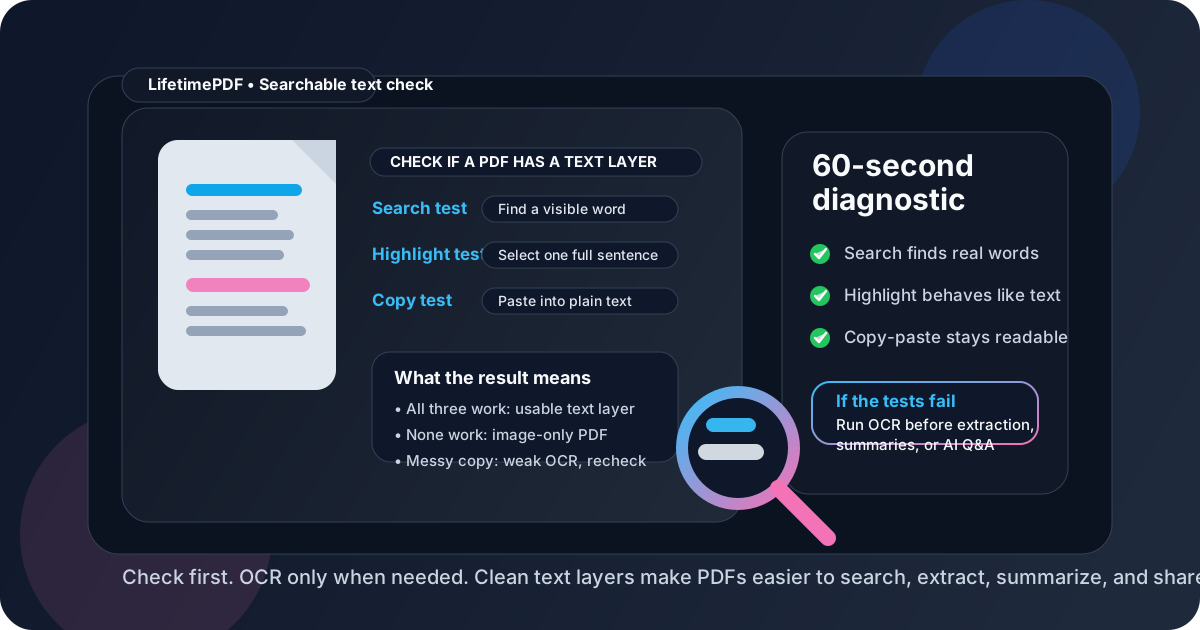
Table of contents
- Quick start: check for a text layer in 60 seconds
- What a PDF text layer actually is
- The 3 fastest tests: search, highlight, copy
- What your test results mean
- When to run OCR and when not to
- Why text layers matter for AI, accessibility, and archives
- Common signs of weak or broken OCR
- A practical LifetimePDF workflow after the check
- Related LifetimePDF tools
- FAQ (People Also Ask)
Quick start: check for a text layer in 60 seconds
If you just want to know whether the PDF contains real text or only page images, use this quick test:
- Open the PDF in your usual viewer or browser tab.
- Search for a visible word with
Ctrl+ForCmd+F. - Drag to highlight one full sentence.
- Copy that sentence and paste it into a plain-text note.
- If all three work cleanly, the PDF has a usable text layer. If they fail, run OCR PDF.
What a PDF text layer actually is
A text layer is the machine-readable text stored inside the PDF. It is what allows software to understand words on the page as words rather than as pixels. Once a PDF has a usable text layer, you can usually search for names, highlight clauses, copy passages, extract content, summarize it with AI, translate it, or feed it into downstream workflows.
Files without a text layer are usually one of these:
- Scanned paper documents saved as page images
- Phone-captured pages exported to PDF
- Screenshots combined into a PDF instead of true text pages
- Old OCR outputs where the text layer exists but is weak, scrambled, or misaligned
That last category matters. Not every text layer is equally useful. Some PDFs technically contain text, but the text is messy enough to break copying, searching, accessibility checks, or AI answers. That is why the diagnosis should include more than a single search test.
The 3 fastest tests: search, highlight, copy
These three checks are fast because they test the real behavior you care about, not just a hidden property panel.
1. Search for a visible word
Pick a word you can clearly see on the page, ideally something uncommon like a surname, invoice number fragment, or product name. Run your viewer's search tool. If it cannot find the word at all, the PDF may be image-only or the text layer may be badly broken.
2. Try to highlight one full sentence
Drag your cursor across a line. If the highlight behaves like normal text selection, that is a strong sign the PDF contains real text. If the cursor feels like it is moving over a picture, the file probably needs OCR.
3. Copy and paste a short line
Paste the copied text into a plain-text note, email draft, or text box. This is the best reality check because it reveals weak OCR quickly. If the result comes out as clean text, you are in good shape. If letters are missing, spacing is chaotic, or line order is broken, the PDF has a text layer, but not a trustworthy one.
What your test results mean
Once you run the three tests, use the results table below to decide your next move.
| What happened | What it usually means | Best next step |
|---|---|---|
| Search, highlight, and copy all work cleanly | The PDF has a usable text layer | Move straight to PDF to Text, PDF Summarizer, or PDF Q&A |
| None of the tests work | The PDF is probably image-only | Run OCR PDF |
| Search works, but copied text is messy | The file has weak OCR or a broken text layer | Clean the source if needed, then rerun OCR and verify again |
| You can highlight tiny fragments but not full lines | The text layer may be fragmented, hidden awkwardly, or badly aligned | Test several pages and consider OCR cleanup before extraction or AI use |
| Only some pages work | The PDF may mix digital pages with scans | OCR only the problem pages or reprocess the whole file if needed |
When to run OCR and when not to
A lot of people waste time by running OCR on everything. That is usually unnecessary and can sometimes make a clean document worse.
Run OCR when:
- The PDF behaves like a picture
- Search cannot find obvious words
- You cannot highlight normal text
- Copy-paste returns nothing useful
- The file came from a scanner, copier, or phone camera
Skip OCR when:
- The text layer is already clean and usable
- You can search, highlight, and copy without trouble
- You just need to extract text or ask questions about the file
- The source is a born-digital PDF exported from Word, Google Docs, Excel, or another app
Why text layers matter for AI, accessibility, and archives
This is not just a technical curiosity. The presence or absence of a usable text layer changes what you can do with the document.
For AI tools
Summaries, translations, extraction, and chat-based question answering are usually much more accurate when the PDF contains clean searchable text. If the file is image-only, the AI workflow is starting from a handicap.
For accessibility
Screen readers and other assistive tools rely heavily on readable text and document structure. A text layer is not the whole accessibility story, but without it, the file is already in trouble.
For archives and internal records
Searchable files age much better. An archive of image-only PDFs may look organized today, but it becomes painful the moment someone needs one name, one date, or one policy phrase from a box of old documents.
Common signs of weak or broken OCR
Sometimes the PDF technically has a text layer, but the quality is poor enough that you still should not trust it blindly.
- Copied text becomes gibberish: letters, spacing, or punctuation come out wrong
- Search finds the wrong places: results jump to odd offsets or miss obvious matches
- Selections are jagged or fragmented: one line behaves like dozens of tiny boxes
- Columns paste in the wrong order: especially common in reports, invoices, and old scans
- Mixed page quality: some pages work perfectly while scans or appendices do not
When you see those signs, fix the source first if possible. Rotating sideways pages, cropping black borders, and rerunning OCR often produces a much better result than forcing downstream tools to work from bad text.
A practical LifetimePDF workflow after the check
Once you know whether the PDF has a good text layer, the rest of the workflow becomes simpler.
If the PDF has no text layer
- Fix obvious page issues with Rotate PDF or Crop PDF if needed.
- Run OCR PDF.
- Repeat the search, highlight, and copy test.
- Then move into extraction, summarization, translation, or Q&A.
If the PDF already has a clean text layer
- Use PDF to Text if you need editable text.
- Use PDF Summarizer if you want the main points fast.
- Use PDF Q&A if you need exact answers from the file.
- Use Translate PDF or Redact PDF only after the text behaves properly.
Related LifetimePDF tools
- OCR PDF — add a searchable text layer to scanned or image-only PDFs
- PDF to Text — extract clean text when the PDF already behaves properly
- PDF Summarizer — turn a readable PDF into a fast brief and key points
- PDF Q&A — ask targeted follow-up questions once the text is usable
- Validate PDF — check for document issues before filing, sharing, or archiving
FAQ (People Also Ask)
How do I know if a PDF has a text layer?
Search for a visible word, highlight one sentence, and copy a short line into plain text. If all three work, the PDF has a usable text layer. If they fail, the file is probably image-only and needs OCR.
What is a text layer in a PDF?
A text layer is the machine-readable text inside the file. It is what makes a PDF searchable, selectable, extractable, and much easier to summarize, translate, or query with AI.
Can a PDF have a text layer but still work badly?
Yes. Some PDFs contain poor OCR, broken reading order, or fragmented hidden text. In that case search may partly work, but copy-paste or extraction quality can still be bad enough that rerunning OCR is worth it.
Should I OCR a PDF that already has searchable text?
Usually no. If the text is already clean, move straight into the task you actually need, such as text extraction, summarization, translation, or PDF Q&A. OCR is most useful when the file behaves like an image or the existing text layer is poor.
Why does search work, but the copied text still looks wrong?
That usually means the file has a text layer, but it is weak. Common causes include low-quality scans, skewed pages, complex layouts, or older OCR that misread parts of the document.